Excel Power Query can combine similarly structured files from a SharePoint document library into one refreshable table. The connector first returns files across a site, so the essential work is filtering the list before using the Combine Files command.
This tutorial uses the SharePoint site root, narrows the query to one folder and file type, chooses a representative sample file, and explains the helper queries that Power Query creates. The method works best when every source file uses the same column names and data layout.
Standardize the source folder first
Create a dedicated SharePoint folder for the input files. Move old exports, notes, PDFs, and temporary workbooks elsewhere. If the folder receives monthly workbooks, keep one header row and the same worksheet or table name in every file.
Power Query can skip some errors, but inconsistent schemas lead to missing columns and hard-to-audit results. Compare several source files before building the query. Normalize date columns, number formats, and header spelling at the source whenever possible.
If colleagues use the library through Teams, remember that the files still live in SharePoint. That storage relationship overview helps explain why a channel folder and a SharePoint library can show the same content.
Capture the site URL, not a file link
Use the site root such as https://contoso.sharepoint.com/sites/Finance, not the URL copied from one workbook and not the full document-library path. The connector handles authentication at the site level and returns the file inventory for filtering.
Connect from Excel
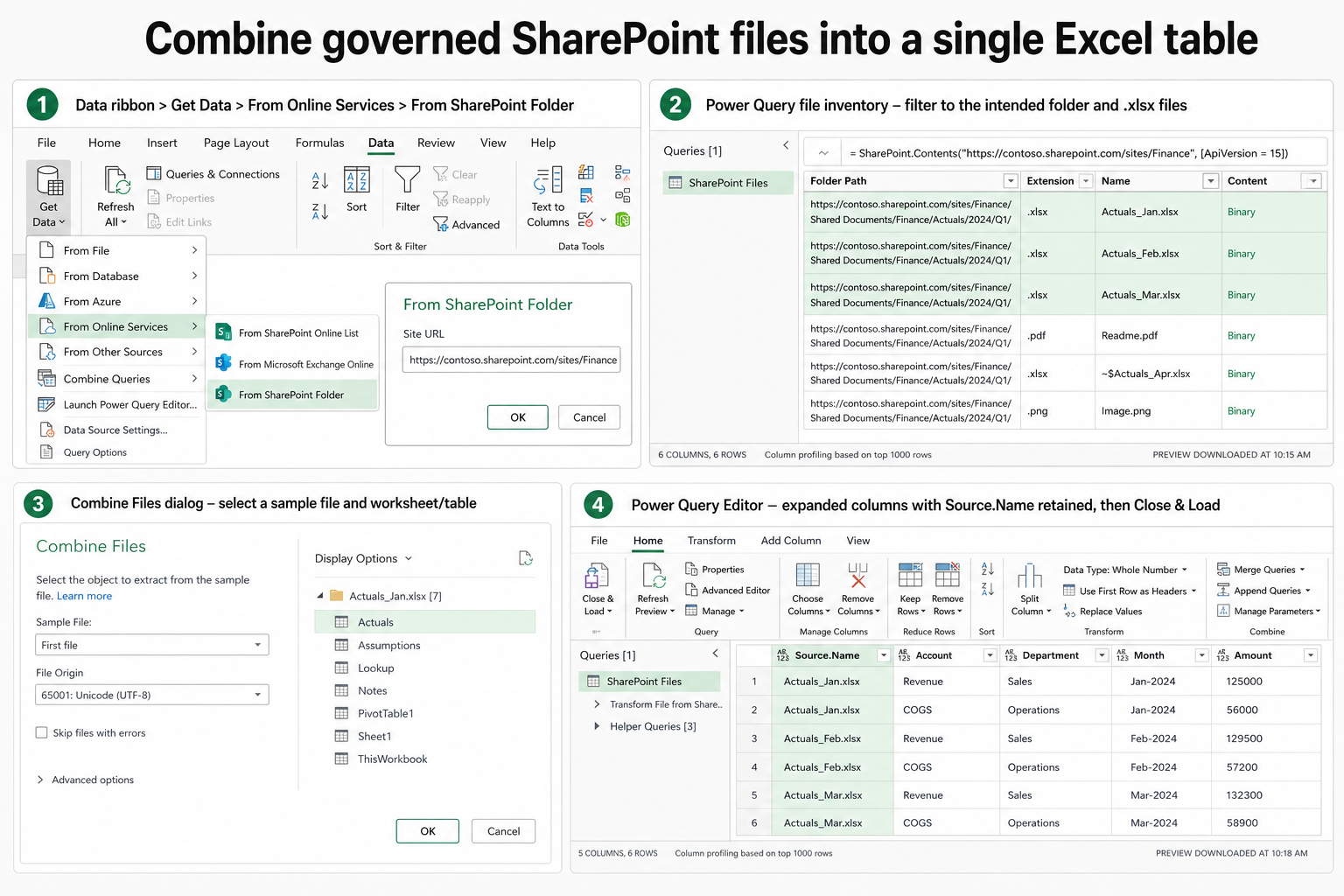
In desktop Excel, open a blank workbook and select Data > Get Data > From Online Services > From SharePoint Folder. The wording can vary slightly by Excel build, but choose the SharePoint Folder connector rather than SharePoint Online List.
Paste the site root and select OK. When prompted, choose Organizational account, sign in with an account that can read the library, and select Connect. The preview shows file metadata and a binary Content column.
Choose Transform Data instead of combining immediately. This opens Power Query Editor, where you can reduce the site-wide file list before Power Query opens every binary.
Filter to the intended files
Filter Folder Path so only the target library folder remains. Depending on the requirement, use an exact value or Text.StartsWith for a folder and its subfolders. Then filter Extension, for example to .xlsx, and exclude hidden or temporary files.
Retain columns that help with auditing, such as Name, Folder Path, and Date modified. These can be carried into the final table as source metadata. Filtering early improves refresh performance and prevents an unrelated workbook from becoming the sample.
Exclude the output workbook
Never save the consolidated workbook inside a source folder that the query scans unless you explicitly filter it out by name. Otherwise the next refresh can ingest its own previous output and duplicate the data.
Combine using a representative sample
Select the combine icon on the Content column or choose Home > Combine Files. In the sample-file dialog, select a file that contains the expected columns and target worksheet or table. Do not automatically accept the first file when it is empty, exceptional, or an older schema.
Power Query creates several linked objects:
- A Sample File query defines the transformation applied to one file.
- A Transform File function applies that logic to every binary.
- A parameter identifies the sample binary.
- The main query invokes the function and expands the resulting tables.
These helper queries are normal. Do not delete them just because only the final query should load to a worksheet.
After expansion, set explicit data types. Keep the source filename column so errors can be traced to the correct workbook. Rename the final query and select Home > Close & Load To to choose a table, PivotTable, connection-only output, or data model.
Make refreshes dependable
Add a new file that follows the agreed schema and refresh the final query. Confirm its rows appear once and that the source name is correct. Then test a deliberate schema problem in a copy of a file so you know how the query reports it.
When the library returns an access error, verify the site-root URL and organizational credentials before rebuilding the query. The SharePoint permission decision guide can help determine whether the user lacks site, library, folder, or file access.
Handle changing columns deliberately
If a new optional column appears, decide whether it belongs in the model and update the sample transformation. If a required column disappears, fail visibly rather than filling every row with nulls. A refresh that succeeds with incomplete business data is often more dangerous than a clear error.
Reduce unnecessary site scanning
Remove unneeded metadata columns after filtering, and avoid transformations that repeatedly open the same binaries. For large libraries, an organized source folder and early filename filters make a substantial difference. Archive historical files outside the scanned path when they are no longer part of the refresh.
Questions about the combined query
Can the files have different names?
Yes. File names can vary as long as the filter includes them and their internal table or worksheet structure is consistent. Preserve the Name column when the file identity matters downstream.
Why did Power Query create so many queries?
The combine operation needs a sample transformation and a reusable function. The helper queries support the final output and are normally set not to load. Edit them only when you understand how the generated pattern connects them.
Can I combine CSV and Excel files together?
Not with one unchanged sample transformation because the connectors interpret the binaries differently. Build separate staging queries for each format, normalize the columns, and append the resulting tables afterward.
Will the query include subfolders?
The SharePoint Folder connector returns files across the site. Your Folder Path filter determines whether subfolders remain. Use an exact path to exclude them or a starts-with filter to include a controlled subtree.
Keep the consolidation auditable
The most reliable SharePoint-folder query is intentionally narrow: one site, one governed input path, one supported file pattern, and one representative sample. Preserve source metadata, set data types after expansion, and test refreshes with both good and malformed files. Once the workbook is distributed, document who owns the source schema and credentials. Power Query can automate repeated consolidation, but it cannot make inconsistent files trustworthy on its own.