Intune can show the wrong primary user after a laptop is reassigned, enrolled by a technician, or first used by someone other than its long-term owner. The mismatch affects Company Portal device affinity, helpdesk views, and user-to-device reporting, but it does not automatically change who can sign in to Windows.
Before editing the property, distinguish four identities: Primary user, Enrolled by, Microsoft Entra Owner, and local Windows group membership. They can overlap, but they are not the same control.
Identify which user field is actually wrong
Open the Microsoft Intune admin center, go to Devices > All devices, and select the Windows device. On Overview, inspect Primary user, Enrolled by, ownership, join type, serial number, and last check-in.
The primary user is Intune’s user affinity for the managed device. Enrolled by records who performed enrollment and does not change when the primary user changes. The Microsoft Entra owner is a directory property, while membership in the local Administrators group is controlled on Windows.
Confirm the active device record
Reused names and duplicate records can put the right user on the wrong object. Match the serial number, Intune device ID, Microsoft Entra device ID, operating system, and recent check-in. If the intended record has not checked in since reassignment, synchronize it before making the association change.
Do not remove a duplicate during this check. First identify which record is active and whether another record is needed for Autopilot, historical recovery, or an incomplete enrollment.
Decide between a user device and a shared device
A personally assigned laptop normally has one primary user. A kiosk, conference-room computer, lab device, or rotating frontline workstation can be more accurate with no primary user, which Intune and Company Portal treat as a shared device.
The enrollment method helps explain the current state. User-driven enrollment generally assigns the enrolling user. Autopilot self-deploying mode and bulk enrollment can create devices without a primary user. Hybrid join through automatic enrollment or co-management can associate the first user who signs in.
Choose the intended device model before changing the value. Assigning a named primary user to a genuinely shared device can make reports look tidy while giving Company Portal the wrong ownership context.
Change the primary user in Intune
For a supported Microsoft Entra joined or Microsoft Entra hybrid joined Windows device:
- Open Devices > All devices in the Intune admin center.
- Select the verified Windows device.
- Open Properties.
- Select Change primary user.
- Search for the licensed Intune user, choose the account, and select Select.
The administrator needs the Managed devices/Set primary user permission. The selected person must have an Intune license. Microsoft documents primary-user changes for enrolled Windows devices that are Microsoft Entra joined or hybrid joined; a Microsoft Entra registered-only device is not supported for this change.
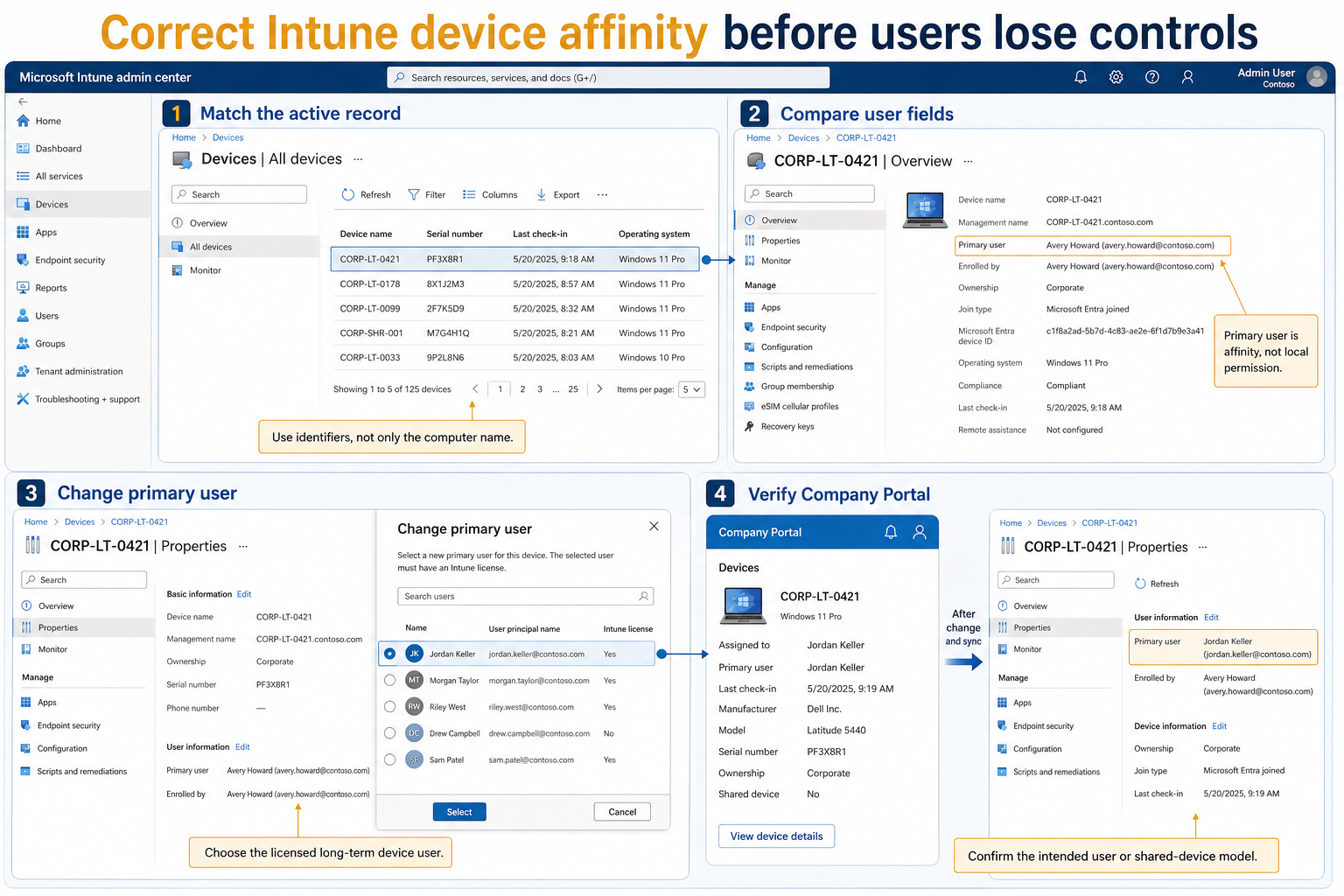
Allow several minutes for the updated association to appear across Intune and Microsoft Entra views. Refresh the device properties instead of submitting the same change repeatedly.
Know what the change does not do
Changing the primary user does not replace Enrolled by, add the person to local Administrators, remove the previous Windows profile, transfer files, or change the account used for Microsoft Entra join. Handle those requirements through their own approved processes.
It also does not repair a damaged Company Portal token. If the correct primary user is displayed but the app still loops or offers the wrong identity, repair the signed-in Company Portal session separately.
Verify the user experience and reporting
On the Windows device, open Company Portal and sign in as the new primary user. The device should appear under Devices without the warning that it is assigned to someone else. Self-service actions depend on platform and policy, but the association should now match the intended owner.
In Intune, verify the new primary user on Overview and in the user’s troubleshooting view. If the device was purposely changed to shared, confirm the shared label and test how available apps are assigned. Device-targeted and user-targeted available apps can behave differently in that model.
Finally, verify the device result under the correct association. Changing user affinity does not automatically make a failed security requirement compliant, but it ensures the helpdesk is reading the right user-device relationship.
When the Change primary user option is unavailable
Check the device platform and join type first. The supported change applies to enrolled Windows devices that are Microsoft Entra joined or hybrid joined. Then verify the administrator’s Intune role includes the required managed-device permission and that the proposed user is licensed.
If the device is stale, duplicated, or no longer managed, correct that lifecycle problem before changing affinity. For non-Windows platforms, assigning a new primary user generally requires enrollment rather than this Windows property action.
Primary-user questions
Why is the enrolling technician shown as primary user?
The enrollment method can associate the account used during enrollment, especially in user-driven flows. If the laptop is now assigned to another licensed user and the join type supports the change, update the primary user after confirming the active record. The Enrolled by field can continue to show the technician as historical enrollment context.
Does changing the primary user make someone a local administrator?
No. Intune user affinity and Windows local group membership are independent. Use your organization’s account-protection or local-admin policy to grant or remove administrative rights instead of relying on the primary-user field.
Why does Company Portal still show the previous owner?
The update can take several minutes to appear, and the app can retain a cached session. Confirm the Intune property first, synchronize the device, then sign out and back in to Company Portal. If the mismatch remains, repair the local app session without changing enrollment records again.
Should a shared Windows device have a primary user?
Usually not when several people use it without one long-term owner. With no primary user, Company Portal identifies the device as shared and limits some self-service actions. Test app targeting and support workflows for that shared model before removing an existing association.
Keep each identity in its proper role
Use Primary user for Intune device affinity, Enrolled by for enrollment history, Microsoft Entra owner for the directory relationship, and Windows groups for local permissions. Correcting one property should not be treated as a transfer of every other identity. When the active record, device model, supported join type, and licensed user all agree, the primary-user change becomes a small, predictable update instead of a risky device reassignment.