Office Scripts can automate workbook actions without leaving a desktop Excel session open. A Power Automate cloud flow calls the script through the Excel Online (Business) connector, passes optional inputs, and can use the script’s return value in later actions.
The reliable pattern is to make the script small, store the workbook in OneDrive for Business or SharePoint, and let the flow own the trigger and surrounding business process. This walkthrough starts with a tested script, adds the correct Run script action, and handles the file-lock and timeout problems that commonly appear after deployment.
Prepare the workbook and script
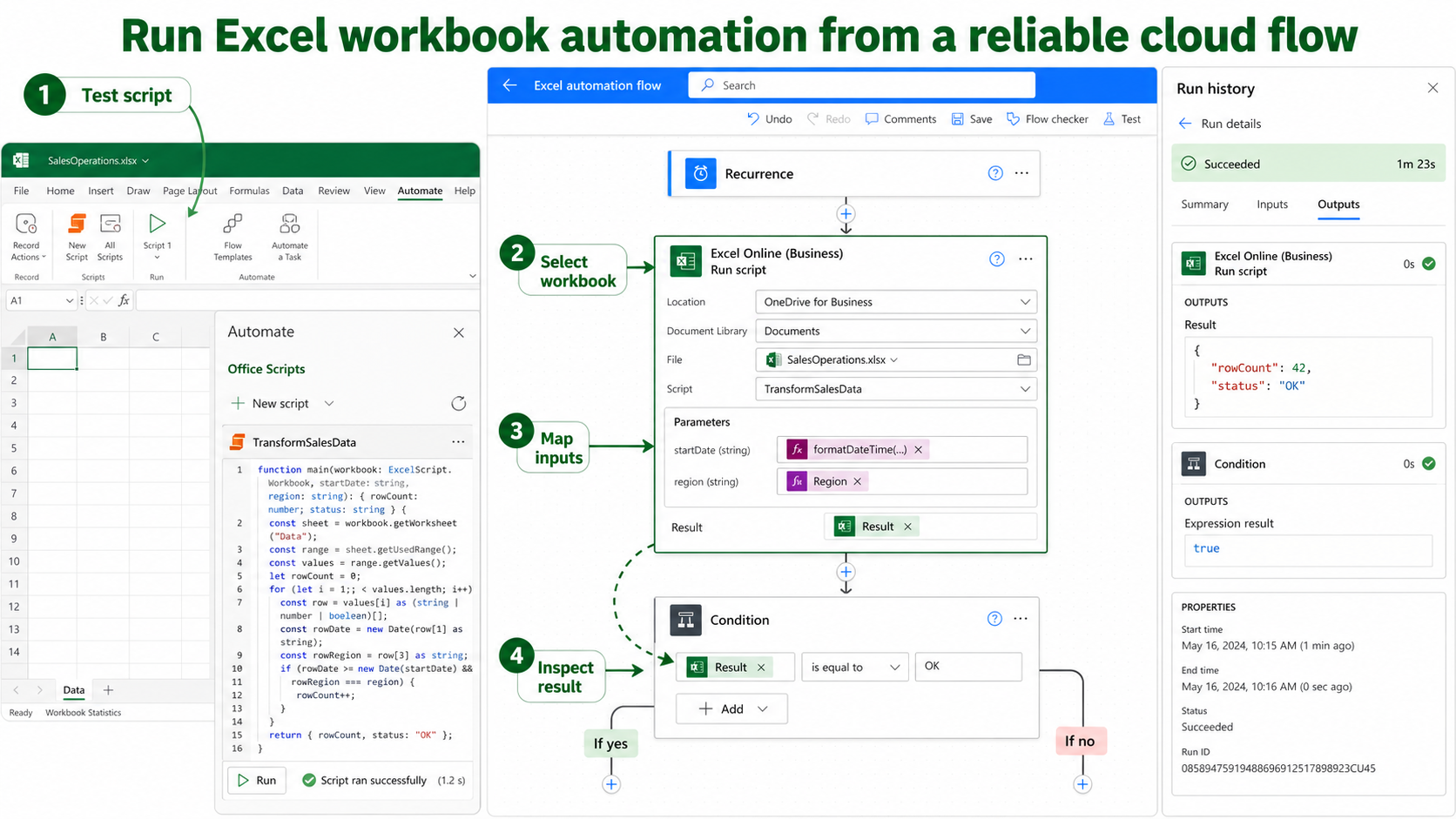
Open the workbook in Excel for the web or a supported Microsoft 365 desktop version and choose Automate. Create or record a script, then edit it so the main function performs one clear operation. Use tables and named structures instead of fixed ranges when rows can grow.
For example, a script might format a results table, remove empty rows, or return the number of processed records. Give it a descriptive name and run it manually against a copy of the workbook. A script that fails in Excel will not become more reliable when a cloud flow calls it.
Add explicit parameters
Parameters on the main function appear as fields in the Power Automate action. Use simple supported types and clear names. Validate incoming values inside the script, because a blank form answer or changed dynamic-content field can otherwise cause an unclear runtime error.
If your automation mostly updates table rows rather than performing script-only logic, the standard Excel connector pattern may be simpler to maintain. Use an Office Script when workbook formatting, calculation, or a multi-step Excel operation is the actual requirement.
Choose the correct connector action
Create an automated, instant, or scheduled cloud flow in Power Automate. Add the trigger that fits the business event, then add an Excel Online (Business) action.
Choose between the two Office Script actions:
- Run script calls a script stored in your default OneDrive script location.
- Run script from SharePoint library calls a script stored with your team’s SharePoint resources.
For Run script, select the workbook location, document library, and file, then choose the script. For the SharePoint-library action, provide the corresponding site and library information for both the workbook and script as the action requests.
Avoid pasting a sharing URL into a file field when the designer provides a picker. The connector needs the workbook’s file identifier. Renaming or moving the workbook after building the flow can invalidate a fixed reference, so make the final storage decision first.
Map inputs and capture the result
After selecting the script, Power Automate exposes its parameters. Map each field from the trigger or a previous action. If the parameter list does not update after you change the script signature, reselect the script or recreate the action so the connector refreshes its schema.
When the script returns a value, the action provides a result output. Use it in a condition, Compose action, email, Teams message, or later data operation. Keep returned data reasonably small; the script should transform the workbook, not act as a bulk data export service.
Test with a controlled workbook copy
Save the flow and use Test with known input. Review the flow run history and expand the Run script action. Confirm the selected file, parameter inputs, action output, and duration. Then open the workbook and verify the actual end state.
Use a dedicated test file while developing. Multiple flow runs, a user editing the workbook, or another connector action can create contention. If the flow must write rows and then run the script, keep the sequence explicit and avoid parallel branches against the same workbook.
Prevent overlapping executions
For a frequently triggered flow, enable trigger concurrency control and set a conservative degree of parallelism when every run touches the same file. Another option is to write incoming work to a queue and process it serially. A script should not assume it is the only caller unless the flow enforces that assumption.
When a run fails intermittently, the run-history debugging method helps identify whether the connector, the script, or an earlier action supplied the bad input. Do not rely only on the red status at the top of the flow.
Diagnose common failures
The workbook or script is missing from the picker
Confirm that the connection uses the correct work account and that the resource is stored in OneDrive for Business or the intended SharePoint library. Select Run script from SharePoint library when the script itself is stored on a team site. Personal OneDrive and a business connector are not interchangeable.
The file is locked or a request conflicts
Close unnecessary editing sessions and remove parallel actions that touch the same workbook. Build retries around transient connector errors, but do not use aggressive retries that create more simultaneous requests. For a long-running business process, consider copying data into a dedicated automation workbook.
The action times out
Reduce the amount of worksheet reading and writing. Read a range once, transform arrays in memory, and write results back in batches. Avoid loops that call the workbook API cell by cell. Split unrelated work into separate scripts or flows when one action becomes too large.
Parameters show old fields
The action cached the earlier script signature. Reselect the script, save the flow, and inspect the action again. If the schema remains stale, delete and add the action again, then remap dynamic content carefully.
Questions about Office Scripts in flows
Does Excel need to stay open?
No. Power Automate runs the Office Script through the cloud connector against a supported workbook location. A user’s desktop Excel session is not the execution host.
Can Power Automate run VBA instead?
The Excel Online (Business) connector calls Office Scripts, not VBA macros. Desktop VBA requires a different attended or desktop-automation design and cannot be invoked by the Office Scripts connector.
Can the flow pass a table of data?
Office Scripts supports several parameter and return types, including arrays and objects within documented limits. Keep the schema stable and test real payload sizes, because large data transfers can make the action slow or exceed connector limits.
Why can some users run scripts but not build this flow?
Office Scripts availability, script sharing, Power Automate use, licenses, and connector policies can be controlled by administrators. Confirm that the user has access to the workbook, script, connector, and required environment rather than assuming one permission covers everything.
Put the automation into service
Before production, move the workbook and script to their final governed location, use a service-appropriate connection owner, and define how failures are monitored. Serialize calls when one workbook is a shared resource, and make script inputs explicit. A small, deterministic Office Script paired with a well-scoped flow is easier to support than one large script that handles triggers, data movement, notifications, and workbook logic all at once.