Company Portal can loop at sign-in, return to the account picker, show that the device belongs to someone else, or open without recognizing a managed Windows device. These symptoms look similar but cross three separate layers: Microsoft identity, the Windows work-account connection, and the local Company Portal app.
Test those layers in that order. Resetting the app cannot repair an incorrect primary user, and re-enrolling the device is excessive when only the local sign-in session is stale.
Prove the account works outside the app
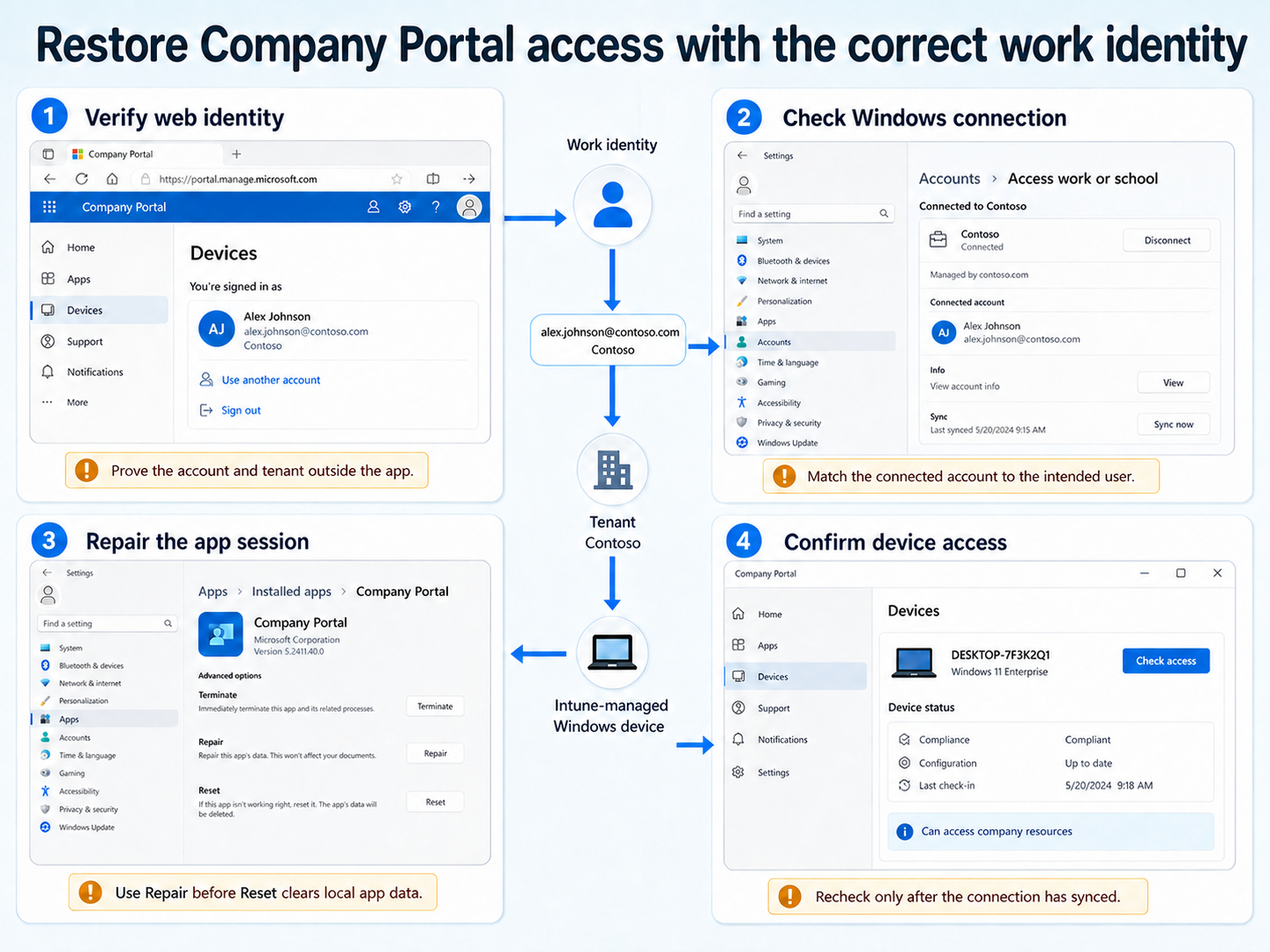
Open a private browser window and sign in to the Company Portal website with the same work or school account. Complete any multifactor authentication prompt and confirm the account is not locked, expired, or being redirected to the wrong tenant.
If browser sign-in also fails, the problem is not limited to the Windows app. Capture the identity error, tenant, and Conditional Access result for the administrator. Do not clear device enrollment data to fix a password, MFA, federation, or account-state failure.
Watch for the wrong cached work identity
On shared or reassigned computers, the account picker can offer a previous user’s work identity. Verify the full user principal name before continuing. Signing out of Company Portal and choosing Use another account is safer than accepting a familiar display name.
Check Settings > Accounts > Access work or school and compare the connected account with the intended Company Portal user. A mismatch explains repeated prompts because Windows and the app are trying to use different organizational identities.
Confirm that the device connection is healthy
Select the work or school connection in Windows Settings. When Info is available, open it and review the management connection, then select Sync once. The operation should complete without an MDM error.
If the connection is missing or enrollment previously failed, return to the enrollment recovery path. Do not add the same account repeatedly; duplicate or partial connections make the sign-in state harder to interpret.
Interpret the assigned-to-someone-else warning
Company Portal expects the signed-in user to match the device’s Intune primary user when the device has user affinity. A warning that the device is assigned to someone else is therefore an ownership signal, not a password error.
Ask an Intune administrator to compare the device’s Primary user, Enrolled by, and current user. Changing the primary user can restore the expected Company Portal experience on supported Windows devices, but it does not change local Administrators membership or replace a broken enrollment.
Repair the local Company Portal session
Once identity and enrollment are known to be healthy, close Company Portal completely. Reopen it and sign out from the app if the option is available, then sign in with the verified work account. Install any pending Microsoft Store update for Company Portal before resetting its data.
If the loop continues:
- Open Settings > Apps > Installed apps.
- Find Company Portal and open Advanced options.
- Select Terminate, then Repair.
- Reopen the app and test sign-in.
- Use Reset only if Repair does not work, knowing that local app data and the cached session are cleared.
Resetting Company Portal does not remove the Intune management relationship by itself. It does require the user to authenticate again, and the app may need time to rediscover the managed device and available applications.
Read the result after sign-in
Open Devices in Company Portal and select the current Windows device. Confirm that its name and status match the computer in use. Run Check access only after the device is online and the work connection has synchronized.
If Company Portal signs in but an expected application is missing or fails to install, trace the app-specific assignment. Authentication success proves access to the portal, not that every app is assigned or applicable.
Use Help & support to find organizational helpdesk details or send logs when the app remains unusable. If the local app cannot reach support, the Company Portal website can still provide the organization’s contact information.
Avoid repairs that change device ownership
Disconnecting Access work or school, deleting the Intune record, or retiring the device changes more than the Company Portal session. Those actions can remove management, certificates, access, or the relationship used for compliance and applications.
Use them only when an administrator has identified a damaged or obsolete enrollment. A sign-in loop with a healthy web login and healthy Windows management connection should be handled as a client-session problem first.
Company Portal sign-in questions
Why can I sign in on the website but not in the Windows app?
The account and tenant are probably valid, while the local app session, Microsoft Store package, or Windows work-account token is stale. Update Company Portal, verify the connected Windows account, and use Repair before Reset. Preserve any specific app error because it can distinguish token trouble from a damaged package.
Will resetting Company Portal unenroll the device?
Reset clears the app’s local data and sign-in state, but it does not normally remove the Windows MDM connection. The user must sign in again, and device discovery can take time. Always verify Access work or school after the reset rather than assuming management changed.
Why is Company Portal functionality limited for this user?
The signed-in account might not be the Intune primary user, or the device might be configured as shared with no primary user. Available apps can still work in supported shared-device scenarios, but actions such as rename, reset, or retire can be restricted. The Intune device properties reveal which model applies.
Can Conditional Access cause a Company Portal sign-in loop?
Conditional Access can block authentication or require controls the session cannot satisfy. The administrator should inspect the Microsoft Entra sign-in result and failed grant control. Do not weaken device compliance policy merely because the client returns to the sign-in screen.
Restore the correct relationship, not just the window
A stable Company Portal session needs one verified work identity, a healthy Windows management connection, and the expected Intune user association. Test the browser identity first, then the Windows connection, and repair the local app last. When the portal opens, confirm the current device and run one access check so the result reflects the recovered relationship rather than another cached sign-in attempt.