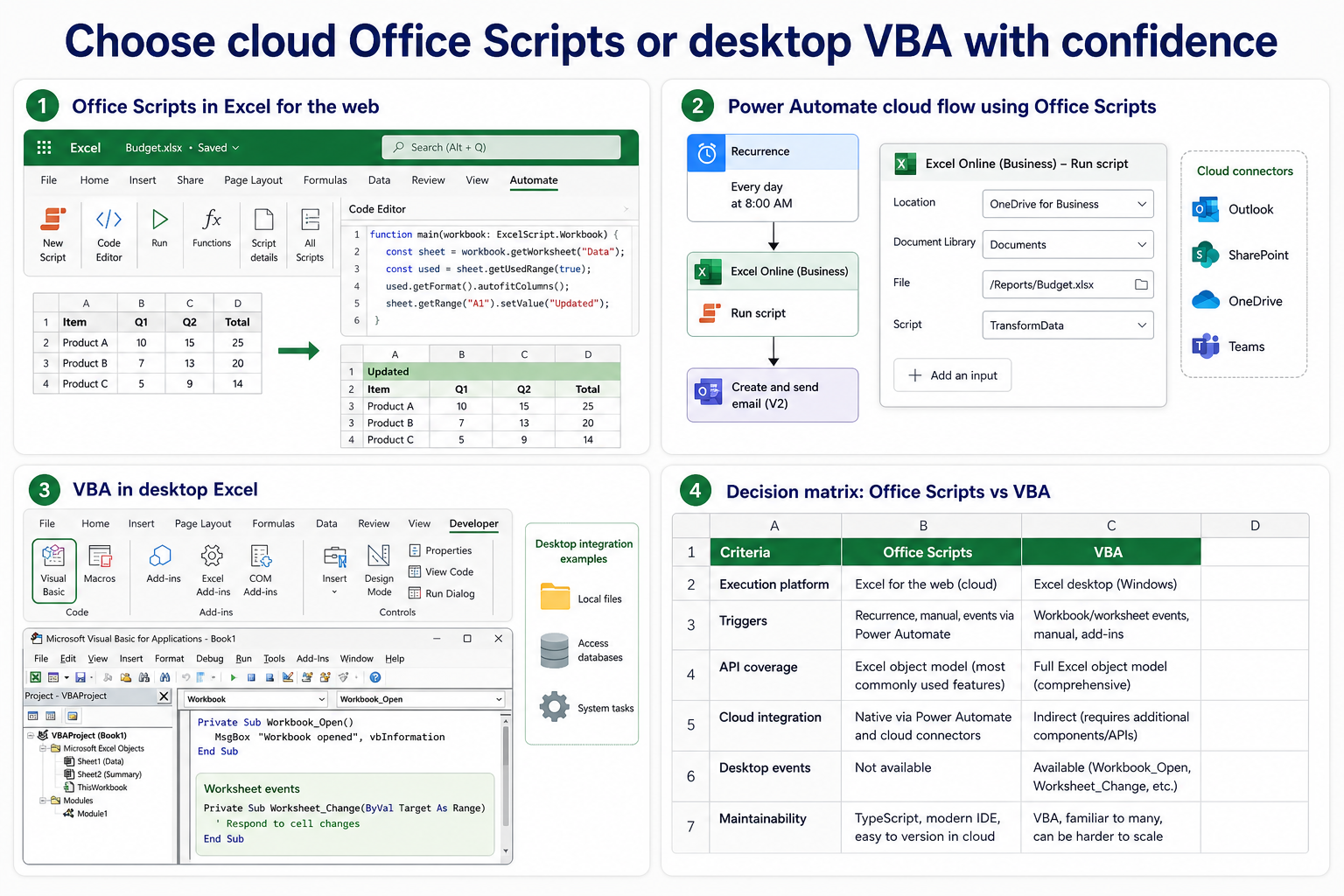
Office Scripts and VBA both automate Excel, but they are designed for different operating environments. Office Scripts use TypeScript and a cloud-friendly Excel API; VBA runs inside desktop Office and has deep access to the desktop object model.
The decision is less about which language is newer and more about where the automation must run. Choose Office Scripts for cross-platform workbook work and Power Automate integration. Choose VBA when a desktop-only solution needs Excel events, legacy macro compatibility, or Windows and Office integration that the Office Scripts API does not provide.
Compare the execution model
Office Scripts run when a user selects them or when a Power Automate flow invokes them. They work in supported Excel experiences on the web, Windows, and Mac. They do not run on iOS, and they do not provide Excel-level event handlers.
VBA macros run in desktop Excel on Windows and Mac. They do not run in Excel for the web. VBA can respond to workbook, worksheet, and application events, which makes it suitable for interactive desktop behavior such as validating a cell immediately after the user changes it.
| Need | Office Scripts | VBA |
|---|---|---|
| Run from Power Automate | Native connector support | No native VBA connector |
| Excel for the web | Supported | Not supported |
| Excel events | Not supported | Supported |
| Deep desktop integration | Limited by Office Scripts API | Strong, especially on Windows |
| Shared cloud workflow | Strong fit | Requires desktop execution |
Existing .xlsm solution |
Usually a rewrite | Native fit |
Choose Office Scripts for cloud orchestration
Office Scripts are the clearer choice when a workbook lives in OneDrive for Business or SharePoint and a business event should trigger automation. A scheduled or event-driven Power Automate flow can run a script without a user leaving Excel open.
Scripts can accept parameters and return values to the flow. This supports designs such as receiving a form response, updating a workbook, formatting a table, and sending a result. The connector-first Excel workflow shows where standard row actions fit before you add custom script logic.
Expect a governed cloud boundary
Office Scripts are controlled by Microsoft 365 administration, sharing policy, licenses, and workbook permissions. They cannot freely automate the local desktop or call COM objects. That boundary is a benefit for centrally governed cloud workflows, but it prevents a direct port of many Windows-centric macros.
Refactor cell-by-cell macros
A VBA macro often loops over cells because desktop calls are local. Office Scripts perform better when they read a range into an array, transform the data in memory, and write back in one operation. A line-for-line translation can work functionally but perform poorly in a cloud execution model.
Keep VBA for desktop depth and events
VBA remains practical for a trusted desktop workbook that depends on events, UserForms, legacy add-ins, COM automation, or detailed parts of Excel not covered by Office Scripts. It also fits mature internal tools whose users already work in desktop Excel and whose code is actively maintained.
Macro security is part of the design. Use trusted locations or signed code according to organizational policy, avoid distributing unsigned internet-sourced workbooks, and do not ask users to weaken Trust Center protections. The macro authoring overview is useful for reviewing generated VBA critically rather than running code without inspection.
Account for Windows and Mac differences
VBA runs on Excel for Windows and Mac, but Windows-only COM objects, ActiveX controls, filesystem paths, and external dependencies can prevent cross-platform use. If Mac support matters, test the exact code and replace platform-specific calls. “VBA works on Mac” does not mean every Windows macro does.
Use a decision sequence, not a popularity vote
Ask these questions in order:
- Must the automation run in Excel for the web or through Power Automate? Choose Office Scripts.
- Must it respond to workbook events or operate desktop-only Office features? Choose VBA.
- Is the process mainly importing and transforming external data? Consider Power Query before either scripting system.
- Does a standard Excel connector action already perform the task? Prefer the lower-code option.
- Is there a large stable VBA investment? Modernize only when the new operating model creates a clear benefit.
A mixed solution can be reasonable across a portfolio, but avoid making one workbook depend on both technologies for the same core operation. Users need a single obvious way to run and support each process.
Plan a migration by capability
Inventory triggers, APIs, dependencies, data sources, and outputs. Separate pure workbook transformations from desktop integration. The workbook-only portion is the strongest Office Scripts candidate. Event handlers, forms, and COM calls need redesign rather than translation.
Build a small proof of concept and compare results on representative files. For Power Automate, test locking, concurrency, execution time, and connection ownership. For VBA, test macro trust, desktop version differences, and recovery after a partial run.
Questions before selecting a platform
Can Office Scripts replace every VBA macro?
No. The Office Scripts API covers many Excel for the web scenarios, but it does not reproduce the full desktop object model, Excel events, COM, or every legacy integration. Evaluate capabilities rather than assuming automatic conversion.
Can VBA run from a cloud flow?
Not through the native Office Scripts actions. A desktop automation could open Excel and run a macro, but that introduces a machine, session, security, and reliability model that is different from a cloud script.
Which is safer?
Both can be used safely under appropriate governance. Office Scripts operate within Microsoft 365 permissions and admin controls, while VBA requires careful macro trust and code-signing practices. Unsafe code and overly broad access are risks in either model.
Should data cleanup use a script?
Not always. Power Query is usually better for repeatable import and transformation of external data. Office Scripts fit Excel-centric actions and flow integration, while VBA fits desktop interaction; choose the tool that naturally owns the job.
Make the operating environment decide
Select Office Scripts when the automation belongs in a shared, cross-platform, cloud-triggered workflow. Retain VBA when the value comes from desktop events, mature macro code, or Office integration unavailable in the cloud API. Test performance and permissions with real workbooks before committing to a migration. A clear platform boundary is more maintainable than choosing a technology because it appears newer or more familiar.