
Troubleshooting Teams screen sharing problems
Many professionals rely on Microsoft Teams for virtual collaboration, but screen sharing issues can disrupt important meetings and presentations. When you’re unable to share your screen in Teams or participants can’t see your shared content, it creates frustrating delays and communication barriers. This tutorial addresses common Teams screen sharing problems and provides practical solutions.
Why Microsoft Teams screen sharing fails?
Screen sharing in Microsoft Teams might not work due to several factors including browser limitations, permission issues, outdated software, network constraints, or device compatibility problems. For businesses relying on virtual collaboration, these technical hiccups can impact productivity and professionalism. We’ll resolve these issues using Microsoft Teams settings, browser configurations, and system adjustments to ensure seamless presentations and demonstrations.
How to fix screen sharing not working in Teams?
This tutorial covers comprehensive troubleshooting steps for when you’re unable to share your screen in Microsoft Teams. We’ll address both the web version and desktop application scenarios, focusing on permission settings, software updates, and configuration adjustments. The solutions apply to Windows and Mac users experiencing Teams screen sharing problems during meetings and calls.
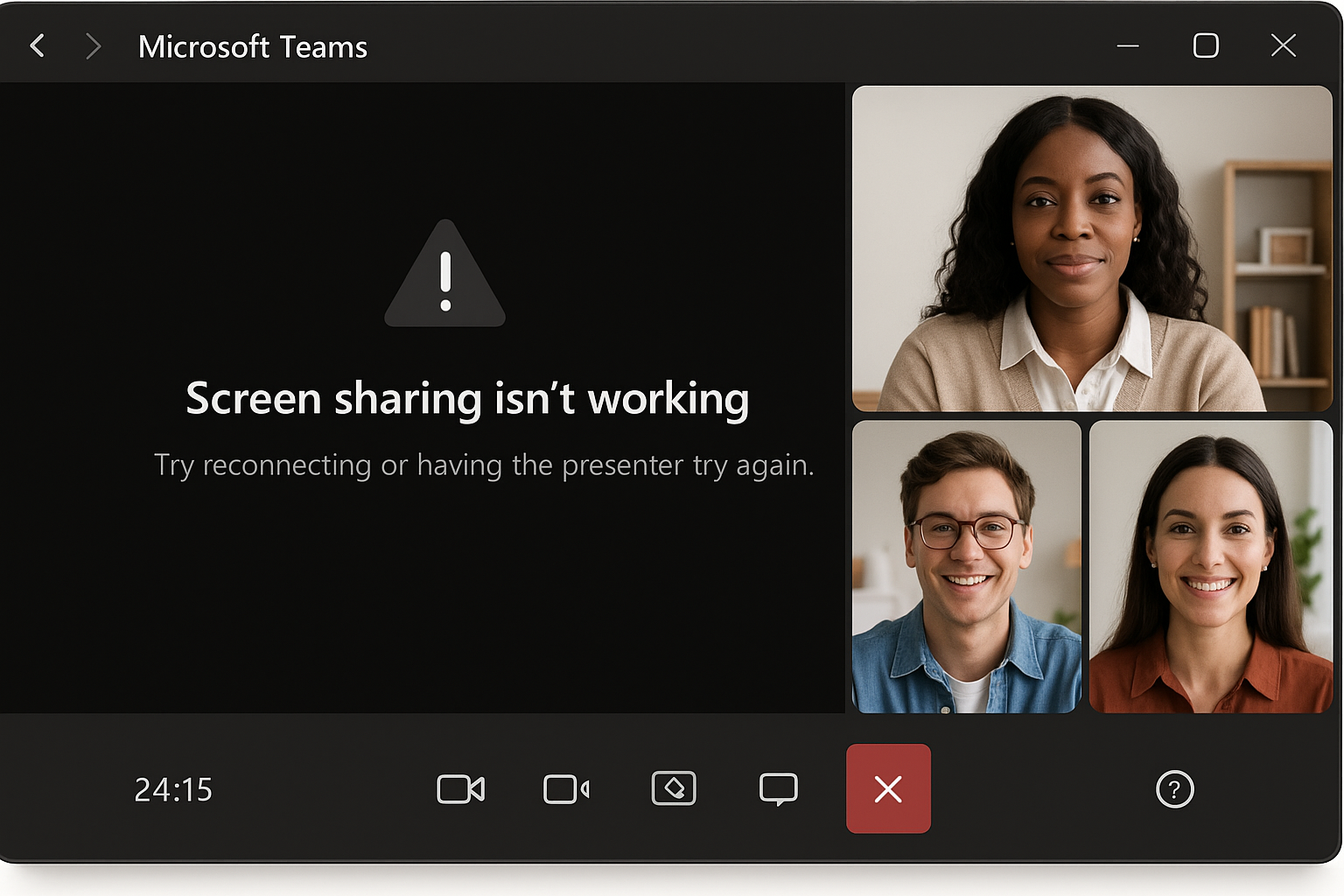
Resolving Microsoft Teams screen sharing issues
- Check your Teams permissions first by verifying that you have presenter or organizer role in the meeting, as attendees may have limited sharing capabilities depending on meeting settings configured by the organizer.
- Update your Microsoft Teams application to the latest version by clicking on your profile picture, selecting “Check for updates,” and installing any available updates, as outdated software often causes screen sharing functionality problems.
- Restart Microsoft Teams completely by closing the application (not just minimizing), waiting 30 seconds, then reopening it, which often resolves temporary glitches preventing screen sharing features from working properly.
- Verify your browser settings if using Teams web version by ensuring you’re using a supported browser like Edge or Chrome, and checking that you’ve granted necessary screen sharing permissions when prompted by the browser.
- Clear your browser cache and cookies if using Teams in a browser by navigating to browser settings, finding the privacy or history section, and clearing browsing data from at least the past week.
- Check your device’s privacy settings by going to System Settings > Privacy > Screen Recording (on Mac) or Settings > Privacy > Camera (on Windows), ensuring Microsoft Teams has permission to capture your screen.
- Disable hardware acceleration in Teams by clicking on your profile picture, selecting Settings > General, and unchecking “Register Teams as the chat app for Office,” then restarting Teams to see if screen sharing now functions correctly.
- Test with a different network connection such as switching from Wi-Fi to mobile hotspot or wired connection, as some corporate networks and VPNs may block or restrict the protocols needed for screen sharing.
- Ensure no conflicting applications are running that might be using screen recording features simultaneously, such as Zoom, WebEx, or recording software, which can prevent Teams from accessing screen sharing capabilities.
- Check if you can share specific applications instead of your entire screen by selecting “Window” instead of “Desktop” in the sharing options, which sometimes works when full desktop sharing encounters problems.
Common Teams screen sharing problems and fixes
- “We couldn’t find anything to share” error message appears when attempting to share your screen in Teams, which typically indicates permission issues or conflicts with other applications. Fix this by checking your system’s screen recording permissions, closing other video conferencing tools, restarting Teams, and ensuring you’re not in a restricted guest or attendee role in the meeting.
- Others cannot see your shared screen even though you’ve started sharing successfully, which often relates to network constraints or participant-side issues. Resolve this by asking participants to leave and rejoin the meeting, suggesting they try a different device or browser, and considering reducing your screen resolution temporarily to decrease bandwidth requirements.
- Screen sharing starts but freezes or appears pixelated to other participants, indicating bandwidth limitations affecting the quality of shared content. Address this by closing unnecessary applications consuming network resources, connecting to a more stable network if possible, and selecting the “share computer sound” option only when absolutely necessary since it requires additional bandwidth.
- If your shared content appears too small or large for participants, you may need to adjust your microsoft teams screen size zoom settings. This can significantly improve the viewing experience for all meeting attendees.
- If you’re experiencing audio issues while screen sharing, you may need to fix teams audio camera issues first, as these problems are often interconnected with screen sharing functionality.
Sharing in Teams across platforms and Browser Differences
Screen sharing behavior varies significantly between Teams platforms and browsers. Teams desktop application generally provides the most reliable screen sharing experience with full feature access, while browser versions may have limitations depending on your chosen browser. Chrome and Microsoft Edge offer the best compatibility for Teams web version, while Firefox and Safari users may encounter additional permission prompts or reduced functionality.
Mac users should be particularly aware of macOS privacy settings, which require explicit permission for screen recording. Navigate to System Preferences > Security & Privacy > Privacy > Screen Recording and ensure Microsoft Teams is checked. Windows 11 users may need to allow Teams through Windows Security settings, particularly if using enterprise security policies that restrict application permissions.
Meeting Policy Troubleshooting
If screen sharing remains unavailable despite technical troubleshooting, the issue may stem from organizational policies configured by your IT administrator. Meeting organizers can control screen sharing permissions through Teams admin center policies, which may restrict sharing to specific user roles or disable the feature entirely for security reasons. Contact your IT department if you consistently cannot share screens across multiple meetings, as this likely indicates a policy-level restriction rather than a technical problem with your device or software installation.