Last updated: May 2026 | Tested on: Windows 11, Windows 10
Laptop audio on Windows 11 can fail in several different ways: no sound, quiet sound, crackling, app audio missing, or the wrong speaker playing. The fastest fix is to separate system-wide audio problems from app-specific ones. Once you know which side is failing, Windows gives you a short path through output selection, volume mixer, enhancements, troubleshooters, services, and drivers.
Do not start by reinstalling drivers unless Windows cannot see an output device at all. From my experience, most laptop sound issues come from a muted app, the wrong playback device, or an enhancement setting that the driver handles badly.
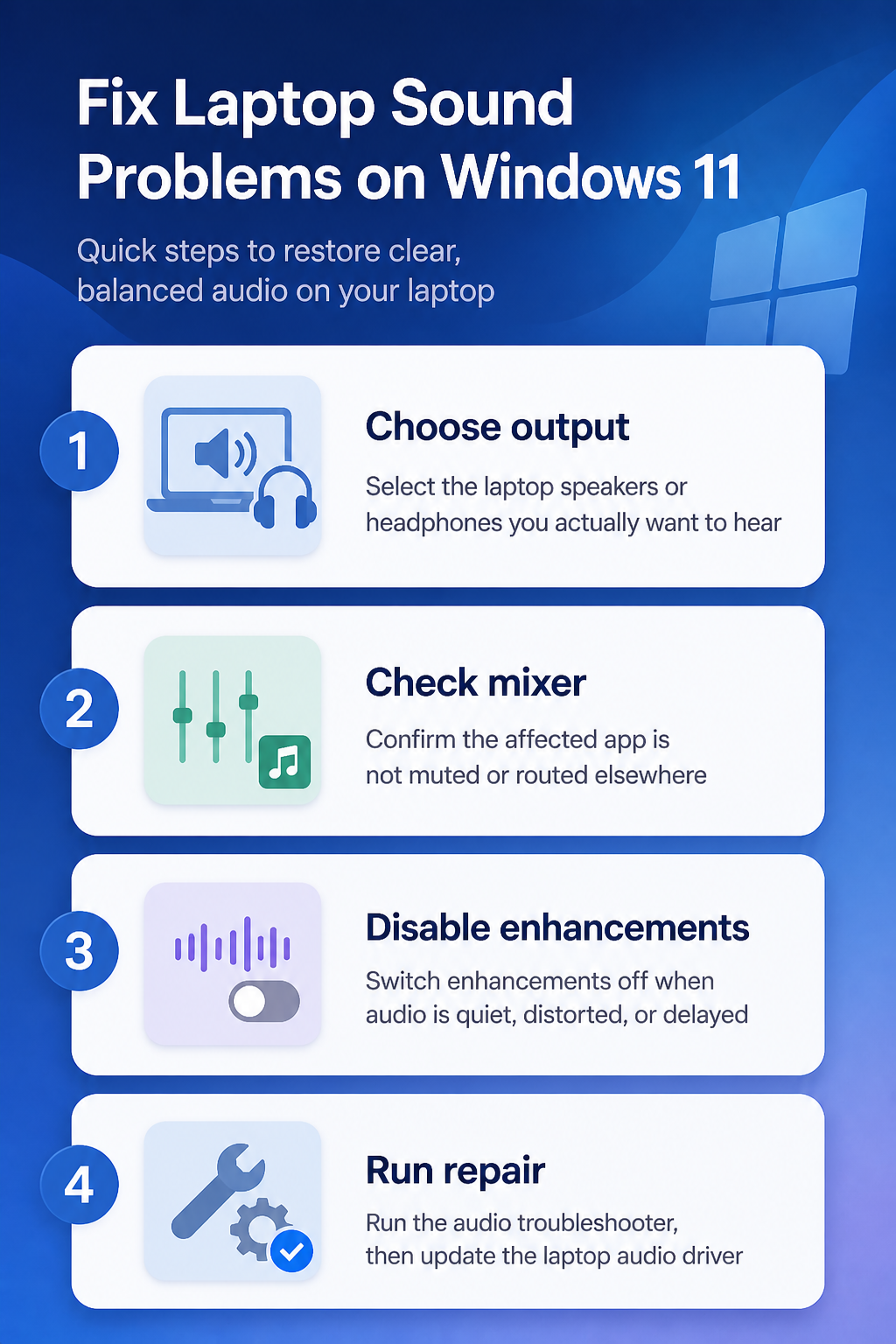
Check basic sound output
Select laptop speakers
Open Settings >> System >> Sound and look under Output. Choose the laptop speakers or the headphones you actually want to use, then raise the volume from the same page. If you use HDMI, USB-C docks, Bluetooth headphones, or monitors, Windows may keep sending sound to the last connected device.
My first pass is always output selection before driver work, because Windows often remembers a dock or monitor that is no longer in use.
Click the speaker icon on the taskbar and use the output picker there too. This catches quick switching mistakes, while the full Sound settings page shows deeper device options. If the output device is missing entirely, skip ahead to the driver section.
Open Volume mixer
Go to Settings >> System >> Sound >> Volume mixer. Check System sounds and the affected app. Make sure the app is not muted and that its Output device is set to Default or to the correct speakers.
- If one browser tab is silent, test another tab and restart the browser.
- If only one app is silent, reset that app’s volume and output in Volume mixer.
- If every app is silent, focus on the output device, troubleshooter, services, and driver.
Volume mixer is especially useful after video calls. Meeting apps can leave per-app routing behind, so music plays from speakers while the call app keeps trying to use headphones. If the problem is limited to meetings, fix Teams audio issues before changing laptop-wide drivers.
Turn off enhancements
Select the output device in Sound settings, then turn Audio enhancements off if the option appears. Enhancements can cause no sound, low volume, distortion, or crackling on some laptop audio drivers. Test a simple local audio file after changing the setting.
If Windows shows Default format, try another common format such as 16-bit, 48000 Hz. A format mismatch can make sound quiet or distorted. Use the setting that plays cleanly rather than the one that looks most advanced.
Repair Windows audio issues
Run the troubleshooter
Windows 11 routes many built-in repair flows through the Get Help app. Open Settings >> System >> Troubleshoot >> Other troubleshooters, then run the audio troubleshooter if it is listed, or search for audio help in Get Help. Let it check services, device status, and common output errors.
This is worth doing before manual service changes. The troubleshooter will not fix every driver problem, but it can restore disabled devices or obvious routing mistakes without making the system worse.
Restart audio services
If system audio randomly stopped after sleep, a dock change, or a crash, restarting can be enough. Save work, reboot Windows, and test again. If the display also looks off after a dock change, fix blurry text in Windows separately so you do not mix audio and scaling problems. If you need a more targeted check, open Services and confirm Windows Audio and Windows Audio Endpoint Builder are running.
Be careful with service changes you find in old forum posts. Disabling audio services, changing startup types, or removing driver components can turn a simple mute problem into a missing-device problem. Reboot first, then use Services only to confirm that the expected services are started.
Update the audio driver
Open Device Manager, expand Sound, video and game controllers, and check whether the Realtek, Intel, AMD, or laptop-specific audio device appears normally. If it has a warning icon, right-click it and choose Update driver, then also check the laptop manufacturer’s update utility. Laptop audio often depends on vendor-tuned drivers, not only generic Windows Update packages.
When audio broke immediately after an update, open the device Properties >> Driver tab and look for Roll Back Driver. Use rollback only when the timeline is clear. If Windows says no audio output device is installed, the driver or device detection path is the priority.
Fix specific symptoms
No sound anywhere
For no sound in every app, check output selection, physical mute keys, keyboard volume keys, and More sound settings >> Playback. In the classic playback list, right-click the expected device and set it as default if needed. Some laptops expose speakers, headphones, HDMI audio, and communication devices separately.
If the laptop speakers work only after plugging and unplugging headphones, cleanly restart the machine and check for vendor audio-console updates. Jack detection issues are usually driver-related. Avoid forcing random registry fixes because modern laptop audio drivers vary a lot.
Crackling or distorted sound
Crackling usually points to enhancements, unsupported formats, driver bugs, or heavy system load. Turn off Audio enhancements, test another Default format, and close CPU-heavy apps. If crackling happens only in Bluetooth headphones, treat it as a Bluetooth connection issue rather than a laptop speaker issue.
The most useful comparison is wired headphones versus built-in speakers. If both crackle, Windows audio or the driver is likely involved. If only one device crackles, focus on that device path.
App audio is missing
If system sounds work but a specific app is silent, open Volume mixer and check that app’s volume and output. Some apps also have internal audio-device settings, especially meeting tools, games, video editors, and browsers with recording permissions. Set the app back to the default output and restart it.
I avoid changing global drivers for one silent app until Volume mixer and the app’s own device menu have both been checked.
Windows audio questions answered
Why does my laptop have no sound?
The most common reasons are the wrong output device, a muted app in Volume mixer, audio enhancements, or a driver that stopped loading. Check Windows Sound settings before reinstalling anything. If the output device is missing, move to Device Manager and laptop-maker driver updates.
Why is only one app silent?
Windows 11 lets apps have separate volume and output settings. Open Volume mixer and check the app’s volume, mute state, and output device. If the app has its own audio menu, set it back to the system default.
Should I use Windows Update for audio drivers?
Use Windows Update first, but also check your laptop manufacturer’s support tool. Laptop audio drivers are often customized for speakers, microphones, hotkeys, and audio consoles. Generic drivers can work, but vendor packages are usually better for persistent laptop sound problems.
Fixing laptop audio on Windows 11 is mostly about narrowing the failure. Once you know whether the issue is output selection, one muted app, enhancements, services, or a missing driver, the repair path is much shorter.