
“I don’t see Microsoft Copilot in Teams. Any ideas?”
Are you looking to boost your team’s productivity with AI assistance? Many organizations are wondering how to integrate Microsoft Copilot into their Teams environment to streamline workflows and enhance collaboration. As both a user wanting to access Copilot features and an IT manager responsible for deployment, you need a clear path to add this powerful AI assistant to your Microsoft Teams setup. This tutorial will guide you through the process of adding Copilot to Teams from both perspectives.
Activating Copilot feature in Microsoft Teams
Organizations today face increasing pressure to improve efficiency while managing information overload. Microsoft Copilot for Teams addresses these challenges by providing AI-powered assistance for meeting summaries, chat insights, and document collaboration. However, many users and IT administrators struggle with the activation process. The solution requires proper licensing, admin configuration, and user education to ensure successful deployment. Without proper setup, teams miss out on productivity gains that Copilot can deliver across the Microsoft 365 ecosystem.
Enable Microsoft Teams Copilot: What you’ll need to get started
This tutorial covers the complete process for adding Copilot to Microsoft Teams from both user and IT administrator perspectives. We’ll walk through license requirements, admin center configuration, and end-user activation steps. To follow along, you’ll need:
- Microsoft 365 subscription with Copilot licenses
- Global admin or Teams admin privileges (for IT managers)
- Latest version of Microsoft Teams desktop or web client
- Basic familiarity with Microsoft 365 admin center
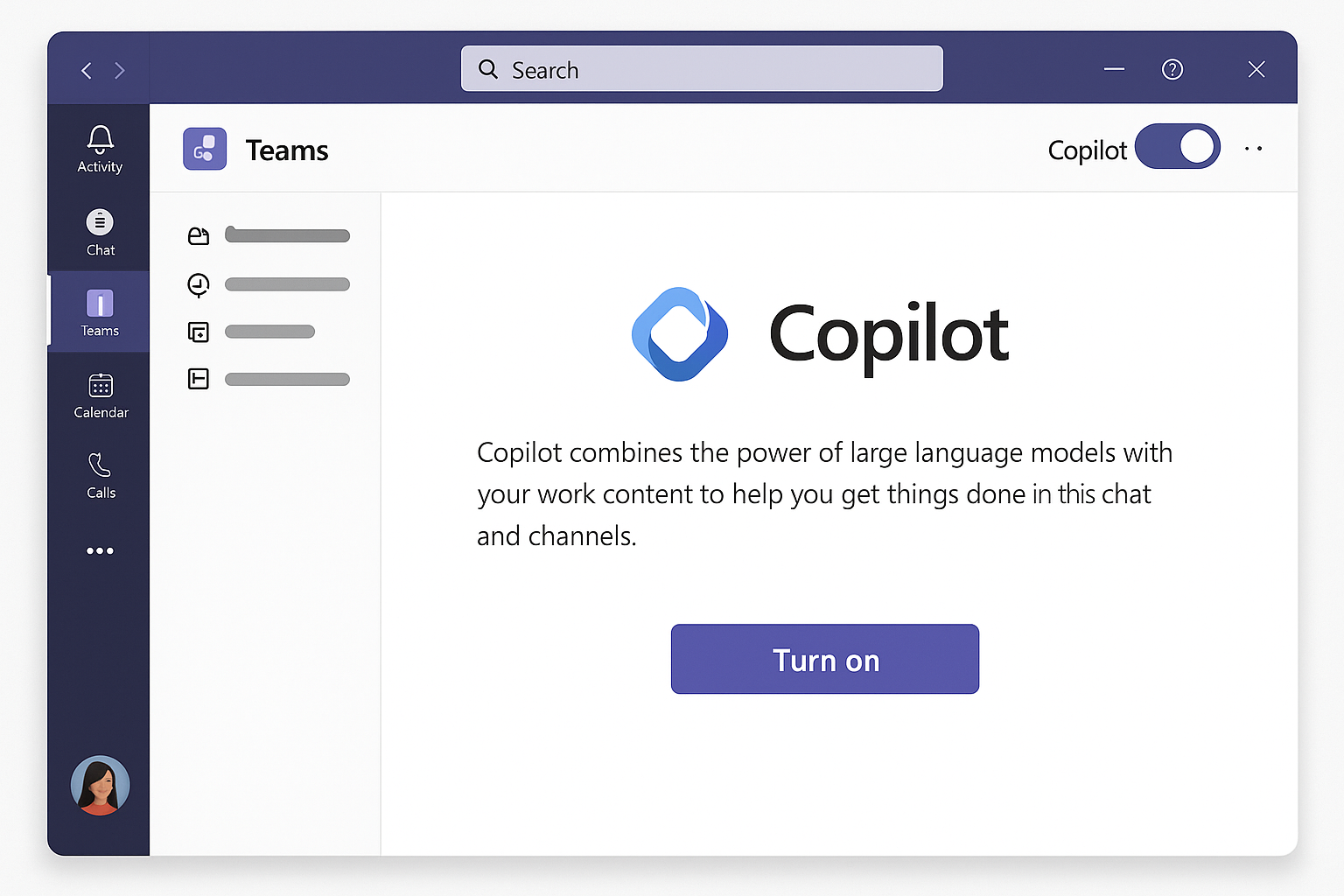
Configuring Microsoft Teams with Copilot AI
For IT Administrators:
- Verify and assign appropriate licenses by logging into the Microsoft 365 admin center and navigating to “Billing > Licenses” to confirm you have Microsoft Copilot licenses available for your organization. [Screenshot: Microsoft 365 admin center licenses page]
- Assign Copilot licenses to users through the admin center by selecting users individually or in bulk, then clicking “Licenses and apps” to add the Copilot license to their accounts, ensuring they have the necessary Microsoft 365 E3/E5 or Business Standard/Premium prerequisite licenses.
- Enable Copilot in the Teams admin center by navigating to “Teams > Teams policies,” selecting the policy you want to modify, and toggling on “Microsoft Copilot” under the AI features section to make it available to users assigned to that policy. [Screenshot: Teams admin center policy settings]
- Create a specific Copilot policy if you want to control which groups get access by clicking “Add” to create a new policy with Copilot enabled, naming it appropriately, and assigning it to specific user groups rather than enabling it organization-wide.
- Configure Copilot settings by navigating to “Teams admin center > Teams > Copilot settings” where you can customize which Copilot features are available, including meeting summaries, chat assistance, and document collaboration capabilities based on your organization’s needs.
- Communicate the rollout plan to your users through email announcements, training sessions, or Teams messages explaining what Copilot is, how it can benefit their work, and providing basic instructions on how to access and use the new AI assistant.
For End Users:
- Ensure you have the latest Teams version by checking for updates in your Teams application settings or downloading the latest version from the Microsoft website, as Copilot features require the most recent client version. [Screenshot: Teams update screen]
- Verify Copilot access by looking for the Copilot icon (star-like symbol) in your Teams interface, typically located in the top menu bar or within specific contexts like meetings or chats, confirming your license and permissions are properly configured.
- Access Copilot in Teams chats by clicking the Copilot icon in any chat or channel conversation, which opens the Copilot pane where you can ask questions about the conversation or request assistance with drafting responses. [Screenshot: Copilot in Teams chat]
- Use Copilot in Teams meetings by clicking the Copilot icon during or after a meeting to generate summaries, extract action items, or ask questions about the meeting content, helping you capture important information without manual note-taking.
- Integrate Copilot with your documents by sharing documents in Teams channels and using Copilot to summarize content, answer questions about the document, or generate new content based on existing information in your shared files.

19:21
Comparing Copilot Across Microsoft 365 Applications
While Copilot in Teams focuses on meeting summaries and chat assistance, the same AI technology operates differently across the Microsoft 365 suite. In Outlook, Copilot helps draft emails and summarize long threads, while in Word it generates content and rewrites paragraphs. Excel’s Copilot analyzes data patterns and creates formulas, and PowerPoint’s version designs slides from prompts. Understanding these differences helps organizations maximize their Copilot investment by training users on application-specific capabilities rather than expecting identical functionality everywhere.
Frequently Asked Questions
Can I use Copilot in Teams without a Microsoft 365 E3 or E5 license?
No, Copilot for Microsoft 365 requires a base license of either Microsoft 365 E3, E5, Business Standard, or Business Premium. The Copilot license is an add-on that costs an additional monthly fee per user. Organizations with lower-tier subscriptions must upgrade their base license before purchasing Copilot access.
How long does it take for Copilot to appear after license assignment?
License provisioning typically completes within 24 hours, though most users see Copilot available within 2-4 hours. If the icon doesn’t appear after 24 hours, sign out of Teams completely and sign back in. Clearing the Teams cache can also resolve delayed activation issues.
Does Copilot work in Teams mobile apps?
Copilot functionality in Teams mobile applications is limited compared to desktop and web versions. As of current releases, mobile users can access basic Copilot features in chats but may not have full meeting summary capabilities. Microsoft continues expanding mobile support, so check the official roadmap for updates.
Will Copilot access my private chats and meetings?
Copilot only accesses content you explicitly interact with through the Copilot interface. It respects existing Teams permissions and cannot access conversations or meetings you’re not part of. Administrators can configure additional data governance policies through the Microsoft Purview compliance portal to further restrict Copilot’s data access based on organizational requirements.
Issues with Copilot AI assistant activation in Teams
- Copilot icon not appearing in Teams interface could indicate a licensing issue or delayed provisioning; verify in the Microsoft 365 admin center that the correct license is assigned to your account and allow up to 24 hours for provisioning to complete across all services. [Screenshot: License verification screen]
- “This feature is not available” error message when clicking Copilot typically means either your administrator hasn’t enabled the feature for your policy group or there’s a service availability issue in your region; contact your IT support team to confirm Copilot is enabled for your user account in the Teams admin center.
- Copilot responding with limited functionality often occurs when permissions to access certain content are restricted; ensure you’ve granted appropriate permissions to Copilot for accessing your files and conversations by reviewing privacy settings in Teams and checking with your administrator about any organizational restrictions.
- Performance issues or slow responses from Copilot may result from network connectivity problems or high service demand; try refreshing your Teams client, checking your internet connection, or attempting to use Copilot during off-peak hours when system load might be lower.
- When experiencing issues with Copilot in Teams, first verify your permissions and settings. If you’re having trouble with meetings integration, ensure that Teams meeting notes functionality is properly configured as this can affect Copilot’s ability to process meeting content effectively.