“I need to present both a PowerPoint and an Excel spreadsheet during my Teams meeting, but I don’t want to share my entire desktop because I’ll be receiving confidential messages. Is there a way to share multiple windows simultaneously in Microsoft Teams without showing everything on my screen? I’ve tried switching between shared windows, but it disrupts my presentation flow.”
The challenge of selective screen sharing in virtual meetings
Many professionals face the dilemma of needing to display multiple applications during Teams meetings while maintaining privacy for notifications, emails, or other sensitive content. Constantly switching between shared windows disrupts presentations and appears unprofessional. Microsoft Teams offers a solution that allows you to share multiple specific windows without exposing your entire desktop, giving you control over what meeting participants can see while maintaining your workflow.
When managing multiple windows, you might also want to explore how to annotate your screen in Microsoft Teams for more engaging presentations.
Multiple window sharing capabilities in Microsoft Teams
Before proceeding, ensure you’re using the latest version of Microsoft Teams desktop client. This tutorial will guide you through sharing multiple windows simultaneously in Teams meetings, allowing you to present various content sources while keeping private information hidden. This feature works for both scheduled meetings and impromptu calls, giving you flexibility for different collaboration scenarios.
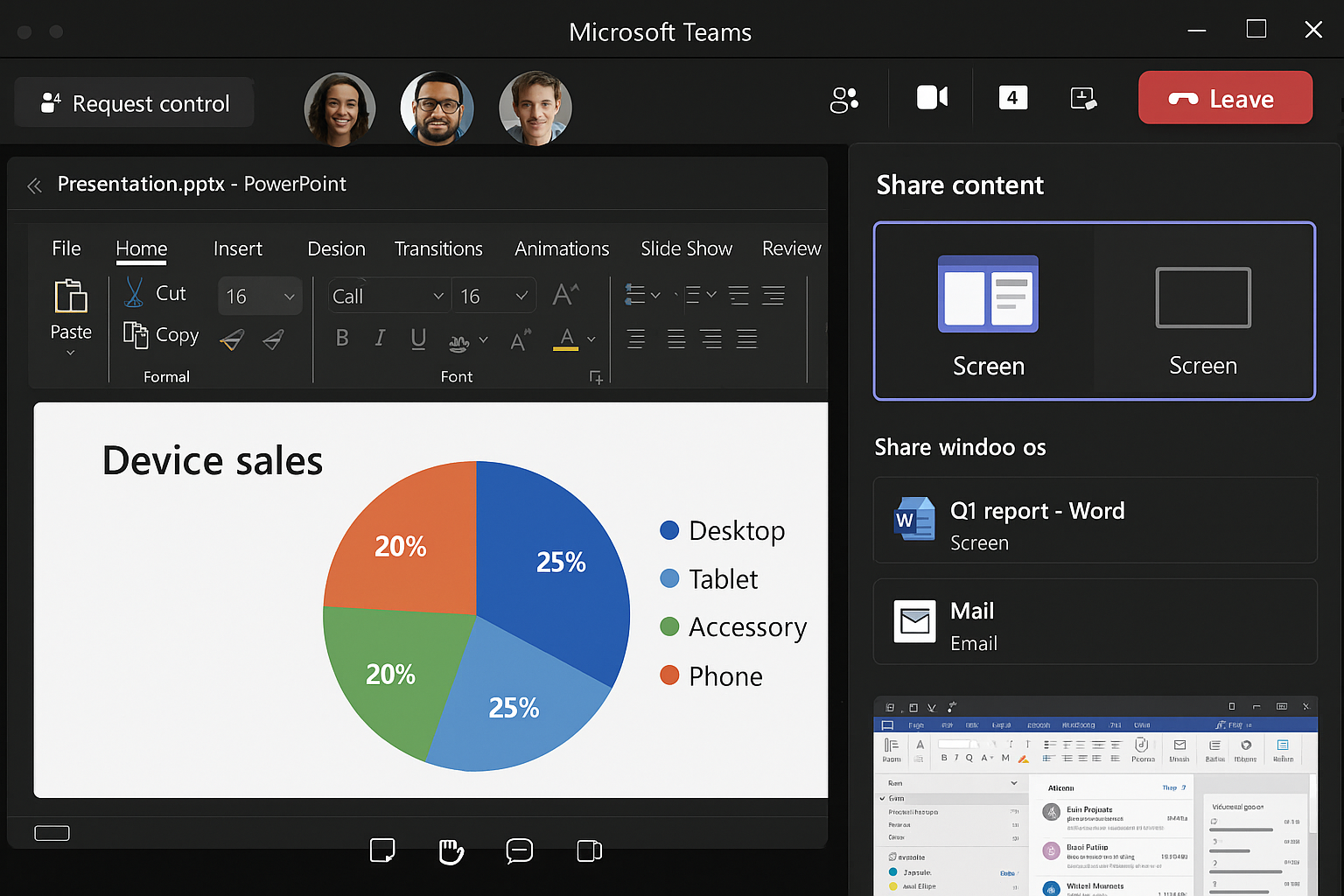
Step-by-step guide to sharing two screens in Microsoft Teams
- Join or start your Microsoft Teams meeting and click the “Share content” button (rectangle with an arrow) in the meeting controls at the top of your screen.
- In the sharing tray that appears, you’ll see options for sharing your screen, windows, PowerPoint files, and other content types – look for the “Window” section which displays all your currently open applications.
- To select multiple windows for sharing, hold down the Ctrl key (Windows) or Command key (Mac) while clicking on each window you want to share, such as your PowerPoint presentation and Excel spreadsheet.
- After selecting your windows, click the “Share” button to begin sharing these specific applications with meeting participants while keeping the rest of your desktop private from view.
- Once sharing begins, Teams will display a red border around all shared windows to help you identify what participants can see, making it easier to work confidently without accidentally exposing private content.
- Meeting participants will now see both shared windows side by side in their Teams view, with the currently active window appearing more prominently while the inactive window remains visible but slightly dimmed.
- To switch focus between your shared windows, simply click on the window you want to highlight – Teams will automatically bring that window to the foreground for all participants without requiring you to stop and restart sharing.
- If you need to add another window during your presentation, click the “Share” button again in your meeting controls, select the additional window while holding Ctrl/Command, and click “Share” to add it to your current sharing session.
- When you’re finished sharing, click the “Stop sharing” button in the floating meeting controls to end the screen sharing session while remaining in the meeting.
Plan around one active shared surface
In a normal Teams meeting, a presenter shares one screen, window, whiteboard, camera feed, or PowerPoint Live presentation at a time. You can move among windows on your computer, but attendees do not automatically see a second unshared window. If you need to show two applications, either share the entire screen containing both, arrange both applications inside that screen, or stop and switch the shared window.
Sharing a complete screen is flexible but exposes anything that appears there. Close private email and chat, silence notifications, remove confidential desktop items, and use a dedicated virtual desktop or monitor when possible. Window sharing is safer because attendees see only the selected application, although pop-up dialogs from another process may not appear.
Make transitions predictable
Before the meeting, place both windows at readable sizes and decide the order in which they will be shown. Tell attendees when you are switching sources so a temporary pause is not mistaken for a frozen meeting. After choosing Share, verify the red sharing border or toolbar and ask a co-presenter to confirm the correct content is visible.
When a second presenter starts sharing, Teams may replace the current presentation or ask the first presenter to stop. Coordinate through chat or voice rather than competing for control. For side-by-side comparison, combine screenshots in a slide, use PowerPoint Live, or place both application windows on the shared screen.
Troubleshoot the display, not just the meeting
If attendees see only one of two windows, confirm whether you selected Window instead of Screen. If a dropdown, menu, or elevated dialog is missing, switch to screen sharing for that controlled segment after checking privacy. Some protected or hardware-accelerated content may display as a blank area.
Test with a colleague using the same screen layout, especially with multiple monitors and display scaling. Record which screen or window was selected and whether the issue affected everyone. A rehearsal reveals readability and privacy problems that cannot be judged from the presenter’s own preview alone.
Multiple window sharing in Teams meetings issues
- If you don’t see the option to select multiple windows, check that you’re using the latest version of Teams by clicking your profile picture, selecting “Check for updates,” and installing any available updates before trying again.
- When participants report they can only see one window despite you sharing multiple windows, try stopping your screen share completely, restart Teams, and begin the sharing process again with a fresh selection of windows.
- For situations where shared windows appear blurry or pixelated to meeting participants, check your internet connection stability and consider closing unnecessary background applications that might be consuming bandwidth or system resources.
- If you’re experiencing lag when sharing multiple windows simultaneously, try reducing the number of shared windows or close resource-intensive applications running in the background to improve performance.
- When working with multiple monitors, be aware that windows might jump between screens unexpectedly during sharing – position your windows on your preferred display before starting your screen share to avoid confusion.
- If you’re experiencing issues, first ensure your Teams connection performance is optimal before attempting to share multiple windows.
By following these steps, you can professionally present multiple content sources in your Teams meetings while maintaining privacy for other applications and notifications on your computer. This approach enhances your presentations while keeping sensitive information secure.