Desktop icons can appear on the wrong monitor after you connect a dock, wake a laptop, change display ports, or switch which screen Windows treats as the main display. The files and shortcuts have not moved to a different folder. Windows is drawing the shared desktop surface with a different monitor origin, so saved icon coordinates now land on another screen.
The clean fix is to identify the monitor you actually use as your main screen, set it as the main display, and then refresh the desktop layout. If only a few icons remain behind, you can move those manually without changing the rest of your multi-monitor setup.
Check the display map before moving anything
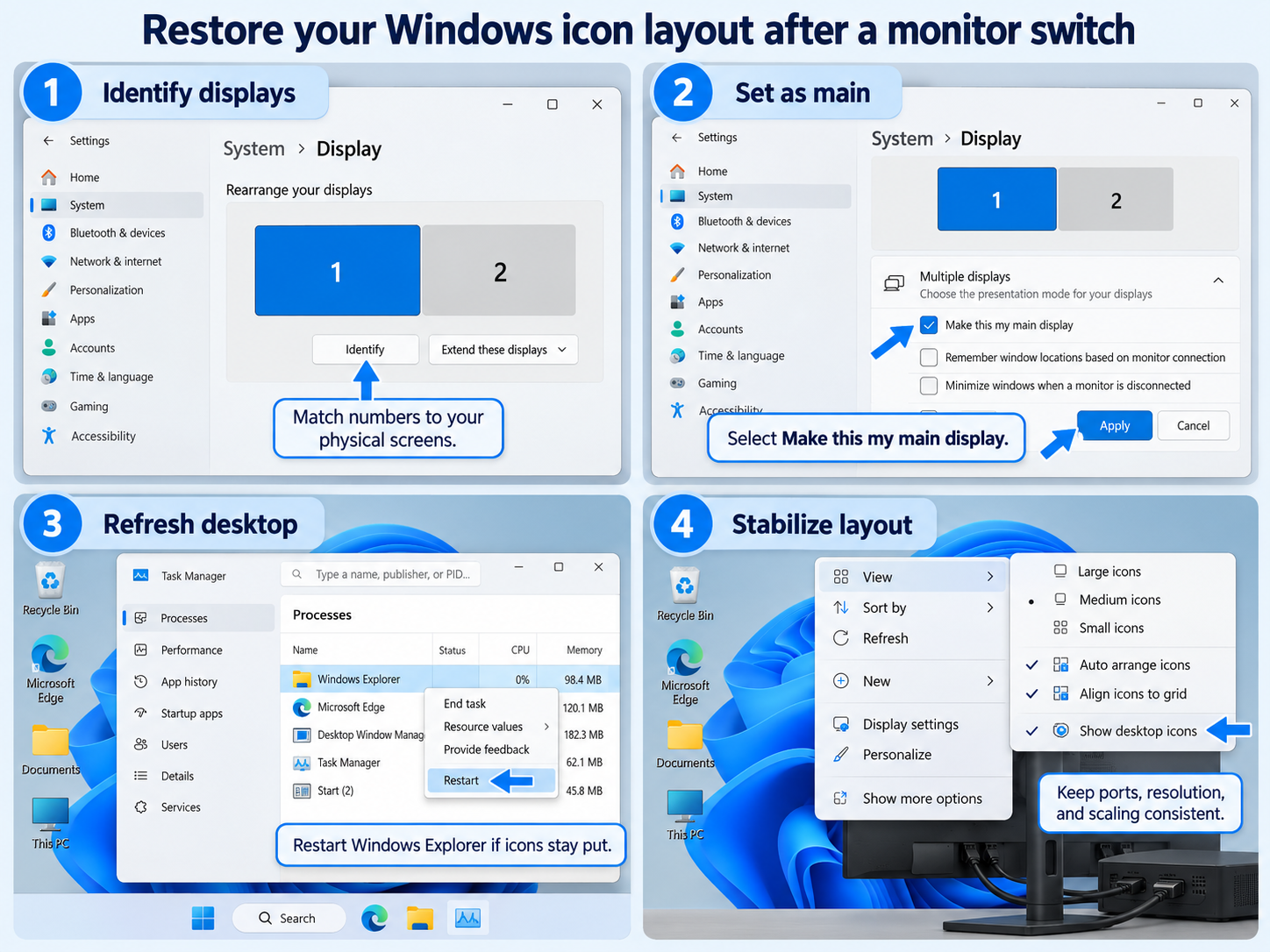
Right-click an empty part of the desktop and choose Display settings. At the top of Settings > System > Display, select Identify. Windows places a large number on every connected screen, which lets you match each rectangle in Settings to the physical monitor on your desk.
Do not assume display 1 is the primary monitor. Windows display numbers describe detected hardware; the main display is the screen currently selected for Start, desktop icon placement, and several system surfaces. If the numbered rectangles do not match your desk, drag them into the same left-to-right and vertical arrangement, then select Apply. A correct map also prevents the pointer from catching on an invisible edge when it crosses screens.
If Windows shows Duplicate rather than Extend, press Windows key + P and choose Extend. Duplicate mode mirrors the same desktop, so it is not a useful test of where Windows is storing individual icon positions. The broader multi-screen setup walkthrough explains scaling and arrangement when the two monitors use different resolutions.
Make the intended monitor the main display
Select the physical screen first
In the display map, click the rectangle for the monitor that should hold your desktop icons. Confirm the selection by checking the monitor number and its resolution. Scroll to Multiple displays, expand that section if necessary, and select Make this my main display.
The option can appear checked and unavailable when the selected screen is already primary. In that case, select the other monitor to confirm which screen Windows considers secondary. Return to the intended screen before continuing.
Let Windows rebuild the desktop surface
After the main-display change, wait a few seconds. Most icon layouts move immediately. If the icons do not follow, right-click the desktop, choose View, clear Auto arrange icons if it is enabled, and then select Refresh from the desktop context menu.
You can also restart Windows Explorer without rebooting the computer:
- Press Ctrl + Shift + Esc to open Task Manager.
- Find Windows Explorer under Processes.
- Right-click it and choose Restart.
- Wait for the taskbar and desktop to reappear.
Restarting Explorer reloads the desktop shell and its saved icon coordinates. It does not delete shortcuts or close ordinary applications, although File Explorer windows may briefly disappear and reopen.
Recover icons that stay on the secondary monitor
Move a small group by hand
Click an empty part of the secondary desktop, hold Ctrl, and select the icons that need to move. Drag the group across the shared desktop boundary and release it on the primary monitor. If the pointer cannot cross at the expected edge, return to Display settings and correct the monitor arrangement.
For a large group, click the first icon, hold Shift, and select the last icon when the icons form a continuous range. Ctrl + A can select every desktop item, but use it carefully because it may include files and folders you intended to leave in place.
Right-click the desktop and review View > Auto arrange icons after moving the group. Auto Arrange may pull icons into the first available grid positions and make a manual move look as if it failed. Leaving Align icons to grid enabled is usually helpful because it keeps spacing consistent without sorting the icons automatically.
Check whether icons are hidden rather than misplaced
If neither screen shows desktop items, right-click the desktop, open View, and make sure Show desktop icons is checked. This control hides or reveals all regular desktop items; changing the primary display will not override it.
System icons such as This PC and Recycle Bin use another control. Open Settings > Personalization > Themes > Desktop icon settings, select the system icons you want, and choose Apply. Missing application shortcuts or personal files should instead be checked in the Desktop folder in File Explorer.
Stop icons jumping after docking or reconnecting
Icon movement that returns after every restart usually points to an unstable display identity rather than damaged shortcuts. Keep each monitor connected to the same HDMI, DisplayPort, USB-C, or dock port when possible. Swapping ports can make Windows detect a familiar panel as a new display and apply a different coordinate map.
Open Settings > System > Display > Multiple displays and keep Remember window locations based on monitor connection enabled. That setting is primarily for application windows, but it also reduces confusion when you are testing whether Windows recognized the same display arrangement after a dock reconnect.
Check that each monitor uses its recommended resolution and an appropriate scale value. A large resolution or scaling change can shrink the usable desktop area, forcing icons that were near an edge onto another visible part of the extended desktop. If the display map or main-screen choice resets after every restart, work through the display-persistence checks before arranging the icons again.
For a laptop that is sometimes used without the dock, disconnect the external display only after saving the intended layout. Reconnect the dock, wait until both screens appear in Display settings, and confirm the main-display selection before moving icons. This gives Windows a consistent hardware state when it records new positions.
Questions about desktop icons on multiple monitors
Why did my desktop icons move to monitor 2?
Windows may have changed the main display or recalculated the extended-desktop origin after a dock, cable, resolution, or scaling change. The monitor number itself is not the deciding factor. Identify the physical displays and check Make this my main display on the screen you actually want to use.
Can I move the icons without changing my primary monitor?
Yes. In Extend mode, select the affected icons and drag them across the display boundary. This is useful when you deliberately keep the Start menu and notifications on one monitor but want a few project shortcuts visible on another.
Why is “Make this my main display” grayed out?
The selected monitor is usually already the main display. Click the other display rectangle to verify the setting, then return to the intended monitor. If both screens are not available, choose Detect under Multiple displays and check the cable or dock connection.
Will restarting Windows Explorer delete my icon layout?
No. Restarting Explorer reloads the desktop shell; it does not delete files or shortcuts. The icons may snap to valid positions if the current screen resolution is smaller, so confirm the display arrangement and resolution before restarting it.
Keep the recovered layout stable
Set the correct monitor as primary before you spend time arranging individual icons. Then keep the monitor order, ports, resolution, and scaling consistent, especially on a docked laptop. If a few shortcuts still land on the wrong screen, move only those items and leave Auto Arrange off. That sequence fixes the display identity first and avoids repeatedly rebuilding a layout that Windows cannot reliably recognize.