Teams and Outlook can show the same person from different sources. A company directory contact, a personal contact created in the Teams People app, and a phone contact synced through a Microsoft account may look identical while following different update rules. That is why deleting and recreating contacts often produces duplicates instead of restoring sync.
The practical fix is to identify the source first. Then repair that source and verify it in Microsoft 365 before expecting the Teams Calls or People view to refresh.
Classify one missing contact
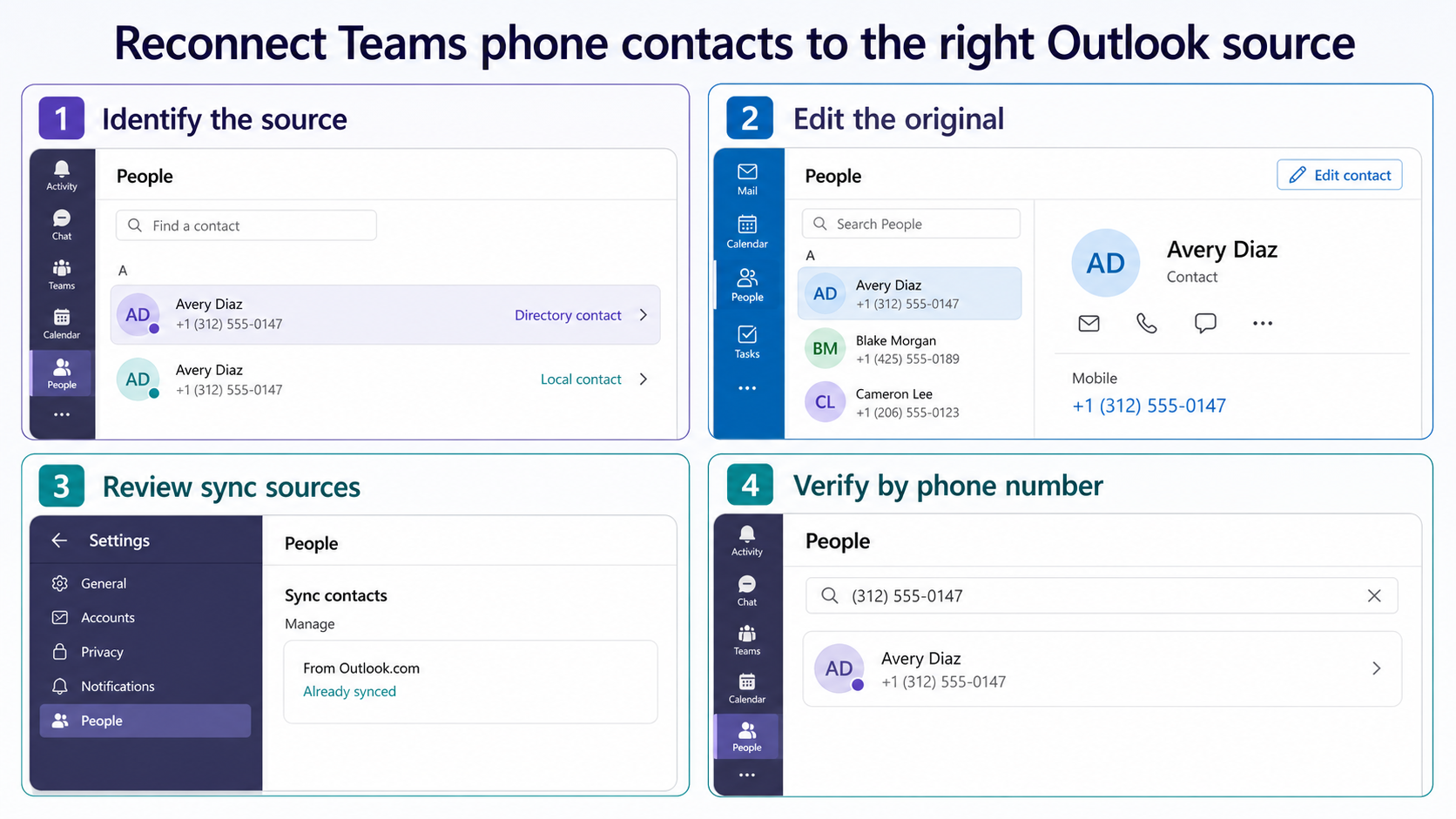
Choose a single contact with a known phone number. In Teams, open View more apps > People, select the contact, and inspect whether directory fields are grayed out. Microsoft distinguishes directory contacts, whose organization-managed fields update automatically, from local contacts that you maintain.
Directory-backed contact
If the name, email, or phone field is locked, the data comes from your organization’s directory. You cannot correct that field locally. Ask the directory or HR administrator to change the source record, then allow time for the update to reach Teams.
Local Microsoft 365 contact
Contacts created through the Teams People app are saved to your contacts and are also available through Microsoft 365 in Outlook. Edit the contact in Teams or Outlook, but avoid creating a second record with the same number while testing.
Synced personal or device contact
Personal Teams accounts can sync contacts from a device, Outlook.com, Google, iCloud, or Skype under Settings > People > Sync contacts > Manage. This consumer sync path is not the same as organization directory synchronization.
If calendars and contacts are both attached to unexpected accounts, the account-alignment checks help verify that Teams and Outlook are signed into the intended Microsoft 365 identity.
Repair the source without multiplying records
For a local contact, edit the existing record and save a distinctive test value such as a department or temporary note. Open new Outlook or Outlook.com under the same account and search for the contact. Seeing that test value proves you are viewing the same cloud record.
For a synced personal source, open Teams Settings > People > Sync contacts > Manage. Review Already synced before removing anything. Microsoft notes that unsyncing a source removes that synchronized view but does not necessarily delete the original contacts from the source service.
Reconnect only the intended account
Remove and reconnect a sync source only after exporting or confirming the originals. Sign in with the exact Outlook.com or Microsoft account that owns the contacts. Then select Sync, wait for the service to process the list, and search for the known phone number rather than relying on alphabetical browsing.
The wider Teams–Outlook connection path is useful when the two apps consistently show different tenants. Contact repair cannot succeed if one app is using a personal Microsoft account and the other is using a work account.
Refresh the calling experience
After the contact is correct in People and Outlook, quit Teams completely from the system tray and reopen it. Search in the People app first, then open Calls and check speed dial or the dial pad suggestions. Favorites and speed dial are Teams-specific, so a contact can sync successfully without appearing in the same custom list.
Remove a stale duplicate only after comparing full email addresses and phone numbers. Directory-linked contacts may allow you to delete only your local copy; the organization record remains available in search.
Know when sync is not the feature you need
Teams Phone users often expect every Outlook contact folder or shared mailbox contact to appear automatically. Microsoft documents availability through Microsoft 365 for contacts created in Teams, but custom categories and Teams favorites remain product-specific. Shared or delegated contact folders can have different visibility from a user’s primary contacts.
If many employees see wrong company numbers, treat it as directory data rather than a personal sync problem. If only one user sees missing personal contacts, focus on their signed-in account and sync source.
Contact-sync questions
Why can I edit some contacts but not others?
Organization directory fields are managed centrally and can appear grayed out. Local fields and personal contacts can be edited by you. The contact type determines which change path is valid.
Will removing a sync source delete my original contacts?
Removing a synchronized source from Teams changes what Teams imports; the source service remains the authority. Still confirm or export the originals before cleanup, because device and account behaviors differ and duplicate removal can be irreversible.
Why does the contact appear in People but not speed dial?
Speed dial and favorites are Teams-specific lists. Add the contact to speed dial after confirming the underlying contact record. Do not recreate the contact merely to populate a calling shortcut.
Can a shared mailbox contact list sync into Teams Phone?
Do not assume it behaves like the user’s primary Microsoft 365 contacts. Test one contact and identify the source mailbox. If shared-folder contacts are essential to the calling workflow, ask the Microsoft 365 administrator about supported directory or contact-management options.
Use one source of truth
Finish by editing one field in the authoritative source, confirming it in Outlook, restarting Teams, and locating the same record by phone number. Once that round trip works, clean duplicates carefully. A source-first repair is slower than deleting everything, but it protects categories, directory links, and phone data while showing exactly where synchronization stopped.
Check phone-number normalization
Two records can represent the same number in different formats, such as a local number and an international + format. Search by the last several digits and compare country codes before creating a new contact. Keep the internationally unambiguous format when your organization calls across regions.
If caller identification still shows an old name after the contact record updates, test from another Teams client and allow time for cached suggestions to refresh. Directory and personal-contact changes do not always arrive at every surface simultaneously.
For a bulk problem, sample three contacts: one directory user, one local Microsoft 365 contact, and one external phone-only contact. Their different outcomes reveal whether the issue belongs to directory data, the user’s contact store, or calling suggestions instead of encouraging a risky all-contact reset.