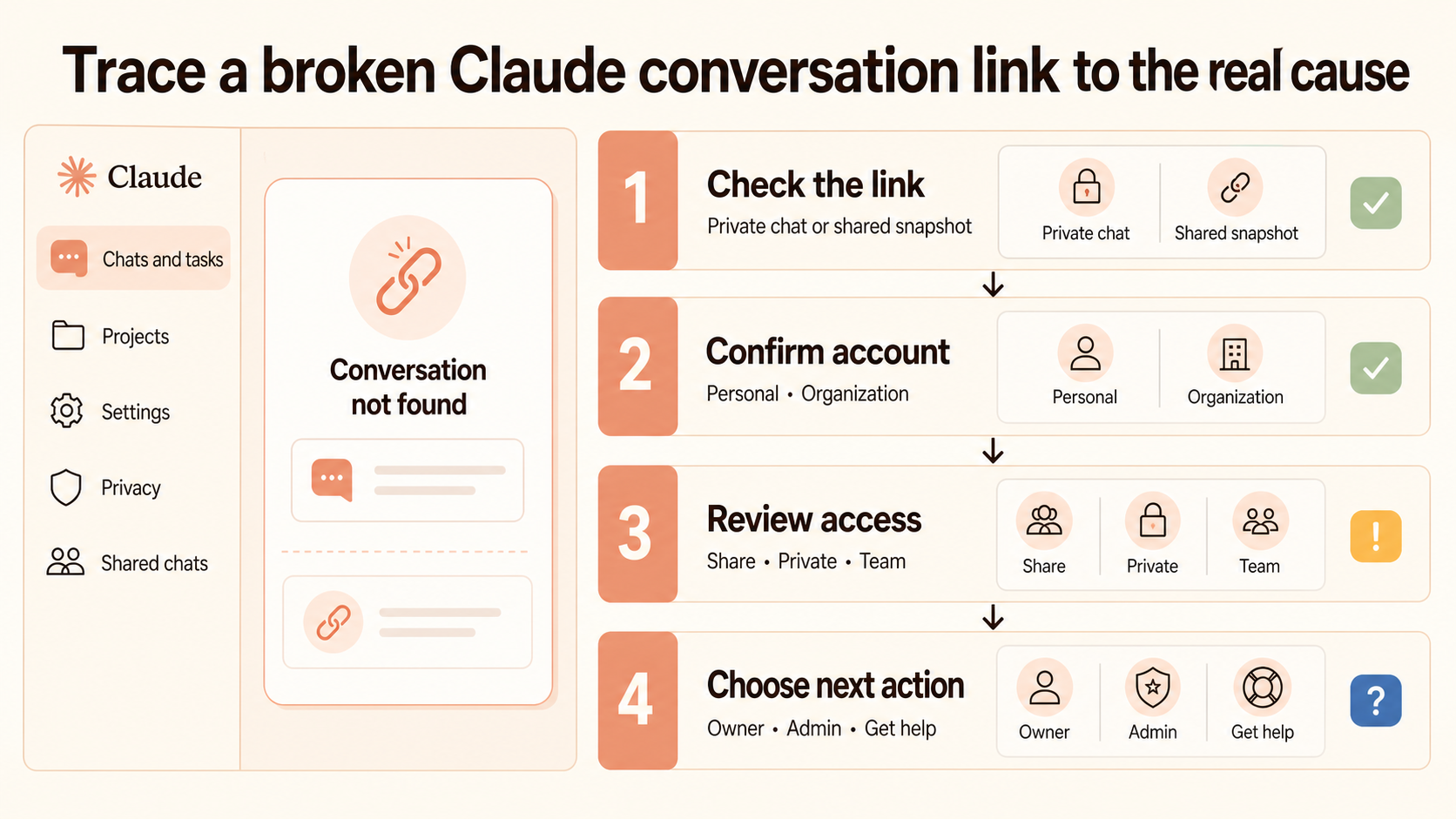
Claude can show “Conversation not found” when a chat URL no longer resolves for the person opening it. The message does not identify one universal failure. It can point to an invalid conversation ID, a private chat opened from the wrong account, a shared snapshot that was unshared, or an organization conversation that the current user can no longer access.
The safest response is to identify what kind of link you have before changing browser data or asking someone to recreate the work. A deleted conversation and an inaccessible conversation may look similar, but the next action is very different.
Read the error before you refresh anything
Copy the full URL into a note and record which Claude account and organization are active. Do not post the link publicly; a shared-chat URL may expose a snapshot to anyone allowed by its sharing scope.
Claude Desktop also supports deep links that contain a conversation ID. Anthropic says an invalid or missing ID sends the app to recent chats or the projects list. A browser page that explicitly reports “Conversation not found” is therefore more useful evidence than a deep link that simply lands somewhere else.
Decide whether the link is private or shared
A normal conversation is private by default. Its address is useful to the owner while signed into the correct account, but copying that browser address does not automatically grant another person access.
A shared chat is a snapshot created with Share. On personal Free, Pro, and Max accounts, anyone with the permitted link can view that snapshot. Team and Enterprise sharing is limited to members of the same organization. If a colleague sent a private address instead of a shared snapshot, ask the owner to open the conversation and use the Share control.
Identify who owns the conversation
Ask whether the creator still sees the chat in Chats and tasks or inside its project. If the owner can open it but you cannot, the problem is likely account, organization, or sharing scope. If the owner also cannot find it, deletion, incognito mode, project placement, or a temporary history problem becomes more likely.
Follow a cause-first link check
Work through these checks in order so one change does not hide the original cause:
- Paste the complete URL into the same browser where Claude is already signed in.
- Click your initials and confirm the expected personal or organization account has the blue selection indicator.
- Open Chats and tasks and search for the title or topic.
- Check the project where the conversation was created, because project searches stay within that project.
- Ask the owner whether the chat is still shared and whether the current link appears in their shared-chat settings.
- Check Claude’s status page if multiple unrelated chats fail at the same time.
If sign-in itself is unstable, resolve the account entry path before judging the conversation URL. A different login method or organization selection can place you in a separate history even when the displayed email looks familiar.
When the account or organization changed
Claude can keep a personal account and an organization account associated with the same email. Anthropic’s migration guidance says those accounts have separate conversations and projects until content is moved. Use the account switcher in the lower-left menu and inspect each available account rather than assuming an empty history means deletion.
Personal and organization histories stay separate
The blue checkmark in the account menu shows the active account. Switching to the other account can immediately restore access when the chat was created on the personal side but the link opened while the organization was selected, or vice versa.
Migration into a Team or Enterprise organization is one-way. If the work was migrated, look in the organization account rather than expecting a second copy to remain in the personal history.
Removed members lose shared-chat access
Anthropic documents the exact “Conversation not found” message for shared organization chats after the creator is removed from a Team or Enterprise organization. Remaining members cannot open that removed member’s chat snapshots through their old links.
If the same person is re-added to the same organization with the same email, Anthropic says previous chats and projects are restored, subject to the organization’s retention settings. An organization Primary Owner may also have the chat in an organization data export. These are admin decisions, not browser fixes.
When the source chat was deleted or unshared
Unsharing changes a snapshot from public or organization-visible back to private and disables the direct link. The owner can inspect Settings > Privacy > Shared chats on eligible personal plans to review active shared snapshots and their links.
Deleting a conversation removes it from history immediately. A viewer cannot repair that action by editing the URL, clearing cookies, or signing in again. Ask the owner to confirm whether they deleted the chat, made it private, or created a new shared snapshot with a different link.
Do not confuse the 30-day backend deletion period with a restore window. Anthropic describes that period as data deletion processing, not as a recycle bin or user-accessible recovery feature.
Preserve useful details before contacting support
When the owner and account checks do not explain the failure, capture only the minimum information needed to investigate:
- The conversation or shared-link URL, kept private.
- The approximate time it last opened successfully.
- Whether the owner can still open the original chat.
- The active personal or organization account.
- Whether other conversations fail in the same browser or app.
- A screenshot of the error without sensitive chat content.
If the whole Claude interface is failing rather than one URL, complete a wider browser and app loading check first. For an isolated unresolved link, open your initials menu, choose Get help, and send the evidence through Anthropic’s support messenger.
Questions about inaccessible Claude conversations
Can changing the conversation ID fix the link?
No. The ID identifies a specific chat; guessing or modifying it does not grant access to another conversation. Use the original full URL and verify the account, organization, and sharing status instead.
Why can the owner open the chat when I cannot?
The owner may be viewing a private conversation rather than a shared snapshot, or the shared link may be restricted to an organization you are not currently using. Ask the owner to verify Share settings and send the generated sharing link.
Does Conversation not found always mean the chat was deleted?
No. The message can also reflect missing permission or organization membership. Anthropic specifically documents it when a removed organization member’s shared chat is opened by someone who no longer has access to that creator’s content.
Can an organization administrator restore access?
Sometimes. Re-adding a removed member with the same email can restore that member’s previous chats and projects, depending on retention settings. An admin cannot turn a deliberately deleted personal conversation into a live chat through a normal browser control.
Choose the next action from the cause
If the owner still has the chat, correct the account or sharing scope and request a fresh snapshot link. If the organization removed the creator, involve its Primary Owner rather than repeatedly refreshing the page. If the owner confirms deletion, stop treating the URL as repairable and look for an earlier export or offline copy. Keeping those cases separate prevents a simple permission problem from being mistaken for permanent data loss.