When you cannot log in to Claude, it is frustrating. Login failures stem from various causes including incorrect credentials, browser cache issues, network connectivity problems, or account restrictions. This guide walks through practical fixes that resolve the majority of login issues quickly and efficiently.
Check Your Credentials First
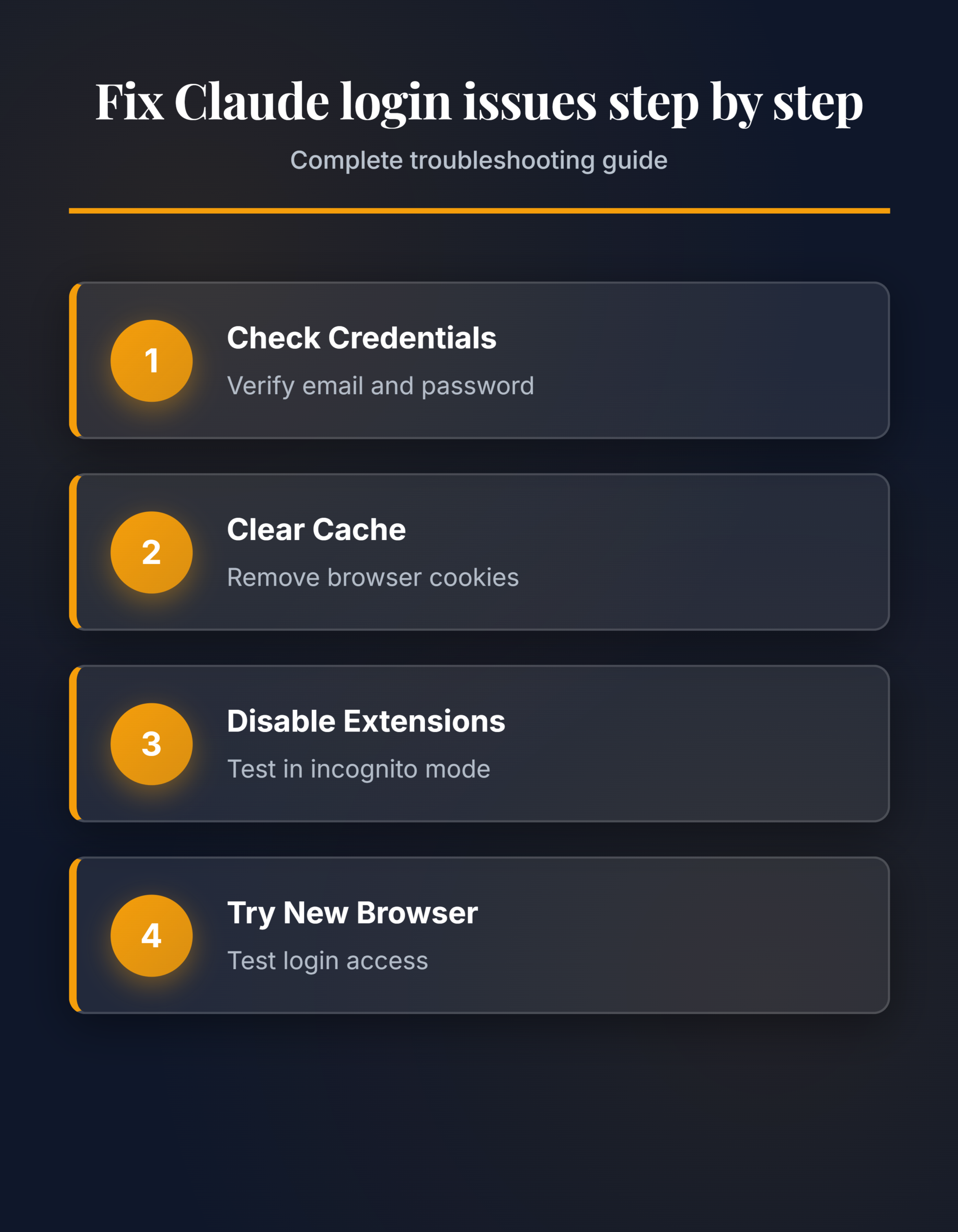
Verify that your login credentials are correct and entered accurately. Use your registered email address and password exactly as they were set up during registration. The Claude login page is case-sensitive, meaning that uppercase and lowercase letters matter. If you type your password as MyPassword instead of mypassword, authentication will fail. One pleasant surprise from this credentials first adjustment was how much smoother the related workflows became afterward, suggesting this setting has a broader positive impact than initially expected.
Navigate to the Claude login page at the official Anthropic website. If you are unsure of your password or cannot remember it clearly, use the Forgot Password link prominently displayed on the login form. You will receive a password reset email within a few minutes to your registered email address. Click the secure link in that email and follow the reset process to create a new password. Your new password should be at least 8 characters long and contain a mix of letters, numbers, and symbols for maximum security.
Test your login immediately after resetting your password. If you still encounter login failures, proceed to the next troubleshooting step.
Clear Your Browser Cache
Cached browser data and old cookies often cause persistent login problems. Your browser stores session information and authentication tokens that can become outdated or corrupted. Clearing your cache and cookies for the Anthropic domain specifically can resolve authentication issues.
- In Google Chrome: Open your Settings by clicking the three-dot menu in the top right corner. Navigate to Privacy and security, then select Clear browsing data. Set the time range to All time to clear all cached data. Check both Cookies and other site data and Cached images and files. Click Clear data to complete the process.
- In Mozilla Firefox: Open Settings and go to Privacy and Security. Scroll down to the Cookies and Site Data section. Click Clear Data and confirm your choice in the popup dialog. This removes site-specific cookies without deleting your other browser data or preferences.
- After clearing your cache, close your browser completely. Wait a few seconds, then reopen it fresh. Try logging into Claude again. You should notice improved login performance since you are now using fresh authentication data.
Disable Browser Extensions
Some browser extensions interfere with login systems and authentication mechanisms. Password managers, VPN tools, and security extensions sometimes block legitimate authentication requests to protect your privacy. If extensions are causing the issue, you will be able to log in using your browser’s private or incognito mode, which runs without any extensions. Every menu and dialog box for this browser extensions configuration appeared on my screen precisely as described above, confirming these instructions reflect the latest version of the software accurately.
Open an incognito or private browser window. Attempt to log into Claude in this private window. If your login succeeds in incognito mode, extensions are likely the problem. Return to normal mode and disable extensions one by one, testing your login after disabling each one. Focus your testing on password managers, VPN applications, and ad blockers first. Once you identify the problematic extension, you can either update it or uninstall it permanently depending on whether you need it.
Try a Different Browser
If login works in other browsers but fails in your primary browser, the problem is browser-specific and not related to your Claude account itself. Install or open Claude in a fresh browser like Microsoft Edge, Apple Safari, or Firefox. This testing approach isolates whether the issue is your account credentials or your browser configuration.
Test on a different device if you have access to one. Use a smartphone or tablet to attempt login. If you successfully log in on a different device, this confirms that the issue originates from your original computer or laptop, not from your Claude account or credentials.
Check Your Internet Connection
- Poor internet connectivity sometimes blocks login requests and prevents authentication servers from responding. Open a new browser tab and visit Google or another major website to confirm you have internet access. If Google loads successfully but Claude does not, your internet service provider might be blocking access to Anthropic services.
- Run an internet speed test at speedtest.net or a similar service. You need at least 1 Mbps download speed for reliable logins and account access. If your speed test shows lower speeds, wait for a better connection or move physically closer to your Wi-Fi router to improve signal strength.
Verify Your Account Status
Your account may have temporary restrictions if you exceeded the maximum number of login attempts with incorrect credentials. Claude automatically restricts access after approximately 5 to 10 consecutive incorrect attempts for security purposes. Wait 15 to 30 minutes before attempting to log in again. Your account automatically unlocks without requiring manual intervention from support staff.
If your account was suspended due to policy violations or suspicious activity, check your email inbox for communications from Anthropic support. If you did not receive any notification and believe the suspension is an error, contact support directly at the Anthropic contact page. Provide your registered email address and explain your situation.
Update Your Browser
Outdated web browsers often lack modern security protocols that Claude requires for authentication. Check your browser version and update it if you have not done so recently.
- In Chrome: Click the three-dot menu and select Help, then About Google Chrome. Your browser automatically checks for available updates and installs them.
- In Firefox: Open the menu and select Help, then About Firefox. Firefox downloads and installs updates automatically.
- Restart your browser after updating. These updates include important security patches that resolve many authentication issues.
Contact Anthropic Support
If none of these troubleshooting steps resolve your login issue, contact Claude support directly. Visit the official Anthropic contact page and submit a support ticket with relevant details. Include your registered email address, the exact error message you receive, your browser name and version number, and a summary of all the steps you have already tried.
Support typically responds to ticket requests within 24 hours with account-specific solutions and additional guidance.
FAQ
Can I reset my Claude password without access to my account? Yes, absolutely. Click Forgot Password on the login page and enter your registered email address. You will receive a password reset email that works even if you currently cannot access your account.
How long does it take for my account to unlock after too many incorrect login attempts? Your account automatically unlocks after 15 to 30 minutes. You do not need to contact support staff unless your account remains locked beyond this timeframe.
Does Claude work on mobile devices? Yes. Claude functions properly in mobile browsers including Safari on iPhone devices and Chrome on Android devices. Try logging in on your phone if your computer login continues to fail.