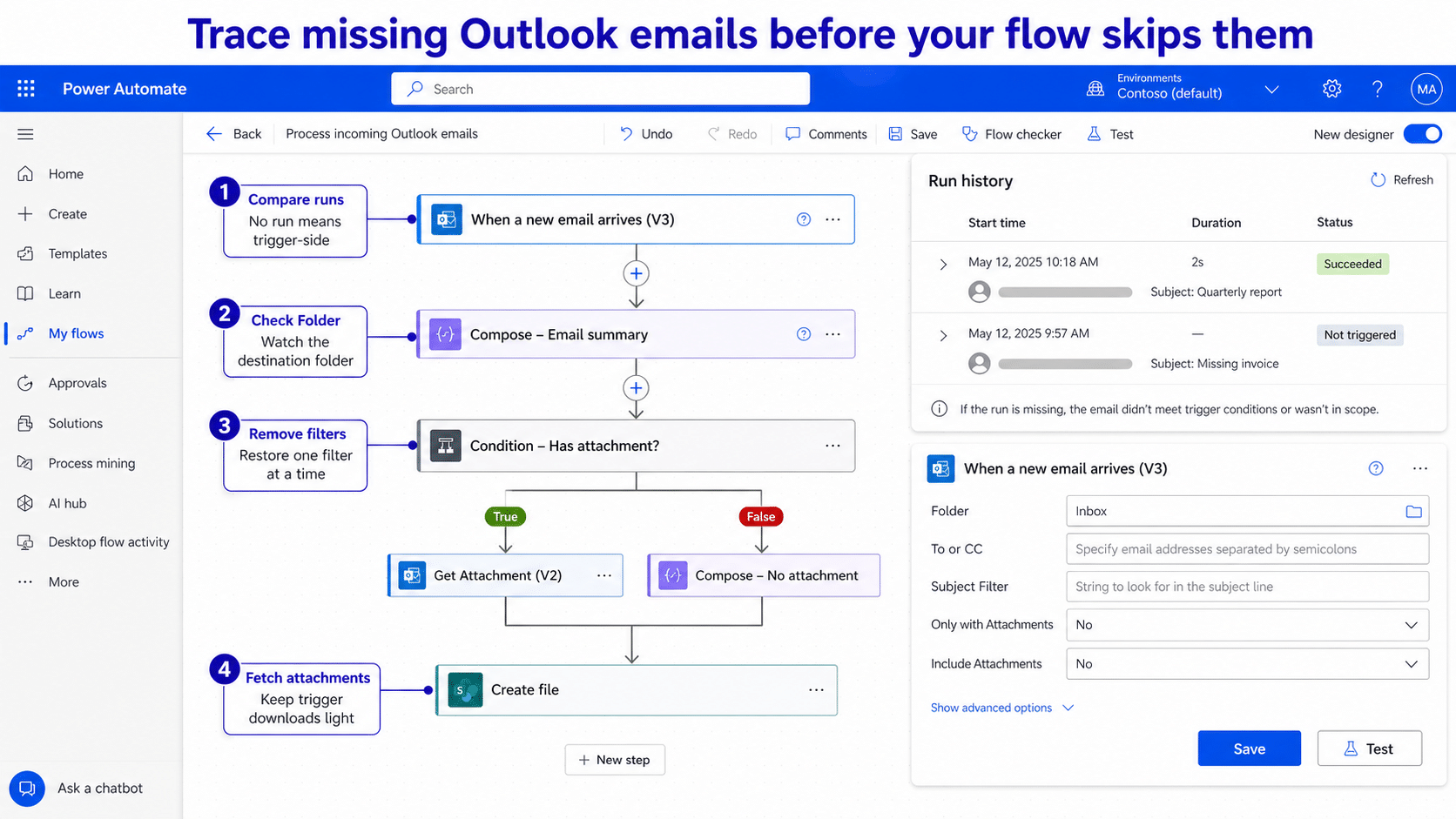
When a Power Automate Outlook trigger skips emails, the missing messages usually share a detail that the trigger is filtering, cannot download, or never sees in its selected folder. The fastest diagnosis is not to rebuild the flow. It is to compare one missed email with one email that created a run.
Power Automate records a run only after the trigger accepts a message. If the flow has no run for the missing email, inspect the trigger, connection, and mailbox path. If a run exists but later actions were skipped or failed, the trigger did its job and the repair belongs farther down the flow.
Classify the miss before changing the flow
Open the flow and select Run history. Note the received time, sender, subject, recipients, folder, message size, and whether the email had attachments for one successful and one missed message.
Use that comparison to place the problem in one of three buckets:
- No run at all: the folder, trigger filters, connection, or connector limitation excluded the message.
- A delayed run: the trigger was polling or temporarily delayed; Microsoft says a rare delay can reach one hour.
- A run with skipped actions: a condition, expression, or downstream action rejected the message after triggering.
This distinction prevents a common mistake: loosening every condition when the selected Outlook folder is actually wrong. The broader automatic-flow diagnostic sequence is useful when several trigger types have stopped, but an email-only miss should begin with the message properties.
Build a controlled test pair
Send two small test emails from the same account. Keep the subject identical except for one word, and give only one message an attachment. If both trigger, add the original sender or recipient pattern next. Change one variable at a time until the miss returns.
Do not repeatedly resend the same large or protected message. A simple test pair reveals a filter mismatch without mixing in attachment, encryption, transport-rule, or size behavior.
Inspect the V3 trigger card field by field
Edit When a new email arrives (V3) and expand its advanced parameters. Verify Folder first. The trigger checks only the configured folder; an Outlook rule that moves mail to a subfolder can make an Inbox trigger miss it.
Microsoft also documents a timing edge case for messages moved between folders. The connector uses the received time, so moving newer mail first and an older message afterward can cause the older message to be skipped. If a rule is involved, point the trigger directly at the destination folder and test with newly received mail.
Review each optional filter:
- Clear From, To, CC, Importance, Only with Attachments, and Subject Filter temporarily.
- Save the flow and send a new test message.
- Restore one filter, save, and test again.
- Stop when the failure returns; the last filter is the likely mismatch.
Be careful with recipient filters
The separate To and CC fields do not behave like a casual “either one” search. Microsoft warns that populating both can require the address to match both fields. If your requirement is either location, use the trigger’s To or CC filter instead of filling separate recipient boxes.
Aliases, distribution lists, and forwarded mail can also change the recipient values seen by the connector. Inspect the successful run’s trigger output before typing an address based only on what Outlook displays.
Separate attachment timeouts from ordinary misses
Large messages and attachment-heavy bursts need their own test. The Office 365 Outlook connector can skip a message above the Exchange administrator’s limit or 50 MB, whichever is lower. Protected mail and messages with invalid bodies or attachments may also be skipped.
When Include Attachments is set to Yes, the trigger waits while every attachment downloads. Microsoft recommends setting it to No when concurrent attachment downloads cause timeouts, then retrieving files with Get Attachment (V2) after the trigger.
That design also keeps the trigger lightweight. If your later action sends or stores those files, use the proven attachment handoff pattern to map the message and attachment identifiers deliberately rather than assuming the trigger body contains usable bytes.
Test Dynamic Delivery separately
Microsoft Defender for Office 365 Safe Attachments can use Dynamic Delivery. In that configuration, a message may create two trigger runs, and the first can contain an empty attachments array. Add a condition that continues only when the attachment array contains an item if your flow must process attached files.
That is a duplicate-run symptom, not the same as a permanently missing email. Check run history before applying the workaround.
Repair the Outlook connection without losing evidence
Open Connections in Power Automate and inspect the Office 365 Outlook connection used by the trigger. A changed password, revoked consent, conditional-access update, or disabled account can leave the flow enabled while its connection needs attention.
Repair or reauthenticate the existing connection, then return to the trigger and confirm it references the intended mailbox. Save the flow and use Test > Manually with a newly delivered email. Avoid deleting the old connection before recording which flows use it.
For a shared mailbox, use the shared-mailbox trigger and confirm the connection account has the required mailbox access. Microsoft notes that limited sharing permissions may not be enough; a user-to-user shared mailbox scenario requires full access for the trigger to work reliably.
Use run history as the acceptance test
After each change, send a new small email that satisfies the final filters. Wait for the run, then open its trigger inputs and outputs. Confirm the folder, sender, recipients, subject, attachment flags, and received time match the message you sent.
Run a second negative test that intentionally violates one filter. A good repair accepts the matching message and rejects the nonmatching one. If both are accepted, the flow is running again but the filter still needs refinement.
Questions about missing Outlook trigger runs
Why does a message moved by an Outlook rule get skipped?
The trigger watches only its selected folder and evaluates mail using its received time. If rules move messages into another folder, an Inbox trigger will not see them there. Moving an older message after a newer one can also fall behind the connector’s latest successful trigger point, so test with newly received mail in the destination folder.
Can the Outlook trigger skip a very large email?
Yes. Microsoft documents that the V3 trigger can skip mail larger than the Exchange limit or 50 MB, whichever is lower. It may also skip protected messages or emails with invalid body or attachment data. Compare the missed message size and protection state with a small plain-text test.
Should Include Attachments always be enabled?
No. Enabling it makes the trigger wait for all attachment content, which can time out when many attachment-heavy emails arrive together. Leave it off and use Get Attachment (V2) after the trigger when reliability matters more than receiving every file byte in the trigger output.
Why is the flow delayed even though the filters are correct?
Outlook mail triggers normally fire quickly, but Microsoft says rare delays can take up to one hour. Check whether a late run eventually appears before rebuilding the flow. Persistent delays across small test messages justify checking service health, connection status, and administrator restrictions.
Keep the trigger narrow only after it is reliable
Begin with a small new message and a trigger with unnecessary filters removed. Once that creates a run, restore the exact folder and one filter at a time, keeping attachment retrieval outside the trigger when needed. The final proof is a matching email that runs and a deliberately nonmatching email that does not. That sequence fixes the miss without turning the flow into an unfiltered mailbox listener.