A successful AI Builder action can still produce an empty-looking value when the wrong dynamic token is passed in or read out. The flow might be sending a filename, identifier, or metadata object instead of file content. It might also be reading a field that belongs to a different model output.
Prove the document, input, and output separately. Use one small, readable PDF with obvious text, then inspect the action inputs and raw outputs before adding loops, storage, or email steps.
Improve the document, not only the expression
A blank result from a correct input can be caused by low contrast, rotation, tiny text, unusual layout, or a page range that excludes the useful page. Create a test copy with one upright, high-contrast page. For a trained document-processing model, make sure the model is published and the file resembles its training examples.
Add a condition that checks whether the extracted text is empty before downstream actions. Route empty results to review with the file name and run ID, but do not include sensitive document text in broad notifications. This prevents a blank value from silently overwriting good data.
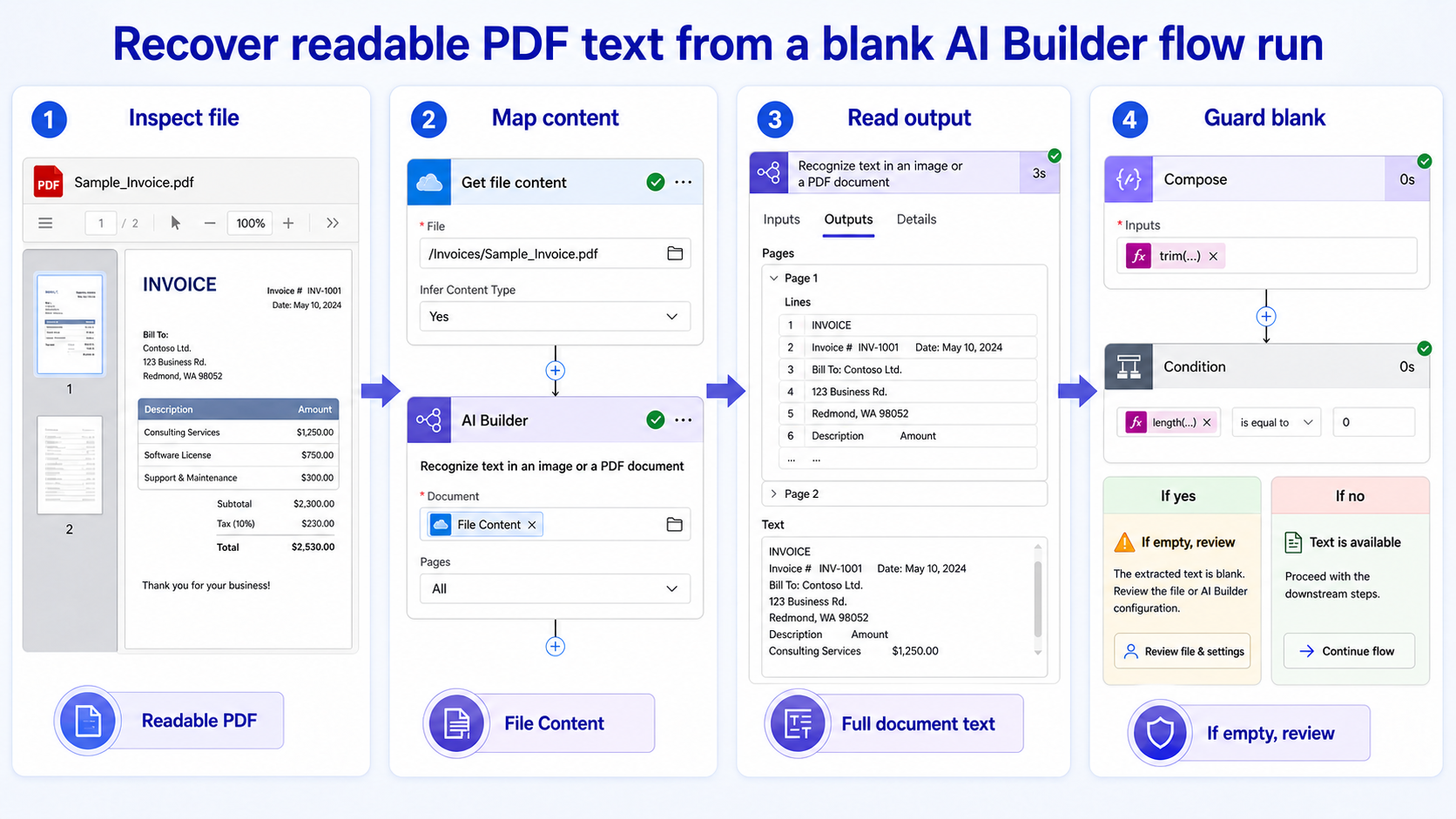
Prove the PDF before tuning the model
Open the exact file
Download the file from the same source the flow uses and open it. Select or zoom the text, and use a manual PDF readability check to confirm the document is not blank, password-protected, corrupted, or merely an image too faint to read.
Confirm the binary input
In the run history, expand the file-retrieval action and the AI Builder action. The document input must receive file content, not the item ID, path, or display name. The attachment-content pattern shows why metadata and binary content are separate values in automated file workflows.
Separate PDF input from model output
Use one small PDF with obvious text and inspect each action input and output. Do not add parsing until the raw recognized text is visible in run history. Change only one variable before repeating the test, and keep the failing example unchanged until the comparison is complete.
For PDF recognition, compare the retrieval action’s content payload with the AI Builder document input and raw output. Keep the first test free of loops and parsing. If a clear one-page PDF returns text but the production file does not, inspect scan quality, page selection, protection, and rotation before changing downstream expressions.
When results differ between desktop and web, do not keep changing both clients. A working web result usually proves that the cloud object and account still exist, leaving desktop installation, operating-system permission, or cached session as the narrower scope. Failure in both places makes the item, account, policy, connector, or service configuration more likely.
For a managed account, provide the affected identity, client, time, one reproducible example, the second-client result, and any visible error. Keep screenshots focused on the relevant pane and remove private names. Avoid sending passwords, private documents, recordings, or full card payloads unless the support owner requests them through an approved channel.
Before closing this Power Automate issue, repeat the successful path with a second ordinary example. If the second example works, preserve the original failure for object-specific review. If it fails in the same place, the shared client, account, permission, policy, or connector layer remains the stronger lead.
Trace the output before transforming it
- Create a manual test flow or controlled branch with one known PDF.
- Retrieve the PDF content with the connector action appropriate to its source. Confirm that action succeeds and reports a nonzero payload.
- Pass that content to the AI Builder text-recognition action. Do not wrap it in a string conversion.
- Run the flow and inspect the AI Builder output. Microsoft exposes full document text as well as page and line structures for text recognition.
- Add a Compose action containing the intended text token. Only after it shows text should you add parsing, conditions, SharePoint updates, or messages.
Practical verification notes
Repeat the successful path with a second ordinary example before calling the issue resolved. The second test should use the same account and client but a different item, meeting, file, or run. If only the original example fails, investigate that object’s settings and history. If both fail, continue at the client, policy, connector, or service layer.
Keep rollback simple. Save existing settings before changing them, avoid deleting shared data during diagnosis, and prefer reversible tests such as a new appointment, copied flow, private meeting, or sample file. This protects production work while giving support a clean comparison.
AI Builder extraction answers
Does AI Builder read scanned PDFs?
Microsoft’s text recognition prebuilt model is designed for printed and handwritten text in images and documents, including PDFs. Scan quality still matters. Test one clear page to separate a model-input problem from poor source material.
Why does Compose show blank after a successful model action?
The selected dynamic token may point to a page collection, a different field, or an optional value rather than full text. Inspect the raw action output and select the documented full-document or line text value. Avoid guessing token names from another model.
Should I convert the PDF to Base64 myself?
Usually the connector’s file-content output should be passed to the AI Builder document input directly. Manual string conversions can change the expected type. Check the action inputs in run history before adding transformations.
How should I handle multi-page documents?
First test without a restrictive page selection, then limit pages only when the action supports it and the useful range is known. Confirm the expected page appears in the output. Send uncertain or empty results to review rather than discarding the file.
Keep the diagnostic flow small
The reliable baseline is a known PDF, a successful content-retrieval action, visible AI Builder text in run history, and one Compose action containing the same value. Preserve that baseline while reconnecting the production trigger and downstream steps. If the baseline fails with multiple clear PDFs, capture the environment, model/action name, run IDs, and capacity status for the administrator.