Losing every open tab in Google Chrome can disrupt your entire workflow, especially when you had dozens of important pages organized across multiple windows for research tasks. Knowing how to chrome restore last session ensures you can recover your browser session quickly and return to productive work without manually searching for each page again.
How to restore tabs Chrome using the startup setting
Google Chrome includes a built-in startup option that automatically reopens every tab from your previous browsing session each time you launch the browser application on your computer. This Chrome startup behavior setting is the most reliable method to ensure your tabs survive a browser restart, scheduled update, or accidental closure during your workday. If you also use Microsoft Edge, you can learn how to restore lost pinned Edge browser tabs using a similar approach.
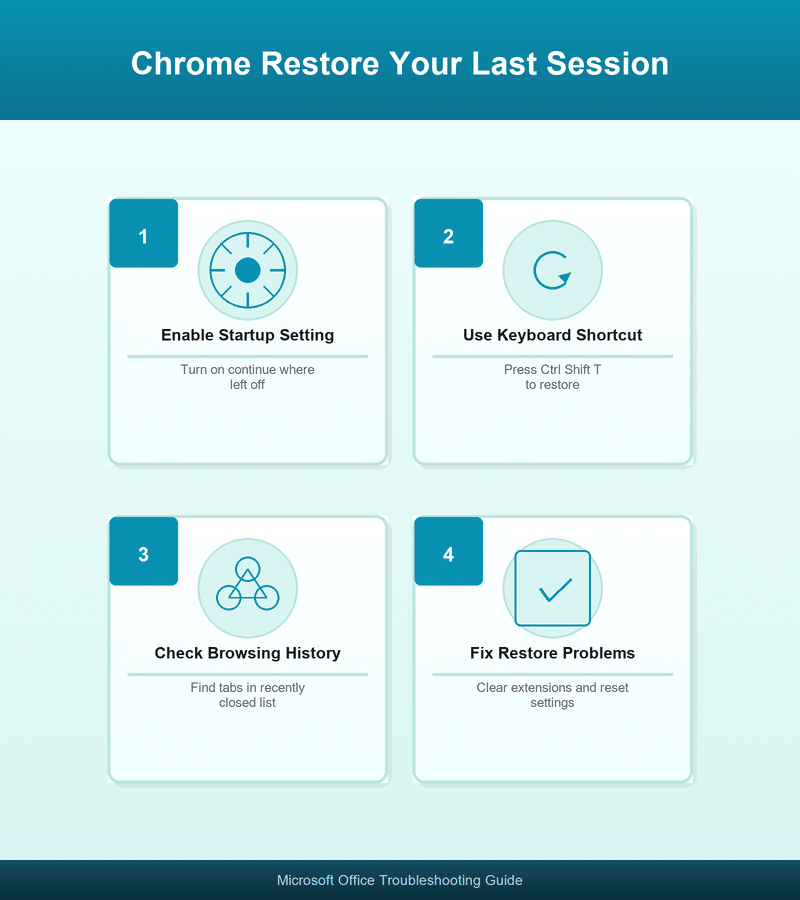
Enable continue where you left off
Open Google Chrome and click the three-dot menu icon in the upper-right corner, then select Settings from the dropdown list to access your browser configuration panel. Scroll down to the On startup section or click it in the left sidebar, then select the option labeled Chrome continue where you left off to activate automatic session restoration. After enabling this setting, Chrome will remember every open tab and window position so that your complete workspace reappears automatically the next time you open the browser.
Chrome reopen closed tabs with keyboard shortcuts
Keyboard shortcuts provide the fastest way to recover recently closed tabs without navigating through menus, making them essential knowledge for anyone who manages multiple browser tabs daily. Press Ctrl+Shift+T on Windows or Cmd+Shift+T on Mac to instantly reopen the most recently closed tab, and repeat this shortcut multiple times to restore additional closed tabs. This browser session recovery technique works for tabs closed during your current browsing session and restores them in the exact reverse order that you originally closed each one.
Restore an entire closed window
When you accidentally close an entire Chrome window containing multiple tabs, the Ctrl+Shift+T shortcut will restore that complete window with all its tabs preserved intact. This tab management capability is particularly valuable for professionals who organize their research across separate Chrome windows dedicated to different projects or client assignments running simultaneously. Edge users experiencing similar problems can check the steps to solve Edge tabs not showing or restoring on their devices.
Recover Chrome session from browsing history
Google Chrome maintains a detailed record of your recently closed tabs and browsing history that you can access through the History page to find and reopen specific pages. Click the three-dot menu, hover over History, and select Recently closed to see a list of tabs and windows that Chrome has tracked from your recent browsing activity. You can also press Ctrl+H to open the full History page, where you can search for specific websites by name or URL to locate pages from previous session data records.
Chrome startup settings restore tabs after a crash
When Google Chrome crashes unexpectedly, it typically displays a notification bar offering to restore your previous session, and clicking that restore button will reopen all tabs from before the crash. If the crash notification does not appear automatically, you can still recover your tabs by opening Chrome Settings and verifying that the continue where you left off option remains enabled. Chrome stores session data files locally on your computer, so even after a crash or forced shutdown, the browser can usually reconstruct your complete tab layout from those saved files.
Clear problematic extensions
Sometimes a faulty browser extension can cause repeated Chrome crashes that prevent normal session restoration from functioning correctly on your Windows or Mac computer operating system. Temporarily disable all extensions by navigating to chrome://extensions in your address bar, then re-enable them one at a time to identify which extension is causing the instability problem.
How to make Chrome open previous tabs on startup automatically?
Beyond the built-in startup setting, you can configure Google Chrome to open specific groups of tabs by using tab groups and bookmarking entire sessions for reliable workspace recovery. Right-click any tab and select Add tab to group to organize related pages together, then right-click the group label and choose Save group to preserve that collection permanently. You can also import your favorites and bookmarks into Chrome if you are switching from another browser and want to consolidate all your saved pages. This approach combines automatic session restoration with intentional tab management so that your most critical pages remain accessible even if Chrome fails to restore your full session.
Chrome continue where you left off not working fixes
Several common issues can prevent Chrome from restoring your previous session, including corrupted user profile data, conflicting extensions, or incorrect startup settings that override your preferred configuration. First verify that your On startup setting is correctly configured to continue where you left off, because Windows updates or Chrome updates can occasionally reset this preference. You may also want to review how to manage startup programs on Windows 11 to ensure nothing interferes with your browser launch behavior on your system. If the setting appears correct but tabs still vanish, try creating a new Chrome profile through Settings, then transferring your bookmarks and passwords to rule out profile corruption.
Reset Chrome settings
As a last resort, you can reset Google Chrome to its default settings by navigating to Settings, then Advanced, then Reset and clean up without losing your saved bookmarks. This process clears cached data, disables extensions, and restores default startup behavior, which often resolves persistent session restoration failures caused by accumulated conflicting configuration changes over time. If Chrome is your preferred browser for Microsoft 365 apps, you can also learn how to set Chrome as the default browser for Outlook 365 after completing the reset.
Frequently asked questions
How do I restore my previous session in Chrome after closing?
Open Google Chrome and press Ctrl+Shift+T repeatedly to reopen your recently closed tabs in reverse order, or enable the continue where you left off startup setting to automate this. This keyboard shortcut works for tabs closed during your current session, while the startup setting ensures Chrome remembers your tabs between complete browser restarts and system shutdowns.
Why did Chrome not restore my tabs after a crash?
Chrome may fail to restore tabs after a crash if the session data files became corrupted, a problematic extension interfered with the restoration process, or your startup settings were reset. Check your On startup configuration in Chrome Settings, disable suspicious extensions, and consider creating a new user profile if the problem persists after verifying all settings.
Can you recover tabs from a previous Chrome session days later?
You can partially recover tabs from older sessions by checking your Chrome browsing history, which stores visited pages for up to ninety days depending on your configured settings. Press Ctrl+H to open the History page, then search for specific page titles or URLs to find and reopen tabs from previous sessions that were not automatically restored.
Take control of your Chrome session recovery
Configuring Google Chrome to restore your last session protects your workflow from unexpected closures, crashes, and restarts that would otherwise cost you valuable time rebuilding your workspace. Enable the continue where you left off setting, learn the Ctrl+Shift+T shortcut, and organize important tabs into saved groups to ensure you never lose your browsing context. Start applying these Chrome session recovery methods today so that your browser always returns you to exactly where you left off working on your important projects.