Microsoft Teams can show two different kinds of people lists, and they answer different questions. The organization chart shows where a person sits in the company hierarchy. The team members list shows who belongs to a specific team or channel workspace.
Use the organization chart when you want to see a manager, peers, or direct reports. Use the team members list when you want to see owners, members, and guests inside a Teams workspace. If you look in the wrong place, Teams can look like it is missing data even when the information is available somewhere else.
Choose the right people view first
Start with the question you are trying to answer. Teams does not use one screen for every relationship because reporting lines and team membership come from different Microsoft 365 data.
Organization chart versus team members
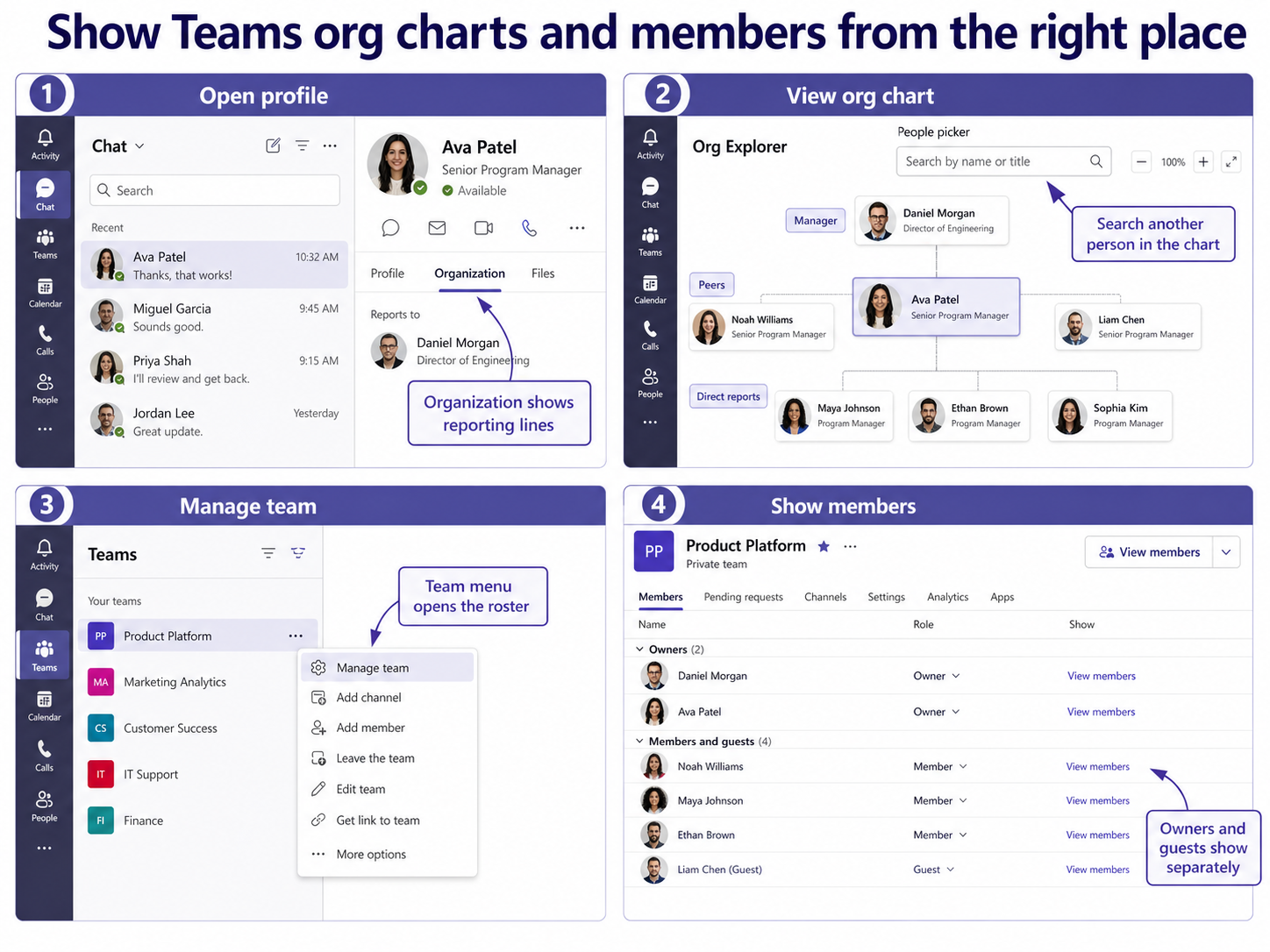
The organization chart is centered on a person. It can show who they report to, who reports to them, peers, and sometimes broader Org Explorer information such as reporting counts or related people. Microsoft says the Organization tab can appear from a person’s profile image, but it must be enabled for the organization.
The team members view is centered on a team. It shows who is part of that team and whether each person is an owner, member, or guest. This list is the right place to check whether someone belongs to a project team, department workspace, or collaboration group.
What you can and cannot show
You can usually show a chart for people in your organization when the Organization tab or Org Explorer is available. You cannot force Teams to show a complete reporting chain if manager or direct-report data is missing from Microsoft 365.
You also cannot use the org chart as proof that someone belongs to a team. A manager may not be a team owner, and a team owner may not be in the same reporting line as every team member. For project workspaces, compare the org chart with the actual team roster before changing membership or assigning work.
Show the organization chart from a person card
The fastest path is through a person’s profile card. This works well when you are already in a chat, channel conversation, meeting roster, or search result.
- Open Microsoft Teams.
- Select a person’s profile photo or initials.
- Open the profile card.
- Select Organization or Navigate to org chart when it appears.
- Review the manager, peers, and people reporting to that person.
- Search for another person inside the org chart if you need a different starting point.
Use search when the chart opens on the wrong person
Org Explorer and the Organization tab are person-focused. If the chart opens on the sender of a message but you need someone else, use the people picker or search inside the org view rather than the global Teams search box. That keeps the search scoped to the organization chart.
If you are planning a meeting with people from the reporting line, confirm the organizer and invite flow separately. The org chart can help identify the right people, while the meeting setup path is where you handle links, calendar details, and joining options.
View owners, members, and guests in a team
To show the actual team roster, go to the team itself. This is separate from the company chart.
- Select Teams in the left rail.
- Find the team name.
- Select More options next to the team.
- Choose Manage team.
- Open the Members tab.
- Expand Owners, Members and guests, or the role dropdown to show the people in each group.
If you are not a team owner, some management controls may not appear. Microsoft notes that non-owners can still view the team owner in some views, but owner-only changes such as promoting a member to owner require the right role.
Check the roster before changing work
The member list is the better source when you are deciding who can access posts, files, tabs, and channel conversations. The org chart tells you reporting context; the roster tells you access context.
This distinction matters for operational teams. For example, a project manager may use Teams for status tracking even when project contributors report to different managers. In that kind of workspace, the project workspace pattern is closer to the team roster than to a formal org chart.
Why the Organization tab might not show
If you do not see Organization, start with availability instead of assuming Teams is broken. Microsoft says the Organization tab is not available for all organizations and must be turned on by the Teams admin.
Common reasons include:
- The organization has not enabled the Organization tab.
- The person is outside your organization.
- Manager or direct-report data is missing from Microsoft 365.
- Your tenant is using a rollout where Org Explorer looks different across Teams, Outlook, and Microsoft 365.
- You are checking team membership instead of a person’s profile card.
Ask an admin to confirm the Teams setting and the user’s manager field in Microsoft Entra ID or Microsoft 365 profile data. If the Organization tab is enabled but still empty, the issue is usually the source data, not the Teams window.
Common questions
Can I show the org chart for a whole team?
Not directly as a team roster view. The org chart is built around people and reporting lines, while a team can include people from many departments. Open a person card to show the chart, then open Manage team to show the team members list.
Why can I see team members but not the Organization tab?
Team membership and organization-chart data come from different places. A team can show owners and members even if the tenant has not enabled the Organization tab or if manager data is incomplete. Ask an admin to check the org-chart setting and profile data.
Can guests appear in the organization chart?
Usually no, at least not the way internal employees do. Guests can appear in a team member list because they are part of that team, but they may not have internal reporting-line data. Use the member list to confirm guest access.
Do I need to be a Teams admin to view organization details?
Usually you do not need to be a Teams admin just to view available organization details. You may need an admin if the Organization tab is hidden, disabled, or missing data. Owners and admins are also needed for some team membership changes.
Before you move on
Use the profile card when your real question is “where does this person sit in the organization?” Use Manage team when your real question is “who belongs to this team?” Keeping those views separate makes Teams easier to read and prevents membership or scheduling mistakes based on the wrong people list.