“Our marketing team has completed a major campaign, and we need to preserve all the conversations and files for future reference. However, we don’t want this team cluttering our active Teams list. Is there a way to archive the team without deleting all the valuable information we’ve accumulated over the past six months?”
Understanding Microsoft Teams archiving for inactive teams
Organizations often face challenges managing their digital workspace as projects conclude or teams reorganize. Archiving inactive teams in Microsoft Teams provides a solution that preserves all content while removing the team from active view. This approach maintains compliance requirements for data retention while streamlining your Teams interface. Microsoft Teams offers built-in archiving capabilities that address these needs without permanent deletion.
Note: Managing your Teams workspace effectively includes knowing how to handle both active and inactive teams. While archiving teams is crucial, you might also want to learn how to integrate Teams with Outlook for better workflow management.
Microsoft Teams archive features and benefits
When you archive a team, it becomes read-only for all members while remaining accessible for reference. The archive process preserves all conversations, files, tabs, and channel structure. This solution works well for completed projects, seasonal initiatives, or reorganized departments. Before proceeding, ensure you have team owner permissions and understand that certain integrations may behave differently in archived teams.
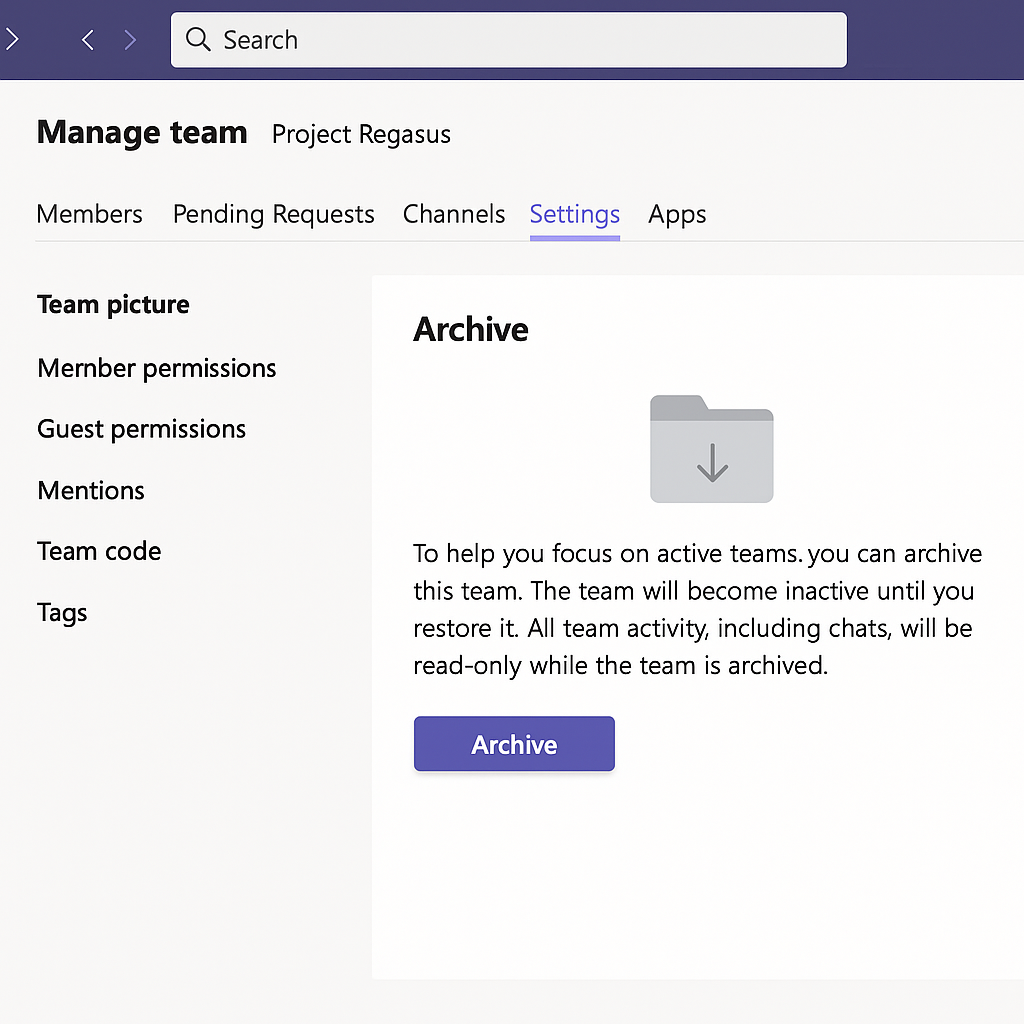
Step-by-step guide to archiving a team in Microsoft Teams
- Access the Teams management area by opening Microsoft Teams and navigating to the Teams tab in the left sidebar where you’ll see all your teams displayed in a list view.
- Locate the specific team you wish to archive from your teams list, then click the more options menu (three dots) that appears to the right of the team name to reveal additional actions.
- Select the “Archive team” option from the dropdown menu, which will open a confirmation dialog explaining what happens when a team is archived including making it read-only.
- Review the archive settings carefully and consider checking the box labeled “Make the SharePoint site read-only for team members” to prevent any modifications to stored files.
- Confirm your decision by clicking the “Archive” button, which will process your request and move the team to an archived state while preserving all content and conversation history.
- Verify the archive status by noting that archived teams appear with a special archive icon and typically move to the bottom of your teams list for easy identification.
- Communicate the change to team members so they understand they can still access information but cannot post new messages or modify existing content in the archived team.
- Consider creating documentation about where important information from the team is stored and share this with stakeholders who might need to reference the archived content in the future.
- Review your Microsoft 365 retention policies to ensure they align with your archiving strategy, as these policies will determine how long archived content remains available.
Treat archiving as a controlled read-only state
Archiving a team preserves it for reference and makes conversations and files read-only for members, but it does not delete the team or exempt its content from retention and deletion policies. Only a team owner can archive or restore a team. Teams desktop or the web should be used for the management action.
Run a pre-archive checklist
Before archiving, confirm that active work has moved elsewhere, owners are still available, and members know where new conversations will occur. Review tabs, apps, workflows, shared mailboxes, Planner plans, and links that depend on the team. Archiving freezes team activity, but external services and automations may have their own behavior.
Open Your teams and channels, find the team, select More options, and choose Archive team. Decide whether to make the associated SharePoint site read-only for team members. That extra choice matters: without it, file behavior may not match the expected frozen state. Owners can retain broader control.
After archiving, test as both an owner and a regular member. Confirm that conversations and files can be found, that members cannot start new activity, and that the team appears under Archived Teams.
Preserve governance and recovery details
Record the team name, owners, archive date, business reason, retention owner, SharePoint site, and planned review date. Do not archive a team merely to hide it; hiding, archiving, and deleting have different effects.
If work resumes, an owner can locate Archived Teams and select Restore team. Recheck connected apps, tabs, member roles, file permissions, and any channels that were separately archived. Restoring a team does not necessarily restore an individually archived channel.
Retention policies still apply while content is archived. For regulated or legal-hold material, confirm requirements with the Microsoft 365 administrator before changing state. A documented archive and restore test makes the team useful as a reference without creating a false sense of permanent preservation.
Troubleshooting Microsoft Teams archive and delete issues
- “Archive option is missing from the menu” typically indicates you lack the necessary permissions to archive the team, so contact the team owner or your IT administrator to request archiving privileges or have them perform the action for you.
- Files appear inaccessible after archiving despite the team being visible, which usually means the associated SharePoint site permissions need adjustment, requiring you to check the SharePoint permissions separately or contact your SharePoint administrator.
- Team members report they cannot find the archived team in their Teams client, which can be resolved by instructing them to use the Teams search function and type the exact team name, as archived teams remain searchable but may not appear in the main view.
- You need to restore an archived team because work has resumed, which can be accomplished by finding the team in your list, clicking the three dots menu, and selecting “Restore team” to make it fully functional again.
- Confusion between archiving and deleting occurs frequently among users, so remember that archiving preserves content in a read-only state while deletion permanently removes the team after a recovery period, making archiving the safer option for completed projects.
- If you’re having issues accessing archived content, it could be related to sync problems. You may want to check out our guide on how to fix Teams not syncing with desktop to ensure all your archived content is properly accessible.