Use Copilot in Teams as a meeting assistant with boundaries, not as a replacement for meeting ownership. It can summarize discussion points and suggest action items, but you still need to confirm transcript behavior, speaker context, and task owners. The main mistake is asking for a finished answer before you define the source material and the review standard. A better workflow treats Copilot or another AI assistant as a drafting helper that needs constraints, evidence, and a human check.
This tutorial keeps the workflow practical for business users who need a repeatable prompt, not a long prompt-engineering framework. Use the steps as a compact checklist, then adapt the wording to your organization, privacy rules, and the Microsoft 365 apps you actually use.
Start with the source and the outcome
Before you write the prompt, decide what the output must help you do. A prompt for a short email, a meeting recap, a workbook analysis, or a resume section should not use the same structure. The source, audience, and review standard are different in each case.
Use this simple pattern: name the goal, paste or attach the source, add context, then define the output format. If the result needs to be shared with other people, ask for assumptions and uncertain items separately. That makes it easier to catch gaps before the draft becomes official.
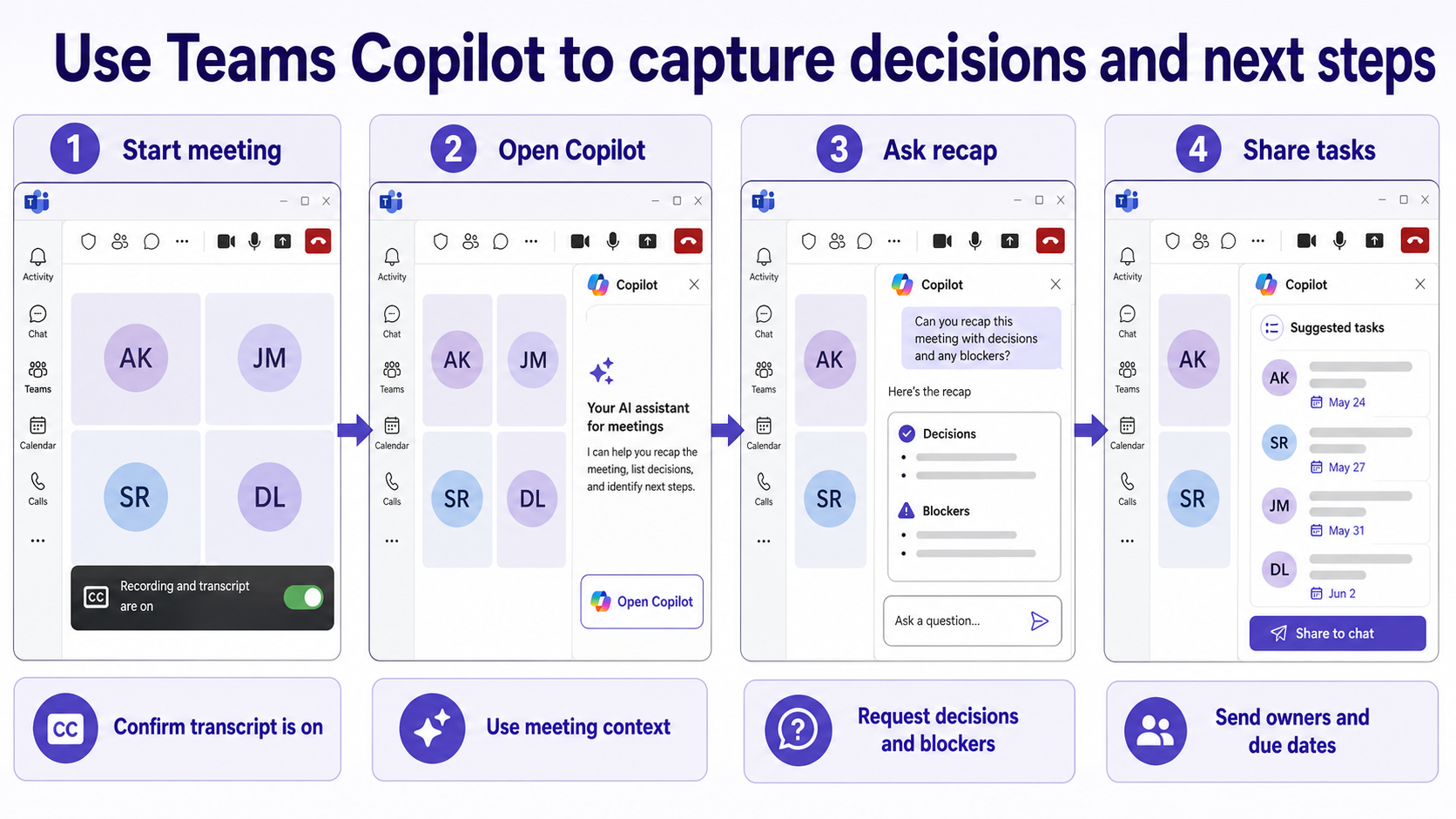
Checks before you submit the prompt
- Confirm whether transcription or meeting recap is available for the meeting.
- Ask Copilot focused questions about decisions, blockers, and next steps.
- Compare the recap with notes from the actual meeting.
- Share tasks only after owners and dates are confirmed.
Write the prompt in controlled parts
Do not start with a vague request such as “make this better.” Give the assistant the exact role it should play, the source it can use, and the format you want back. If you need a table, say which columns should appear. If you need a short paragraph, say how long it should be and who will read it.
For Microsoft Teams and Microsoft 365 Copilot, the best prompt is usually a compact paragraph followed by constraints. Tell the assistant to avoid unsupported claims, to flag uncertainty, and to keep private details out of the final text. If the source material is incomplete, ask it to list missing information before it drafts.
- Open Copilot during the meeting or from recap when available.
- Ask for decisions first, then action items, then unresolved questions.
- Request owners and due dates as a table so gaps are visible.
- Paste the reviewed task list into the team channel or Planner plan.
Prompt wording you can adapt
Use this wording as a starting point, then replace the bracketed parts with your real source material:
“Act as a Microsoft 365 productivity assistant. Use only the information I provide from [source]. Create [output type] for [audience]. Include [required sections]. Mark anything uncertain instead of guessing. Keep the tone [tone] and do not add facts that are not in the source.”
That structure is intentionally plain. It tells the assistant what role to take, what source it can use, who will read the result, and how to handle uncertainty. For sensitive work, add one more sentence:
“Before drafting, list any missing information or privacy concerns I should resolve.”
This is especially useful for reviews, resumes, customer emails, meeting notes, and workbook summaries where polished wording can hide weak evidence.
If the result is close but not usable, ask for a targeted revision instead of starting over. For example, request a shorter version, a table with named columns, a friendlier tone, or a version that removes unsupported claims. This keeps the conversation grounded in the original source and makes the final review faster.
Review the result before you reuse it
AI output can sound complete even when it quietly fills in missing context. Read the result against the original source, not against how polished it sounds. Confirm names, dates, owners, formulas, settings, and commitments before copying the text into a shared document, message, workbook, or browser workflow.
If the first answer is too broad, do not rewrite the entire prompt from scratch. Add one correction at a time: “shorter,” “use a table,” “mark unclear owners,” “keep my tone,” or “show the source detail for each recommendation.” Small prompt repairs make it easier to see what changed.
When this step exposes a setup problem, a safer AI handoff can help you confirm the adjacent setting without restarting the whole workflow.
After you confirm the main symptom, the companion troubleshooting path is useful when the next decision depends on permissions, sync, or setup details.
Useful answers
Does Copilot in Teams require transcription?
Microsoft notes that Copilot behavior varies by meeting setup and transcript availability. For reliable after-meeting prompts and history, confirm the meeting options and transcript behavior before relying on recap.
Can I share Copilot’s task list without editing it?
Review it first. Meeting summaries can miss nuance, merge similar tasks, or assign a blocker to the wrong person when the discussion was ambiguous.
Before you ask
The strongest prompt is specific, sourced, and easy to review. Give the assistant the business goal, the source material, the output shape, and the limits. Then verify the result like any other work product before you share it, send it, or use it to make a decision.