A missing, frozen, or disabled compose box does not always mean Teams itself is offline. The restriction may belong to one meeting chat, one channel, one account, or only the desktop client. When teams cannot type in chat, identify that boundary first. You can often regain a working compose box without deleting chat history, reinstalling the app, or changing tenant policy blindly.
Read the chat before trying to repair it
Open the affected conversation and look at the bottom of the thread. A policy notice, read-only banner, closed meeting state, or missing compose area is different from a box that accepts the cursor but ignores keystrokes. Also check whether the conversation is a one-to-one chat, meeting chat, channel post, or chat with an external contact.
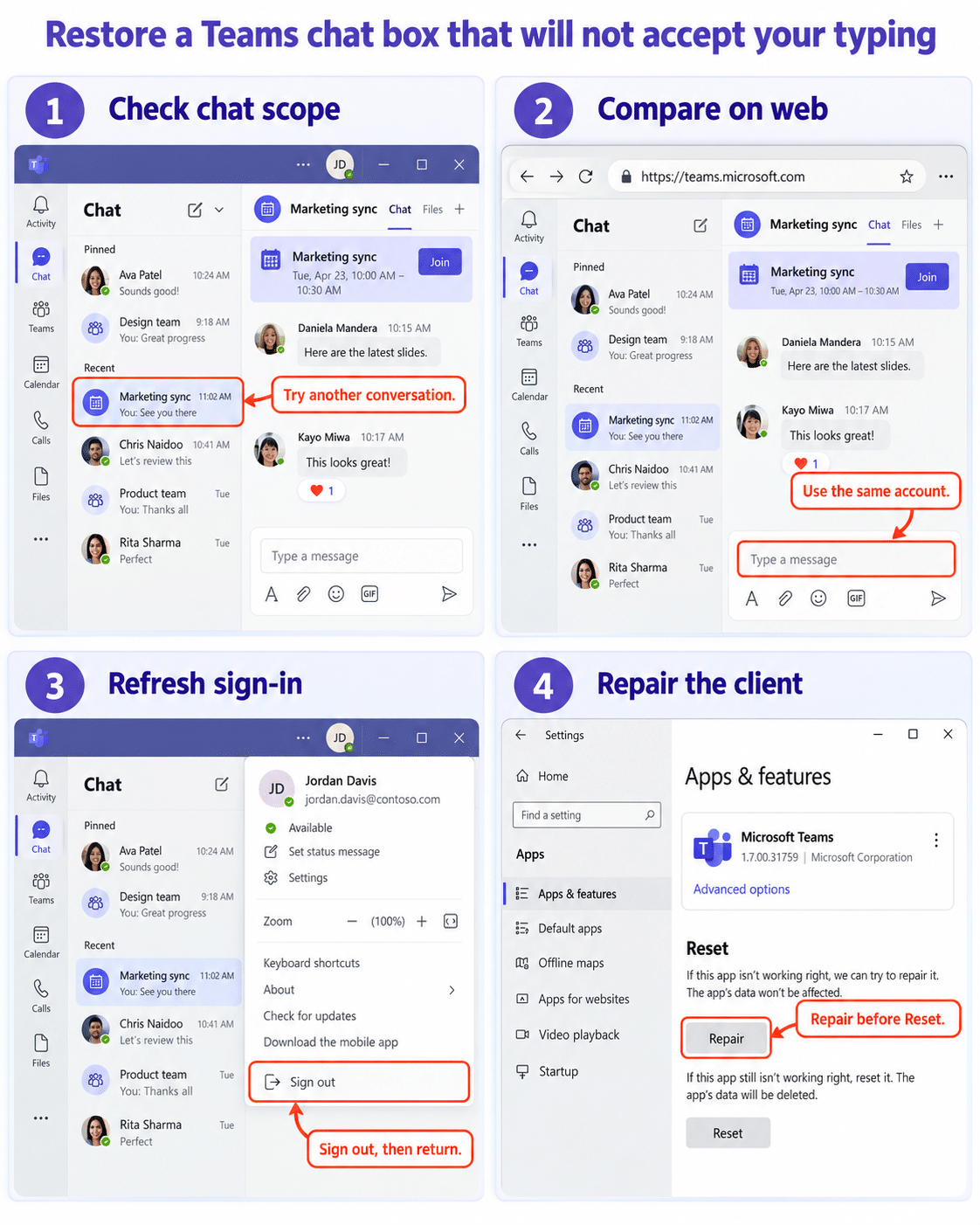
Try these comparisons and write down the first one that works:
- Start a new one-to-one chat with a coworker.
- Open an existing channel and begin a new post.
- Use the same account at Teams on the web.
- Ask whether another participant can type in the original chat.
If typing fails in only one conversation, do not reset the entire app. If every compose box fails on one computer but the browser works, the desktop client is the target. If the box is unavailable everywhere for several people, an administrator may need to inspect messaging or meeting policy.
Check whether the box is present but unfocused
Select directly inside the compose area and press Ctrl+Shift+X to expand formatting when that control is available. Then type a few ordinary characters. Close any emoji, Loop component, attachment, or app panel that is covering the editor.
Switch to another chat and back. If the chat list itself is stale, Microsoft’s support guidance recommends quitting Teams to force a refresh. On Windows, right-click the Teams icon in the taskbar area and select Quit; on macOS, use Force Quit if the app will not close normally.
Follow the route that matches your test
Only one meeting or conversation is read-only
Meeting chat availability can be limited by the organizer’s settings, and a user’s role or organization can affect access. Ask the organizer whether chat is disabled or restricted for that meeting. For a channel, confirm that you are still a member and that moderation has not limited who can start a post.
Do not ask an administrator to enable chat for the whole tenant when the failure is confined to one event. If the conversation disappeared or reopened without its expected history, the thread visibility steps help confirm that you are in the correct account and chat before permissions are changed.
Desktop Teams is the only place you cannot type
Open Teams on the web with the same account. Microsoft explicitly recommends the web version as a comparison when chat messages are not loading. If typing works there, finish urgent work in the browser and fully quit the desktop app.
Reopen Teams and test a new chat. If the editor still does not accept input, sign out from the profile menu and sign in again. Check for Update and restart Teams when an update is offered. These steps refresh the account and client without erasing local app data.
Typing works, but the message will not send
That is a delivery failure rather than a disabled editor. Copy the draft, remove any attachment or Loop component, and send a short plain-text message. If plain text works, add the content back in small parts. A stuck upload or embedded component can hold the send action even though the keyboard works normally.
When messages remain queued across several chats, the delivery troubleshooting path is the more relevant next guide. Keep that distinction clear so a network problem is not misdiagnosed as a keyboard or compose-box fault.
Use Windows repair only for a client-specific failure
Go to Settings > Apps > Installed apps > Microsoft Teams > Advanced options. Select Repair when available, reopen Teams, and retest. Windows documents Repair as the first app recovery choice; Reset is the fallback when Repair is absent or ineffective.
Reset can remove app data and personalization, so use it only after the same account can type in the browser. Do not clear the Teams cache merely because a chat is missing or stale. Microsoft’s current Teams cache article warns that doing so does not fix common chat-history or missing-message issues and removes logs that support may need.
If several users cannot type in the same chat, capture the chat type, organizer, time, affected clients, and any visible banner. The administrator can then check the meeting’s chat option, Teams messaging policies, app access, and Microsoft 365 service health with evidence instead of guessing.
Confirm the compose box is genuinely restored
Type a unique sentence in the affected conversation, send it, and verify that another participant or a second Teams client can see it. Edit the new message once if editing is allowed, then start a fresh line in the compose box. This confirms input, delivery, and thread refresh rather than just the return of a cursor.
For a meeting chat, leave and reopen the meeting recap or chat from the calendar. For a channel, reload the channel and confirm you can begin a new post as well as reply. The completion state is a working editor in the intended conversation, not merely successful typing somewhere else.
Quick answers for a disabled Teams editor
Why can I type in one Teams chat but not another?
The affected conversation may have different meeting-chat settings, membership, moderation, or external-access conditions. A single-chat failure is evidence against a device-wide keyboard problem. Check the banner and ask the organizer or owner about that conversation before repairing the app.
Can an expired meeting stop new chat messages?
The meeting’s chat setting and your relationship to the meeting can limit participation before, during, or after the event. Open the original meeting details and ask the organizer to review chat permissions. Do not assume that every past meeting remains writable for every attendee.
Why does Teams on the web accept typing when the desktop app does not?
The account and service are probably available, while the desktop client has a stale session or local app fault. Fully quit, sign in again, and update or repair the desktop app. Continue in the browser until the local test succeeds.
Is reinstalling Teams the first thing to try?
No. Reinstalling is disruptive and hides whether the issue belonged to one chat, the account, or the local client. Use the conversation comparison, browser test, clean sign-in, update, and Windows Repair first; escalate policy-wide failures to your administrator.
Where to stop troubleshooting
Stop when the intended chat accepts and delivers a fresh message that another client can see. If only one controlled conversation remains read-only, the next action belongs to its organizer or owner. If the browser works but desktop Teams does not, keep the scope on the desktop app. Clear boundaries prevent broad resets from turning a small permission or session problem into a longer outage.