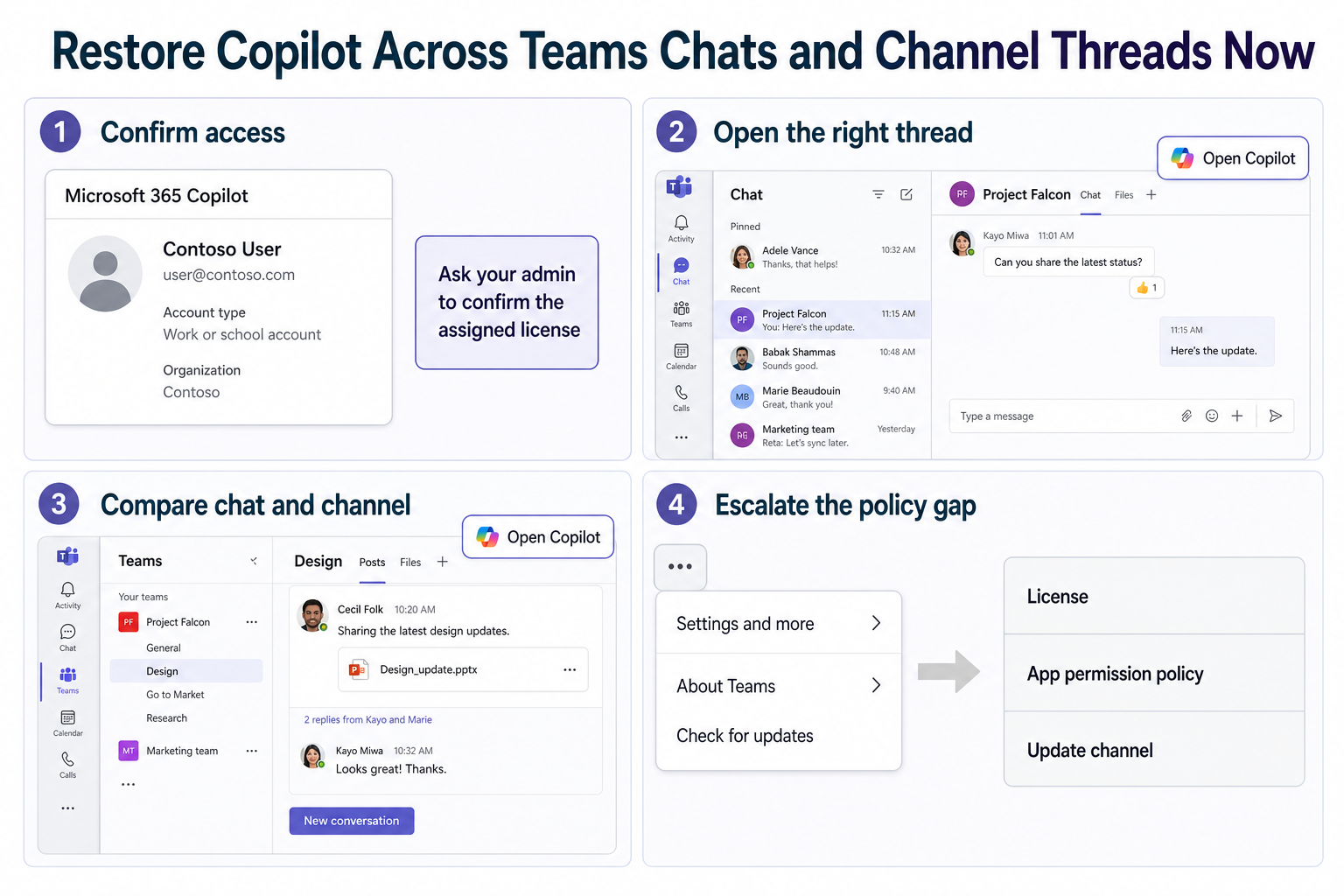
When Copilot is not available in a Teams chat or channel, first open a supported conversation and look for Open Copilot in the upper-right corner. If the control is absent everywhere, confirm the Microsoft 365 Copilot license and Teams app policy. If it is absent in only one place, the conversation type or message context is probably the deciding factor.
Copilot in Teams chats and channels works against the thread you open. Microsoft says it uses up to 30 days of message history by default, unless you specify another period, and it cannot summarize images, Loop components, or files shared in the thread.
Map the failure before changing anything
Compare three surfaces with the same work account:
| Test | Result to note | What it suggests |
|---|---|---|
| A normal one-to-one chat | Copilot icon present or absent | Basic account and client availability |
| A group chat | Present, absent, or restricted | Conversation type and rollout differences |
| A standard channel post | Present or absent | Channel access and policy context |
Do not use a meeting chat as your only test. Features and eligibility can differ by conversation type. Also confirm that the thread contains recent text messages; a chat made mostly of images or files gives Copilot little supported content to summarize.
Open Copilot from a normal chat
Select Chat, open a specific one-to-one or group conversation, and choose Open Copilot in the upper-right. Pick a suggested prompt or type a request in the Copilot compose box, then select Send.
If the pane opens but produces a weak answer, specify the period and output: “Summarize decisions from the last seven days and list owners.” The chat catch-up technique can help you frame a useful request once the control is visible.
Compare a channel thread
Open Teams, choose the team and channel, then select the relevant post or thread before opening Copilot. Its response is grounded in accessible messages from that context. It does not gain permission to content that the signed-in user cannot read.
Fix an account-wide absence
If Open Copilot is missing in every supported chat and channel, use this order:
- Confirm that Teams is signed into the work account that received the Microsoft 365 Copilot license.
- Ask the Microsoft 365 administrator to verify the license assignment.
- In Teams, open Settings and more > About Teams > Check for updates.
- Sign out and back in after an update or license change.
- Ask IT to verify that Teams app permission or update policies are not withholding the experience.
The missing-Copilot diagnostic covers broader cases where Copilot is absent from Teams, including account and meeting-related checks. Use it when the symptom is not limited to chat and channel threads.
Avoid the wrong license test
Teams settings do not provide a dependable subscription-management page for proving the license assignment. Use the Microsoft 365 account portal or ask an administrator. A Copilot icon elsewhere in Microsoft 365 can be a clue, but product availability still depends on the signed-in account and organizational configuration.
Allow time after an admin change
License and policy changes may not appear instantly in an already running client. Update Teams, sign out, close the app, and sign back in. Test the web client with the same account to distinguish a desktop client problem from an account-wide restriction.
Use the same thread for that comparison. If Copilot appears on the web but not in desktop Teams, record the desktop version and update channel before clearing data. If it is absent in both clients, the evidence points more strongly toward account, license, rollout, or policy rather than a damaged local cache.
Mobile Teams is a useful secondary check, but do not make it the deciding test for a desktop workflow. Controls can roll out differently across platforms, and a compact mobile layout may place the command somewhere else. Compare supported desktop and web experiences first, then use mobile only to add evidence.
When Copilot exists but cannot use the content
An available pane does not mean every item in the thread is included. Microsoft states that Copilot cannot summarize images, Loop components, or files shared in a chat thread. Open those items directly and review them with the appropriate Microsoft 365 app if needed.
Copilot also respects the user’s permissions. If another participant references a private channel, restricted file, or message you cannot access, Copilot should not reveal it. Ask for the content through normal access channels rather than treating an incomplete answer as a client failure.
Questions about Copilot in Teams conversations
Why does Copilot work in one chat but not another?
The conversation type, rollout state, and available content can differ. Compare a standard one-to-one chat, group chat, and channel using the same account. If only one thread fails, capture that thread type for IT rather than changing the tenant-wide license.
Can Copilot summarize a file posted in a Teams chat?
Microsoft says chat and channel Copilot cannot summarize files shared in the thread. Open the file and use a supported Copilot experience in Word, PowerPoint, Excel, or another appropriate app. The chat summary can still explain surrounding messages.
How much chat history does Copilot use?
Microsoft documents a 30-day default history for the message thread where Copilot is opened, unless the prompt specifies otherwise. State the date range when you need a narrower or broader answer. Very old content may require a different search or export workflow.
Does every user in a group chat need a Copilot license?
The person invoking Copilot needs appropriate access. Collaborative preview experiences can have different participation rules, so do not generalize from another user’s screen. Have the affected user test while signed into their own licensed work account.
Choose the smallest escalation
If Copilot is absent everywhere, send IT the user account, Teams version, web-versus-desktop result, and confirmed conversation types. If it is missing only from one thread, report that specific context and avoid broad policy changes. Once the pane returns, validate it with a short text-heavy thread before expecting it to reason over files or images it does not support.