“My Windows 11 computer has become incredibly slow over the past few months, taking forever to boot up and launch applications. Everything feels sluggish, from opening File Explorer to switching between programs. What can I do to get my system running smoothly again without having to reinstall everything?”
System slowdown causes and performance issues
Windows 11 slowdowns typically stem from accumulated temporary files, outdated drivers, excessive startup programs, insufficient storage space, or background processes consuming system resources. Performance degradation occurs gradually as users install software, accumulate data, and system maintenance tasks fall behind schedule.
We will be diagnosing and resolving Windows 11 performance issues through built-in optimization tools and configuration adjustments. You will then learn to identify resource-hungry processes, clean system files, optimize startup behavior, and configure Windows 11 settings for maximum performance.
You will need admin access to your Windows 11 system and basic familiarity with Windows settings. We will use Task Manager, Disk Cleanup, System Configuration utility, and Windows 11 Settings app to restore optimal system performance without requiring third-party software or advanced technical skills.
Performance diagnosis and system cleanup procedures
Initial system assessment and resource monitoring
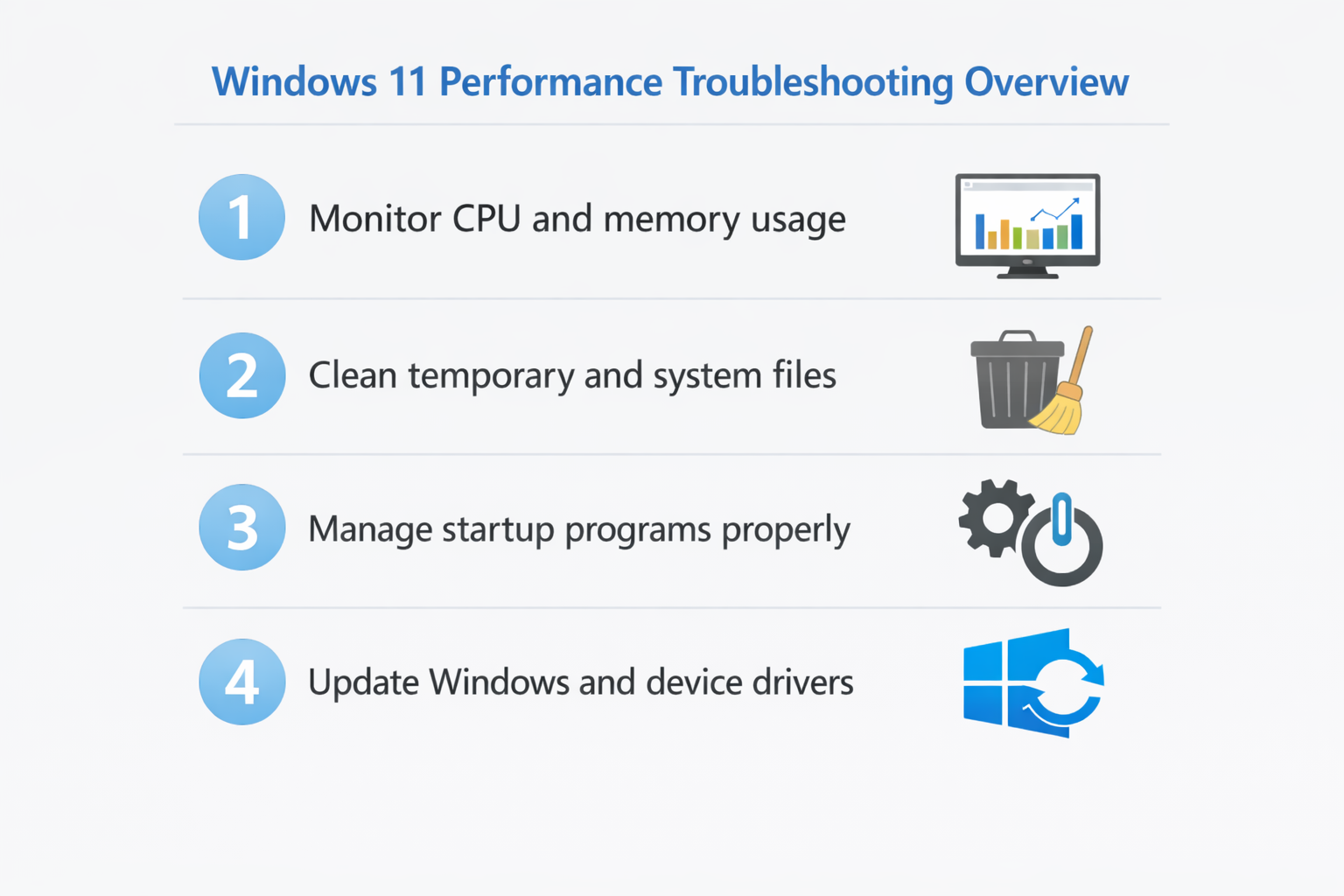
- Open Task Manager by pressing Ctrl+Shift+Esc and click the Performance tab to monitor CPU, memory, disk, and network usage in real-time. High usage percentages consistently above 80% indicate potential bottlenecks that require immediate attention to restore normal system operation.
- Navigate to the Processes tab within Task Manager and sort by CPU or Memory columns to identify applications consuming excessive system resources. Right-click on unnecessary high-resource processes and select “End task” to immediately free up system resources and improve responsiveness.
- Access Resource Monitor by typing “resmon” in the Windows search bar and examine detailed resource usage across all system components. This advanced tool provides deeper insights into file handles, network activity, and disk operations that may be causing performance bottlenecks.
Storage optimization and temporary file removal
- Launch Disk Cleanup by typing “cleanmgr” in the search bar and select your system drive to analyze recoverable storage space. Check all available options including temporary files, system cache, thumbnails, and previous Windows installations to maximize storage recovery and improve system performance.
- Open Settings by pressing Windows+I and navigate to System > Storage to access Storage Sense configuration options for automated cleanup scheduling. Enable Storage Sense and configure it to run automatically when disk space becomes low or on a monthly schedule to prevent future slowdowns.
- Access Temporary Files cleanup through Settings > System > Storage > Temporary files to remove unnecessary system files manually. Select categories like temporary files, delivery optimization files, and Windows Update cleanup to free significant disk space and improve system responsiveness immediately.
Expert Tip: Schedule regular disk cleanup sessions weekly to prevent temporary file accumulation that gradually degrades system performance over time.
Startup program management and boot optimization
- Open Task Manager and click the Startup tab to review all programs that launch automatically when Windows starts up completely. Disable unnecessary startup programs by right-clicking and selecting “Disable” to reduce boot time and free system resources for essential applications.
- Then, go ahead and type “msconfig” in the Windows 11 search bar to access System Configuration utility and navigate to the Startup tab for additional startup management options. Use this tool to disable system services and startup items that may not appear in Task Manager’s startup section.
- Access Windows 11 Settings and navigate to Apps > Startup to manage Microsoft Store apps that launch at system startup automatically. Toggle off applications you do not need immediately upon login to reduce memory usage and improve overall system startup speed significantly.
Windows Update and driver optimization
- Open Windows Update through Settings > Windows Update and install all pending updates to ensure optimal system performance and security patches. Outdated system components often cause compatibility issues and performance degradation that newer updates specifically address and resolve effectively.
- Navigate to Device Manager by right-clicking the Start button and selecting “Device Manager” to identify outdated or problematic device drivers throughout your system. Look for devices with yellow warning triangles and update drivers through Windows Update or manufacturer websites for optimal hardware performance.
- Access Optional Updates within Windows Update settings to install available driver updates that may not be included in standard system updates automatically. These specialized drivers often provide significant performance improvements for graphics cards, network adapters, and other critical system components.
Common performance issues and resolution strategies
- Slow startup and boot times: Windows 11 may exhibit extended boot times due to excessive startup programs or corrupted system files requiring immediate attention and systematic resolution. Access System Configuration utility and disable unnecessary startup items while running System File Checker scan using “sfc /scannow” command in elevated Command Prompt to repair system integrity. See slow boot time fix for more.
- High disk usage causing system freezing: Persistent 100% disk usage often results from Windows Search indexing, antivirus scans, or faulty drivers consuming excessive system resources continuously throughout normal operation. Disable Windows Search service temporarily through Services application and check Task Manager for specific processes causing sustained disk activity before implementing targeted solutions.
- Insufficient memory and frequent application crashes: Limited RAM availability causes Windows 11 to rely heavily on virtual memory, significantly impacting overall system performance and application stability during regular usage. Close unnecessary browser tabs and applications while considering RAM upgrade if physical memory consistently exceeds 80% usage during normal computing activities.
- Background Windows Updates consuming bandwidth and resources: Automatic Windows Updates can significantly impact system performance during download and installation processes, particularly on systems with limited hardware specifications or network connectivity. Configure Active Hours in Windows Update settings and schedule updates during periods of low system usage to minimize performance impact on daily productivity tasks.