Can Teams present your screen during important meetings?
Screen sharing problems in Microsoft Teams can disrupt meetings and presentations at the worst possible moments. When you need to fix Teams screen sharing not working, the issue often stems from permission settings, outdated graphics drivers, or meeting policy restrictions that block the feature silently.
This tutorial covers the most common causes and proven solutions to restore sharing functionality. You will learn how to diagnose permission issues, update system components, and configure Teams settings properly so screen sharing works reliably.
Understanding Teams screen sharing problems and solutions
Permission restrictions are the leading cause of Teams screen sharing failures, and your organization’s IT policies might block the feature entirely or limit it to specific user groups. This workflow focuses on diagnosing permission conflicts, updating graphics components, and adjusting meeting configurations to restore full screen sharing capabilities in Microsoft Teams.
Prerequisites: You need administrator access to your Windows device, an active Microsoft Teams account with meeting participation rights, and internet connectivity to download driver updates if necessary. This tutorial applies to Microsoft Teams desktop application on Windows 11 with the latest March 2026 updates installed.
The tutorial uses Teams desktop client settings, Windows system permissions, and meeting policy configurations as the primary tools for resolving screen sharing failures across different organizational environments.
Verify Teams permissions and meeting policies
- Open Microsoft Teams and click your profile picture in the upper right corner, then select Settings from the dropdown menu to access configuration options.
- Navigate to Privacy within the Settings menu and scroll down to locate the Media section where screen sharing permissions are controlled by your organization.
- Examine the screen sharing permission status carefully because grayed-out or disabled options indicate that your IT administrator has restricted this feature through tenant-level policies.
- Contact your IT department if screen sharing appears disabled since organizational policies often restrict sharing to meeting organizers only as a security measure against unauthorized content exposure.
- Press Windows key plus I simultaneously to open Windows Settings, then select Privacy and Security from the left sidebar to access system-level permission controls.
- Click App permissions and select Screen recording from the list of available permission categories that control which applications can capture your display content.
- Scroll through the applications list until you locate Microsoft Teams, then toggle the permission switch to the enabled position if it appears off or disabled.
- Mac users should open System Preferences and navigate to Security and Privacy, then click the Privacy tab and verify Microsoft Teams appears under Screen Recording permissions.
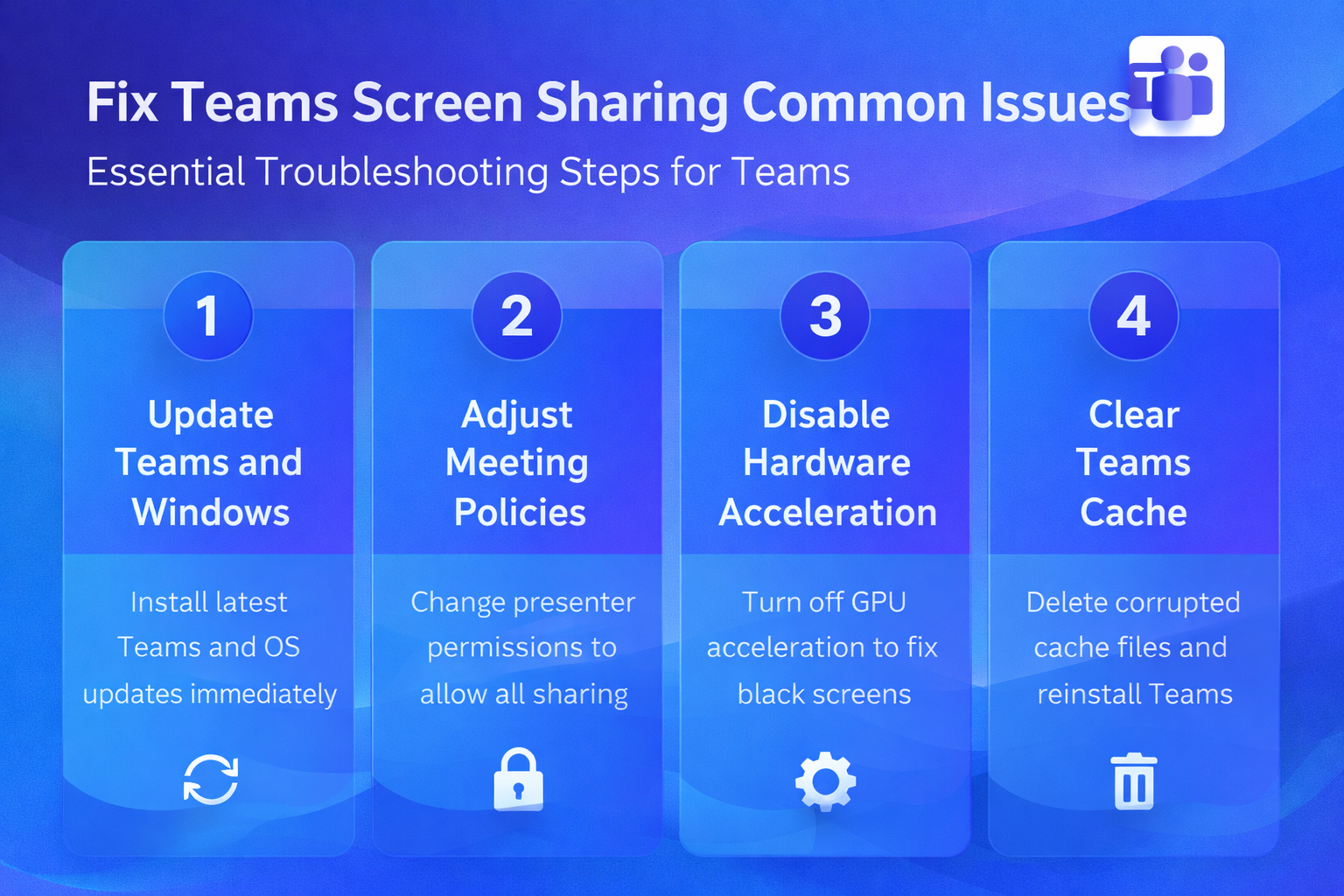
Expert Tip: Permission changes in Teams typically take effect immediately without requiring application restarts, but system-level permission modifications may require you to close and reopen Teams completely.
Configure meeting-specific sharing options
- Join or start a Teams meeting and click the Share button in the meeting control bar to examine available sharing options and identify any restrictions.
- Check whether you see Desktop, Window, and PowerPoint sharing options or only limited choices like Browse, which indicates organizer-imposed restrictions on participant sharing.
- Meeting organizers can modify sharing restrictions by clicking Meeting options either before starting the call or during an active meeting from the participants panel.
- Locate the Who can present setting and change it from Specific people or Only organizers to Everyone to grant full sharing access to all meeting participants.
- Click Save to apply the new meeting policy settings, which take effect immediately for all participants currently in the meeting without requiring them to rejoin.
Note: Make sure to verify your audio device settings through your device preferences to ensure Teams can detect your microphone and speakers.
Update graphics drivers and clear display cache
- Right-click the Start menu and select Device Manager to open the hardware management console where you can examine installed graphics hardware and driver versions.
- Expand the Display adapters section to reveal your graphics card, then right-click the device name and select Update driver to initiate the driver update process.
- Choose Search automatically for drivers to allow Windows to locate and install the latest compatible graphics driver from Microsoft servers or manufacturer repositories.
- For NVIDIA graphics cards, visit the official NVIDIA driver download page directly and use the automatic driver detection tool to identify your specific GPU model and download appropriate drivers.
- AMD graphics card users should navigate to the AMD support website and use the auto-detect tool or manually select their graphics card model to download the latest driver package.
- After completing the driver installation process, restart your computer completely to ensure Teams can access the new driver features and optimizations during subsequent screen sharing attempts.
Remember: Graphics driver updates often include critical fixes for screen capture protocols that Teams relies on for smooth sharing performance and compatibility with Windows display systems.
Remove corrupted Teams display cache
- Close Microsoft Teams completely by right-clicking the Teams icon in the system tray and selecting Quit, or by opening Task Manager and ending all Teams processes.
- Press Windows key plus R to open the Run dialog, type %appdata%\Microsoft\Teams, and press Enter to navigate directly to the Teams application data folder.
- Locate the Cache folder within the Teams directory and delete its entire contents, which may include multiple subfolders containing temporary display and media data.
- Restart Microsoft Teams after clearing the cache and allow thirty to sixty seconds for the application to rebuild its cache and detect available displays properly.
- Test screen sharing functionality by starting a new meeting or joining a test call to verify that Teams now recognizes your displays and allows content sharing.
Resolve network and connectivity issues
- Run an internet speed test using any reliable speed testing service and pay particular attention to your upload speed rather than download speed metrics.
- Verify that your upload bandwidth meets the minimum requirement of one point five megabits per second for reliable Teams screen sharing without quality degradation or connection failures.
- If you use a VPN connection for work or security purposes, temporarily disconnect from the VPN and test Teams screen sharing to determine whether VPN routing causes the problem.
- When screen sharing works without VPN but fails with VPN enabled, configure split tunneling in your VPN client to allow Teams traffic to bypass the VPN tunnel.
- Contact your IT department about approved VPN configurations for Microsoft Teams if your organization requires VPN usage and split tunneling is not permitted by security policies.
- Check your firewall settings by opening Windows Security and navigating to Firewall and network protection, then click Allow an app through firewall to verify Teams has network access.
- Ensure Microsoft Teams appears in the allowed applications list with checkmarks for both Private and Public network types to prevent firewall blocking of screen sharing connections.
Important Tip: Network administrators sometimes configure firewalls to block specific media transmission ports that Teams uses for screen sharing, so enterprise environments may require IT intervention to resolve connectivity restrictions.
Troubleshoot persistent screen sharing failures
- The screen sharing button may disappear completely when meeting organizers restrict sharing permissions to specific roles or when Teams lacks necessary system permissions for screen recording. Navigate to meeting options and verify that participant roles allow presentation capabilities, then check Windows Privacy settings to confirm Teams has screen recording permission enabled.
- Black screen issues during sharing typically indicate graphics driver conflicts or insufficient system permissions for display capture, requiring you to update graphics drivers through Device Manager or manufacturer websites. After updating drivers, verify that Teams has screen recording permission in Windows Privacy and Security settings, then restart your computer to apply all changes completely.
- Audio conflicts sometimes prevent screen sharing from initializing properly because Teams links audio and video subsystems more closely than users expect in its architecture. Open Teams Settings and navigate to Devices, then click Make a test call to verify audio functionality works correctly before attempting screen sharing again.
- Application corruption may prevent screen sharing despite correct system configuration, requiring you to uninstall Teams completely through Windows Settings and download a fresh installer from Microsoft’s official website. Perform a clean installation rather than using cached installation files to ensure all corrupted components are replaced with functional versions that support screen sharing properly.