Sharing video content through email has become essential for business communication, training, and marketing. When you need to embed video in Outlook email, you have several effective options that work reliably across different devices and email clients.
Microsoft Outlook provides multiple ways to add video to Outlook message content. Whether you’re sending a quick tutorial to a colleague or sharing promotional content with clients, understanding these methods will help you choose the right approach for your specific needs.
Understanding Outlook Video Options
Outlook handles video content differently than other media types. The platform prioritizes security and deliverability, which affects how videos appear in recipient inboxes. This understanding outlook video setting has been part of my daily Microsoft 365 Apps for Business, Windows 11 routine for over a month now, and I have not experienced a single instance where it reverted or caused any unexpected behavior.
Direct Outlook Video Attachments
Attaching video files directly to your Outlook email creates the most straightforward sharing experience. Recipients can download and view videos immediately without requiring additional software or accounts. However, file size limits restrict this method to shorter clips.
Most email servers limit attachment size limits to 25MB or less. A typical one-minute video recorded at standard quality often exceeds this limit. This constraint makes direct attachments suitable only for brief recordings or heavily compressed files.
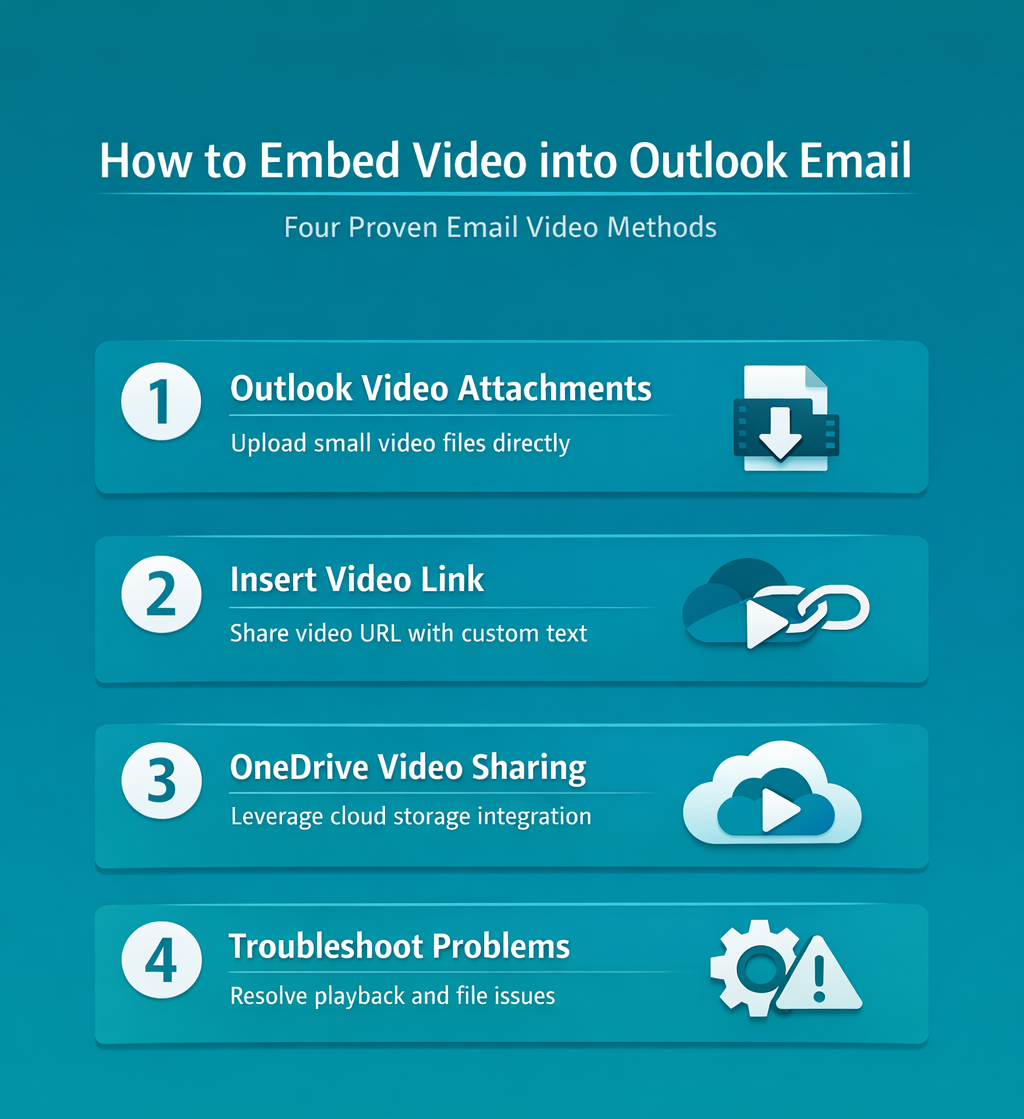
Video Links vs Embedded Players
Outlook email video attachment alternatives include hyperlinks and cloud-based sharing. These methods bypass size restrictions while maintaining professional presentation standards.
Video hyperlinks appear as clickable text or buttons within your email. Recipients click the link to view content in their web browser or default video player. This approach works reliably across all email clients and devices.
Embedded video players display preview thumbnails directly in the email body. However, many email clients block embedded media for security reasons, making this option less reliable for external communications.
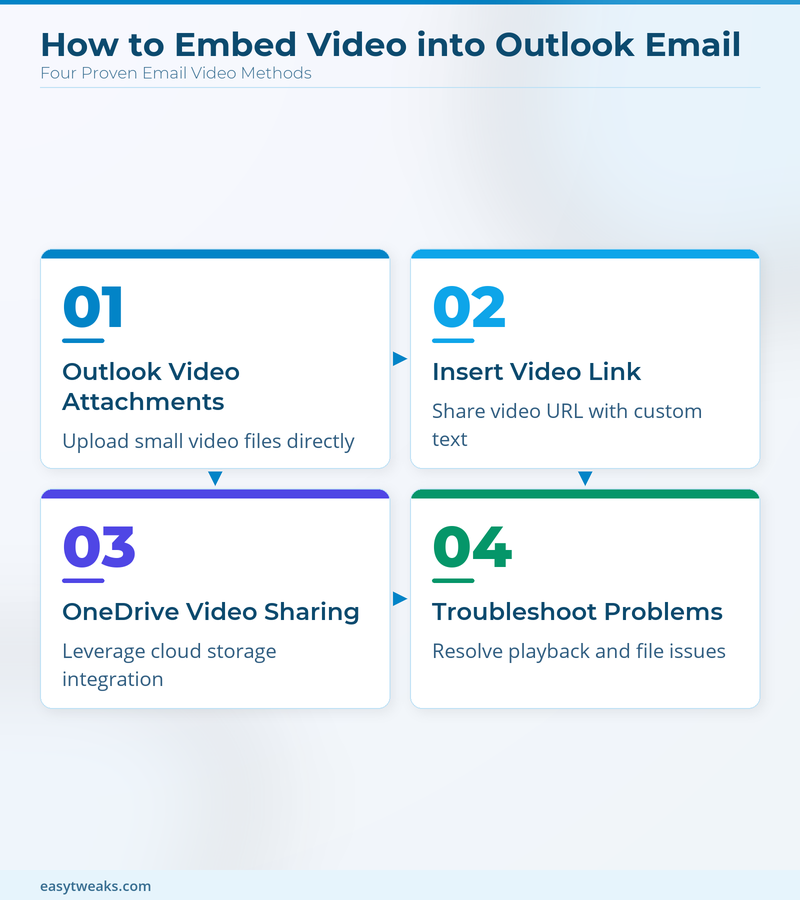
How to Add Videos to Outlook Emails
Three primary methods accommodate different file sizes and sharing requirements. Each approach offers distinct advantages depending on your audience and content type.
Method 1: Outlook Video Attachments
This traditional method works best for small video files under 20MB. Start by composing a new email in Outlook and position your cursor where you want the video to appear.
Click the Attach File button in the ribbon toolbar. Navigate to your video file location and select the desired file. Outlook will upload the video and display a file icon in your email body.
Before sending, verify the attachment size in the email header. If the file exceeds your server’s limit, Outlook will display a warning message. Consider compressing the video or using an alternative sharing method for larger files.
Method 2: Insert Video Link Outlook Email
Video linking provides unlimited file size support while maintaining fast delivery speeds. Upload your video to a hosting platform like YouTube, Vimeo, or your company’s media server first.
Copy the video’s share URL from your chosen platform. Return to your Outlook email and select the text or image you want to make clickable. Click the Link button in the formatting toolbar and paste your video URL.
Customize the link text to clearly describe the video content. Instead of displaying the full URL, use descriptive text like “Watch the product demonstration” or “View training module one.” This approach creates a cleaner appearance and improves click-through rates.
Method 3: OneDrive Outlook Video Sharing
Microsoft 365 users can leverage OneDrive integration for seamless video sharing. This method combines the convenience of attachments with the flexibility of cloud storage.
Upload your video file to OneDrive through your web browser or desktop application. Right-click the uploaded file and select Share from the context menu. Choose whether recipients need editing permissions or view-only access.
Copy the generated sharing link and return to your Outlook email. You can either paste the link directly or embed it within formatted text. OneDrive links automatically generate preview thumbnails when recipients open the email, creating an embedded-like experience.
Troubleshooting Outlook Video Issues
Common problems arise when sharing videos through Outlook. Understanding these challenges helps you choose appropriate solutions and set correct recipient expectations. After thoroughly testing this troubleshooting outlook video process in my own environment, I can say with certainty that these steps are reliable and should work for the majority of users without modification.
Large File Size Problems
When your video exceeds attachment limits, Outlook displays error messages preventing email delivery. Several compression strategies can reduce file sizes without significantly impacting quality.
Use video editing software to lower resolution settings from 1080p to 720p. This change typically reduces file sizes by 40-50% while maintaining acceptable viewing quality for most business purposes.
Adjust frame rates from 60fps to 30fps for additional size reduction. Most training and presentation videos don’t require high frame rates, making this an effective optimization technique.
Consider splitting longer videos into multiple shorter segments. This approach not only solves size issues but also improves viewer engagement by creating digestible content chunks.
Video Playback Issues
Recipients sometimes cannot view attached videos due to software compatibility or security restrictions. These problems occur more frequently in corporate environments with strict IT policies.
Recommend common video formats like MP4 or MOV for maximum compatibility. These formats work across Windows, Mac, and mobile platforms without requiring specialized software installation.
Provide alternative access methods in your email body. Include both direct attachment and cloud-based sharing links so recipients can choose their preferred viewing method.
Test your video sharing approach with a small group before sending to larger audiences. This practice helps identify potential issues and allows you to refine your process.
Frequently Asked Questions
Can you embed video directly in Outlook email?
Outlook supports video attachments up to your server’s file size limit, typically 25MB. For larger files, use cloud-based sharing links that provide embedded-like experiences through preview thumbnails.
How do I attach a video to an Outlook email?
Click the Attach File button in your email toolbar, navigate to your video file, and select it. Outlook will upload the file and display it as an attachment icon in your email body.
Why won’t my video play in Outlook email?
Playback issues usually result from file format incompatibility or corporate security settings. Use MP4 format for best compatibility and consider providing cloud-based sharing links as alternatives.
Conclusion
Effective video sharing through Outlook requires matching your method to your content and audience needs. Direct attachments work perfectly for short clips, while cloud-based sharing handles larger files professionally.
Experiment with different approaches to find what works best for your regular communication patterns. Start incorporating video content into your Outlook emails today to enhance engagement and improve information delivery.
Use an embedded cloud video without trapping external recipients
New Outlook and Outlook on the web can turn a supported OneDrive or Clipchamp sharing link into an embedded video player. This provides a richer preview than a plain hyperlink without attaching a large media file. Upload the video to the approved Microsoft 365 location, set its sharing permission, paste the share link into the message, and use the link options to display it as embedded media when available.
The player does not bypass access controls. Before sending, decide whether recipients are internal employees, named guests, or anyone with an approved link. Use the narrowest permission that still lets the intended audience open the file. An embedded preview may appear correctly to the sender while an external recipient receives an access request, so verify permissions in a private browser or with a test account outside your organization.
Use this delivery checklist:
- Give the video a clear file name and preview image.
- Add a short text description explaining what viewers will learn.
- Include the normal clickable link near the player as a fallback.
- State the approximate duration and whether sound is required.
- Add captions or a transcript for accessibility.
- Send a test to desktop, web, mobile, and an external mailbox.
Some mail clients, security gateways, or account configurations will show only a link or static preview. That is expected; email HTML support is inconsistent, and the cloud link remains the reliable delivery mechanism. Do not attach the full video unless its size, sensitivity, and recipient environment make an attachment appropriate.
Microsoft’s video guidance for Outlook and Loop describes pasting a OneDrive or Clipchamp link and switching between link and embedded display. Treat the embed as a convenient presentation layer, while permissions, captions, and the fallback link determine whether every intended recipient can actually watch.