Struggling with sharing multiple screens during presentations?
Are you preparing for an important presentation and need to show content from both your monitors simultaneously? Many users find themselves switching back and forth between screens during Microsoft Teams meetings, disrupting their flow and appearing unprofessional. You might be wondering, “Is there a way to share both my monitors at once in Teams so my audience can see everything I’m working with?”
The challenge of effective screen sharing with dual monitors
Organizations increasingly rely on dual monitor setups to enhance productivity, but this creates complications during virtual presentations. When sharing content in Microsoft Teams meetings, presenters often struggle to display information spread across multiple screens. This limitation can disrupt presentations, training sessions, and collaborative work. Microsoft Teams offers specific functionality for sharing multiple monitors that many users aren’t aware of, allowing for more comprehensive and professional presentations.
When conducting virtual presentations, it’s crucial to first ensure your camera is working properly – you can learn how to troubleshoot this in our guide on how to fix when Microsoft Teams is not recognizing your camera. This will help ensure a smooth presentation experience alongside your screen sharing.
Mastering Microsoft Teams dual monitor presentation mode
This tutorial will guide you through the process of sharing multiple screens simultaneously during Microsoft Teams meetings. We’ll cover both the standard method and alternative approaches depending on your Teams version. This solution works for Microsoft Teams desktop applications on Windows and Mac. You’ll need a computer with multiple monitors connected and the latest version of Microsoft Teams installed.
How to share two screens in Microsoft Teams meetings?
Accessing the screen sharing options in Teams
- Launch Microsoft Teams and join or start a meeting where you need to share your dual monitors with other participants.
- Look for the sharing controls in the meeting toolbar – this appears as a rectangle with an arrow pointing upward.
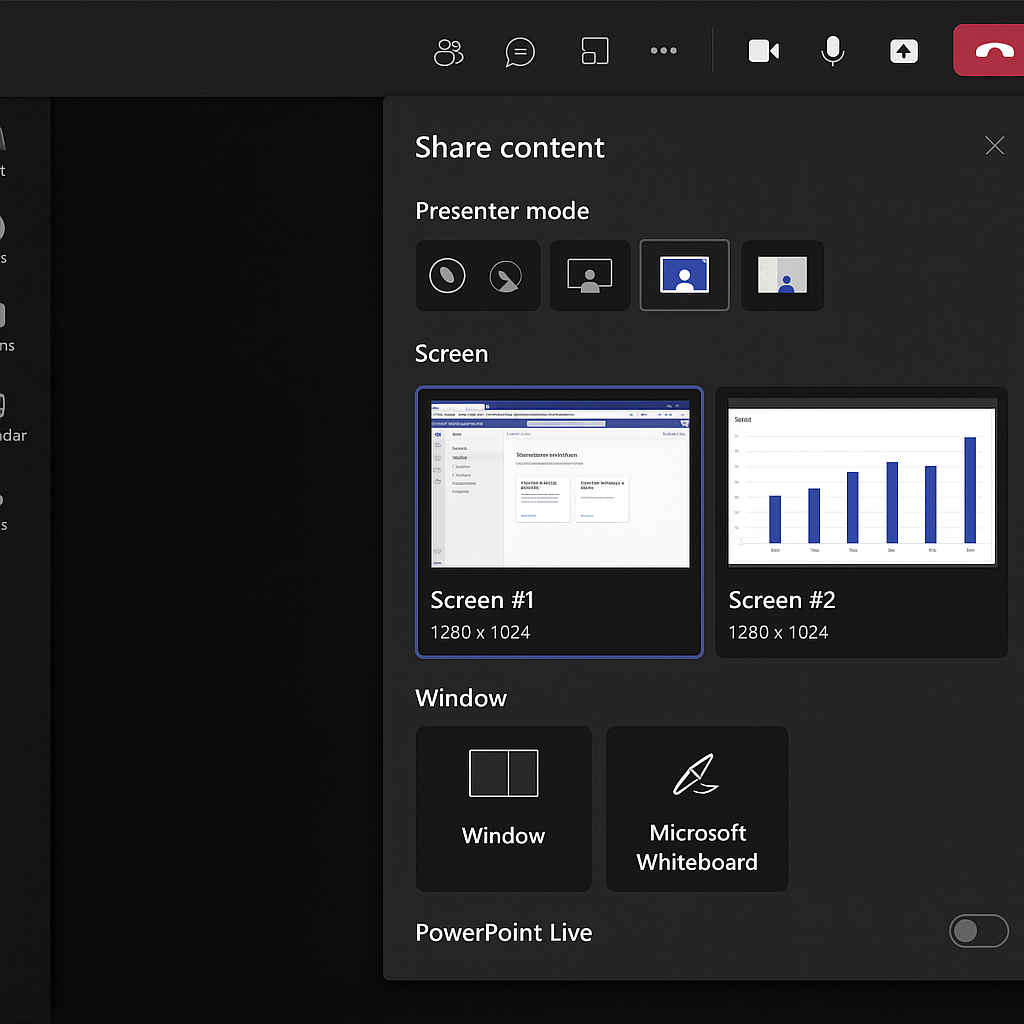
- Click on the sharing icon to reveal all available sharing options, which include individual applications, desktop screens, and other content types.
- Teams will display thumbnails of your connected monitors, allowing you to identify which screen is which before sharing.
Sharing multiple monitors simultaneously
- In the sharing options panel, locate the “Screen” section which shows thumbnails of your available monitors labeled as “Screen 1,” “Screen 2,” etc.
- To share both monitors at once, look for the “Multiple screens” or “All screens” option that appears alongside individual screen options.
- Select this option to begin sharing all connected monitors simultaneously with meeting participants.
- A red border will appear around all your screens, indicating that everything displayed on these monitors is now visible to meeting participants.
- Confirm that participants can see both screens by asking for verbal confirmation or checking the meeting chat.
Managing your dual monitor presentation
- Use the floating meeting controls to manage your presentation – these controls follow you as you move between applications.
- To stop sharing at any time, click the “Stop sharing” button in the floating control bar or return to the Teams meeting window.
- Remember that all content on both screens is visible to participants, including notifications, so consider enabling Do Not Disturb mode.
- For better control, organize your content in advance with presentation materials on one screen and reference materials on the other.
- For optimal presentation quality, you may want to adjust your screen size and zoom settings – check out our tutorial on managing Microsoft Teams screen size and zoom to ensure your shared content appears clearly to all participants.
Teams Classic vs New Teams Differences
The dual monitor sharing experience varies between Teams versions. In Teams Classic, the “Multiple screens” option appears directly in the sharing panel alongside individual screen thumbnails. The New Teams client may label this feature as “All screens” and positions it more prominently in the sharing menu.
New Teams also provides enhanced preview capabilities, showing clearer thumbnails of each monitor’s current content before sharing begins. This helps you verify which screen contains your presentation materials versus reference documents.
Important: Organizations deploying dual monitor setups should consider bandwidth implications when multiple users share dual screens simultaneously. Each additional screen increases data transmission requirements, potentially affecting call quality for users on limited connections.
Plan around Teams’ active-share behavior
Teams normally presents one selected screen, window, PowerPoint Live deck, whiteboard, or other content source at a time from a presenter. Having two monitors gives the presenter more workspace, but it does not mean both entire displays are automatically broadcast as one combined canvas. Choose the source that attendees need to see and keep private controls on the other monitor.
Before sharing, arrange the presentation window on the intended display and close or minimize confidential applications. Select Share, inspect the screen and window thumbnails, and choose the exact source. A red or colored border indicates the area being shared. Ask a test participant to confirm the view; the presenter’s second monitor is not proof of the attendee layout.
Switch sources deliberately
When the audience must see content from both monitors, switch the active share at a planned transition. Stop sharing, move the needed application if necessary, and select the second screen or window. Announce the switch because attendees may briefly see a blank or paused view.
Sharing an application window is safer when notifications or unrelated windows may appear on the display. Sharing the full screen is useful when the workflow crosses several applications, but everything visible on that screen can be exposed. PowerPoint Live is preferable for many slide presentations because it separates the deck from the presenter’s desktop.
Keep meeting controls accessible
Use the unshared monitor for Teams controls, participant video, notes, and chat. If controls open on the shared display, drag the Teams window before presenting or use the presenter toolbar carefully. Avoid placing passwords, customer data, or message previews on either display during a high-risk presentation.
If the wrong monitor appears, stop the share rather than moving sensitive windows while broadcasting. Recheck Windows display numbering and the Teams thumbnail preview. For unstable or low-bandwidth calls, share a single application or PowerPoint Live instead of a high-resolution full display. Run a short rehearsal after changing docks, graphics drivers, or monitor order, because Windows can renumber displays when hardware reconnects.
Troubleshooting Microsoft Teams sharing multiple screens
- If the “Multiple screens” option doesn’t appear in your sharing menu, check that you’re using the latest version of Microsoft Teams by clicking on your profile picture and selecting “Check for updates.”
- When participants report they can only see one screen despite you sharing both, try stopping the share and restarting it, ensuring you’ve selected the multiple screens option rather than a single desktop.
- For users experiencing high CPU usage or performance issues when sharing dual monitors, close unnecessary applications running in the background to reduce system resource consumption.
- If sharing multiple screens causes audio problems or meeting lag, consider lowering the resolution of your monitors temporarily or sharing specific application windows instead of full screens.
- When using older versions of Teams that don’t support simultaneous screen sharing, work around this limitation by sharing one screen and switching the content being displayed on that screen as needed during your presentation.
By following these steps, you can effectively share content across multiple monitors during your Microsoft Teams meetings, creating more dynamic and comprehensive presentations for your audience.