A normal screenshot records only the part of a webpage visible on your monitor. That is inconvenient when you need a complete article, receipt, dashboard, or troubleshooting record. Microsoft Edge can capture the entire scrolling page as one image without an extension and without asking you to stitch several screenshots together.
The quickest method is to open Edge’s Screenshot tool, choose the full-page option, review the generated image, and save it. The process takes a few seconds, but preparing the page first helps prevent missing images, expanded menus, and duplicated sticky elements.
Prepare the webpage before you capture it
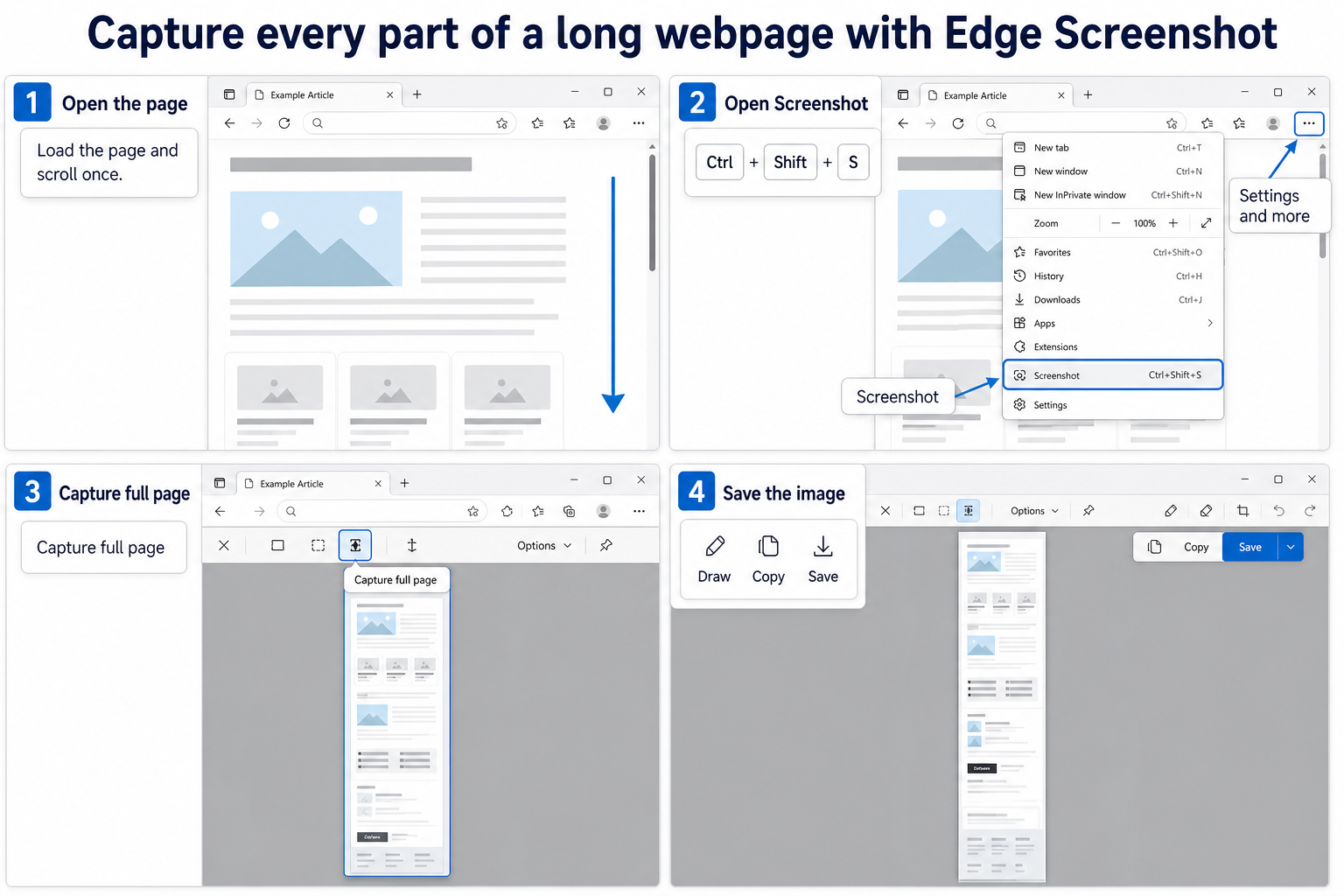
Open the page in Microsoft Edge and let it finish loading. If the site loads pictures or sections only when they enter view, scroll from the top to the bottom once, then return to the place where you want to begin. This gives lazy-loaded content a chance to appear before Edge builds the tall image.
Close cookie notices, chat widgets, notification prompts, and open menus when they cover useful content. A full-page capture follows the webpage itself, so a floating banner can appear in the result just as it appears in the browser. Also select the correct zoom level before starting. Edge captures the page at its current layout, and changing zoom afterward will not reflow the saved PNG or JPEG.
This feature captures webpage content, not the browser’s tab strip or address bar. If your goal is to show the complete Edge window, use a regular desktop screenshot instead. The browser-native capture comparison is also useful when you need the same kind of result in Chrome.
Capture the complete scrolling page
Open Screenshot with the keyboard
Press Ctrl+Shift+S while the webpage is active. Edge opens its Screenshot toolbar over the page. Select Capture full page rather than the area-selection option. Edge processes the page and opens a preview containing content above and below the part that was visible on screen.
You do not need to drag a selection or scroll during the capture. If the shortcut opens another tool, click the webpage once and try again so Edge has keyboard focus. On a managed computer, a company utility may claim the same shortcut; the menu route below avoids that conflict.
Use the Edge menu or right-click menu
Select Settings and more (the three-dot button) in the upper-right corner, then choose Screenshot. On many pages you can also right-click an empty area and choose Screenshot from the context menu. When the toolbar appears, select Capture full page.
Microsoft has used both “Web capture” and “Screenshot” for this feature. Current Microsoft guidance calls it Screenshot, but an older Edge build may still display the earlier wording. The full-page choice performs the same job.
Review and save the result
Wait for the preview before closing the tab. Use Draw if you need a quick annotation, or leave the capture unchanged for a clean record. Choose Copy when you want to paste the image directly into Word, PowerPoint, OneNote, Teams, or another app that accepts clipboard images.
Choose Save to download the capture as an image file. Edge normally uses the browser’s download location unless your settings ask where to save each file. Rename the file immediately if it will become part of a project, since a descriptive name is easier to find than a generic screenshot filename.
Check the saved image before you share it
Open the downloaded image and inspect its top, middle, and bottom. Confirm that headings, pictures, tables, and the final part of the page are present. This quick review matters on sites that continuously load new items, animate their layout, or keep toolbars fixed while you scroll.
Look for private account details as well. A full-page capture can include names, email addresses, order numbers, profile pictures, or internal navigation that was outside the initial viewport. Crop or redact sensitive areas before sending the file to another person.
Very long pages produce tall images. Some chat or document apps shrink those images in preview, making the text look blurry even when the original file is sharp. Share the saved file as an attachment, or place it in a document, rather than relying on a compressed inline preview.
Fix incomplete or awkward full-page captures
The bottom of the page is missing
Scroll through the page once before running Screenshot, especially on feeds, store catalogs, and reports that load more rows on demand. If the site has an Load more button, use it first. Edge can capture content that exists in the rendered page, but it cannot include items the site has not loaded yet.
A sticky header appears more than once
Fixed headers and floating sidebars are controlled by the website. Collapse them when the page provides that option, reduce the page zoom, or switch to a reader-friendly view if one is available. If only one portion is affected, make the full-page capture and crop the duplicate area afterward.
Capture full page is unavailable
Make sure a normal webpage tab has focus, then reopen Screenshot from the three-dot menu. Restart Edge after installing pending browser updates. If the page is an embedded document or a protected application surface, save or print the content through that app instead of assuming the browser can capture every layer.
For a visible-window record that includes browser chrome or another app, use the Windows screen-capture fallback rather than the full-page command. Snipping Tool records what is on screen; Edge Screenshot is the better choice when the material extends below it.
Questions about Edge full-page screenshots
What is the keyboard shortcut for a full-page screenshot in Edge?
Press Ctrl+Shift+S, then choose Capture full page. The shortcut opens the Screenshot tool; it does not save immediately, so you still have a chance to review, annotate, copy, or download the result.
Can Edge capture content below the visible screen?
Yes. The full-page option captures the rendered webpage beyond the current viewport without manual scrolling during the capture. Content that has not loaded yet may still be absent, which is why scrolling through lazy-loaded pages once is a useful preparation step.
Where does Edge save a full-page screenshot?
The file goes to the download location configured in Edge, or Edge asks for a location when Ask me what to do with each download is enabled. Check the Downloads panel with Ctrl+J if you saved the image but cannot find it.
Can I copy the capture instead of downloading it?
Yes. Choose Copy in the preview, then paste the image into a compatible app. Saving the file is usually safer for very tall pages because clipboard targets may resize or compress the image.
Keep the cleanest version
Use Edge’s built-in Screenshot command when you need the complete webpage and use a desktop capture only when the browser frame matters. Load the page fully, dismiss overlays, choose Capture full page, and inspect the saved image before sharing it. That small review catches missing lazy-loaded sections and sensitive information while you still have the original page open.