When Copilot is not showing in Excel, the missing ribbon command may not mean the feature is gone. Microsoft moved the main Copilot entry point in Word, Excel, and PowerPoint to a Dynamic Action Button in the lower-right corner of the workbook. If that button is absent too, the usual causes are the signed-in account, license refresh, Office build or update channel, and connected-experience privacy settings.
Work through those causes in order. Each check tells you something different, so avoid reinstalling Microsoft 365 before you know whether the problem follows the account, the desktop app, or one workbook.
First decide whether Copilot moved
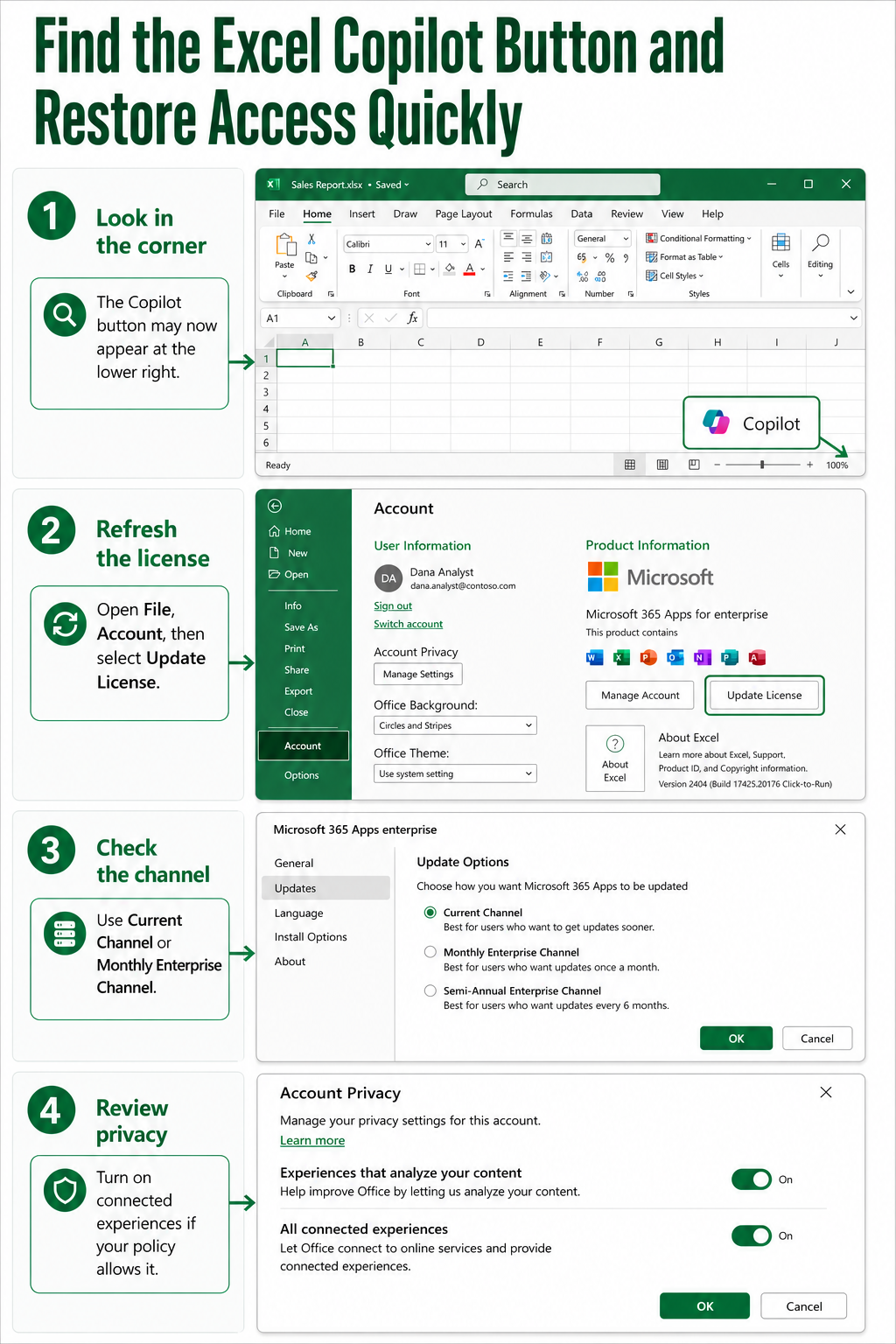
Open a normal Excel workbook and inspect the lower-right corner near the status bar. The colored Copilot Dynamic Action Button opens the Excel Agent in a pane on the right. On supported current builds, you can right-click the button and choose to move it to the ribbon if that location is easier to find.
This interface change is important because older instructions still tell readers to look only at the Home ribbon. If the corner button opens Copilot, access is working and no repair is required. You can reposition the entry point, but the available Copilot capabilities do not change.
Compare more than one workbook
Open a new blank workbook as well as the file where you noticed the problem. If the button appears in one workbook but Copilot reports an unsupported file state in another, the account and app are probably healthy. The remaining issue is more likely the file location, AutoSave status, format, or workbook structure.
Once the entry point works, a structured workbook review is a useful first exercise because it confirms that Copilot can read the intended cloud files, not merely open its pane.
Check the account before changing Excel
Copilot in Excel requires eligible Microsoft 365 access. Availability can differ between personal subscriptions, business subscriptions, and organization-managed tenants. In a managed company, an administrator may assign the product but still control policies that affect whether it appears in desktop apps.
Confirm the signed-in identity and refresh its license
On Windows, open File > Account and review User Information and Product Information. Make sure the address is the account that received Copilot access. If a personal and work account are both present, signing into the wrong one can make the button disappear even though Excel itself opens normally.
Select Update License, close every Microsoft 365 app, and restart Excel. On Mac, use the application menu, open About Excel, select More Info, and choose Refresh License. Closing all Office apps matters because an open Word or PowerPoint process can keep the previous license state active.
If you recently received a license, allow the organization time to provision it, then repeat the refresh. When Update License is missing or the listed subscription is unexpected, capture the account address and Product Information screen for the help desk rather than changing registry values or reinstalling immediately.
Repair desktop eligibility in a useful order
When Copilot works in Excel for the web but not in the desktop app, the account is less likely to be the problem. Concentrate on the desktop build, channel, and privacy configuration.
- In File > Account, select Update Options > Update Now and let every Microsoft 365 app close if prompted.
- Restart Excel and inspect both the lower-right corner and the ribbon.
- Under Product Information, identify the update channel. Microsoft says business users need Current Channel or Monthly Enterprise Channel for Copilot features in the apps.
- If the page shows Semi-Annual Enterprise Channel, ask IT to move the device to a supported channel. Use Excel for the web while that managed change is pending.
- Under Account Privacy, select Manage Settings. Confirm that Experiences that analyze your content and All connected experiences are enabled when your organization’s policy permits them.
- Close all Microsoft 365 apps once more, reopen Excel, and refresh the license again if the account state still looks stale.
Do not force privacy settings that your organization controls. A disabled switch or a setting that immediately reverts is evidence of policy, not a reason to keep toggling it. Send that observation, the update channel, and the affected account to the administrator.
Separate app access from workbook readiness
The Copilot button can return while a particular spreadsheet still refuses to work. Microsoft documents additional workbook requirements for using Copilot with data. Save the file in OneDrive or SharePoint, keep AutoSave on, and use a supported Excel format such as .xlsx, .xlsb, or .xlsm.
For analysis and editing, organize the data as an Excel table or a supported range. A clean range has one header row, unique nonblank column headers, consistent data, and no empty rows, empty columns, merged cells, or subtotals inside the range. These conditions help Copilot understand which cells belong together.
Use a clean workbook as a control test
Create a small .xlsx workbook in OneDrive, turn on AutoSave, and format a few rows as a table. If Copilot works there, stop changing the installation and repair the original workbook instead. Copy only the needed data into a clean table or remove unsupported layout features one at a time.
When you move generated text or formulas between apps, a cross-app content workflow can help you preserve a usable result without turning the troubleshooting section into a second account test.
Common questions about missing Excel Copilot
Why is Copilot in the lower-right corner instead of the ribbon?
Microsoft consolidated the Copilot entry point in Word, Excel, and PowerPoint into a Dynamic Action Button anchored in the document corner. The capabilities did not disappear; only the default opening location changed. On supported builds, right-click the button if you want to move it back beside the ribbon.
Why does Copilot appear on the web but not in desktop Excel?
That pattern usually points to the desktop build, update channel, cached license, or privacy settings. Update Microsoft 365, refresh the license, and check whether the installation uses Current Channel or Monthly Enterprise Channel. A company-managed privacy policy may require an administrator even when web access works.
Can a local workbook hide Copilot completely?
A local or unsupported workbook can prevent Copilot from working with the file, but it is different from losing the application entry point everywhere. Test a new cloud-saved .xlsx workbook with AutoSave enabled. If the button is absent across all workbooks, return to the account, build, channel, and privacy checks.
What should I send to the Microsoft 365 administrator?
Provide the affected email address, Excel version and build, update channel, license shown under Product Information, and whether Copilot works on the web. Also note whether the privacy switches are disabled or revert after you change them. That evidence lets an administrator distinguish assignment, policy, and device-management problems quickly.
Choose the next action from the result
If the lower-right button was present, update your training material and move the control only if you prefer it on the ribbon. If refreshing the license restores it, verify that Excel consistently opens under the correct account. When only the desktop app fails, hand the build, channel, and privacy evidence to IT; when only one workbook fails, repair its cloud location and data structure. Keeping those paths separate prevents a file problem from becoming an unnecessary Office reinstall.