Copilot in Excel can look like it is ignoring instructions when the workbook gives it weak context. A prompt may be clear to you, but Copilot still needs accessible data, recognizable headers, a supported workbook location, and a question that names the result you want.
Before rewriting the prompt ten times, check whether Copilot can see the right range and reason over it. A structured workbook often fixes more prompt failures than a longer sentence does.
Separate access problems from prompt problems
First confirm that Copilot is actually available for the workbook and account you are using. Microsoft 365 Copilot requirements can depend on licensing, account type, app version, and organizational configuration. A missing requirement can look like a prompt issue because Copilot may be unavailable, limited, or unable to work with the current file.
If you are still enabling the feature, use the setup checklist before debugging prompts. Setup problems and prompt problems need different fixes.
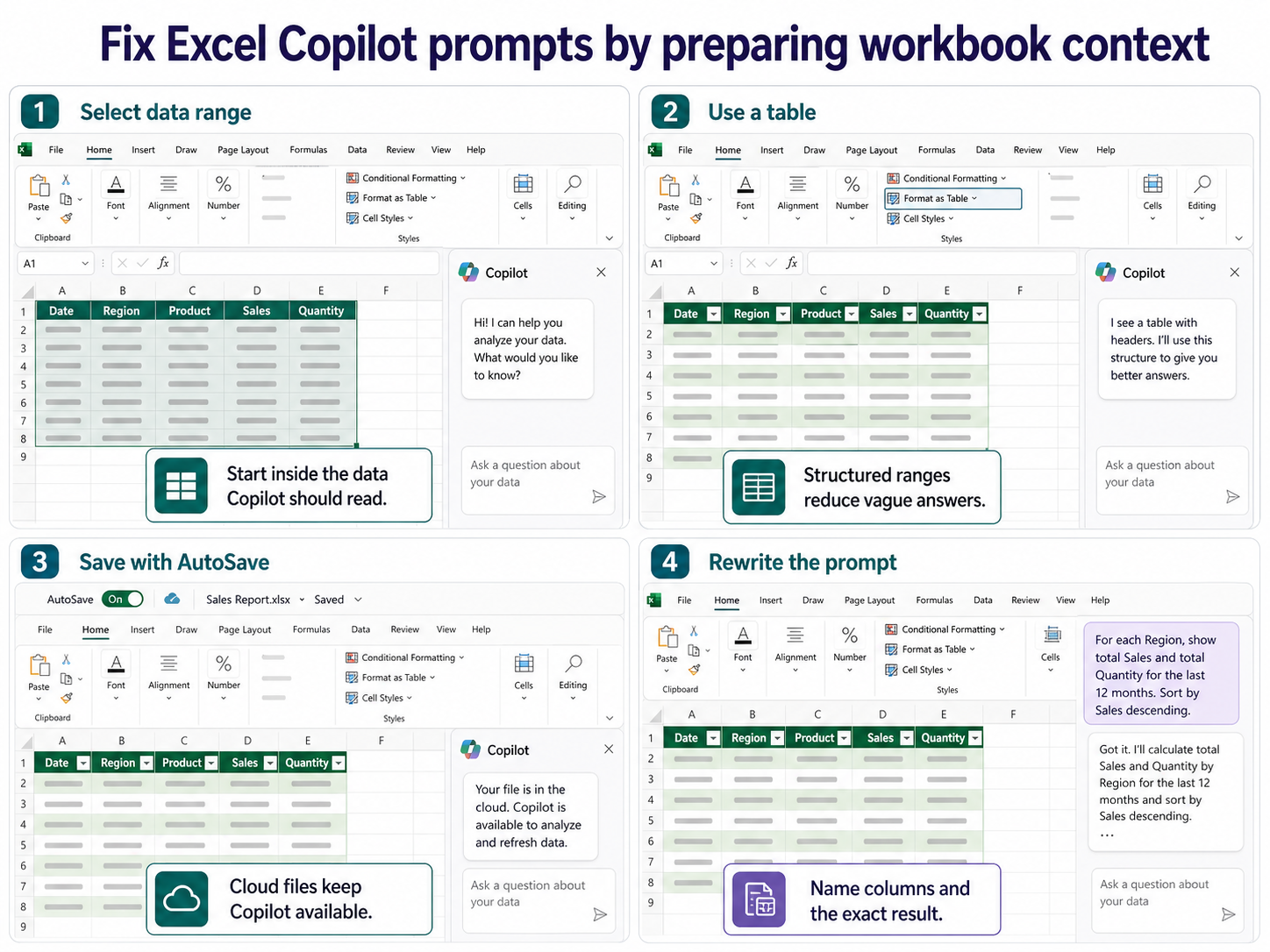
Also check where the workbook is stored. Copilot features commonly work best when the file is saved in a supported cloud location and the latest changes are available. If AutoSave is off or the file is local-only, save a copy to the right Microsoft 365 location and reopen it before testing again.
Give Copilot a range it can reason over
Copilot is better with data that looks like data. A loose worksheet with merged headers, blank rows, subtotals inside the table, and unclear labels gives it too many choices. Select the range you want analyzed and clean the structure before asking for an answer.
Tables beat loose ranges
Format the data as an Excel table when possible. Use one header row, clear column names, consistent data types, and no decorative rows inside the data area. If a column mixes dates, notes, and numbers, Copilot may summarize the wrong thing or ignore part of your instruction.
A good preparation checklist is short:
- Put the active cell inside the data range.
- Remove blank rows and columns from the middle of the data.
- Rename vague columns such as “Value” or “Info.”
- Confirm dates and numbers are stored as dates and numbers.
- Save the workbook before asking the next question.
Ask for a result, not a wish
Vague prompts invite generic answers. Instead of asking, “Analyze this,” name the columns, time period, grouping, and final output. The more your request points to fields in the workbook, the less Copilot has to infer.
Try a prompt like this:
“Using the Sales table, show total Sales and Quantity by Region for the last 12 months. Sort by Sales descending and call out the two regions with the largest drop from the previous period.”
That prompt tells Copilot where to look, what to calculate, how to group, how to sort, and what comparison matters. You can use the same column-first prompting pattern in operational, sales, finance, or project workbooks. Keep the first successful prompt for reuse.
When Copilot still answers the wrong question
If Copilot still misses the point, reduce the task. Ask for one summary, one formula suggestion, or one chart recommendation instead of asking for a full analysis and next steps together. Then build from the answer.
Check whether the workbook contains hidden sheets, old tables, or similarly named columns. Copilot may focus on the wrong object when the workbook has several possible data sources. Rename the target table and ask the prompt to use that exact table name.
Protected sheets and filtered views can also confuse the test. If a table is filtered, tell Copilot whether the answer should use visible rows only or the full table. If formulas depend on external links or stale pivots, refresh the workbook first and save the file again. The goal is not to make the sheet perfect. The goal is to remove ambiguity so Copilot can connect your request to the correct cells.
If the workbook is shared with other editors, test after recent changes have synced. A coworker adding columns or renaming headers can make yesterday’s prompt unreliable. Save the workbook, reopen it, and ask the same prompt against the named table before deciding the wording failed.
Keep a prompt test cell
Add a small note outside the data with the exact prompt that worked. This gives you a repeatable test after workbook changes. If the prompt stops working later, you can tell whether the data structure changed or the Copilot behavior changed.
Before you ask
Does Copilot in Excel require OneDrive or SharePoint?
Microsoft 365 Copilot features are tied to supported Microsoft 365 services and requirements. If your workbook is local-only or the organization has not enabled the feature, save and open the file in the supported environment before assuming the prompt is the problem.
Why does Copilot use the wrong data range?
The workbook may have several ranges that look relevant, or the active cell may not be inside the data you intend. Select the target data, format it as a table, and name the table clearly before asking again.
Should I keep making the prompt longer?
Not automatically. A longer prompt does not fix messy workbook context. Clean the table first, then use a prompt that names the target table, columns, grouping, and output.
Can Copilot still make mistakes after I prepare the file?
Yes. Copilot output still needs review. Treat it as a drafting and analysis assistant, then verify totals, formulas, and assumptions before sharing the workbook or making decisions from the result.
The practical check
If Copilot misses your Excel instructions, run the workbook check before the prompt rewrite. Confirm access, save state, table structure, selected range, and requested output. Once those pieces are clean, prompt changes become smaller, more targeted, and easier to reuse.