Google Docs and Google Sheets do not place a fully scrollable PDF object inside a document or spreadsheet in the same way that some desktop applications support embedded objects. You can still create a useful result by storing the PDF in Google Drive, inserting a file smart chip or link, and adding selected pages as images when readers need an immediate preview.
The key choice is simple: use a file chip for a live connection to the source, use page images for visible content, or combine both. The PDF remains a separate Drive file, so its sharing permissions must be correct.
Pick the result your readers need
Each approach solves a different problem:
| Goal | Best option | What readers get |
|---|---|---|
| Open the latest PDF | Drive file smart chip | A named link with a hover preview |
| See one important page | PNG or JPG page image | A visible, static preview |
| Reference several pages | Multiple images plus one file chip | Visible highlights and access to the original |
| Edit PDF text as document content | Convert or copy the content | Editable text, but formatting may change |
If you need a true attached object that travels inside a desktop file, compare how desktop Office handles embedded files before choosing Google’s link-based approach.
Start with one source file in Drive
Upload the PDF once and treat that Drive item as the source of record:
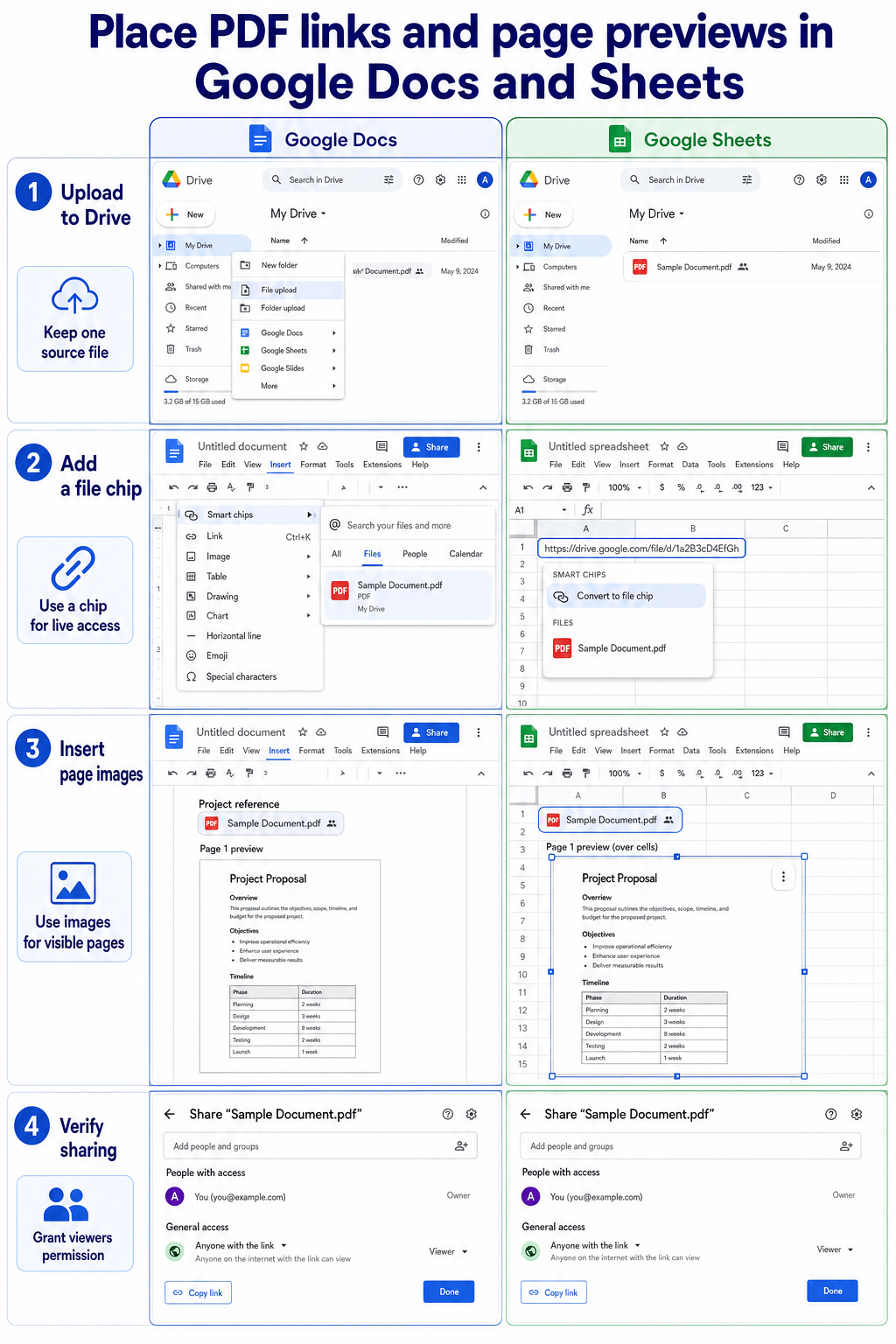
- Open Google Drive and select New > File upload.
- Choose the PDF and wait for the upload to finish.
- Right-click the file and select Share.
- Add the people or group who should have access, or set an approved General access option.
- Copy the file link and test it in a private browser window or with a reader account.
Avoid uploading separate copies for Docs and Sheets. Duplicate files drift apart, and collaborators may comment on or replace the wrong version. If the document is sensitive, do not switch to “Anyone with the link” merely to avoid an access request; share it with the intended audience instead.
Add the PDF to Google Docs
Docs works well for a readable file chip followed by selected page previews.
Insert a Drive file smart chip
Place the cursor where the reference should appear. Type @, begin entering the PDF file name, and select the matching file. You can also use Insert > Smart chips > File when that menu is available.
The chip displays the Drive file name and provides a compact preview when a collaborator hovers or clicks. Mentioning the file does not automatically grant access, so the earlier sharing check still matters.
Show a PDF page inside the document
Convert the required PDF page to PNG or JPG with a trusted tool, then choose Insert > Image and upload the image from your computer or Drive. Add a short caption that identifies the PDF and page number. Keep the file chip nearby so readers can open the current original.
An image is only a snapshot. It will not update when the PDF changes, and its text may not be searchable or accessible to screen readers. Add meaningful alt text and replace the preview after each approved PDF revision.
Add the PDF to Google Sheets
Sheets can hold the Drive link in a cell and convert it to a file chip. It can also display a page image inside a cell or over the grid.
Convert a Drive URL to a file chip
Paste the Drive link into a cell and press Tab when the smart-chip suggestion appears. You can also select one or more cells containing Drive links and choose Insert > Smart chips > Convert to file chip.
Use adjacent columns for useful metadata such as document owner, revision date, approval status, or purpose. This turns a plain spreadsheet into a controlled document register without duplicating the PDF itself.
If your workflow begins with Excel content, the steps for moving spreadsheet content into a Google document can help you decide which material belongs in cells and which belongs in a linked source file.
Place a page preview in the grid
Export the desired PDF page as PNG or JPG. In Sheets, choose Insert > Image, then select Image in cell for a compact preview or Image over cells for a larger readable page. Google Sheets accepts common image formats rather than PDF files for this feature.
Do not use the IMAGE function with a normal Google Drive sharing URL. Google’s function documentation states that IMAGE cannot use URLs hosted at drive.google.com. Upload through the Insert menu or use a suitable directly hosted image only when your organization approves that hosting method.
Keep permissions and previews aligned
A Doc or Sheet can be visible to someone who cannot open its linked PDF. The reverse can also happen: a broadly shared PDF can expose information beyond the document’s intended audience. Review permissions on both files.
When replacing the PDF, update the existing Drive file if your governance process allows it and the link must remain stable. Otherwise, insert the new file chip and clearly mark the old version as superseded. Also refresh every page image because previews do not change automatically.
Frequently asked PDF questions
Can I scroll through the PDF inside Google Docs?
Not with a native embedded PDF reader in Docs. A file chip opens or previews the separate Drive file, while inserted images show selected pages. For a long document, use one descriptive chip rather than turning every page into an image.
Can a PDF go directly inside a Google Sheets cell?
The PDF file itself cannot render inside a cell. Put its Drive URL in the cell and convert it to a file chip. If you need a visual, convert one page to PNG or JPG and insert that image in the cell.
Does adding a smart chip share the PDF automatically?
No. Google explicitly treats the file mention and file permission as separate actions. Share the PDF with the collaborators who need it and test the chip with an account that does not own the file.
What happens when the source PDF changes?
The file chip continues to point to the same Drive item if you replace or update that item. Inserted page images remain static and must be replaced manually. Add a revision date beside the chip when readers need to confirm freshness.
A maintainable setup
Keep one governed PDF in Drive, use smart chips wherever collaborators need the live file, and add page images only where visible context is worth the maintenance. Verify access on both the Google document or spreadsheet and the source PDF. This combination gives readers a clean preview without pretending that a linked Drive file is a native embedded object.