PDF document embedding failures cost you time when presentations freeze or documents display incorrectly. Whether you’re preparing quarterly reports, sharing technical specifications, or creating client proposals, reliable PDF integration makes the difference between smooth workflows and frustrating delays.
Choosing the wrong method creates font rendering issues, broken links, and compatibility problems across devices. Different platforms require specific approaches for optimal results. Let’s explore proven techniques that ensure your embedded PDFs display correctly every time.
How to Embed PDF in Word Document
Word offers multiple PDF integration methods depending on your specific needs and version. I confirmed this embed pdf in setting synchronized correctly between my desktop and laptop through cloud sync, meaning you only need to configure it once if you use the same account everywhere.
Embed PDF Word Method Direct
The most straightforward approach uses Word’s built-in object insertion feature.
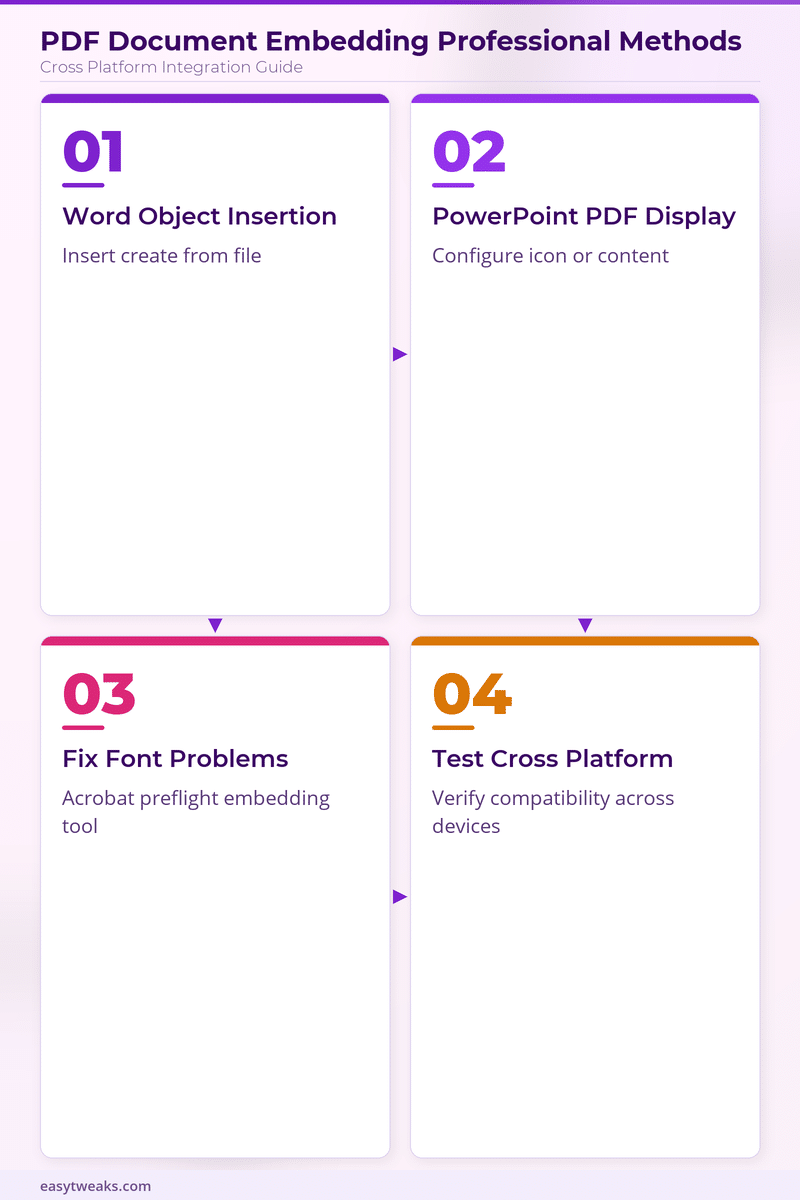
Click Insert from the ribbon menu. Select Object and choose Create from File. Browse to your PDF location and click Insert. Check Link to file if you want automatic updates when the source PDF changes.
This method embeds the entire PDF as a displayable object. Recipients can double-click to view the full document. The PDF becomes part of your Word file, increasing overall file size significantly. This process works similarly to embedding other document types in Office applications, providing consistent integration across platforms.
Embed PDF Word Icon Method
For cleaner document appearance, display PDFs as clickable icons instead of full content.
Use the same Insert > Object > Create from File process. Before clicking OK, check Display as icon. Choose from available icon styles or browse for custom icons.
This approach keeps your document layout clean while providing easy PDF access. File size increases less dramatically compared to full embedding. Perfect for contracts, specifications, or supporting documents.
Word PDF Accessibility Considerations
Embedded PDFs may not meet accessibility standards without additional configuration. Screen readers often cannot parse embedded PDF content properly.
Before embedding, verify your PDF has proper text structure and alt-text descriptions. Remember that you can annotate PDF files in Microsoft Edge to improve accessibility before embedding. Consider providing text summaries alongside embedded PDFs for maximum accessibility compliance.
How to Embed PDF in PowerPoint Presentation
PowerPoint PDF embedding requires careful attention to presentation flow and visual hierarchy.
PowerPoint PDF Insert Object
PowerPoint uses similar embedding techniques as Word but with presentation-specific considerations.
Click Insert > Object > Create from File. Browse to select your PDF file. Choose Display as icon for cleaner slide appearance, or leave unchecked to show PDF content directly.
Position and resize the embedded PDF carefully. Large PDFs may overwhelm slide content or become unreadable when scaled down. Test your presentation across different screen resolutions.
PowerPoint PDF Link Strategy
For large presentations, consider linking PDFs instead of full embedding to manage file size.
Use Insert > Hyperlink and point to your PDF file location. This approach keeps presentation files manageable while maintaining document access. Ensure PDF files remain in consistent locations relative to your presentation.
Create backup copies of linked PDFs in the same folder as your presentation. This prevents broken links when moving files between computers or uploading to shared drives.
PDF Font Embedding Issues Fix
Font problems create the most common PDF embedding failures across all platforms. An unexpected benefit I noticed after applying this pdf font embedding change was a slight improvement in overall responsiveness, though that may vary depending on your specific hardware and configuration.
Fix PDF Font Embedding Problems
Most font embedding issues stem from missing or improperly embedded fonts in the source PDF.
Open your PDF in Adobe Acrobat Pro. Go to File > Properties > Fonts to view font embedding status. Look for fonts marked as “Not Embedded” or “Subset.” These cause display problems when embedded elsewhere.
Use Acrobat’s Preflight feature to automatically fix font issues. Choose Tools > Print Production > Preflight. Select the “Embed fonts” fixup and run it on your PDF. This resolves most compatibility problems.
Embed Fonts PDF Online Solutions
For users without Adobe Acrobat Pro, several online tools provide font embedding capabilities.
Services like SmallPDF, PDFgear, and AvePDF offer font embedding features. Upload your PDF, select font embedding options, and download the corrected version. Quality varies between services, so test results carefully.
Alternatively, recreate your PDF from the source application with proper font embedding settings enabled. Most modern PDF generators include font embedding options in their save dialogs.
PDF Integration Platform Testing
Before finalizing embedded PDFs, test across your target platforms and devices.
Open your document containing embedded PDFs on different computers, mobile devices, and operating systems. Verify fonts display correctly, links function properly, and embedded content remains accessible.
Pay particular attention to custom fonts, complex layouts, and interactive PDF elements. These components most commonly break during embedding processes.
Frequently Asked Questions
How do I embed a PDF in Word?
Use Insert > Object > Create from File, then browse to select your PDF. Choose display options based on your needs: full content embedding or icon display for cleaner layouts.
Why won’t my PDF fonts embed properly?
Font embedding failures usually indicate missing or restricted fonts in the source PDF. Use Adobe Acrobat’s Preflight tool to identify and fix font issues, or recreate the PDF with proper font embedding enabled.
How to fix PDF embedding issues in PowerPoint?
Ensure your PDF has proper font embedding before inserting into PowerPoint. Test embedded PDFs across different devices and update file paths if using linked rather than embedded PDFs.
Reliable PDF document embedding requires attention to font compatibility, file structure, and platform requirements. For advanced document collaboration, explore embedding Microsoft Loop components in Teams alongside traditional PDF integration. Start with properly formatted source PDFs and choose embedding methods appropriate for your distribution needs.
Test your embedded documents thoroughly before sharing with stakeholders. This prevents last-minute compatibility issues and ensures professional presentation quality.