Planner can show overdue tasks, but it does not give every team a flexible repeating reminder rule by itself. If you want a message in Teams every morning for tasks that are still open and past due, build the reminder as a scheduled Power Automate cloud flow.
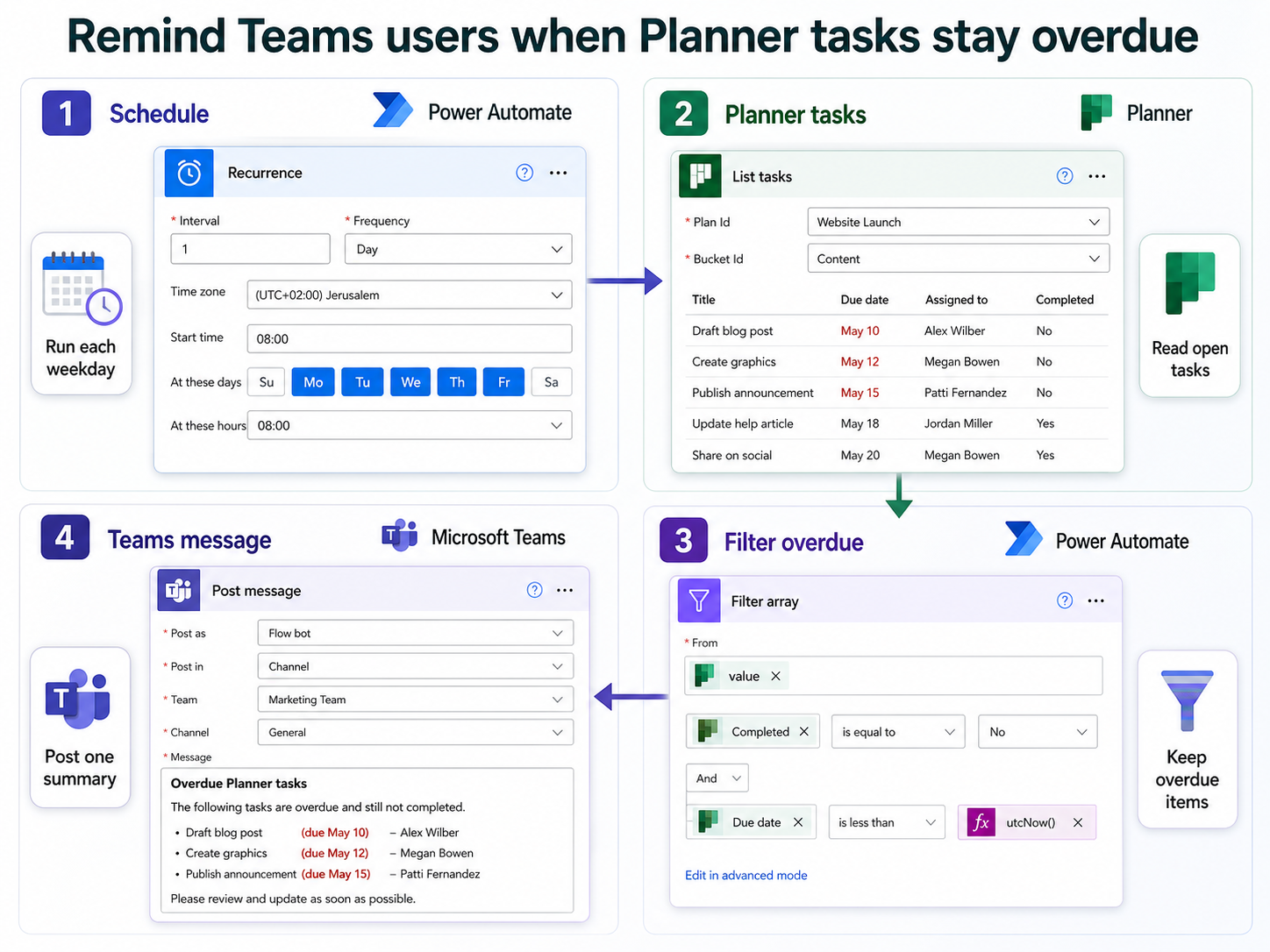
The useful pattern is simple: run on a schedule, read tasks from the right Planner plan, keep only incomplete tasks whose due date is earlier than now, and post a Teams reminder. You can send one channel summary for the whole team, or extend the flow later to group tasks by owner.
Use a channel summary for the first version. It is easier to test, avoids private-message permission surprises, and gives the team a visible list of what needs attention.
Before you build the reminder
You need access to Power Automate, the Planner plan, and the Teams channel where the reminder should appear. The account that owns the flow also needs permission to read the plan and post to the selected Teams location.
If you are still setting up Planner inside Teams, establish a clean plan-and-channel workflow before automating overdue reminders.
Decide three rules before opening Power Automate:
- How often the reminder should repeat, such as every weekday at 8:30 AM.
- Which plan should be checked.
- Whether the Teams message should go to a shared channel or a smaller owner group.
For most teams, a weekday morning reminder is enough. Running the flow every hour usually creates noise without helping people finish tasks faster.
Create the scheduled cloud flow
In Power Automate, select Create > Scheduled cloud flow. Name it something clear, such as Planner overdue task reminder to Teams.
Set the trigger to repeat once per day or on selected weekdays. Microsoft documents scheduled cloud flows as the right option for automations that run once a day, once an hour, on a specified date, or after a set interval.
Use a stable time zone
Open the Recurrence trigger advanced options and set the time zone, start time, and run days. This matters because Planner due dates and Teams reminders are business-context tasks. If your team works across time zones, choose the time zone of the plan owner or operating team, then mention that time in the Teams message.
Avoid using a vague schedule such as “every 1 day” without a start time. It can drift into an unhelpful hour if someone edits or turns the flow back on later.
Read the Planner tasks
Add the Planner action List tasks. Select the group and plan that hold the tasks you want to monitor. Microsoft documents the Planner connector as supporting the List tasks action for tasks in a plan, and the returned task object includes useful fields such as title, percent complete, start date, created date, and due date.
The Planner connector currently supports basic plans. If the plan picker does not show the expected plan, check whether you are using a supported plan type and whether the flow owner can access the Microsoft 365 group behind the plan.
You can keep the first version to one plan. If you need several plans later, duplicate the List tasks branch for each plan or store plan IDs in a small configuration list. Do not start with many plans until you know the message format and throttling behavior are acceptable.
Filter the overdue tasks
Add Filter array from Data Operations. In the From field, use the value output from List tasks.
Use advanced mode if the visual condition builder becomes awkward. The logic you need is:
@and(
  not(empty(item()?['dueDateTime'])),
  less(item()?['dueDateTime'], utcNow()),
  less(item()?['percentComplete'], 100)
)
This expression keeps tasks that have a due date before the current run time and whose completion percentage is below 100. Microsoft documents the relevant expression functions, including and, empty, less, and greater, for Power Automate conditions.
Avoid reminding on tasks with no due date
The not(empty(...)) check is important. Many Planner boards contain backlog tasks without due dates. If you skip the empty-date check, those tasks might behave unpredictably in your filter or force you to add manual exceptions later.
If your plan uses labels or buckets to separate real commitments from ideas, add one more condition after the first version works. For example, remind only on tasks in a delivery bucket.
Build the Teams reminder message
For the first version, add a condition after Filter array:
- If the filtered array is empty, do nothing.
- If it contains tasks, post one message to Teams.
You can check the array length with an expression such as:
length(body('Filter_array'))Then use the Teams action Post message in a chat or channel. Choose the team and channel, and write a short reminder that people can scan quickly. The Microsoft Teams connector includes message and adaptive card actions, but a plain message is easier to maintain first.
Use this format:
Overdue Planner tasks still need attention:
- Task title - due 2026-06-17
- Task title - due 2026-06-18
Power Automate usually inserts an Apply to each loop when you add fields from the filtered tasks. That is fine, but do not post one Teams message per task unless the team asks for it. A single summary reduces channel clutter.
If your team is new to Power Automate, this EasyTweaks walkthrough on how to set up a daily scheduled flow in Power Automate safely is a useful companion for the scheduling part of the build.
Make reminders repeat without spamming
Repeating overdue reminders can mean two different things. The simple version posts every weekday until the task is completed. The controlled version posts only once per task per day, or only on Monday, Wednesday, and Friday.
For the simple version, you do not need a log. The flow checks the plan each morning and posts whatever is still overdue. Completed tasks drop out because percentComplete becomes 100.
For the controlled version, add a small SharePoint list or Dataverse table with these columns:
- Task ID
- Reminder date
- Task title
- Last reminder time
Before posting, check whether that task ID already has a reminder entry for the current date. After posting, write a row. This prevents duplicate messages if someone reruns or retests the flow during the day.
When to use individual reminders
Individual reminders are useful for managers, but they need more care. Planner assignments can include one or more users, and you may need an Office 365 Users lookup before sending a personal Teams chat.
If you later build per-owner messages, group tasks by assigned user first. Otherwise one person with five overdue tasks may receive five separate notifications, which is rarely helpful.
Test the flow with safe sample tasks
Create three Planner tasks before the first test:
- One overdue task that is not complete.
- One future task that is not complete.
- One overdue task marked complete.
Run the flow manually from Power Automate. Only the first task should appear in Teams. If all three tasks appear, the filter is too loose. If no tasks appear, inspect the List tasks output and confirm the field names used by your designer match the expression.
Also test a task with no due date. It should not appear in the reminder. That catches many accidental reminder flows before they post backlog items.
Keep recurring Planner tasks from generating misleading reminders
A recurring Planner series creates task instances over time. Your reminder flow should evaluate the current task’s due date and completion state, not assume that changing one overdue instance reschedules the entire series.
Identify recurring test tasks
Create or choose a noncritical recurring task and record its title, task ID, assigned users, due date, and recurrence pattern. Keep it in a test bucket until the reminder behavior is proven. Do not test with a production task that triggers real escalation.
Filter the current incomplete instance
In the flow, keep the overdue condition tied to the task returned by List tasks: percent complete below 100, a nonempty due date, and a due time earlier than the flow’s comparison time. Use the task ID as part of any reminder key so two same-titled instances are not treated as one item.
Avoid moving the due date as a reminder action
Do not postpone the Planner due date merely to stop a notification. Editing the current due date does not necessarily change the recurrence schedule that determines the next task. Instead, track the last reminder time in a separate approved store or adjust the reminder cadence.
Complete the instance and inspect its successor
Mark the test task complete and refresh Planner. Confirm that the next task in the recurring series is created with its own task ID and expected due date. Run the flow again and verify that it ignores the completed item and does not call the new task overdue prematurely.
Validate the Teams message
Check that the message names the current task, due date, assignee, and plan without exposing an internal identifier. Re-run the flow once to prove the deduplication rule prevents an immediate repeat. If reminders still cross between instances, capture both task IDs and their due dates before changing the recurrence pattern.
Troubleshooting
If the Teams message never posts, check the Teams connector connection and confirm that the Workflows or Power Automate app is allowed in the Teams admin center. Microsoft notes that some Teams connector actions require the Workflows app to be available and allowed.
If the filter does not find overdue tasks, check the raw output from List tasks. Confirm that dueDateTime is populated and that percentComplete is an integer. The Planner connector documentation lists value.dueDateTime and value.percentComplete in the task response.
If the reminder fires at the wrong hour, check the Recurrence trigger time zone and start time. If the flow posts too many messages, move to a single summary message or add the reminder log described earlier.
Final check
Keep the first reminder boring and predictable. A daily scheduled flow, one Planner plan, one overdue filter, and one Teams channel summary is enough for most teams. Once that version works for a week, add owner grouping, duplicate logging, or adaptive cards only where they solve a real problem.
The best reminder flow is not the loudest one. It is the one that repeats consistently, skips completed work, and gives the team a short list they can act on without leaving Teams.