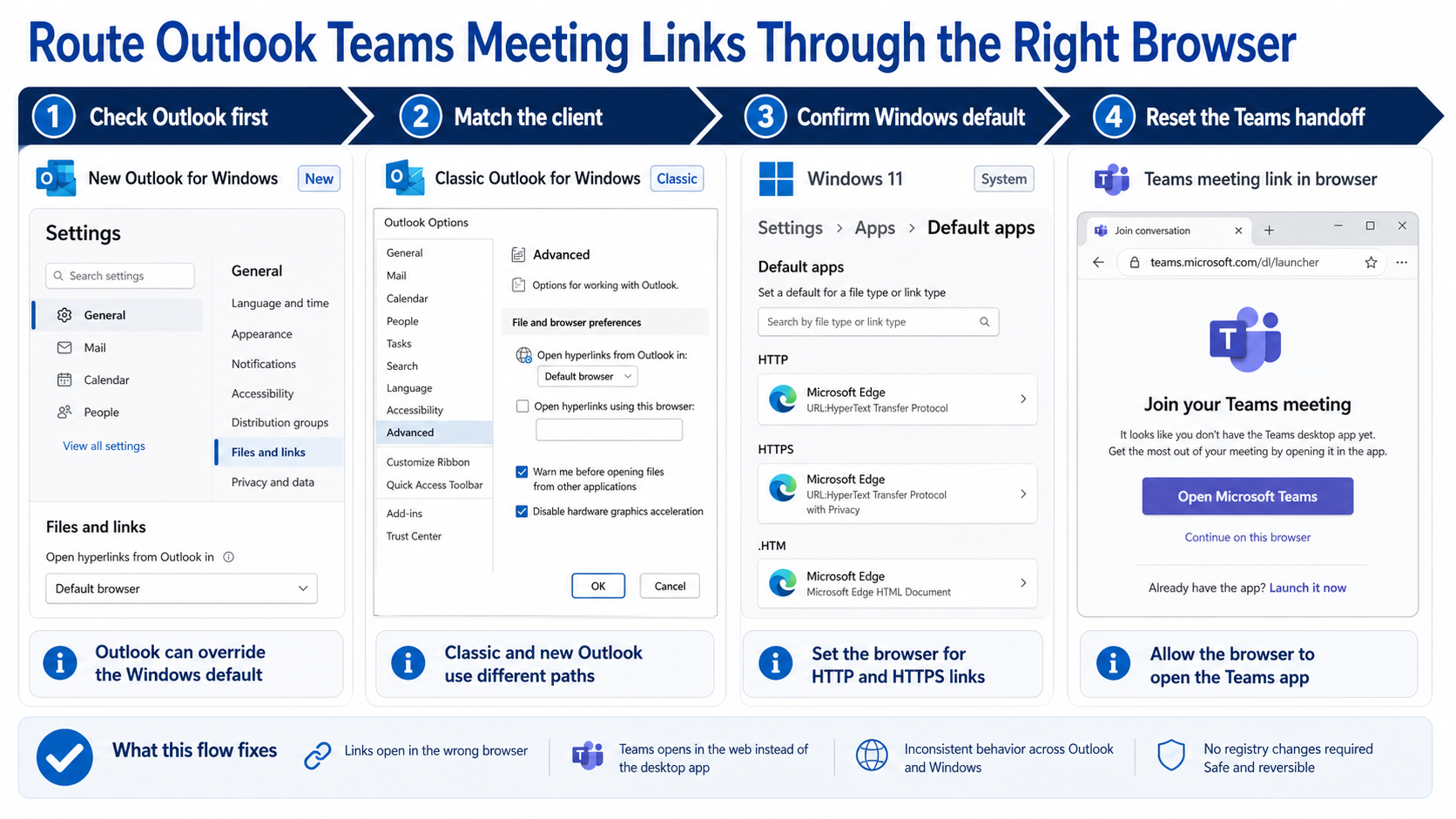
When an Outlook Teams meeting opens in the wrong browser, check Outlook’s own link preference before changing Windows. New Outlook uses Settings > General > Files and links, while classic Outlook uses File > Options > Advanced > File and browser preferences. Choose the system default browser or the specific browser your organization permits, then test a fresh meeting link.
This matters because supported Outlook and Teams apps can route web links to Microsoft Edge independently of the Windows default. Microsoft says the choice made in Outlook can also be reflected in Teams. A second layer then decides whether the browser continues on the web or hands the meeting to the Teams desktop app.
Follow the link through its two decisions
Treat the click as a short route:
Outlook preference ? Windows/browser ? Teams web landing page ? Teams desktop app or browser meeting
The first wrong turn chooses an unexpected browser. The second keeps you in a browser when you intended to use the Teams app. Fixing only one layer can leave the other symptom unchanged.
New Outlook: select the browser preference
Open Settings > General > Files and links. Under Open hyperlinks from Outlook in, select the desired browser option. Choose the system default when you want Windows to control ordinary web links.
The focused new-Outlook browser guide provides useful context when this setting itself is missing or managed. Do not confuse this preference with the file-opening choice for Word, Excel, and PowerPoint documents.
Classic Outlook: use File and browser preferences
Select File > Options > Advanced, find File and browser preferences, and set Open hyperlinks from Outlook in. The labels differ from new Outlook, so confirm which client you are actually using before following a screenshot.
If the setting is unavailable or locked, an administrator may manage it through Microsoft 365 policy. Record the Outlook client and build, because “Outlook on Windows” is not specific enough for policy troubleshooting.
Confirm the Windows default only after Outlook
In Windows 11, open Settings > Apps > Default apps and select the browser you want. Use Set default when offered, then inspect HTTP and HTTPS associations if behavior remains inconsistent.
Changing Windows alone will not override an explicit Outlook choice to use Edge. Conversely, selecting Default browser inside Outlook depends on Windows being configured correctly. Test an ordinary web link from Outlook before testing a Teams meeting link; this isolates browser selection from the Teams handoff.
Reset the meeting handoff without editing the registry
Click a fresh Join the meeting link. On the Teams landing page, choose the desktop-app option if that is your preferred destination. When the browser asks whether it may open links of this type with Teams, select Always allow teams.microsoft.com to open links of this type in the associated app, then choose Open.
Microsoft documents this browser-stored preference as the normal way to send future Outlook meeting joins to the Teams desktop app. Avoid registry changes for an individual machine unless your IT team specifically directs and manages them.
Clear a remembered decision carefully
If the browser no longer asks, review that browser’s site permissions or protocol-handler settings for teams.microsoft.com. Remove only the stored Teams decision, restart the browser, and click a new meeting link. Menu labels vary by browser, so use the browser’s official support guidance rather than deleting all cookies or the entire profile.
Also test the correct browser profile. A work profile and a personal profile can store different protocol permissions, cookies, and Microsoft 365 sign-ins. If the intended browser opens under the wrong profile, switch to the work profile and repeat the meeting-link test there. That is a profile-routing issue, not evidence that Outlook ignored the browser choice.
Avoid disabling every extension during a live meeting. If you suspect an extension, use a controlled browser profile or private test after confirming organizational policy, then re-enable normal protections. The aim is to isolate the Teams handoff without weakening unrelated browsing safeguards.
The Teams meeting-link workflow is helpful when the invitation itself lacks a usable join link. Browser routing cannot repair an event that was created without a Teams meeting provider or contains a malformed URL.
Decide whether policy is overriding the choice
Organizations can manage which browser opens links from supported Microsoft 365 apps. A managed setting may be unavailable or return after restart. Compare the behavior with a colleague on the same device policy and ask IT whether Choose which browser opens web links is configured.
Provide these details in the escalation:
- New Outlook or classic Outlook.
- The selected Open hyperlinks from Outlook in value.
- Windows default browser.
- Whether ordinary web links and Teams meeting links behave differently.
- Whether the Teams landing page offers the desktop app.
- Browser profile and work-account sign-in state.
Browser-routing questions
Why does Outlook ignore my Windows default browser?
Outlook can use an app-specific link preference. Microsoft states that this supported experience affects links from Outlook and Teams without replacing the Windows default. Set Outlook to Default browser when you want it to follow Windows.
Why does the correct browser open but Teams stays on the web?
Browser selection and application handoff are separate. On the Teams landing page, allow teams.microsoft.com to open the associated Teams app. If the prompt was previously denied, reset only that site’s protocol permission and try again.
Will changing the Outlook setting also affect Teams links?
Microsoft says the choice made in one supported app can be reflected in the other. Test both an Outlook web link and a Teams chat link after the change. A tenant policy may still enforce a different result.
Does this fix Teams invitations that have no Join button?
No. This workflow assumes the invitation contains a valid Teams link. If the event lacks one, verify the Teams meeting provider or add-in and recreate the online meeting as appropriate.
Verify the route before the next live meeting
Use a noncritical test invitation and click its join link from the same Outlook client you use every day. Confirm the intended browser opens, then confirm whether it hands the meeting to Teams or stays on the web according to your preference. If a managed value overrides the setting, involve IT with the exact client, policy symptom, and two-layer test results.