A room mailbox should make reservations predictable, not create another queue that nobody owns. Outlook displays the room, but Exchange Online decides whether a request is accepted automatically, declined, or forwarded to a delegate. The reliable setup therefore starts in the Exchange admin center, with an explicit decision about which requests require a person.
Before changing anything, identify the room mailbox, its intended audience, normal working hours, maximum meeting length, and the people who will approve exceptions. Also confirm that the room’s calendar time zone matches its physical location. A mismatch can make a valid request appear outside working hours, so complete a careful time-zone review before tightening the policy.
Choose the booking model before touching the limits
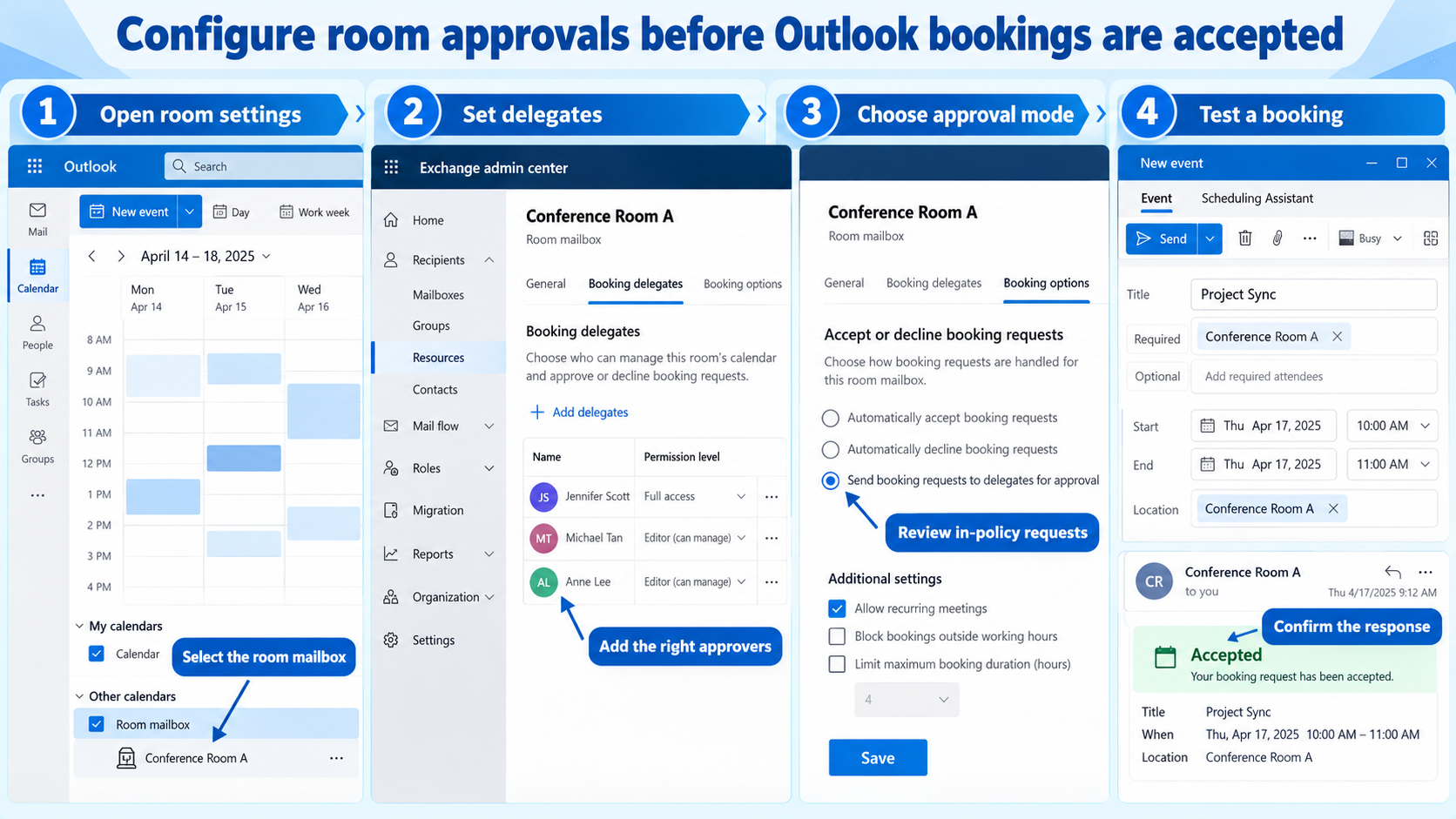
Open the Exchange admin center and go to Recipients > Resources. Select the room mailbox, open its Booking settings, and review both delegate and booking options. Microsoft provides two main patterns: automatic acceptance based on rules, or manual acceptance by selected booking delegates.
Automatic processing for ordinary rooms
Automatic processing works well for small meeting rooms where availability is the main decision. Exchange accepts a request when the room is free and the request stays within its booking rules. It declines collisions and requests that exceed limits, giving organizers an immediate result without a coordinator.
Do not assume automatic acceptance means unrestricted access. You can still control the booking window, maximum duration, recurring meetings, and working-hours behavior. These rules are the guardrails that prevent a room from being reserved for an entire day or many months before plans are firm.
Delegate approval for controlled spaces
Choose booking delegates when a room contains restricted equipment, supports executive meetings, or needs facilities review. In the delegate settings, select the option that sends requests to people who can accept or decline them, then add at least two active delegates if business coverage matters.
A delegate model needs ownership. Confirm that delegates know where requests arrive, who covers absences, and what qualifies for approval. Multiple delegates can receive a request, but only one needs to act. Avoid assigning a dormant group or a nested group that Exchange cannot evaluate as expected.
Apply limits that match real use
Booking limits should express the room’s operating policy rather than copy a tenant default. Review each setting against real meetings held in the room.
- Set the Booking window far enough ahead for planning, but not so far that tentative reservations crowd out real work.
- Set Maximum duration to the longest normal meeting, then use delegate approval for rare longer events.
- Decide whether repeating meetings are allowed. Recurrence can be convenient, but an unused weekly series can monopolize a scarce room.
- Enable working-hours enforcement only after the mailbox working hours and time zone are correct.
- Add an organizer-facing reply that explains why a request might be declined and whom to contact for an exception.
The organizer message should be short and actionable. State the normal booking window, duration limit, and facilities contact. Do not expose internal approval details or promise that a delegate will respond within a time the team cannot meet.
Test the policy from the organizer’s point of view
Use a normal user account rather than the admin account for testing. Send one request that is valid, one that conflicts with an existing reservation, one beyond the booking window, and one longer than the allowed duration. If delegates are enabled, include a request that should wait for approval.
Read the response, not only the calendar color
Check the organizer’s Inbox for the room response. An accepted event should appear on the room calendar; a declined event should include the policy reason or your custom message. A tentative-looking entry alone does not prove that delegate processing works.
If availability remains inconsistent, use the calendar conflict checks to separate stale client data from a real collision. Test in Outlook on the web as well as the desktop client because the server-side response is authoritative even when a cached calendar view lags.
Diagnose requests that never reach a delegate
First confirm that manual approval is selected and the expected users appear as delegates. Then check that the request is in policy and that forwarding to delegates is enabled. If only some organizers fail, compare their scope with users who work; a policy may auto-approve, deny, or request approval for different groups.
Use Exchange Online PowerShell only when the admin center does not expose enough detail. Get-CalendarProcessing shows the effective processing mode, in-policy lists, request lists, delegate forwarding, booking window, and duration. Record the current values before changing them so you can reverse a narrow adjustment.
Room booking questions
Why is an available room declining a meeting?
Availability is only one rule. The request may fall outside working hours, exceed the maximum duration, sit beyond the booking window, or violate recurrence settings. Compare the decline message with the room’s booking options before assuming the calendar is broken.
Can some users book automatically while others need approval?
Yes. Exchange resource policies can place specified users or groups in an auto-approval scope and route others for approval or denial. This is easier to audit through Exchange Online PowerShell, and non-nested groups are safer for scoped resource rules.
What happens when two delegates respond?
The first processed decision determines the booking. Give delegates a simple ownership convention so they do not send conflicting explanations to the organizer. If duplicate work is common, use a shared coverage process rather than adding more delegates.
Should room permissions be changed in Outlook?
Calendar folder permissions are not the same as resource booking processing. Configure acceptance, limits, and delegates on the room mailbox in Exchange Online. Grant calendar access only when someone genuinely needs to inspect or manage the room calendar.
A stable room policy is visible and testable
The best configuration is not the strictest one; it is the rule set organizers can understand and delegates can operate. Start with one booking model, add only the limits the room needs, and test both successful and rejected requests. Recheck the policy after changes to working hours, office location, or delegate staffing, because those operational changes can quietly undermine a previously sound setup.