When a file is listed in Teams but the preview spins, stays blank, or displays an error, the file may still be healthy. Teams is presenting content stored in OneDrive or SharePoint, so the useful question is whether the failure belongs to the preview, the file, or your access. This teams file preview not loading workflow isolates those layers before anyone replaces or moves the document.
Start with the file row, not the preview pane
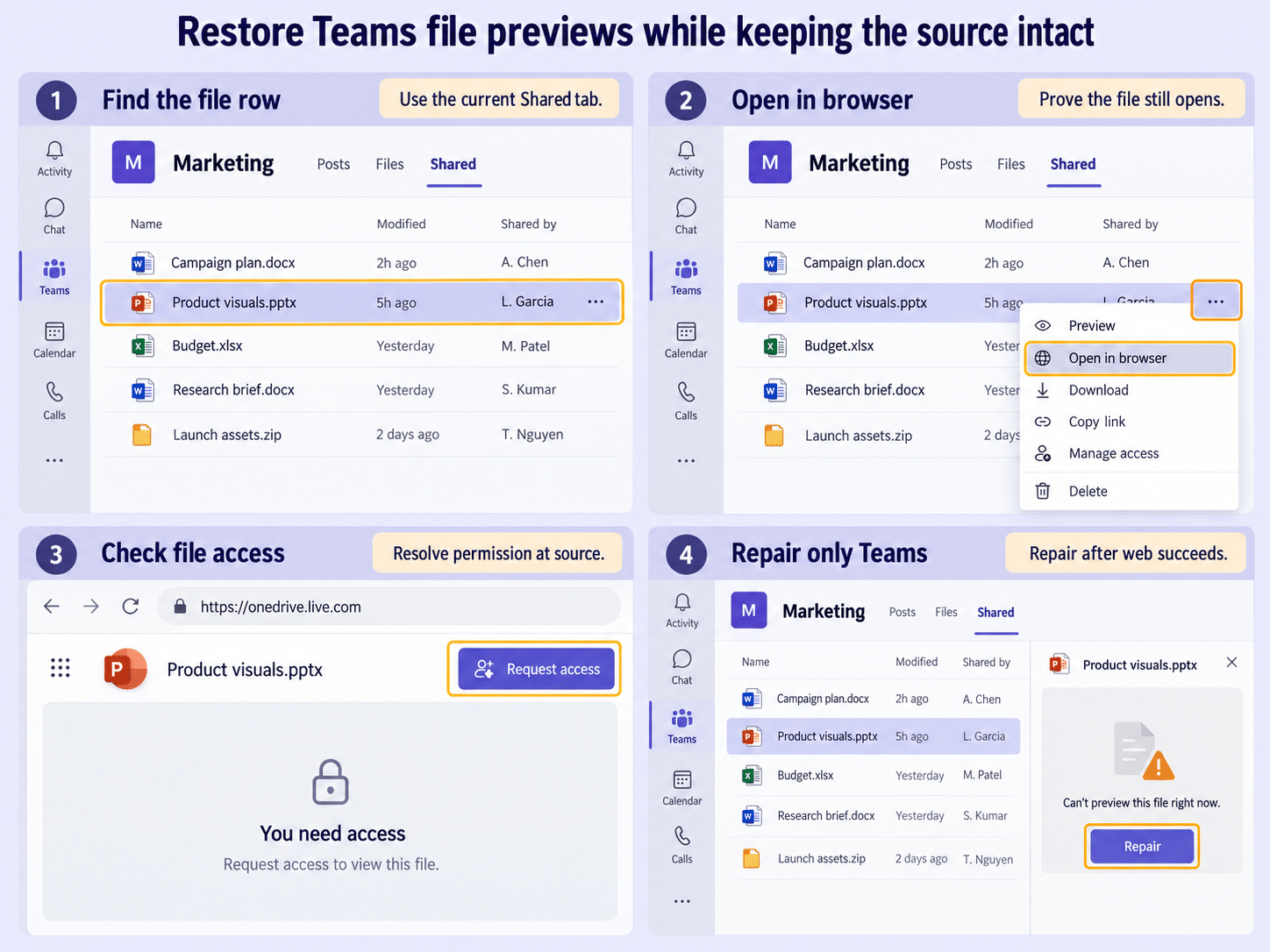
Return to the chat or channel’s Shared tab and find the exact file. Note its name, type, owner, and modified time. If the message contains an older link to a file that was moved or renamed, the link may no longer represent the current item.
Open the file’s More options menu. Use Open in browser for the first comparison. Microsoft documents that Word, Excel, and PowerPoint files can open inside Teams or in their respective web and desktop apps. A browser open that works while the Teams preview fails proves that the content and basic permission are available.
Use the result to choose the next branch
- Browser opens the file: refresh or repair the Teams presentation layer.
- Browser requests access: resolve ownership or permission rather than clearing Teams data.
- Browser reports the file is missing: ask the sender or channel owner for the current location.
- The downloaded copy will not open: investigate corruption or the file format.
Do not upload a duplicate with “final2” in the name just to regain a preview. Duplicate documents split comments, versions, and links. If the file exists but has moved, update the shared link to the authoritative item.
Restore a preview that fails only inside Teams
Fully quit Teams, reopen it, and return to the same file from the Shared tab rather than a stale notification. Next, compare Teams on the web. If the web preview works, the desktop client is the isolated problem; if both previews fail but Open in browser works, use the Office web app as a safe workaround while the embedded preview is investigated.
Check for Update and restart Teams when it appears. Then review Settings > Files and links > File open preference. Microsoft allows supported Word, PowerPoint, and Excel files to open in Teams, the browser, or the desktop app, subject to account, platform, and file-location requirements. Choosing Browser or Desktop app does not repair the preview engine, but it provides a reliable route to the file.
Readers who also cannot find the item in Teams should use the storage-location checklist before changing the open preference. A missing source file and a broken preview are different failures.
Test the file outside the embedded viewer
Use Open in desktop app only if the Microsoft 365 desktop app is installed and the account is signed in. Save no changes during the diagnostic test. If the file opens there, close it and return to Teams; a locked editing session can complicate later testing.
Microsoft notes that desktop-app opening depends on file type, OneDrive or SharePoint hosting, supported account and app versions, and Windows support for the direct-open feature. A chat file link may still open in the browser. Treat those routing rules as expected behavior, not proof that the preview is damaged.
Handle access and file-specific failures separately
If the browser shows Request access, ask the file owner to review the existing item’s permissions. Send the current URL and your work account. Do not ask for a public link when normal organization access is sufficient.
For a channel file, open the underlying SharePoint library if you have access and confirm the item is still in the expected folder. For a chat attachment, check the associated OneDrive location. The file-access guide can help interpret the difference between viewing, editing, and link access without changing the document itself.
If only one file fails everywhere, download a copy and open it with the matching desktop app. A zero-byte file, unsupported format, password protection, or damaged package may prevent previewing. Ask the owner to open the source and save a verified copy only after you confirm the authoritative version.
Repair the client only after the web comparison
When the same account previews the same file in Teams on the web but not in desktop Teams, use Windows Settings > Apps > Installed apps > Microsoft Teams > Advanced options > Repair. Restart Teams and test the original file row. Use Reset only if Repair fails and local personalization loss is acceptable.
Avoid treating cache deletion as a universal solution. Microsoft’s current Teams guidance limits cache clearing to targeted local-client cases and warns against it for common missing-chat or history symptoms because diagnostic logs are removed. Preserve a screenshot of the preview error and the successful browser result before a deeper repair.
Verify more than one route
The observable completion state is that the original file opens from its current Teams row, or that a deliberate Browser/Desktop preference opens it reliably with confirmed access. Test one second file of the same type and one file of a different type. That tells you whether the fix is file-specific or affects the whole embedded viewer.
If the issue affects several users and multiple files in both desktop and web Teams, record the time, site or channel, file types, browser result, and exact error. An owner or administrator can then review SharePoint availability, permissions, conditional access, and Microsoft 365 service health.
Common questions about Teams previews
Does a blank preview mean the file is corrupted?
No. If Open in browser or Open in desktop app succeeds, the content is readable and the preview route is the narrower problem. Test outside Teams before replacing the file or restoring an older version.
Why does a Teams chat file open only in the browser?
Microsoft documents platform and routing limits for opening file links directly in desktop apps. Chat links can continue to open in the browser even when a desktop preference is selected. The browser route is valid as long as it opens the correct authoritative item.
Should the owner move the file to make the preview work?
Usually not. Moving the file can break existing links and confuse version history. Confirm the current location and permissions first; repair or bypass the viewer when the stored item is healthy.
What evidence should I send to support?
Include the file type, storage context, affected clients, whether the browser and desktop app open it, and the exact time and error. Do not attach a confidential document unless your support process authorizes it. A sanitized screenshot and URL location are normally enough for initial triage.
Keep the authoritative file intact
Preview failures are best solved by following the existing item through Teams, its browser location, and the matching Office app. Once access is confirmed, choose a stable open preference or repair the isolated client. Escalate only when the failure crosses users, files, and clients. That approach restores work while preserving the document’s permissions, versions, comments, and shared links.