
You’re typing a message in Microsoft Teams, and you notice obvious typos aren’t getting flagged. You check your settings, restart the app, but still no red squiggly lines appear under misspelled words. This disrupts your workflow and makes you second-guess every message before hitting send.
Why spell check is missing from Microsoft Teams?
Microsoft Teams relies on your operating system’s spell check functionality rather than maintaining its own independent dictionary. When spell check stops working in Teams, the issue typically stems from disabled language settings in Windows or macOS, outdated Teams cache files, or conflicts with your selected input language.
We will show you how to enable spell check in Teams by addressing these underlying causes across desktop and web versions. You’ll learn to verify language preferences, clear problematic cache data, and configure autocorrect settings to restore full spell checking functionality in your Teams environment.
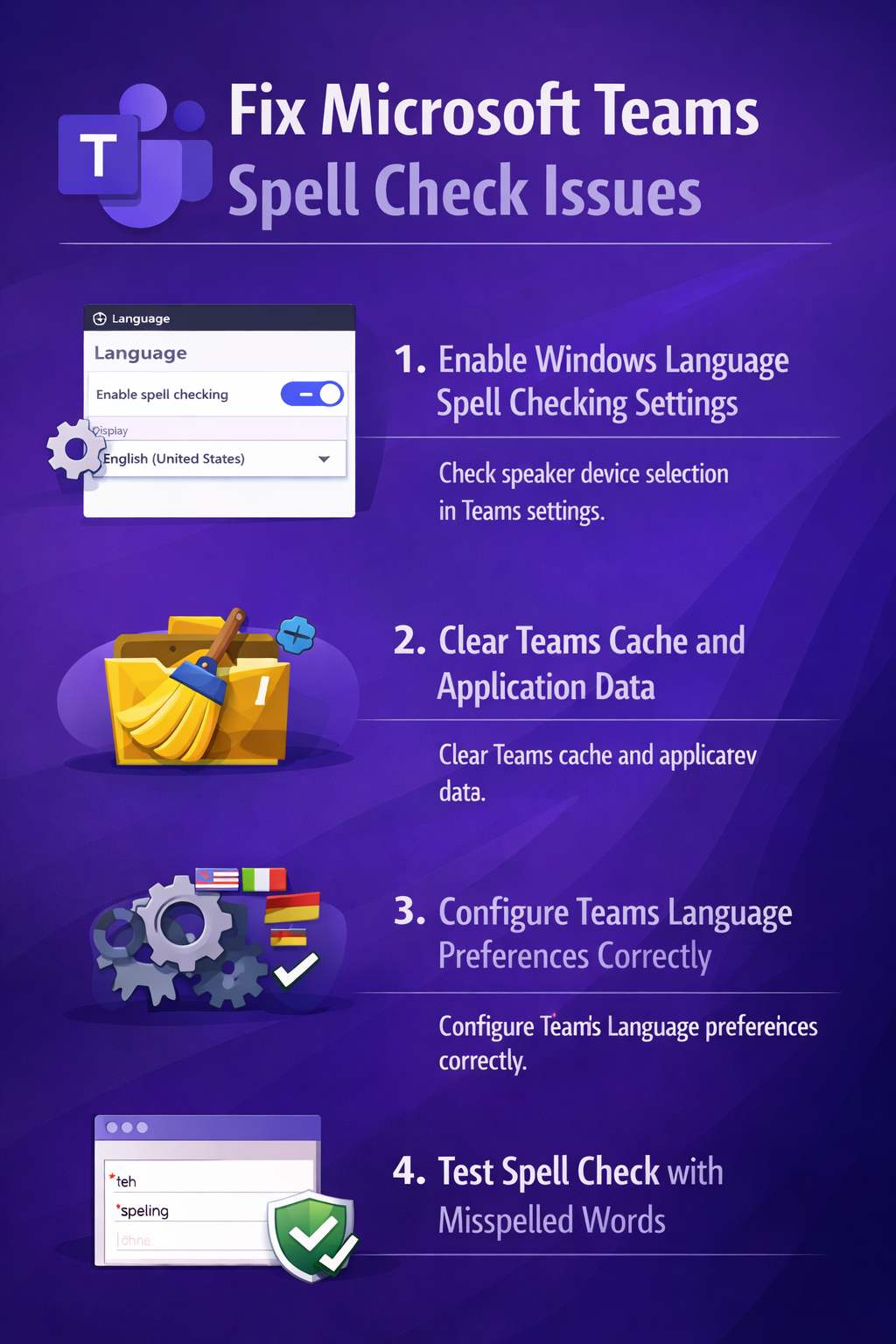
How to turn on spell check in Teams desktop application?
Follow these steps to restore spell checking in the Microsoft Teams desktop client by addressing system-level language settings and application-specific configurations.
- Open Windows Settings by pressing Windows + I, then navigate to Time & Language > Language & Region to verify your preferred language appears in the list with spell checking enabled.
- Click your primary language (such as English United States), select the three-dot menu, choose Language options, and ensure the Spelling toggle under Typing is turned on.
- Close Microsoft Teams completely by right-clicking the Teams icon in your system tray and selecting Quit rather than just closing the window.
- Press Windows + R to open the Run dialog, type %appdata%\Microsoft\Teams, and press Enter to access the Teams application data folder.
- Delete the contents of the Cache, blob_storage, databases, GPUcache, IndexedDB, and Local Storage folders to remove corrupted data that might interfere with spell checking. You can use our tutorial on clearing Microsoft Teams cache to resolve various issues to helps eliminate corrupted files that prevent spell check from functioning properly.
Configuring Teams language preferences
- Relaunch Microsoft Teams and sign in, then click your profile picture in the top-right corner and select Settings from the dropdown menu.
- Navigate to General settings and locate the Language section, where you should verify that your selected application language matches your Windows system language.
- If the language differs, select the correct language from the dropdown menu and click Save and restart to apply changes and reload Teams with proper spell check support.
- After Teams restarts, open any chat or channel and type a deliberately misspelled word like “tesst” to confirm that red underlines now appear beneath errors.
Expert Tip: If spell check works in some Teams channels but not others, the issue likely relates to specific conversation threads rather than global settings. Try creating a new test chat to isolate the problem.
- Right-click any underlined misspelled word to access spelling suggestions and verify the context menu displays correction options from your system dictionary.
- To enable autocorrect functionality, return to Windows Settings, navigate to Time & Language > Typing, and toggle on Autocorrect misspelled words under the Spelling section.
- Test autocorrect by typing common mistakes like “teh” followed by a space, which should automatically change to “the” if the feature is properly configured.
Troubleshooting common spell check problems in Teams
Even after following configuration steps, you might encounter persistent issues with Teams spell checking functionality. These solutions address the most frequent obstacles.
- Spell check works in other applications but not Teams: Launch Teams as an administrator by right-clicking the Teams icon and selecting Run as administrator, which resolves permission conflicts preventing access to system dictionaries. If this fixes the issue, configure Teams to always run with elevated privileges through the executable’s Properties menu under the Compatibility tab.
- Red underlines appear but right-click shows no suggestions: Your custom dictionary file may be corrupted, so navigate to %AppData%\Microsoft\Spelling in File Explorer and rename or delete files with the .dic extension. Restart Teams to generate fresh dictionary files that properly integrate with the spell checker engine.
- Spell check only works for some languages: Open Teams Settings, go to General > Language, and verify the selected language has a corresponding keyboard input method installed in Windows Settings under Time & Language > Language & Region. Add the missing keyboard layout by clicking Add a language and selecting the appropriate language pack with spell checking support.
- Teams web version has no spell check: Browser-based spell checking depends on your web browser’s settings rather than Teams configuration, so open your browser settings (Chrome: Settings > Languages, Edge: Settings > Languages), enable spell check for your preferred language, and add any missing language dictionaries. Clear your browser cache and cookies for teams.microsoft.com, then reload the page to reinitialize spell checking with updated browser language preferences.