Google Chrome includes a built-in Password Manager that automatically offers to save your login credentials whenever you sign into a website for the first time during a browsing session. When Chrome not saving passwords becomes an ongoing problem, you lose the convenience of automatic form completion and must manually type your usernames and passwords into every login page you visit. This article walks through the most reliable troubleshooting steps to restore Chrome password saving functionality so your browser once again captures and stores your credentials properly across all websites.
Verify Chrome Password Manager settings
The most frequent reason Chrome stops saving passwords is that the Offer to save passwords toggle was accidentally turned off during a browser update or while adjusting other privacy settings.
- Open Chrome, click the three-dot menu in the upper right corner, select Settings, then navigate to the Autofill and passwords section and click Password Manager to review your current configuration. After applying this verify chrome password change on my main computer, the configuration carried over to my second device automatically via account sync within just a few minutes of signing in.
- Confirm that the toggle labeled Offer to save passwords is switched on, because Chrome cannot prompt you to store credentials for any website when this particular setting remains disabled.
You should also verify that your Google account sync is actively running and configured to include passwords in the list of synchronized data types across your connected devices.
- Click your profile icon at the top of Chrome, select Sync is on or Turn on sync, and then confirm that the Passwords toggle appears enabled under the sync settings panel.
- If sync was paused or passwords were excluded from synchronization, Chrome will not save new credentials locally or push them to your other devices where you sign into your browser with the same Google account.
Clear Chrome cached data and cookies
Corrupted cache files and outdated cookies stored on your computer can prevent Chrome from displaying the password save prompt that normally appears after you submit login credentials on a website.
- Press
Ctrl + Shift + Deleteto open the Clear Browsing Data dialog, select All time as the time range, and check the boxes for cached images, files, cookies, and other site data. - Click the Clear data button and restart Chrome completely so the browser rebuilds its internal databases and reestablishes fresh connections to every website you visit during your next session.
After clearing your browsing data, navigate to a website where Chrome previously failed to offer the password save prompt and enter your credentials into the login form to test the fix.
- If Chrome now displays the save password notification bar at the top of the page, the issue was caused by corrupted temporary files that were interfering with the credential capture mechanism.
- Keep in mind that clearing cookies will sign you out of all websites, so you will need to manually log back into each site while Chrome rebuilds your stored session data and begins saving passwords again.
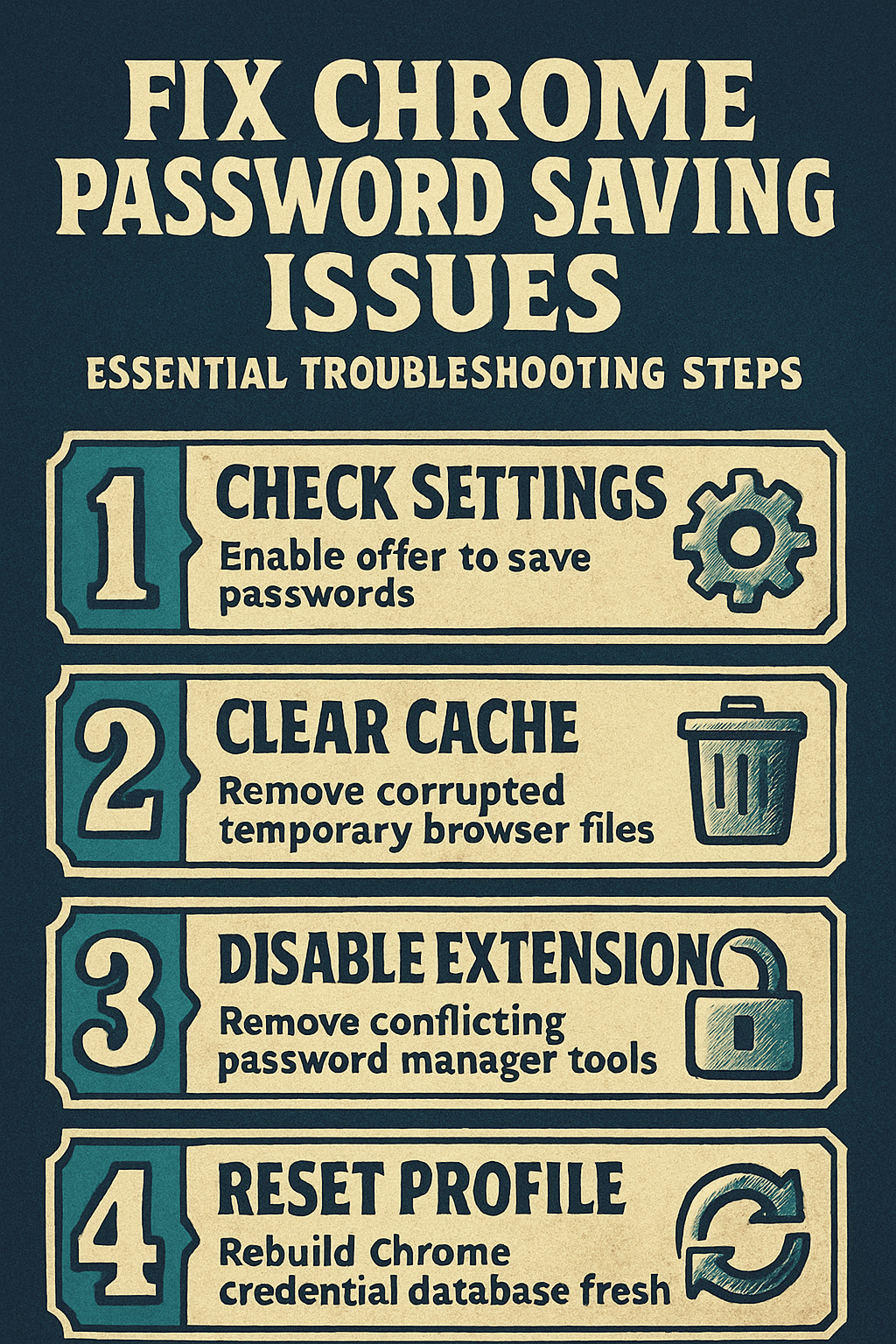
Disable Chrome conflicting browser extensions
Third-party browser extensions that manage passwords, block scripts, or modify form behavior on web pages can directly interfere with Chrome built-in password saving functionality and prevent save prompts.
- Common offenders include standalone password managers like LastPass, Bitwarden, or Dashlane, which intentionally override the native Chrome password save dialog with their own credential capture mechanisms instead. On my Windows 11 machine, this conflicting browser extensions settings panel loaded noticeably faster than in previous software versions, which suggests recent optimization improvements to the overall navigation flow.
- Open Chrome, type
chrome://extensionsin the address bar, and review your installed extensions to identify any that might be competing with or suppressing Chrome native password management features.
- Standalone password managers often disable Chrome built-in save prompt automatically during installation, which means you either need to uninstall the extension or configure it to allow Chrome native password saving alongside it.
- Ad blockers with aggressive filtering may inadvertently block the JavaScript events that Chrome relies on to detect completed login form submissions and trigger the credential save notification bar at the top of the page.
- Privacy-focused extensions designed to enhance your browsing security sometimes strip autocomplete attributes from HTML form elements, which directly prevents Chrome from recognizing password input fields on login pages across websites.
- Form-filling utilities that attempt to populate the same credential fields Chrome targets can create conflicts where neither tool successfully captures or suggests passwords during the login process on affected websites.
To isolate the problematic extension, disable all extensions temporarily through the extensions page and then re-enable them one at a time while testing password saving after each individual change.
Reset Chrome profile data
When standard troubleshooting steps fail to restore password saving, resetting your Chrome profile data can eliminate deeply embedded database corruption that prevents the Password Manager from functioning at all.
- Close Chrome entirely, open Windows File Explorer, type
%LocalAppData%\Google\Chrome\User Data\Defaultin the address bar, and locate the Login Data file that stores your saved credentials. - Rename the Login Data file to create a backup copy before restarting Chrome, which forces the browser to generate a fresh password database and resynchronize your credentials from your Google account.
If renaming the Login Data file does not resolve the problem, creating an entirely new Chrome profile provides a clean starting point that bypasses all persistent corruption issues affecting your current profile.
- Click your profile icon in the upper right corner of Chrome, select Add to create a new profile, then sign in with your Google account to trigger a complete synchronization.
- This approach resolves situations where broader system performance problems or corrupted user preferences cause Chrome Password Manager to stop saving new credentials across all websites you visit.
Update Chrome to the latest version
Running an outdated version of Chrome can cause password saving failures because older browser builds may contain known bugs that Google has already patched in subsequent releases targeting Password Manager improvements.
- Click the three-dot menu in Chrome, navigate to Help, then select About Google Chrome to check your current version number and trigger an automatic update download process.
- Chrome will display a message confirming whether your browser is current or needs to restart to apply a pending update that may include fixes for credential saving issues.
After updating Chrome, verify that your operating system also has all recent patches installed, because outdated system components can occasionally interfere with browser security features including password storage.
- Windows users should open Settings, navigate to Windows Update, and install any pending updates to ensure that certificate handling and credential storage APIs function correctly alongside Chrome.
- Restarting your computer after applying both Chrome and operating system updates alongside startup configuration changes ensures all patches take effect and password saving receives the benefit of every available fix.
Check site-specific password exceptions
Chrome allows you to exclude specific websites from the password save prompt by adding them to an exclusion list, which means passwords for those particular sites will never trigger a save notification.
- Open Chrome Settings, navigate to Password Manager, and scroll down to the Declined sites and apps section or the Never Saved list to review which domains you have previously excluded from password saving.
- Remove any websites from this list that you now want Chrome to save passwords for, because entries in the exclusion list permanently suppress the save credential prompt for those domains.
You should also check whether the website itself uses specific HTML attributes or JavaScript that prevent browsers from offering to save credentials for their login forms intentionally.
- Some banking websites, healthcare portals, and corporate applications deliberately disable browser password saving as a security measure by adding
autocomplete="off"to their form fields programmatically. - In these cases, Chrome respects the website instruction and will not display the save password prompt regardless of your browser settings, so you may need to use Chrome Password Manager manual save feature instead.
Frequently Asked Questions
Why did Chrome stop saving my passwords?
Chrome typically stops saving passwords when the Offer to save passwords toggle gets disabled during a browser update, when a third-party password manager extension overrides the native save prompt, or when corrupted profile data prevents the credential database from accepting new entries properly. Checking your Password Manager settings under Chrome Settings and clearing your browser cache resolves the vast majority of cases where the save password prompt suddenly stops appearing after login.
How do I get Chrome to save passwords again?
Open Chrome Settings by clicking the three-dot menu, navigate to Autofill and passwords, then select Password Manager and confirm that the Offer to save passwords toggle is enabled. You should also verify that the specific website is not listed under Declined sites and apps, because Chrome permanently suppresses the save prompt for any domain added to that exclusion list.
Does clearing Chrome data delete my saved passwords?
Clearing cached images, files, and cookies through the Clear Browsing Data dialog does not remove your saved passwords unless you specifically check the Passwords and other sign-in data option. Your stored credentials remain intact in Chrome Password Manager as long as you leave the passwords checkbox unchecked when clearing other browsing data from the dialog window.