Resetting Chrome settings to default restores your browser to its original configuration, which effectively resolves problems caused by unwanted extensions, hijacked search engines, and modified startup pages. Many Chrome users encounter situations where their browser preferences change unexpectedly after installing software, visiting certain websites, or experiencing malware infections that alter critical settings. This article explains exactly what the Chrome reset process does, which data it preserves, and how you can restore Chrome default settings quickly on any operating system.
When you should reset Chrome
You should consider performing a Chrome factory reset when your browser behaves differently than expected, such as displaying unfamiliar homepage content or redirecting searches through an unknown engine.
- Slow browser performance caused by accumulated temporary data, conflicting Chrome preferences, and excessive background processes can often be resolved through a complete settings reset procedure. Having repeated this when you should setup across both older and newer Windows 11 hardware, the results were identical every time which gives me confidence these instructions are broadly applicable.
- Another common scenario involves browser settings that keep changing back to unwanted values despite your manual corrections, which typically indicates that an extension or malware has modified core configurations.
- Resetting Chrome browser settings addresses all these situations simultaneously by returning every configurable option to its factory default state without requiring a complete browser reinstallation process.
Access the Chrome reset option
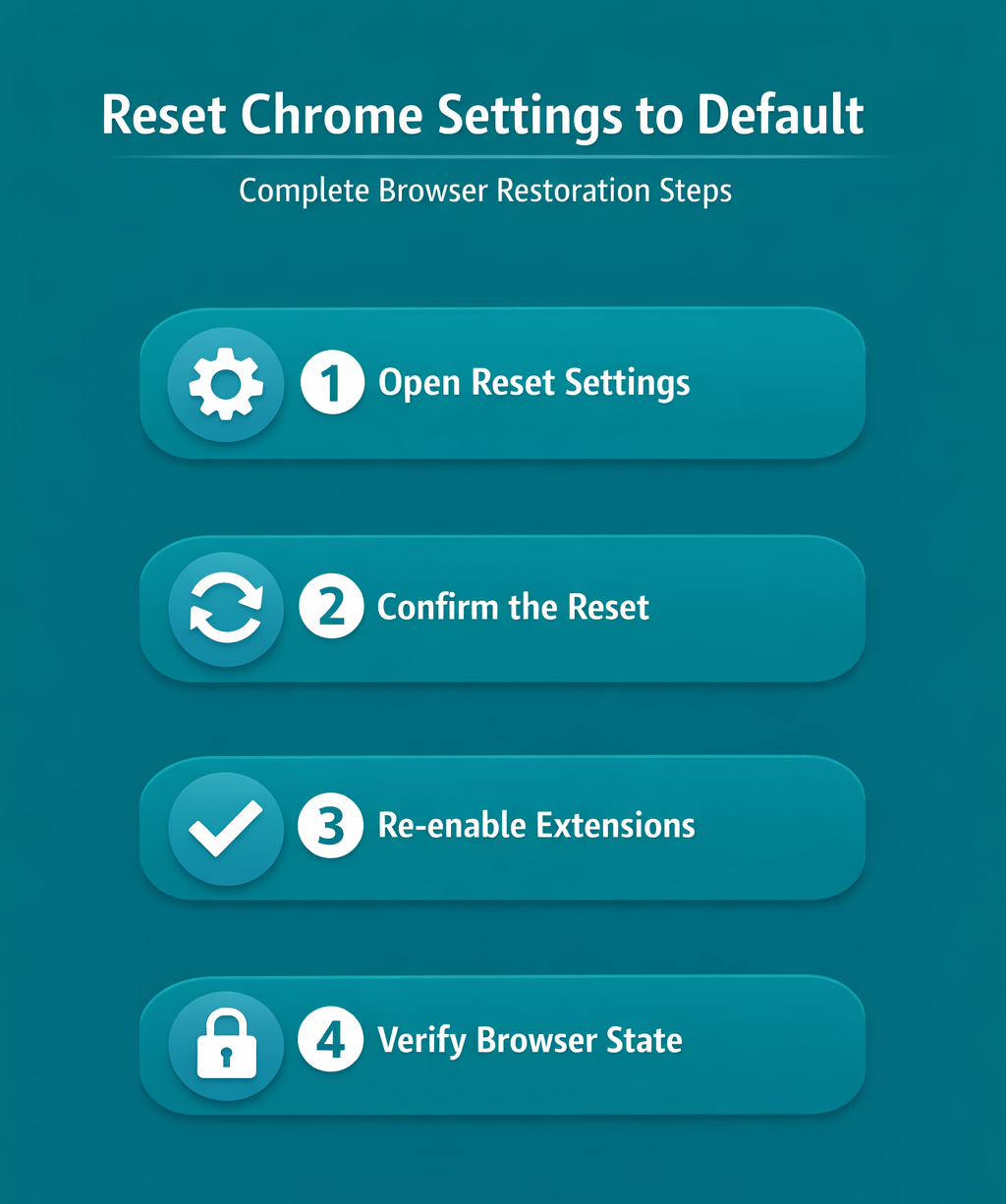
Open Google Chrome on your computer and click the three-dot menu icon located in the upper-right corner of the browser window to access the main navigation menu.
- Select Settings from the dropdown menu, then scroll down the left sidebar and click Reset settings to reveal the available restoration options within the settings panel.
- You will see an option labeled Restore settings to their original defaults, which is the primary method for performing a complete Chrome reset that returns all browser preferences back.
- Click this option to open a confirmation dialog that explains exactly which settings will be restored and which personal data will remain completely untouched during the process.
Understand what Chrome reset changes
Knowing exactly what the reset process modifies helps you prepare properly and avoid unexpected surprises after restoring Chrome default settings on your computer or mobile device. The following browser elements return to their original factory default values when you confirm the Chrome reset action through the settings dialog panel:.
- Default search engine — Chrome reverts your search provider back to Google regardless of which alternative search engine you previously configured as your preferred default option. This entire understand what chrome process took less than thirty seconds to complete on my computer, which confirms this remains one of the quickest configuration changes available to users today.
- Homepage and startup page — Your configured homepage URL and any custom startup pages return to the standard Chrome new tab page that displays frequently visited sites.
- Pinned tabs — All tabs you previously pinned to remain visible at the top of your browser window get removed entirely, requiring you to pin them again manually.
- Content settings — Website-specific permissions for notifications, camera access, microphone usage, location sharing, and popup behavior all return to their original Chrome default values across every site.
- Extensions — All installed browser extensions become disabled but remain installed, which means you can selectively re-enable the ones you actually trust and need for daily use.
Understand what Chrome preserves
The Chrome reset process specifically preserves your most important personal data, which means you do not lose critical information that would be difficult or impossible to recreate. Your saved bookmarks remain completely intact after the reset, along with your browsing history, saved passwords stored in Chrome Password Manager, and autofill form data entries. Chrome also preserves any downloaded files on your computer since those exist outside the browser itself, and your Google account synchronization settings remain fully connected. This selective approach to resetting Chrome browser settings makes the process safe for regular browser maintenance and troubleshooting without risking permanent data loss.
Reset Chrome on mobile devices
Resetting Chrome on Android devices follows a slightly different path compared to the desktop version because mobile Chrome integrates more deeply with your device operating system settings.
- Open Chrome on your Android phone, tap the three-dot menu, select Settings, scroll down to Reset settings, and tap Restore settings to their original defaults to begin.
- On iOS devices running iPhone or iPad, Chrome does not include a built-in reset option, so you must uninstall and reinstall the Chrome app from the App Store instead.
- After reinstalling Chrome on any mobile device, sign back into your Google account to restore your synchronized bookmarks, passwords, and other cloud-synced browsing data from the server.
Fix malware with Chrome reset
Malware infections frequently modify Chrome preferences by changing your default search engine, injecting unwanted extensions, and redirecting your homepage to suspicious advertising websites without your permission.
- Resetting Chrome settings to default removes these unauthorized modifications by disabling all extensions and restoring the original search engine and homepage configuration that existed before infection.
- You should run a full antivirus scan on your computer before performing the Chrome reset to ensure that the malware cannot simply reinfect your browser settings immediately after you complete the restoration.
- Combining a thorough malware removal process with a Chrome factory reset provides the most comprehensive cleanup approach for restoring normal browser functionality on infected computers.
Frequently Asked Questions
What happens when you reset Chrome settings to default?
Resetting Chrome restores your homepage, startup pages, new tab page, search engine, and pinned tabs to their factory original values while disabling all installed browser extensions simultaneously. Your bookmarks, browsing history, saved passwords, and autofill data remain completely untouched and accessible after the reset process finishes restoring all other browser preferences to defaults. The reset essentially returns Chrome to the state it was in when you first installed the browser on your computer, except your personal saved data stays intact.
Does resetting Chrome delete bookmarks and passwords?
No, performing a Chrome reset does not delete your saved bookmarks, stored passwords, browsing history, or autofill form data because these personal items are explicitly preserved during restoration. The reset process only affects browser configuration settings like your homepage, search engine, content permissions, and installed extensions, which either revert to defaults or become disabled. If you have Chrome sync enabled through your Google account, all your personal data also remains safely backed up on Google servers for additional protection.
How do I fix Chrome after a malware infection using reset?
First run a comprehensive antivirus scan to remove the malware from your computer, then open Chrome Settings and navigate to the Reset settings section to restore defaults. The reset process disables all extensions including any malicious ones that the malware installed, and it restores your search engine and homepage back to their legitimate original values. After completing the reset, review your installed extensions carefully and only re-enable ones you recognize and trust, then verify your startup programs to prevent reinfection. Resetting Chrome to default settings provides a reliable and safe method for resolving browser problems without losing your important bookmarks, passwords, or browsing history data. Whether you are dealing with unwanted configuration changes, slow performance, or malware damage, the Chrome reset feature restores your browser to a clean working state within seconds.