Claude’s desktop application brings AI-powered productivity assistance directly to your Windows workflow without requiring a browser tab. Completing the Claude cowork download and configuring the application correctly takes only a few minutes, but skipping key permission and notification settings creates errors that interrupt your workflow later. Getting every setting right on the first attempt prevents the most common troubleshooting scenarios Windows 11 users report.
Prerequisites for Claude Desktop Setup
Before starting your Claude cowork download, confirm these requirements are in place:
- Windows 10 version 1903 or later (Windows 11 recommended for best compatibility). Check your version by opening Settings >> System >> About and reviewing the build number listed under Windows specifications.
- 4 GB RAM minimum and a stable internet connection. Claude processes all requests through Anthropic’s cloud servers, so offline mode is not currently available.
- An active Anthropic account with either free-tier or Pro subscription access. Create one on the Anthropic website before downloading the installer, since the application requires sign-in on first launch.
Configure Claude Cowork on Windows
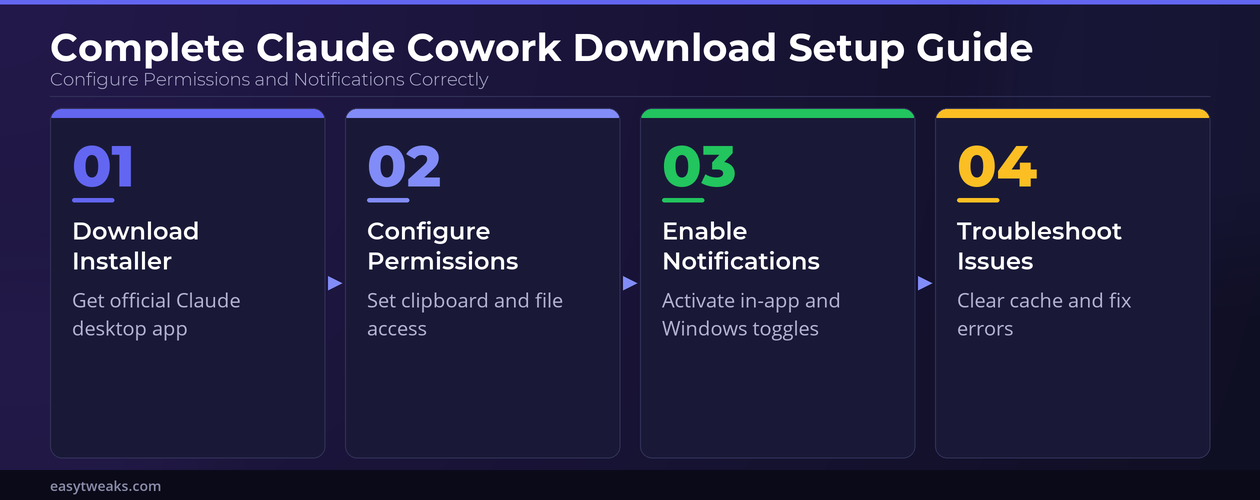
Download Claude Desktop Installer
Navigate to Anthropic’s official website and locate the downloads section for Windows. Select the Windows installer — the file is named Claude-Setup.exe and weighs approximately 120 MB. Run the installer once the download completes and follow the on-screen prompts to finish. Windows SmartScreen may flag the file on first launch; click More info followed by Run anyway to proceed safely.
The application installs to your user profile directory by default, which avoids requiring administrator privileges on most machines. Once installation finishes, Claude launches automatically and displays a sign-in screen where you enter your Anthropic credentials. If the installer stalls or returns an error code, check that no antivirus software is quarantining the .exe file before downloading again. Temporarily disabling real-time scanning during installation resolves this in most cases.
Set Up Claude Permission Settings
After signing in, click the gear icon in the lower-left corner to open the settings panel. Navigate to the Permissions section to review what the application can access on your system. Claude requests clipboard access for paste operations, file system read permission for document analysis, and network access for API communication.
Toggle each permission based on your workflow requirements:
- Clipboard access — Required for pasting text into conversations. Disable this if your organization restricts clipboard sharing between applications for security compliance.
- File system access — Enables document uploads and local file analysis. Keep this active for full cowork functionality.
- Network access — Mandatory for all operations. Claude cannot function without a connection to Anthropic’s servers.
When a permission is blocked at the operating system level, Claude displays a yellow warning badge next to that setting. Fixing blocked permissions requires opening Windows Settings >> Privacy & Security >> App permissions and enabling the relevant toggle for Claude. Corporate Group Policy restrictions may override these toggles, in which case your IT administrator needs to whitelist the application.
Verify Claude Notification Settings
Claude sends desktop notifications when long-running tasks complete or when your session needs attention. Configuring Claude notifications correctly requires enabling toggles in two separate locations. Open Settings >> Notifications inside the Claude application and confirm the master toggle is active. Then verify that Windows 11 allows Claude alerts by navigating to Settings >> System >> Notifications and scrolling to Claude in the application list.
Both toggles must be enabled for notifications to appear on your desktop. Send a test message to Claude and minimize the window to confirm a banner notification pops up within a few seconds. If notifications remain silent after enabling both toggles, check that Focus Assist is turned off or that Claude appears in your Focus Assist priority list. Missing notifications after a fresh install are the single most common complaint, and this dual-toggle requirement is the root cause in nearly every case.
Advanced Claude Options
Customize Claude Keyboard Shortcuts
Keyboard shortcuts speed up cowork sessions by reducing mouse dependency. Open Settings ? Keyboard Shortcuts to view all default bindings and their current assignments. The most valuable shortcut is the global activation hotkey — this summons Claude from any application on your desktop without switching windows. Configure it under Global Activation Key with a combination that avoids conflicts, such as Ctrl+Shift+Space or Alt+C.
You can also remap the send-message key, toggle the sidebar, and switch between conversations entirely from the keyboard. If a shortcut conflicts with another installed application, Claude highlights the binding in red and suggests an alternative combination. Custom shortcut configurations sync across devices when you sign in with the same Anthropic account, so you only need to configure them once.
Fix Claude Not Working on Windows 11
When Claude stops responding or fails to launch after installation, a few targeted steps resolve most problems without reinstalling. Open Task Manager with Ctrl+Shift+Esc, locate any Claude processes in the details list, and end them all before relaunching the application. Stale background processes are the leading cause of the application appearing frozen or completely unresponsive on startup.
If relaunching does not fix the issue, clear the application cache by navigating to %AppData%\Claude in File Explorer and deleting the Cache folder.
- This forces Claude to rebuild its local data on the next startup without erasing conversation history or account settings.
- Users who need to fix unresponsive apps on Windows 11 often discover that outdated .NET runtime components cause the failure, so run Windows Update and install any pending framework patches before trying again.
- As a final option, uninstall Claude through Settings >> Apps >> Installed apps, restart your computer, and perform a fresh Claude cowork download from the official page.
Verify the official Claude feature and installer before setup
Reliable Claude desktop setup troubleshooting starts with evidence. Identify who owns the data or setting, which client is affected, and whether another account, browser, file, or device provides a clean comparison.
Separate local and managed behavior
Start from Anthropic’s official download and support pages, confirm that the named feature is available for your operating system, account, region, and plan, and avoid similarly named third-party downloads. Product availability and labels can change.
Install under the normal user account, review requested permissions, and begin with a non-sensitive test workspace. Grant only the folders or integrations required for the task and follow organizational rules for confidential files.
Prepare useful escalation evidence
After restart, verify sign-in, updates, notifications, and the exact feature entry. If it is missing, capture the application version and account plan and check official release information rather than changing hidden configuration or downloading unofficial builds.
Document only the evidence needed for support: versions, timestamps, error text, and the tested condition. Remove confidential names, file contents, tokens, and account details from screenshots.
Close the test only after the original task works twice and no required feature was lost. Assign any remaining limitation to an owner rather than leaving an undocumented workaround.
Avoid relying on a successful preview alone. Save or apply the setting, close the client, reopen it under the same account, and repeat with realistic input. If collaboration is involved, confirm the recipient sees the expected result rather than assuming the sender’s display proves delivery.
For recurring problems, note frequency and the last known good state. That detail helps distinguish a persistent configuration fault from capacity, service health, or timing conditions and gives administrators a useful window for logs.
Finish by reviewing whether the change should apply to one user, one device, or the wider organization. Broader deployment needs an owner, a pilot, and a rollback plan even when the individual test succeeds.
Common Questions
Why is Claude not working after installation?
A firewall or proxy blocking Claude’s connection to Anthropic’s API servers causes most post-install failures. Open your firewall settings and add an exception for `Claude.exe`. Corporate VPN configurations also interfere with the required connection — disconnect temporarily to isolate the problem. Restarting Claude after creating the firewall exception resolves the issue for the majority of users.
How do you fix Claude notifications not working?
Enable notifications in two places: the in-app toggle under Settings >> Notifications and the Windows system toggle under Settings >> System >> Notifications >> Claude. Both must be active for desktop banners to appear. Also confirm that Focus Assist is not silencing alerts during your working hours. Adding Claude to the priority notification list fixes this permanently.
Does Claude cowork require a paid subscription?
The Claude desktop application download is free on all account tiers. Basic chat functionality and standard configuration features work without a paid subscription. Pro subscribers gain higher daily message limits, extended context windows, and priority server access during peak usage hours. File analysis and advanced cowork capabilities benefit most from the Pro tier’s expanded capacity.
A properly configured Claude cowork installation handles permissions, notifications, and shortcuts without ongoing maintenance. Revisit the permission and notification sections above when issues surface — most problems trace directly back to those two configuration areas.