Claude cowork plugins extend the capabilities of Claude’s desktop application by connecting it to your existing productivity tools on Windows 11. These plugins allow Claude to read documents, manage local files, and interact with applications running on your machine without manual switching between windows. This guide walks you through installing, configuring, and troubleshooting Claude cowork plugins so you can build an automated workflow that handles repetitive tasks while you focus on higher-priority work.
Prerequisites for Claude Plugin Setup
Before configuring cowork plugins, confirm your system meets these requirements:
- Windows 11 version 22H2 or later with a minimum of 8 GB RAM and 2 GB free disk space for plugin data
- Claude Desktop application downloaded from the official Anthropic website (the free tier supports basic plugins)
- Administrator access to your Windows user account for granting application-level permissions
Configure Claude Cowork Plugins
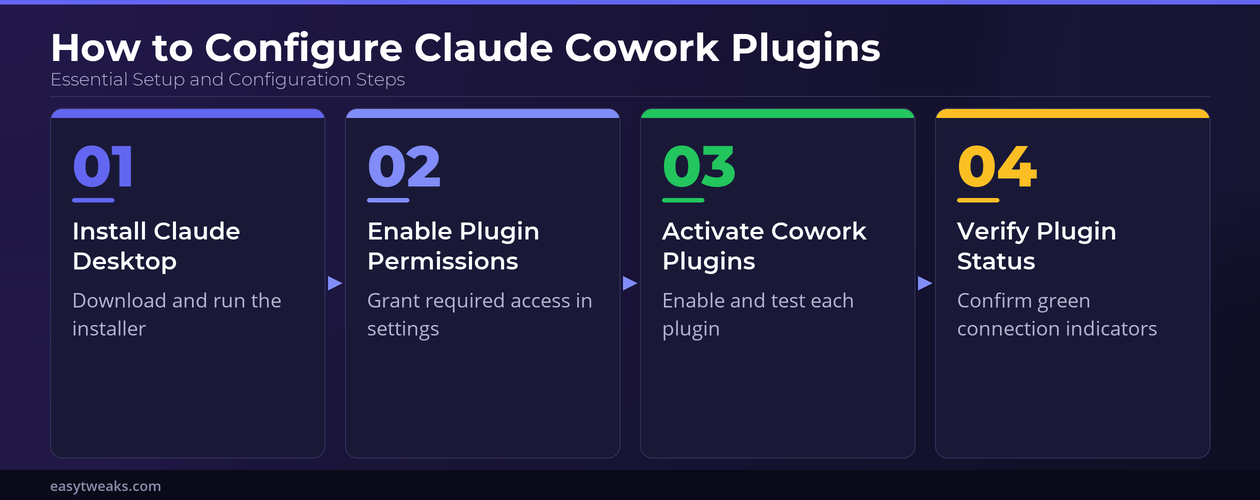
Install the Claude Desktop App
Download Claude Desktop from the official Anthropic website and run the installer. Accept the default installation path unless your organization requires a custom directory. The installer creates a shortcut on your desktop and adds Claude to the Start Menu under Recently Added. Launch the application after installation completes and sign in with your Anthropic account credentials.
After signing in, Claude opens to the main conversation window where you can verify the installation succeeded by sending a test message. Navigate to Settings >> About to confirm you run the latest version because plugin compatibility depends on having current software. Older Claude Desktop versions may fail to recognize newer cowork plugins or display connection errors during activation. Enable automatic updates from this same screen to avoid version conflicts going forward.
Set Up Claude Plugin Permissions
Open Settings from the gear icon in the top-right corner of the Claude Desktop window. Navigate to Plugins >> Permissions to view the permission categories that cowork plugins require. Each plugin requests specific access levels including file system read/write, clipboard access, and application integration.
- Enable File System Access to allow plugins to read and create documents in designated folders
- Enable Application Integration to let plugins interact with installed software like Microsoft 365 apps
- Enable Network Access if your plugins need to reach external APIs or cloud services
Review each permission carefully before granting access. Claude displays a confirmation dialog whenever a plugin attempts to use a permission for the first time. Disable any permissions you do not need to maintain a tighter security posture on your machine. If you work in a managed enterprise environment, your IT administrator may pre-configure these permissions through group policy, which overrides individual user settings.
Activate Cowork Plugin Features
Return to Settings >> Plugins and select the Cowork tab to view available plugins. The plugin list shows each integration along with its current status, version number, and a brief description of its capabilities. Plugins appear in categories such as file management, application integration, and workflow automation.
- Click Enable next to each plugin you want to activate
- Configure plugin-specific settings by clicking the gear icon beside the plugin name
- Use the Test Connection button to confirm each plugin connects to its target application
After activation, Claude displays a plugin status indicator in the bottom-left corner of the conversation window. A green dot confirms the plugin loaded correctly. A yellow dot means the plugin loaded but cannot reach its target service. A red dot signals a failed initialization that requires attention. Restart Claude Desktop if any plugin shows a red indicator because most activation issues resolve after a restart when plugins reload their configuration files during the startup sequence.
Advanced Claude Plugin Options
Custom Plugin Notification Settings
Claude cowork plugins generate notifications when they complete tasks, encounter errors, or need your input. Open Settings >> Notifications to control how these alerts appear on your Windows 11 desktop. Set the notification style to Banner for brief pop-ups that disappear automatically or Alert for persistent notifications that stay until you dismiss them.
You can configure per-plugin notification rules from this same screen. Select a plugin from the notification settings list and toggle individual event types on or off. Disable routine completion notifications if you run plugins frequently and only want alerts for errors or failures. If Claude notifications stop appearing entirely, check your Windows 11 notification settings in System >> Notifications to confirm Claude has notification permissions at the operating system level. Windows Focus Assist can also suppress plugin alerts during scheduled quiet hours, so verify that mode is not active when you expect to receive notifications.
Troubleshoot Claude Plugin Errors
Plugin errors on Windows 11 fall into three categories: permission failures, version mismatches, and network timeouts. Start troubleshooting by opening Settings >> Plugins >> Logs to review the error history for each plugin. The log entries include timestamps, error codes, and plain-language descriptions of what failed.
- Permission failures: Revisit the permissions panel and confirm all required access levels remain enabled. Windows updates occasionally reset app permissions to their defaults, which can break previously working plugins without warning.
- Version mismatches: Update both Claude Desktop and the affected plugin to their latest versions. Check the plugin changelog for breaking changes that may require you to reconfigure specific settings after the update.
- Network timeouts: Verify your internet connection and confirm your firewall or VPN does not block Claude’s outbound connections on port 443. Corporate proxy servers can also interfere with plugin handshakes.
If a plugin fails repeatedly after these steps, uninstall and reinstall it through the plugin manager. This process clears corrupted configuration files without affecting your other plugins or conversation history. Navigate to Settings >> Plugins, click the three-dot menu next to the problem plugin, and select Reinstall.
Common Questions
Why is Claude not working after installing cowork plugins?
The most common cause is a permission mismatch between the plugin requirements and your current settings. Open Settings >> Plugins >> Permissions and verify every required permission shows as enabled. Restart Claude Desktop after making changes because permission updates take effect during the next application startup cycle. A clean restart resolves the majority of post-installation issues.
How do I fix Claude notifications not working for plugins?
Check two locations. First, open Claude Settings >> Notifications and confirm notifications are enabled for the specific plugin. Second, open Windows Settings >> System >> Notifications and verify Claude Desktop appears in the app list with notifications turned on. Focus Assist and Do Not Disturb modes block alerts when active, so disable those temporarily to test.
What is the best way to fix Claude not working on Windows 11 permanently?
Reset the plugin configuration by navigating to Settings >> Plugins >> Reset All. This clears cached settings and forces each plugin to reinitialize on the next launch. If the problem persists, uninstall Claude Desktop completely, delete the remaining configuration folder at `%AppData%\Claude`, and perform a fresh installation from the official website.
Claude cowork plugins turn a standalone AI assistant into a connected productivity tool that works alongside your existing Windows applications. Configure your permissions and notification preferences once, and you gain a reliable automation layer that saves time on repetitive tasks every day.