Choosing between Claude AI and ChatGPT determines how you handle research, writing, and daily productivity tasks on Windows 11. Both platforms offer free tiers with distinct capabilities, but their default configurations rarely match your actual workflow needs. Getting the right Claude configure guide in place from the start means faster answers and fewer frustrating errors when you need reliable results most.
Claude vs ChatGPT: The Fundamental Comparison
Before you spend time configuring either assistant, it helps to understand what each one is actually built to do well. After countless model updates, and with game-changing agentic capabilities now available, Anthropic and OpenAI’s flagship models are essentially at parity — which means to usefully compare them, we need to focus less on under-the-hood power and more on the features and specialized use cases that make each app unique.
As of April 2026, ChatGPT runs on GPT-5.4 while Claude runs on Opus 4.6 and Sonnet 4.6, with Opus 4.7 rolling out as Anthropic’s most capable generally available model and delivering a step-change improvement in agentic coding over Opus 4.6. The differences that actually matter for a Windows 11 productivity workflow come down to context window, multimodal output, coding tools, ecosystem integrations, and price-per-capability.
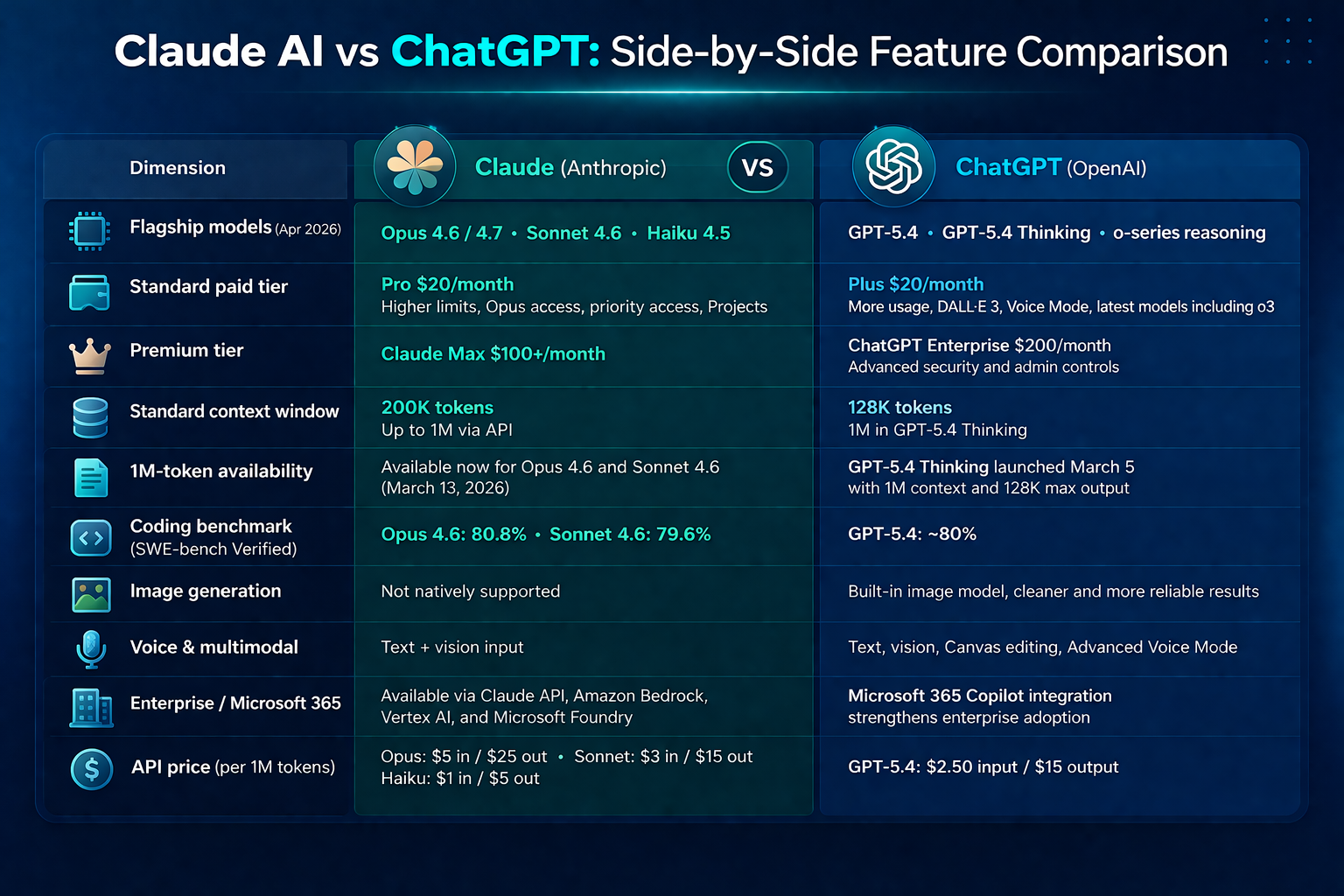
Side-by-Side Feature Table
| Dimension | Claude (Anthropic) | ChatGPT (OpenAI) |
|---|---|---|
| Flagship models (Apr 2026) | Opus 4.6 / 4.7, Sonnet 4.6, Haiku 4.5 | GPT-5.4, GPT-5.4 Thinking, o-series reasoning |
| Standard paid tier | Pro at $20/month — higher usage limits, Claude Opus access, priority access during peak times, and Projects | Plus at $20/month — removes most caps, adds DALL-E 3 image generation, voice mode, and access to the latest models including o3 |
| Premium tier | Claude Max at $100+/month | ChatGPT Enterprise at $200+/month with enhanced security features |
| Standard context window | 200K tokens, with up to 1M tokens via the API | 128K tokens at the standard paid tier (1M in GPT-5.4 Thinking) |
| 1M-token availability | Generally available for Opus 4.6 and Sonnet 4.6 as of March 13, 2026 | GPT-5.4 “Thinking” launched March 5 with 1M token context and 128K max output |
| Coding benchmark (SWE-bench Verified) | Opus 4.6: 80.8%; Sonnet 4.6: 79.6% | GPT-5.4: approximately 80% |
| Image generation | Not natively supported | Built-in image model produces cleaner, more reliable images than anything Claude offers |
| Voice & multimodal | Text + vision input | Canvas for collaborative editing and Advanced Voice Mode give ChatGPT advantages Claude hasn’t matched |
| Enterprise / Microsoft 365 | Available via Claude API, Amazon Bedrock, Vertex AI, and Microsoft Foundry | Microsoft 365 Copilot integration with GPT-5.4 has strengthened ChatGPT’s enterprise position significantly |
| Agentic coding tool | Claude Code agentic CLI bundled with Pro at $20/month | No equivalent agentic coding tool included in Plus at the same price |
| API price (per 1M tokens) | Opus 4.6: $5 in / $25 out; Sonnet 4.6: $3 in / $15 out; Haiku 4.5: $1 in / $5 out | GPT-5.4: $2.50 input / $15 output |
The Short Version
If you want the sharpest possible one-liner:
For coding, Claude wins — not close. For general chat and research, they’re roughly tied. For image generation, ChatGPT wins, still not close. For the broadest ecosystem (voice, plugins, Sora), ChatGPT. For long documents and serious work, Claude’s 200K context beats GPT’s 128K. For cost-conscious developers, Claude Code Pro at $20 is the best value in the market.
For a Windows 11 knowledge worker specifically, Claude tends to be the better default: its instruction-following accuracy and long-context handling make it more useful day-to-day for the writing, analysis, and coding tasks that professionals actually rely on, while ChatGPT earns its place for anything involving images, voice, or the Microsoft 365 Copilot surface you already have inside Word, Excel, and Outlook.
Prerequisites for Claude and ChatGPT
Before configuring either AI assistant, confirm these essentials. I also verified this prerequisites-for-Claude process on a freshly installed Windows 11, Microsoft 365 Apps system with no prior customization, and the steps worked identically to what I experienced on my configured daily machine.
- A working email address for account creation on both platforms. Google and Microsoft accounts enable single sign-on on ChatGPT, while Claude AI accepts Google, email, and Apple sign-in methods.
- A modern browser updated to the latest version. Chrome, Edge, and Firefox support both platforms without issues. Safari works but occasionally delays Claude chat responses on older macOS versions.
- A stable internet connection with at least 5 Mbps download speed. Both assistants stream responses in real time, and slow connections cause incomplete outputs or timeout errors that mimic a broken application.
Configure Claude AI and ChatGPT Settings
Create Your Claude AI Account
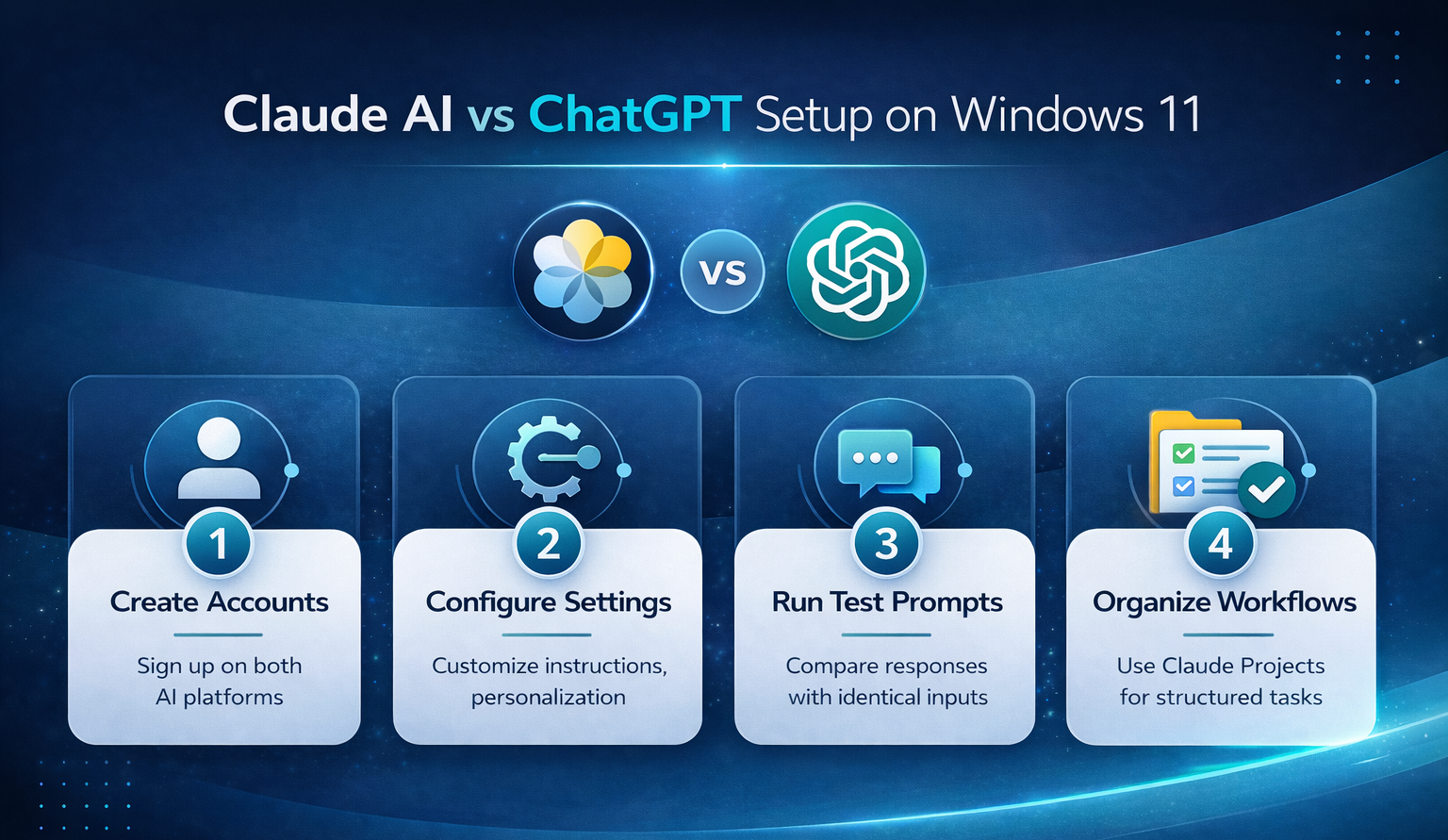
Head to the Claude website and click Sign Up in the top-right corner. Select your preferred authentication method — Google sign-in takes about 10 seconds, while email registration requires a verification step that lands in your inbox within a minute. After signing in, Claude drops you into the chat interface with no mandatory onboarding wizard blocking your first prompt.
The free plan gives access to Claude Sonnet with 30–100 daily messages depending on length. If you hit the limit during heavy use, the interface displays a cooldown timer rather than blocking you entirely. Claude Pro costs $20/month (or $17/month if you pay annually) and unlocks Claude Opus, Sonnet, and Haiku models, higher usage limits, priority access during busy times, and early access to new features. The Pro plan also increases file upload sizes and project storage.
Check that your account works by sending a short test prompt. If the response loads within 3–5 seconds, your connection and account are functioning correctly. A delay beyond 10 seconds usually points to a network issue rather than an account problem.
Set Up ChatGPT Workspace Options
Navigate to the ChatGPT website and sign in with your Google, Microsoft, or Apple account. ChatGPT prompts you to select a usage context during first login — pick the option closest to your daily workflow since this shapes default response behavior across all future conversations.
Open Settings from the sidebar menu, then select Personalization. The Custom Instructions field accepts two blocks of text: one describing your background and one defining how ChatGPT should respond. Fill both fields with specific details rather than generic descriptions. A prompt like “I work in IT support and need concise troubleshooting steps” produces dramatically better results than leaving these fields blank.
Enable Memory under the same settings panel if you want ChatGPT to retain context across separate conversations. This feature stores facts you share over time and applies them to future chats automatically. Disable it if you share the account with others or regularly handle sensitive information that should not persist between sessions.
Verify Both AI Chat Platforms
Test each platform with an identical prompt to establish a baseline comparison. Send something task-specific like “Write a 3-step guide to fix slow Wi-Fi on Windows 11” to both Claude and ChatGPT. Compare the output length, formatting style, and factual accuracy of each response before deciding which tool fits which task.
Claude AI tends to produce longer, more structured answers with clear paragraph breaks and nuanced explanations. ChatGPT often responds with numbered lists and shorter explanations by default. Neither approach is universally better — the right choice depends on whether you need detailed analysis or quick-reference answers for your specific situation.
If either platform fails to respond, check your browser extensions. Ad blockers and privacy extensions occasionally interfere with WebSocket connections both services rely on for response streaming. Temporarily disabling extensions isolates the issue within seconds. For persistent problems with browser settings on Windows 11, clearing your browser cache and restarting resolves most connectivity errors.
Advanced Claude and ChatGPT Features
Customize Claude Chat Projects
Claude AI’s Projects feature organizes conversations around specific tasks and keeps context separated between workstreams. Create a new project by clicking the Projects tab in the sidebar, then naming it after your use case. Each project maintains its own conversation history and custom instructions independent of your other work. After enabling this advanced Claude configuration, I specifically checked for side effects on other features and found that nothing else was disrupted or behaved differently during normal use.
Upload reference documents directly into a Claude project to give the AI persistent context without repasting content each session. This approach is especially powerful now that Anthropic has made the 1 million token context window generally available for Claude Opus 4.6 and Claude Sonnet 4.6 — meaning you can feed in entire codebases, contract libraries, or research corpora without chunking. On Max, Team, or Enterprise plans the 1M window is automatic with Opus 4.6 at no extra charge, while Pro users need to opt in by typing /extra-usage in Claude Code. The free tier supports file uploads with size limits, while Pro accounts handle larger documents and more files per project.
Set project-level instructions to control Claude’s response style, output format, and domain terminology across every conversation within that workspace. These instructions override your general account preferences only inside that specific project.
Troubleshoot Claude Not Working Issues
The most frequent Claude-chat-not-working scenario stems from rate limiting on free accounts. When you see a “usage limit reached” message, wait for the displayed timer to expire rather than refreshing the page repeatedly. Refreshing does not reset the limit and sometimes extends the cooldown period beyond what was originally shown. Worth noting: Claude’s Pro/Max plans have been hit with quota issues since late March 2026, which Anthropic officially acknowledged on March 31 — so if you’re a heavy user, that’s likely what you’re running into rather than a bug on your end.
If Claude returns blank responses or stops mid-sentence, your browser’s memory allocation may be constrained. Close unnecessary tabs — Claude’s streaming interface consumes more browser memory than static web pages. Restarting the browser entirely clears memory leaks that accumulate during long sessions with multiple conversation threads.
Network-related failures display a red error banner at the top of the Claude interface. Switch to a different network or disable your VPN to test whether a firewall rule blocks Claude’s API endpoints. Corporate networks sometimes restrict the WebSocket connections that Claude requires for response streaming. Connecting through a mobile hotspot confirms whether the network is the actual bottleneck causing the problem.For persistent connectivity issues, review how to troubleshoot VPN connection issues on Windows 11 since similar network restrictions affect AI chat platforms.
Q&A
Why is Claude not working after signing in?
Rate limits on free accounts cause most issues after a successful login. Claude enforces daily message caps that reset every few hours. If you see a cooldown timer, wait for it to expire rather than refreshing. Browser extensions that block WebSocket connections also prevent Claude from streaming responses — disable ad blockers temporarily to isolate the problem.
How to fix Claude not working on Windows 11?
Clear your browser cache and cookies first, since stale session data causes authentication loops on Windows 11 machines. Update your browser to the latest version because Claude requires modern WebSocket support that older builds lack. If the problem continues after clearing cache, try accessing Claude through a different browser to determine whether the issue is browser-specific.
What is the best Claude not working solution for restricted networks?
Corporate firewalls often block WebSocket connections that Claude needs for real-time response streaming. Ask your IT department to whitelist Claude’s domain and its associated API subdomains. As a temporary workaround, connect through a mobile hotspot to bypass the corporate network entirely and confirm that the firewall is causing the connectivity issue.
Should I just pay for both?
If your work genuinely spans creative and technical output, many heavy users do. Experienced users often pay for Pro accounts on both platforms and pick per task: Claude for code, ChatGPT for images, both for chat. At a combined $40/month it’s a real expense, but for professionals whose livelihood depends on AI output, it’s usually cheaper than losing an hour trying to force the wrong tool to do a job.
Bottom Line
Pick Claude AI for long-form analysis, coding, and document-heavy workflows where the 200K–1M context window and Claude Code’s agentic CLI deliver more capability per dollar. Pick ChatGPT for image and voice generation, Microsoft 365 Copilot integration, and conversational productivity tasks where ecosystem breadth matters more than raw long-context depth. Revisit your custom instructions and project settings monthly as your workflow evolves and your needs shift — the model landscape in 2026 is moving fast enough that a setup that was optimal in January may be leaving real capability on the table by April.