“Excel cannot open the file because the file format or file extension is not valid” means the workbook’s contents do not match what Excel expects from its name, or the file is incomplete or damaged. When the file sits in OneDrive, version history gives you an additional recovery path. Preserve the original and identify the last good version before trying conversion tools.
Do not fix the problem by renaming .csv, .xls, or an unknown download to .xlsx. An extension rename changes the label, not the internal format. It can also hide the source of the failure from the next person.
Freeze the damaged copy
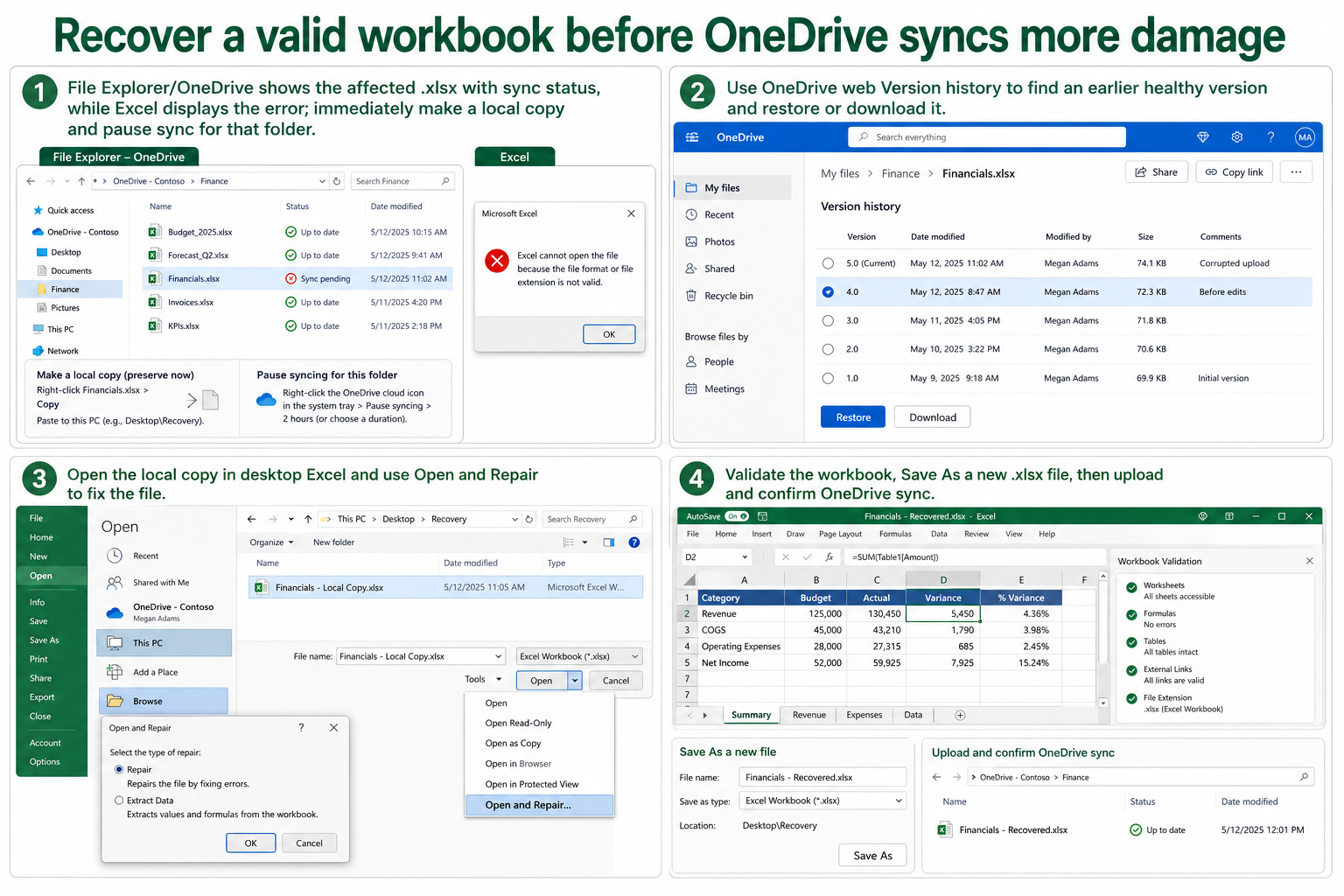
Pause editing and ask collaborators to close the workbook. In OneDrive on the web, download the current file to a local recovery folder and give the copy a clearly different name. Keep the cloud original in place so version history and audit context remain available.
Check the file size. A zero-byte or unusually small workbook suggests an interrupted upload or bad export. Compare it with earlier versions or similar workbooks, but do not open the only copy repeatedly from the synced folder while OneDrive is reconciling changes.
Verify the real source and expected format
Confirm whether the file came from Excel, a reporting system, email, Teams, or a renamed web download. Microsoft lists .xlsx, .xlsm, .xlsb, and older .xls among supported workbook formats, with different feature behavior. A CSV is plain text and should remain .csv unless Excel opens and saves it as a new workbook.
If the organization relies on correct file associations, the Windows Office-defaults guide can repair which app receives the file. Association problems do not repair corrupted workbook contents, so use that only when the file opens inside Excel but not from File Explorer.
Recover from OneDrive version history first
Open OneDrive on the web, select the file, and open Version history. Review versions around the first reported failure. Open or download a candidate version and test it in Excel before choosing Restore. Preserve the damaged current version separately if it may contain recoverable recent changes.
Use Excel’s Open and Repair on a copy
In desktop Excel, choose File > Open > Browse, select the local recovery copy, open the arrow beside Open, and use Open and Repair when that option is available. Try Repair first. Use Extract Data only if repair fails and accepting loss of formatting or formulas is better than losing the underlying values.
Save a successful repair under a new .xlsx, .xlsm, or .xlsb filename that matches its content and macro requirements. Do not overwrite the cloud original until the recovered workbook has been reviewed.
Decide what the successful test means
| Result | Interpretation | Next step |
|---|---|---|
| Earlier version opens | Recent save or sync produced the bad copy | Restore or publish the tested version |
| Local download opens, synced file does not | Sync or placeholder state is involved | Let OneDrive settle and replace carefully |
| Excel for the web opens, desktop does not | Desktop build, add-in, or local handling issue | Update Excel and test Safe Mode |
| Neither web nor desktop opens | Content or format is likely invalid | Use version history or source-system export |
| Renamed extension still fails | Internal format never matched the name | Return to the source and export correctly |
This comparison keeps workbook recovery separate from OneDrive repair. A OneDrive reset cannot correct a file whose internal package is damaged, while Open and Repair does not fix a sync client that repeatedly uploads partial copies.
When the sync layer is involved
Wait for OneDrive to report Up to date, then test a newly created small workbook in the same folder. If that file round-trips correctly, the sync client is broadly healthy and the problem remains specific to the damaged workbook.
If the affected file carries a sync error, Microsoft’s OneDrive guidance recommends closing the application, confirming read/write permission, and in some cases moving the file outside OneDrive and back after the client restarts. Apply that process to a copy, not the only damaged workbook.
For team workbooks, the coauthoring preparation checklist helps keep the recovered file in a supported format and OneDrive location. Reintroduce collaborators only after formulas, tables, macros, external links, and recent changes have been checked.
Validate the recovered workbook
Open every visible worksheet and inspect named ranges, tables, charts, PivotTables, formulas, external links, macros, and data connections that matter to the business. Recalculate and compare key totals with a known report. Check File > Info for compatibility or repair notices.
If you restore an older version, identify changes made after that version. Recover those changes from the damaged copy only when a specialist can do so safely; otherwise ask the owners to re-enter them from source records. A workbook that opens is not automatically complete.
For regulated or financial workbooks, keep the damaged file, restored version, source, recovery time, and reviewer decision under the organization’s records policy. Do not upload confidential files to random online repair sites.
Workbook recovery questions
Can I rename .xls to .xlsx to satisfy Excel?
No. The two extensions represent different internal formats. Open the original in a compatible Excel version and use Save As to convert it, or export it again from the source system.
Does OneDrive version history replace Excel Open and Repair?
They solve different problems. Version history can return a previously healthy cloud copy, while Open and Repair attempts to salvage the selected file. Try version history first because it preserves workbook structure more reliably when a good version exists.
Why does the workbook open in Excel for the web but not desktop Excel?
The desktop installation, add-ins, local cache, or update level may be involved. Download a copy, update Excel, and test Excel Safe Mode. Do not restore an older cloud version until you know the current file itself is bad.
What if every OneDrive version is invalid?
Return to the original source or backup and export in a format Excel supports. Keep the invalid files for controlled analysis, but do not keep renaming them. If the workbook is critical, use approved Microsoft support or a vetted recovery service under the organization’s data-handling rules.
Publish the recovery carefully
Keep the failed file intact, recover the last verified version, and test the result outside the synced folder before replacing anything. Confirm the workbook’s business logic as well as its ability to open, then upload the reviewed copy with a new name or restore the exact tested version. This protects version history and prevents OneDrive from distributing an unverified repair.