A calendar link can be perfectly valid and still show the wrong mailbox, an access-denied page, or an empty calendar. The confusing part is that Outlook, the browser, and the calendar service each make a separate identity decision. Fixing the wrong layer often makes the problem return on the next link.
This guide separates those decisions. You will identify which account owns the calendar, make the browser open under the intended profile, and confirm that the same identity has permission to the event or shared calendar.
Identify where the account changes
Before changing settings, copy the calendar link and note the account visible in Outlook. Then open the link and inspect both the Edge profile badge and the account avatar inside Outlook on the web. They can be different.
| What you see | Likely cause | Best first action |
|---|---|---|
| Wrong Edge profile badge | External-link profile routing | Change the browser profile used for external links |
| Correct profile, wrong web account | Existing Microsoft 365 session | Switch or sign out only the unwanted web identity |
| Correct identity, access denied | Calendar permission or tenant boundary | Ask the owner to share with the exact address |
| Correct account, wrong calendar selected | Multiple calendars in one mailbox | Select the intended calendar in the left pane |
If the event also behaves oddly inside Teams, use the calendar connection checks to confirm that Outlook and Teams are using the same work identity. Do not clear every browser cookie yet; that removes useful evidence and signs you out of unrelated services.
Route Outlook links through the intended browser profile
In new Outlook, open Settings > General > Files and links and review Open hyperlinks from Outlook in. Choose Microsoft Edge if you want Edge’s matching-profile behavior, or choose the system default browser if that is your deliberate workflow. In classic Outlook, the comparable choice is under File > Options > Advanced > File and browser preferences.
Pin the external-link destination in Edge
Open Edge with the profile you want, then go to Settings > Profiles > Profile preferences. Set Default profile for external links to the named work or personal profile rather than Last used. Close all Edge windows before testing, because an already-open window can hide the routing decision.
Check site-specific switching
Automatic profile switching can override the general external-link choice for Microsoft 365 or SharePoint domains. Review the profile-switching entries and remove only a rule that sends the calendar domain to the wrong identity. Managed settings may be locked; when a control is unavailable or reverts, record the profile names and ask IT which Edge or Microsoft 365 Apps policy applies.
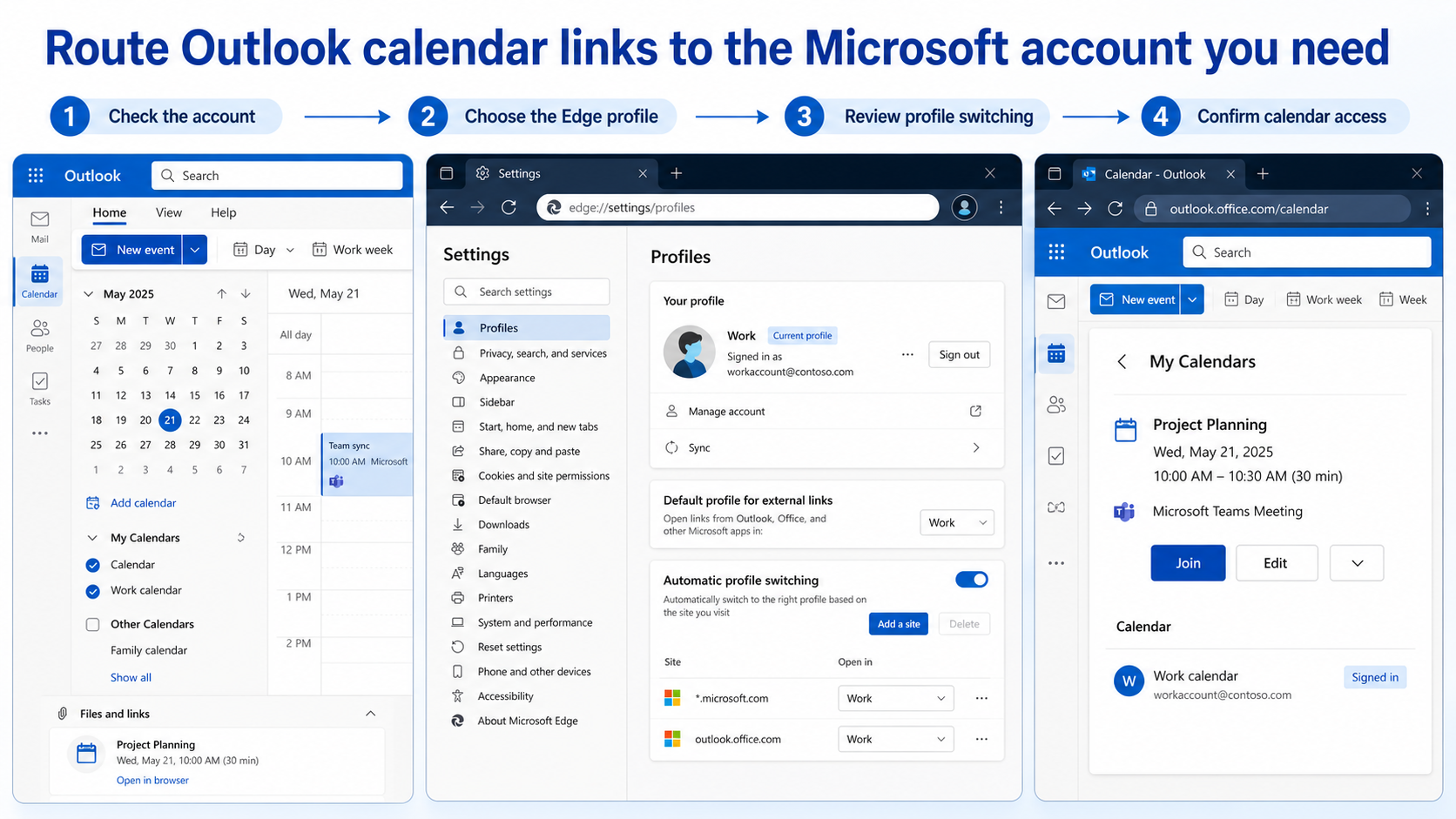
Repair the signed-in calendar session
When the browser profile is correct but the calendar page shows another account, use the account avatar on the Microsoft 365 page to switch identities. If both accounts have similar names, verify the full email address and tenant, not just the display name.
Open Outlook on the web directly under the intended account, select Calendar, and then paste the link into a new tab in that same profile. A successful result here proves the link and permission are sound. If the link still fails, the owner may have shared the calendar with another alias, guest identity, or tenant account.
For people who regularly cross work and personal tenants, a cleaner separation between browsing identities reduces accidental reuse of the wrong session. Use distinct profile names and colors, and keep work favorites in the work profile.
Confirm the calendar itself
In Outlook Calendar, expand the account groups in the left pane and select the relevant calendar. Multiple accounts can display together, so seeing the event does not prove which mailbox owns it. Create a harmless test appointment and check where it is saved before changing any default-calendar setting.
If the link targets a shared calendar, ask the owner to verify the exact recipient address and permission level. A browser profile cannot grant calendar rights; it only presents an identity to the service. Guest access can also differ between tenants even when the email text looks identical.
Questions about account routing
Why does the calendar link work in a private window?
A private window starts without the competing Microsoft 365 cookies stored in your normal profile. That strongly suggests a session or profile-routing issue, not a broken link. Use the result to choose the correct normal profile instead of relying on private browsing permanently.
Should I remove the wrong account from Outlook?
Usually not. Removing a mailbox is disruptive and does not necessarily change which browser identity opens a web link. First separate Outlook’s browser choice, Edge’s external-link profile, and the account signed into the calendar page.
Why is the correct account shown but access is denied?
The calendar may have been shared with a different alias or tenant representation of your address. Ask the owner to remove the stale permission and share again with the exact identity you are using. Confirm the invitation while signed into that same tenant.
Can an administrator override my profile choice?
Yes. Organizations can manage how Outlook links open and which Edge profile takes priority. A locked setting, a management banner, or a preference that repeatedly resets is a better reason to contact IT than to edit the registry.
Leave one repeatable test
Close Outlook and every browser window, reopen Outlook, and click one public link followed by the calendar link. The intended Edge badge and the intended Microsoft 365 account should remain visible for both. If only the protected link switches, capture the domain and the profile transition; that evidence points directly to site-specific switching or tenant authentication rather than a general Outlook failure.