Microsoft Copilot in Teams call transforms the way professionals manage conversations by providing real-time AI meeting assistant capabilities during live calls and scheduled meetings. Whether you are joining a quick one-on-one discussion or a large project review, Copilot during Teams call delivers intelligent call features that capture key points automatically. This article covers everything you need to know about enabling, using, and maximizing Microsoft Copilot Teams meeting functionality so you never miss critical details again. From activating real-time transcription to generating a comprehensive meeting recap, these steps ensure you get the most from Copilot live meeting features in your workflow.
Enable Copilot for Teams meetings in your organization
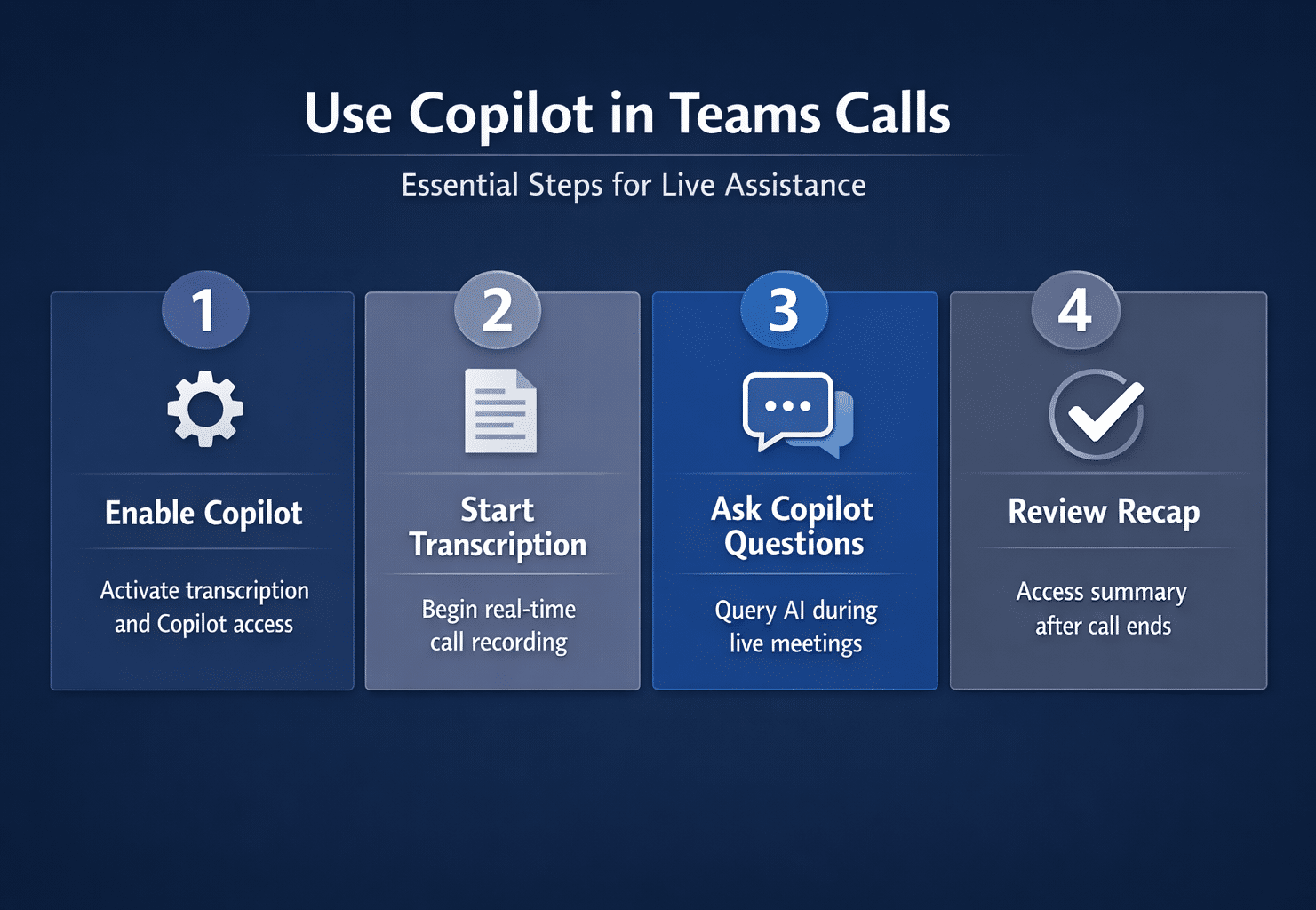
Before you can use Copilot in Teams calls, your Microsoft 365 administrator must activate the feature and assign the appropriate Copilot licenses to each user account. The Copilot license requirement applies to all participants who want to interact with the AI meeting assistant directly, though unlicensed attendees still benefit from shared recaps. Navigate to the Teams admin center and confirm that the Copilot policy is enabled under the Meetings section, ensuring that real-time transcription is also turned on. You can find detailed instructions for activating this feature in your tenant by following this overview on how to enable Copilot assistant agent in Teams.
Start Copilot during a Teams call
Once your administrator has enabled the feature, launching Copilot during Teams call requires just a few clicks from within the active meeting window on your desktop. Join or start a Teams meeting as you normally would, then look for the Copilot icon in the top meeting toolbar next to the reactions and share buttons. Clicking that icon opens the Copilot side panel where you can immediately begin asking questions, requesting summaries, and tracking action items throughout the conversation. The AI meeting assistant requires active real-time transcription to function properly, so Teams will prompt you to start transcription automatically if it is not already running.
Activate real-time transcription for Copilot
Real-time transcription serves as the foundation that powers every Copilot in Teams call feature, because the AI needs a live text feed to analyze conversations. Click the More actions menu represented by three dots in the meeting toolbar, then select Start transcription to begin capturing spoken content from all participants. Once transcription is active, Copilot can process the conversation and respond to your prompts with context-aware answers derived from the ongoing discussion. For meetings where you want transcription to begin without manual intervention, learn how to enable Copilot automatic notes in Teams meetings for a hands-free experience.
Use Copilot prompts to enhance your Teams meeting
The true power of Microsoft Copilot Teams meeting integration emerges when you learn to craft effective prompts that extract specific insights from the live conversation. Rather than passively watching Copilot generate generic summaries, you can ask targeted questions that pull actionable intelligence from the discussion happening in real time. You can explore the best Copilot prompts for Teams meetings to maximize productivity for a comprehensive collection of proven prompt templates.
- Summarize the discussion so far tells Copilot to condense everything said into a brief overview, which is especially helpful when you join a meeting late. This prompt gives you immediate context about decisions made and topics covered before your arrival so you can contribute meaningfully without asking others to repeat themselves.
- List all action items mentioned instructs the AI meeting assistant to scan the transcription and extract every commitment, deadline, or task assignment discussed during the call. Copilot returns a structured list of who agreed to do what, making it much easier to follow up after the meeting ends and distribute responsibilities.
- What questions remain unanswered asks Copilot to identify open topics or concerns that participants raised but the group did not fully resolve during the conversation. This prompt ensures that important discussion points do not fall through the cracks when the meeting ends and everyone returns to their individual work.
Review the Copilot meeting recap after calls end
After your Teams call concludes, Copilot generates a comprehensive meeting recap that includes a summary, action items, follow-up suggestions, and key discussion themes. You can access this recap directly from the Teams chat associated with the meeting, where it appears as an intelligent summary card within minutes of completion. The recap also integrates with Microsoft 365 productivity tools like Outlook and Planner, allowing you to convert action items into tasks or calendar events seamlessly. For detailed guidance on accessing and customizing these post-meeting summaries, review this article about Copilot meeting minutes and Teams automatic documentation.
Troubleshoot Copilot in Teams call not showing
When Copilot in Teams call not showing becomes your experience, several common configuration issues may be preventing the feature from appearing in your meeting toolbar. The most frequent cause is a missing or unassigned Microsoft Copilot license, which your IT administrator must provision through the Microsoft 365 admin center for each user. Verify that your Teams application is updated to the latest version, because older builds may not include the Copilot integration that Microsoft continues to roll out across regions.
- Check transcription policy settings in the Teams admin center to confirm that recording and transcription are permitted for your organization and specific meeting types. Without transcription enabled at the policy level, the Copilot button will not appear in the meeting toolbar even when users hold valid Copilot licenses.
- Verify meeting eligibility requirements because Copilot currently supports scheduled meetings, Meet Now calls, and channel meetings but may not activate during certain call types. Calls placed through the PSTN dial pad or federated meetings with external organizations may have limited Copilot functionality depending on your tenant configuration settings.
Enable Copilot meeting notes for automatic documentation
Beyond live prompts, you can configure Copilot to generate meeting notes automatically without requiring any manual interaction during the call from any participant. This automatic documentation feature captures speaker attributions, topic transitions, and decision points throughout the entire meeting duration for future reference purposes. Visit this walkthrough on how to enable Copilot Teams meeting notes to configure this capability across your organization and individual accounts.
Frequently asked questions about Copilot in Teams call
How do I use Copilot during a Teams call?
Join a Teams meeting, click the Copilot icon in the meeting toolbar, and ensure that real-time transcription is active before submitting your first prompt. You can type natural language questions into the Copilot panel, such as requesting summaries, listing action items, or identifying unresolved topics discussed during the call. The AI processes the live transcription feed and returns context-aware responses within seconds, allowing you to stay engaged in the conversation while capturing essential details.
Why is Copilot not available in my Teams meeting?
The most common reasons include an unassigned Microsoft Copilot license, disabled transcription policies, or an outdated Teams client that does not support the latest Copilot integration. Your administrator must enable both the Copilot policy and the transcription policy in the Teams admin center for the feature to appear in meetings. Updating your Teams application to the latest version and confirming your license assignment through the Microsoft 365 admin portal typically resolves this visibility issue quickly.
What can Copilot do during a live Teams call?
Copilot provides real-time summaries, captures action items with owner attribution, answers specific questions about the discussion content, and identifies topics that need further follow-up. The AI meeting assistant can also highlight areas of agreement or disagreement among participants, making it easier to gauge consensus on important decisions during the call. After the meeting concludes, Copilot generates a comprehensive recap document that you can share with attendees and stakeholders who could not attend the session.