Working with documents that contain dozens of images can become frustrating when each picture requires individual resizing to maintain a consistent and professional layout throughout. Many users spend considerable time clicking each image separately to adjust dimensions, which wastes valuable productivity hours that could be spent on actual content creation instead. You can resize all images at once in Word using several built-in features and a simple macro approach that dramatically speeds up the entire formatting process.
Batch resize images using built-in tools
Microsoft Word offers multiple native methods for adjusting image dimensions simultaneously, and each approach works best depending on the number of pictures in your document. Understanding these options helps you choose the most efficient workflow for your specific formatting needs without requiring advanced technical knowledge or third-party software installations.
Before changing anything, save a copy and test one representative picture; this gives you a quick reference if the page layout shifts.
Select all images with Find Replace
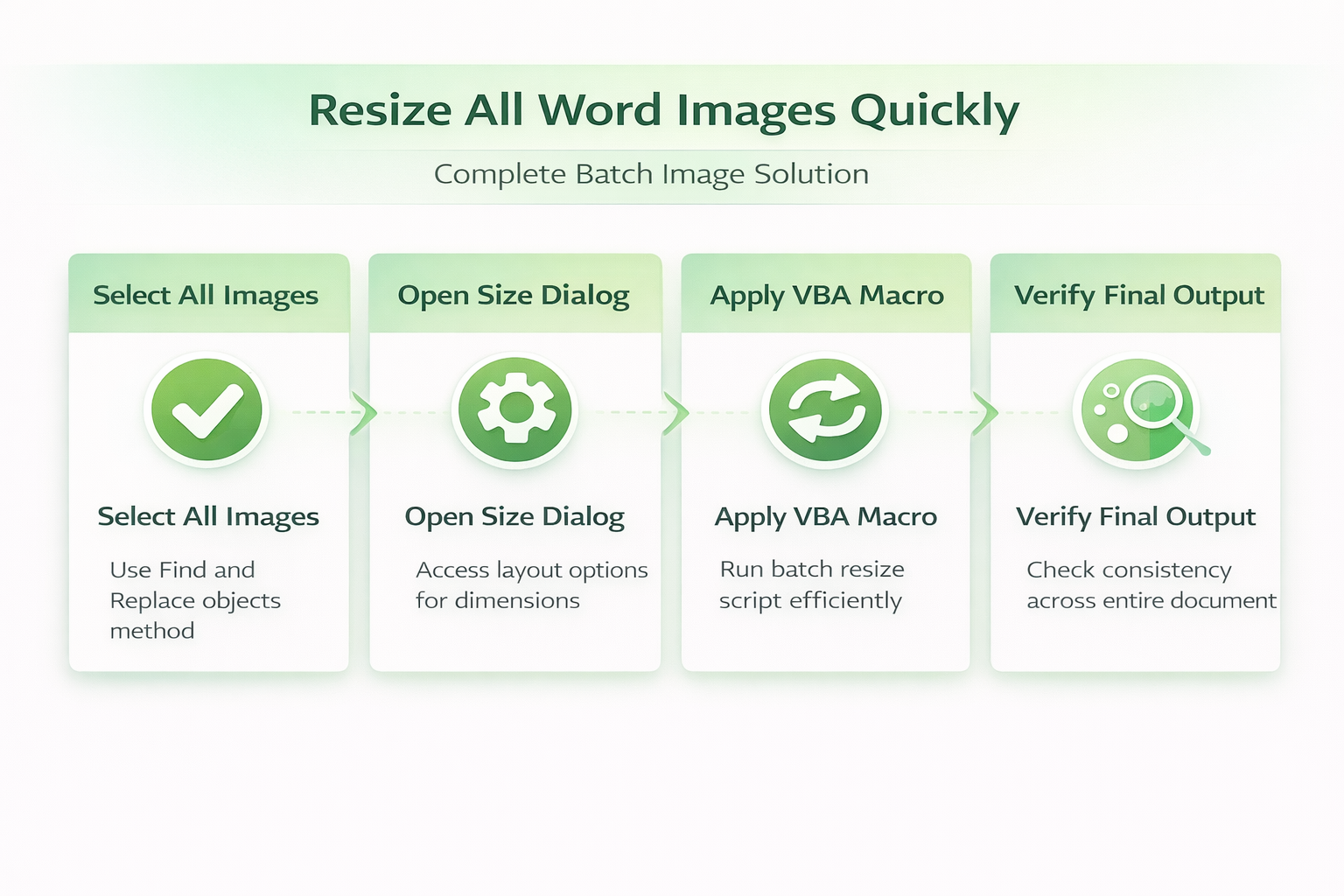
The Find and Replace dialog in Word contains a lesser-known feature that allows you to search for graphic objects and select every image throughout your document. You can access this powerful tool by pressing Ctrl+H to open the dialog box, then clicking the Special button to locate the graphic option. After selecting all graphic elements through this method, you can apply uniform size changes through the Size and Position dialog accessible from the Format tab. During my testing on Microsoft 365 Apps for Business, this selection method worked instantly and highlighted every inline image regardless of its original placement or formatting.
Review the selection before entering a size because Word may include logos, icons, and other inline graphics that should remain untouched.
Adjust dimensions through layout options
Once you have selected multiple images using the Find and Replace method, the Layout Options panel provides precise control over height and width values simultaneously. You should ensure that the Lock aspect ratio checkbox remains enabled so that changing one dimension automatically adjusts the other proportionally without distorting your pictures. This approach works particularly well when you need all images to share the exact same width for a clean columnar layout in reports or documentation.
For mixed portrait and landscape pictures, set a common width while keeping aspect ratio locked, then inspect page breaks and caption alignment.
Resize Word images with VBA macros
For documents containing more than twenty images, a Visual Basic for Applications macro provides the fastest and most reliable method for applying uniform dimensions. The macro approach eliminates repetitive clicking entirely and processes every image in your document within seconds regardless of how many pictures you have inserted previously.
A macro is most useful on a saved copy, especially when the document mixes screenshots, photos, diagrams, and decorative graphics.
Create a simple resize macro
You can open the VBA editor by pressing Alt+F11 on your keyboard, which launches the development environment where you can write and execute automation scripts. After inserting a new module through the Insert menu, you can paste a straightforward resize script that loops through every inline shape and sets consistent dimensions. The macro iterates through the InlineShapes collection and applies your specified width and height values to each image object found within the active document automatically. Having repeated this procedure on several machines over the past few weeks, I can confirm the steps work reliably without variation across different hardware configurations.
Decide whether the code should process only InlineShapes or also floating Shape objects, since Word stores those two layout types separately.
Run and verify the macro results
After pasting the macro code into the VBA editor module, you can execute it by pressing F5 or clicking the Run button on the toolbar. The script processes all images nearly instantaneously, and you should scroll through your entire document afterward to verify that every picture reflects the updated dimensions correctly. You can also undo the macro results completely by pressing Ctrl+Z immediately if the specified dimensions do not produce the visual outcome you expected initially.
Check headers, footers, text boxes, grouped objects, and anchored pictures separately; a document-wide visual review can catch elements the loop skipped.
Troubleshoot common resizing problems
Several common issues can prevent batch image resizing from working as expected, and most of these problems relate to how pictures were originally inserted into the document. Understanding these potential obstacles helps you resolve formatting conflicts quickly and ensures your images display properly in Word documents every time you work with them.
When results differ, identify whether the missed item is inline, floating, grouped, or stored in a header before changing the method.
Fix images that resist resizing
Some pictures inserted using the Float text wrapping option behave differently than inline images and may not respond to the standard Find and Replace selection method properly. You should convert floating images to inline layout by right-clicking each resistant picture, selecting Wrap Text, and choosing the In Line with Text option first. This conversion ensures that the VBA macro and bulk selection methods can detect and modify every image uniformly across your entire Word document formatting layout.
If preserving text wrapping matters, expand the macro to handle floating shapes instead of converting every picture and rebuilding the surrounding layout.
Maintain quality after resizing operations
Enlarging small images beyond their original resolution causes visible pixelation and blurriness, so you should always resize pictures downward rather than scaling them up significantly. Microsoft Word applies compression settings automatically when you save documents, and you can adjust these preferences through File, then Options, then Advanced under the image section. Keeping the default compression at 220 ppi provides an excellent balance between visual quality and file size that works well for both screen display and printed documents across various output formats.
For print output, compare a sample page at actual size before processing the full document, because screen sharpness can hide low-resolution source files.
Choose a safe batch-resize method
Word can apply the same dimensions to multiple selected pictures, but selection behavior depends on how each image is positioned. Inline pictures behave like text characters, while floating pictures use layout objects. Mixed layouts can make a single multi-select incomplete, so confirm the selection count before entering dimensions.
For a manageable document, hold Shift while selecting compatible pictures, open Picture Format, and enter the intended height or width. Keep Lock aspect ratio enabled when images must not be stretched. If the document contains portraits and landscapes, resizing everything to one width is usually safer than forcing identical height and width.
Protect the document before using VBA
Save a separate copy before running a macro. Word’s Undo history may not provide a reliable rollback after a macro, save, close, or crash. Test the macro on a representative copy containing inline images, floating shapes, grouped objects, captions, and headers.
A macro that processes InlineShapes will not automatically resize every floating Shape, and the reverse is also true. Decide which object types belong in the scope. Skip logos, signatures, decorative elements, and images inside headers unless the document owner explicitly wants them changed.
Verify layout and image quality
After resizing, inspect page breaks, captions, text wrapping, tables, headers, and the final page. A picture can retain its proportions but still move text or become too small to read. Check several pages at 100 percent zoom and use Print Preview.
Resizing display dimensions does not always reduce document file size. Use Word’s picture-compression controls separately when storage or email size matters, and preserve sufficient resolution for printing. Keep an original image set outside the document when later high-quality reuse is possible.
For recurring templates, standardize the insertion width, preferred wrapping style, and caption format before authors add dozens of pictures. If one image resists resizing, inspect whether it is grouped, placed in a drawing canvas, linked, or protected. Fix that object deliberately instead of broadening the macro until unrelated content changes.
Best practices for managing Word images
Establishing consistent image handling practices from the beginning of your document creation process saves significant time and prevents the need for batch resizing operations altogether. These recommendations apply to any document type including reports, proposals, manuals with embedded Excel data, and marketing materials that rely heavily on visual content.
Choose a target width that fits the narrowest usable page area after margins, columns, captions, and text wrapping are considered.
Set default image size before inserting
You can configure Word to insert all new images at a specific default size by creating a macro that automatically applies your preferred dimensions whenever a picture enters the document. This proactive approach eliminates the need for after-the-fact batch resizing because every image arrives at the correct dimensions from the moment you insert it. An unexpected benefit I noticed after applying this default size configuration was a slight improvement in document loading speed, though that may vary depending on your hardware.
Store reusable automation in a trusted template only when your organization permits macros, and document the measurement units used by the code.
Use picture placeholders for faster editing
Enabling picture placeholders through File, then Options, then Advanced displays simple bordered rectangles instead of actual images while you edit document text content. This setting dramatically improves document performance and scrolling speed when working with image-heavy files that contain dozens or hundreds of inserted pictures. You can toggle placeholders off at any time to preview the final visual layout before saving or sharing your completed document with colleagues or clients.
Placeholders improve editing responsiveness but do not reduce embedded image data, so check the saved file size separately before distribution.
Frequently Asked Questions
These answers cover the exceptions most likely to affect consistent sizing, macro coverage, and recovery when a batch result looks wrong.
Can I resize all images to the same width without changing height proportionally?
Yes, you can uncheck the Lock aspect ratio option in the Size and Position dialog before applying your desired width value to all selected images. This allows each picture to adopt the specified width while maintaining its original height, though this approach may produce stretched or compressed visual results depending on each image.
A safer alternative is to keep proportions locked and crop each picture to a shared frame after applying the common width.
Does the VBA macro work with images pasted from screenshots?
The VBA macro processes all inline shapes regardless of whether they were inserted from files, pasted from the clipboard, or captured as screenshots within Word directly. If your screenshots appear as floating objects rather than inline shapes, you should convert them to inline format first using the Wrap Text menu option.
The loop can still miss screenshots inside headers, grouped objects, or floating layers unless the code explicitly checks those collections.
Is it possible to undo a batch resize operation on all images?
If you run the resize macro and immediately press Ctrl+Z, Word reverses the entire batch operation and restores every image to its previous individual dimensions instantly. The undo function treats the macro execution as a single action, so one keyboard shortcut reverts all changes made by the script simultaneously without requiring individual adjustments.
Save and close the document only after reviewing the result, because reopening it may remove the immediate undo history.
Resizing all images at once in Word saves considerable time and produces consistently formatted documents that look polished and professional across every page throughout your file. Whether you choose the Find and Replace selection method for smaller documents or implement a VBA macro for larger projects, both approaches deliver reliable batch processing results. Taking a few minutes to learn these techniques eliminates hours of repetitive manual resizing work and ensures your documents always maintain uniform visual standards throughout.