Microsoft Teams running slowly on your Mac again
Microsoft Teams has been acting sluggish on your Mac lately, with delayed message notifications, slow loading times, and occasional crashes during important video calls. You notice that the application takes longer to start up each morning, and sometimes your profile picture or status updates don’t sync properly across devices. These performance issues are becoming increasingly disruptive to your daily workflow, especially when you need Teams to function reliably for client meetings and team collaboration.
Cache buildup causes performance degradation in Teams
Microsoft Teams stores temporary files, user data, and application cache on your Mac to improve loading times and provide offline functionality. Over time, these cache files can become corrupted, outdated, or simply accumulate to excessive sizes that actually slow down the application instead of enhancing performance. Cache corruption commonly occurs after system updates, network connectivity issues, or when Teams attempts to sync large amounts of data unsuccessfully.
We’ll show how to completely clear Microsoft Teams cache on Mac systems running macOS Monterey, Ventura, or Sonoma. You will learn to identify cache locations, safely remove temporary files, and restart Teams with a clean configuration. The process requires administrator privileges on your Mac and takes approximately 10-15 minutes to complete thoroughly.
You’ll need: Microsoft Teams installed through either the Mac App Store or direct download, knowing your Mac administrator password, and ensuring you have recent backups of important Teams conversations if needed.
We will use Finder, Terminal application, and Activity Monitor to complete the cache clearing process effectively.
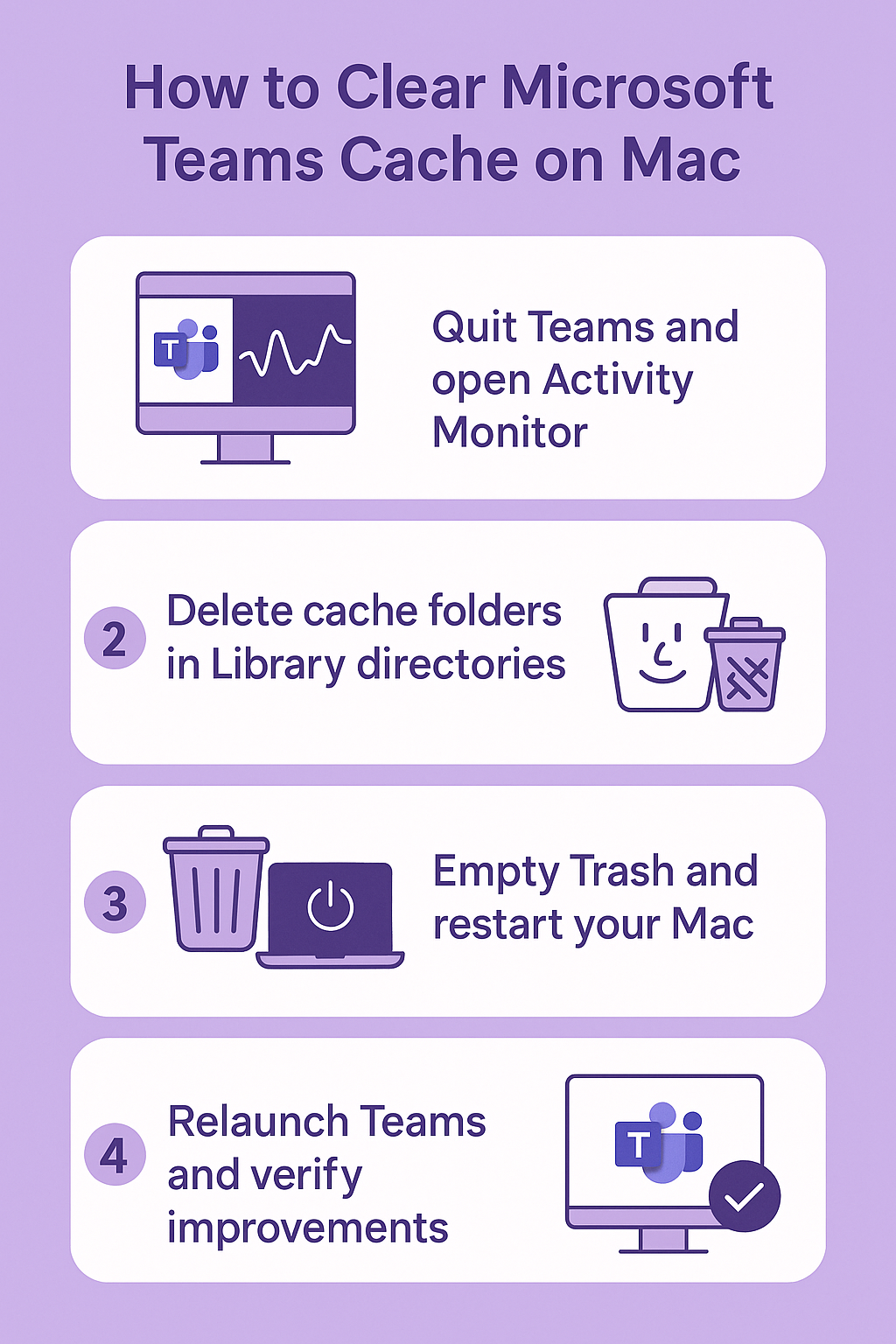
Quit Teams completely on Mac and locate cache directories
- Open Activity Monitor from Applications > Utilities folder to verify that Microsoft Teams processes are completely terminated before beginning the cache clearing procedure.
- Look for any processes named “Microsoft Teams” or “Teams” in the Activity Monitor window and select each one individually to force quit if they appear running.
- Navigate to Finder and press Command+Shift+G simultaneously to open the “Go to Folder” dialog box where you will enter specific cache directory paths.
- Type ~/Library/Application Support/Microsoft/Teams in the dialog box and click Go to access the primary Teams application data folder containing user profiles and settings.
- Locate the Cache folder within the Teams directory and note its size by selecting it and pressing Command+I to view information about accumulated temporary files.
- Return to the “Go to Folder” dialog and navigate to ~/Library/Caches to access system-level cache files that Teams creates during normal operation.
Remove application support files and cached data
- Select all folders within ~/Library/Application Support/Microsoft/Teams except the “Backgrounds” folder if you want to preserve custom background images for video calls.
- Move the selected folders to Trash by pressing Command+Delete, which removes user profiles, chat history cache, and temporary application data without affecting cloud-stored information.
- Navigate to ~/Library/Caches and locate folders beginning with “com.microsoft.teams” or containing “Teams” in the folder name for comprehensive cache removal.
- Delete these cache folders by selecting them and pressing Command+Delete to clear system-level temporary files that may be causing performance issues or application conflicts.
Expert Tip: Before deleting cache files, take a screenshot of your Teams settings and customizations since clearing cache will reset your application preferences to default values.
- Empty the Trash completely by right-clicking on the Trash icon in your Dock and selecting “Empty Trash” to permanently remove all deleted cache files from your system.
- Restart your Mac to ensure that any remaining temporary files or processes related to Microsoft Teams are completely cleared from system memory and background services.
Restart Teams and verify cache clearing success
- Launch Microsoft Teams from your Applications folder or Dock and wait for the initial startup process which will take longer than usual as the application rebuilds necessary cache files.
- Sign in with your Microsoft 365 credentials and allow Teams to synchronize your contacts, chat history, and team memberships from the cloud servers automatically.
- Test key functionality including sending messages, joining video calls, and accessing shared files to verify that performance improvements are noticeable after cache clearing.
- Monitor Teams performance over the next few days to confirm that loading times have improved and that previous issues like delayed notifications or sync problems have been resolved.
Common issues when clearing Teams cache on Mac
- Teams won’t launch after cache clearing usually indicates that essential application files were accidentally deleted along with cache data, requiring a complete reinstallation of Microsoft Teams from the official Microsoft website or Mac App Store.
- Missing chat history or conversation threads typically resolve within 24-48 hours as Teams re-synchronizes data from Microsoft’s cloud servers, though locally stored files may need to be re-downloaded manually.
- Custom settings and preferences reset to defaults after cache clearing is expected behavior, so you will need to reconfigure notification preferences, camera settings, and keyboard shortcuts according to your workflow requirements.
- Permission errors when accessing cache directories usually occur when standard user accounts attempt to modify system files, requiring you to authenticate with administrator credentials or use sudo commands in Terminal application.
- Application crashes during the first launch after cache clearing often happen due to incomplete cache removal, so repeat the entire process while ensuring that all Teams processes are terminated before deleting cache files.