When the attachment spinner never finishes, do not keep clicking Upload. The useful question is whether Copilot rejected the file itself, lost access to its source, or stalled inside the current browser session. Separating those causes prevents needless conversions and protects the original document.
Read the failure before changing the file
A visible unsupported-format message calls for conversion. A permission message points to the source location or sharing rights. A spinner with no error is more likely a session, browser, or service problem. Save the prompt text elsewhere before refreshing so the troubleshooting step does not cost your work.
Microsoft documents that work and school Copilot experiences accept specific formats and may reject local paths, restricted files, very large documents, or complex spreadsheets. That makes a small, cloud-backed test file the fastest diagnostic rather than a permanent workaround.
After each change, repeat the smallest test that originally failed. A successful result in a different client narrows the fault but does not automatically repair the original one. Record the boundary, apply the targeted correction, and test again in the user’s normal workflow.
Run a controlled upload test
- Confirm that the file extension is supported and that the file opens normally.
- Put a copy in OneDrive or SharePoint where your signed-in work account can read it.
- Start a new Copilot Chat and attach only that copy, without other files.
- If it works, return to the original file and reduce size or complexity before trying again.
For PDFs, scanned pages and unusual security settings can make a valid extension difficult to process. The steps in a practical PDF preparation workflow help you decide whether to keep PDF or create a cleaner source document.
A useful test changes one variable at a time. Keep the same account and content while switching only the client, then keep the client and switch only the account or item. This produces evidence you can act on instead of a pile of unrelated resets.
If the spinner still does not finish
Try a fresh session
Copy the prompt, open a new chat, and upload one small DOCX or PDF. A successful control upload shows that the account can upload and narrows the fault to the original file or conversation.
Remove browser friction
Sign out and back in, then retry in a supported browser window without extensions that filter uploads. If your organization uses network inspection or data-loss prevention, compare the result on the approved corporate network rather than bypassing controls.
Preserve the work without forcing the attachment
If the document is short and policy allows it, paste only the necessary passage. A clean text-transfer fallback is safer than repeatedly uploading an oversized or restricted file.
Avoid destructive cleanup until you know whether the authoritative copy is in the cloud, mailbox, calendar, or local profile. Export or verify important data first. In managed environments, a policy result should be handed to the administrator with exact timestamps and reproduction steps rather than worked around.
Know when the owner must act
You cannot repair access that the document owner or tenant policy intentionally denies. Ask the owner to verify your permission, or ask IT whether the file type, sensitivity label, storage location, or upload feature is restricted. Provide the time, browser, file extension, approximate size, and whether a small control file succeeded; never send the confidential file itself in a support ticket.
After each change, repeat the smallest test that originally failed. A successful result in a different client narrows the fault but does not automatically repair the original one. Record the boundary, apply the targeted correction, and test again in the user’s normal workflow.
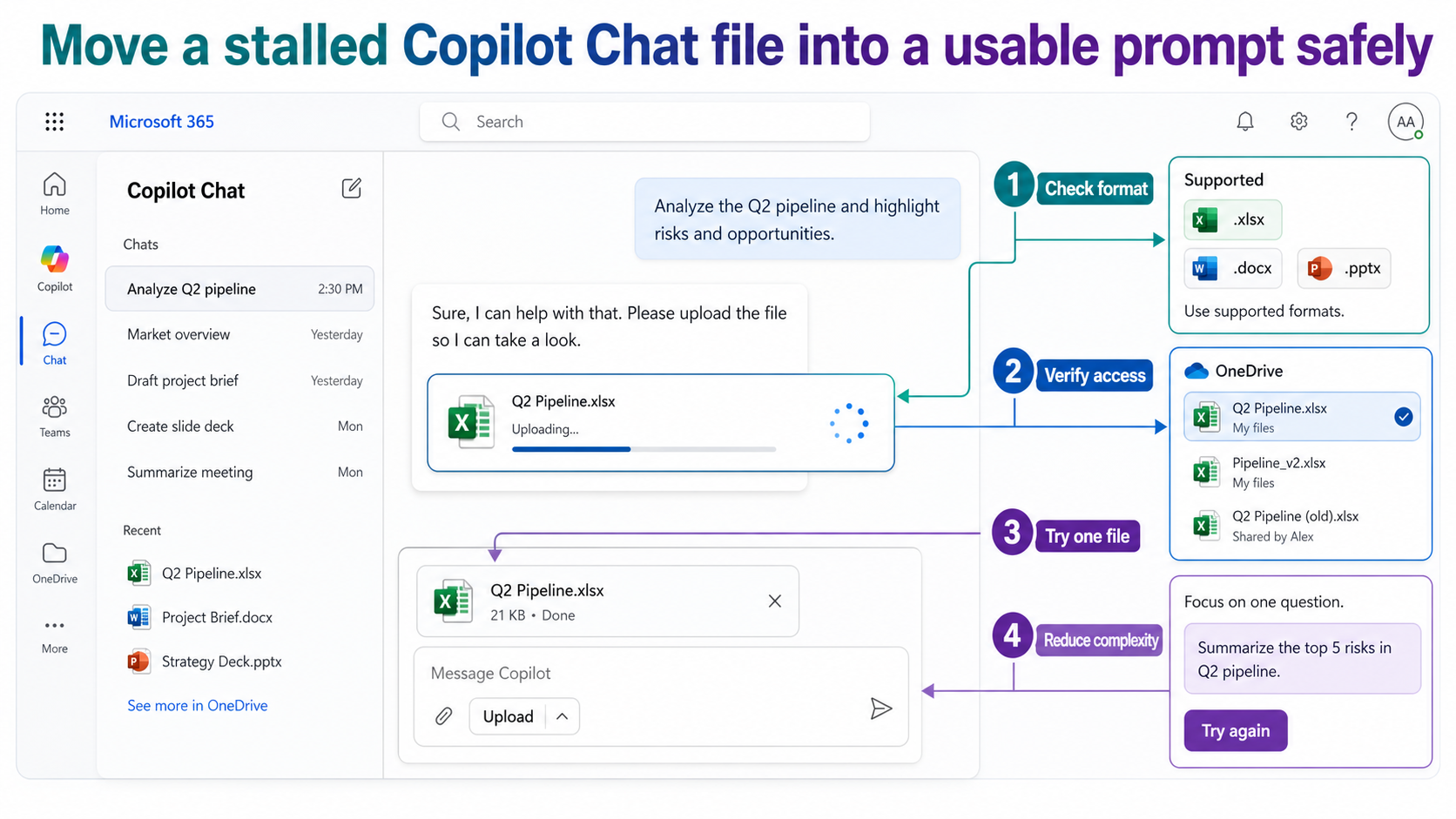
What to capture when the upload behaves differently
Use a harmless Copilot session for the final comparison, not the user’s confidential production content. Note the signed-in account, client, approximate time, and exact visible result. Then repeat the same action once from a second supported client. A difference between clients points toward local state or a client-specific experience; the same result everywhere points toward the account, source data, policy, or service.
Keep the test matrix small enough to explain. One row can represent the normal user and original item, a second the same user with a clean test item, and a third an approved comparison account when available. Change only one condition between rows. This discipline matters because simultaneous sign-outs, cache clearing, permission changes, and item recreation can hide the cause and make the next incident harder to diagnose.
Check the owner boundary before applying the result. End users can usually refresh a client, choose a supported item, or correct their own setting. Owners control sharing and source data. Administrators control tenant policy, effective assignments, managed browser rules, licensing, and service-health escalation. Stop at that boundary and provide evidence instead of asking the user to bypass a security decision.
Finally, return to the ordinary workflow and repeat the exact action that failed. Confirm both the immediate screen and the downstream result: the other attendee’s view, the saved calendar item, the mailbox copy, the flow run, the synced browser data, or the participant’s lobby entry. A button appearing is only partial recovery when the expected output is still missing.
Upload questions worth checking
Can I upload a file directly from a local folder?
Microsoft says local paths are not supported in the work and school experience described by its file-format guidance. Upload or reference a permitted cloud-hosted copy, then confirm your work account can open it before attaching it.
Why does a PDF upload while an Excel workbook stalls?
The workbook may contain more data, formulas, links, or unsupported complexity even when its extension is allowed. Save a reduced copy with only the necessary sheet and remove external links only if that does not change the analysis you need.
Will refreshing Copilot delete my prompt?
Unsaved prompt text can be lost when a tab refreshes. Copy the prompt to a temporary approved location first, then begin a clean conversation and attach one file at a time.
Send the file with confidence
The best result is a repeatable test that identifies the responsible layer and leaves the user’s data and security controls intact. Keep the successful change, undo speculative ones, and share the narrow evidence with the owner of any policy or service dependency. Retest in the normal client before treating the incident as resolved. If the symptom returns, compare it with the recorded boundary before repeating cleanup; recurrence after the same trigger is far more useful than a vague report that the app failed again.