Copilot does not elevate Outlook permission. It can summarize shared or delegated calendar information only when the signed-in user can already view that folder and the supported Copilot experience is operating in the correct mailbox context. First open the shared calendar yourself, then test a narrow read-only prompt.
Also separate reading from acting. Microsoft currently documents summarization for delegate calendars while some direct actions, including scheduling or updating shared-mailbox meetings, are not supported. A failed action prompt can therefore coexist with successful calendar access.
Define a controlled test
Keep one variable fixed
For copilot cannot access shared calendar, record the exact account, item, client, and result before changing anything. A precise baseline distinguishes an unavailable control from a saved-data, permission, or synchronization failure and gives the later retest a meaningful comparison.
Change only the suspected layer
The first useful milestone is “Open the shared calendar without Copilot.” Once that result is known, continue to “Confirm the exact folder permission with the owner” without changing unrelated settings. This keeps the diagnosis narrow enough for a user, owner, or administrator to repeat.
Prove ordinary Outlook access first
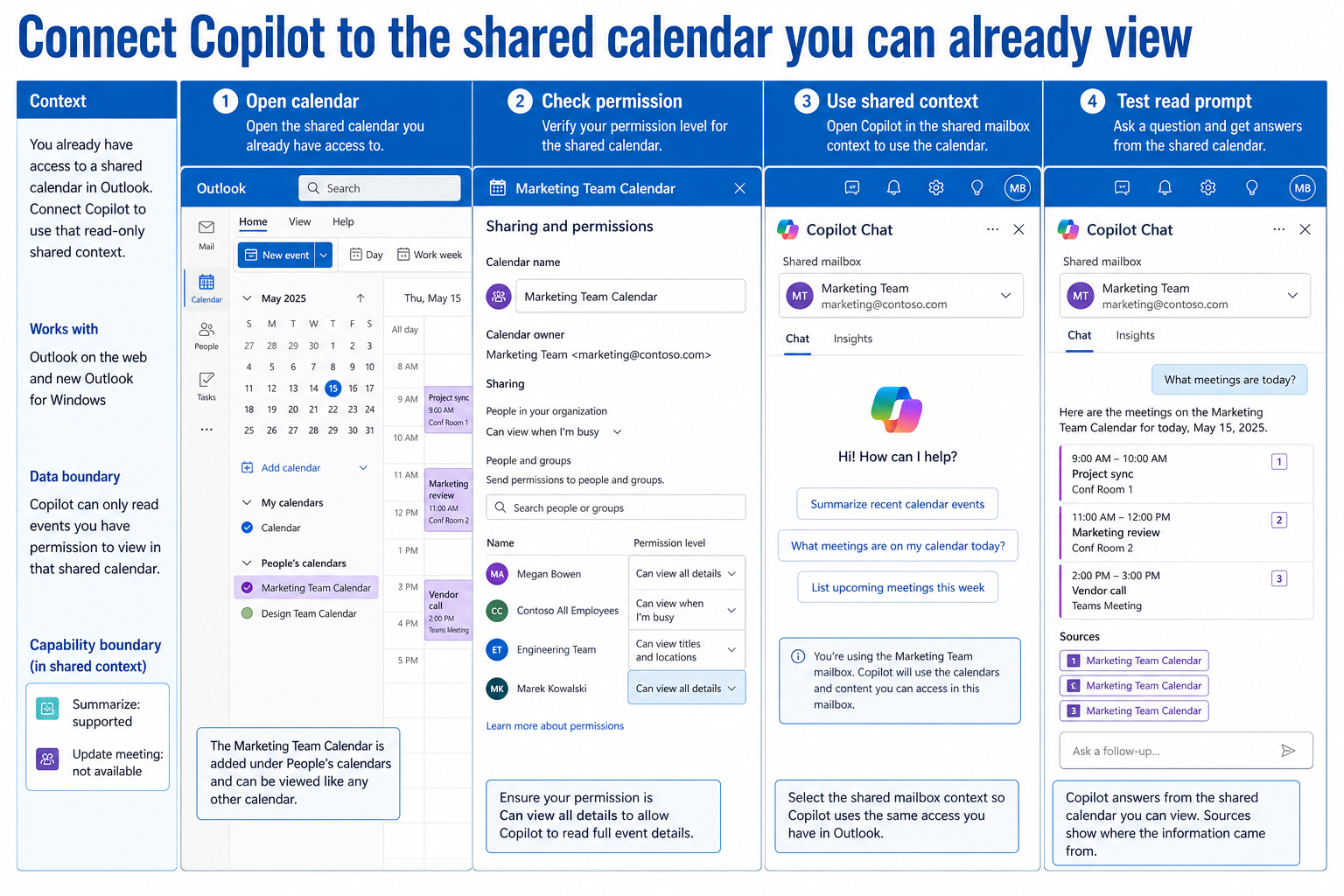
Open the shared or delegated calendar in Outlook using the same work account. Confirm that real events appear and note whether permission is view-only, editor, or delegate. If the calendar itself is unavailable, repair the shared-calendar setup before testing Copilot.
Ask the owner to verify folder-level permission when only one calendar is affected. Full mailbox access is not always required; Copilot respects the folder access already granted to the user.
Open Copilot in the intended mailbox context
Work in the shared or delegated mailbox or calendar context where Microsoft 365 Copilot Chat is available. Start with a bounded prompt such as asking for today’s meeting subjects, then compare the answer with the visible calendar. Avoid vague prompts that could silently refer to your primary calendar.
If the Copilot entry point is absent, the Copilot visibility checks help separate account, license, privacy, and client issues from the shared-calendar permission itself.
Distinguish supported reads from unsupported actions
Use Copilot to understand or summarize content you are permitted to view. Do not treat an inability to schedule, update, accept, or delete an event as proof that the calendar is inaccessible; Microsoft identifies direct shared-mailbox calendar actions as a current limitation.
Test one read prompt, one citation or event-detail check, and only then the desired action. This reveals whether the boundary is retrieval, permission, or capability.
Escalate the exact boundary
Repeat the read-only test in Outlook on the web or another supported client with the same account. Capture the mailbox context, folder permission, visible event, prompt, and whether Copilot returns the primary or shared calendar. Do not include private event text in an ordinary support ticket.
When all users lose access at once, ask the administrator to review service health and recent permission changes. When only one user fails, compare that user’s folder permission and signed-in account with a working colleague.
Work through the evidence in order
- Open the shared calendar without Copilot. Record the result before moving on so later evidence stays attributable.
- Confirm the exact folder permission with the owner. Keep the test narrow and use the same account that experienced the failure.
- Ask one narrow read-only question in the shared context. Do not broaden permissions or delete data to force a passing result.
- Separate summary access from unsupported calendar actions. Confirm the saved or downstream state, not just the visible control.
Narrow the remaining uncertainty
Keep the test matrix small enough to explain to another person. Preserve the same account and harmless sample item while changing only the suspected layer. When the result crosses from working to failing, stop broad cleanup and focus the next check on that boundary.
Before changing mailbox access, record the signed-in work account, shared calendar name, folder permission, Outlook client, and one event that is already visible. Ask Copilot one narrow read-only question and save the result. This separates calendar visibility from unsupported scheduling or update actions.
Avoid a broad reset
A broad cache clear, mass permission change, or complete recreation may appear faster, but it destroys the evidence needed to prevent recurrence. Work from the authoritative service outward, keep one known-good comparison, and stop as soon as the smallest successful correction explains both the original failure and the retest.
If a destructive change becomes necessary, confirm the exact target and recovery path with the owner first. For managed Microsoft 365 data, an administrator should preserve identifiers, timestamps, and service evidence before removal or recreation.
Copilot shared-calendar questions
Can Copilot manage meetings in a shared mailbox?
Microsoft currently says Copilot Chat can summarize delegate calendars but cannot yet schedule or update meetings in shared or delegated mailboxes. Use Outlook’s normal delegate controls for those actions.
Does Full Access guarantee every Copilot action?
No. Permission determines what content Copilot may see, while product capability determines what it can do. Verify the requested action is supported separately from mailbox access.
Why does Copilot answer from my personal calendar instead?
The chat may be operating in your primary mailbox context or the prompt may be ambiguous. Open the shared context and name the calendar, then compare the answer with a visible event.
Use Copilot within the permission boundary
A control appearing is only partial recovery. Repeat the original workflow and confirm the downstream result in the authoritative service: the shared calendar, Loop page, Forms response store, Teams destination, Copilot citation, transcript, or dashboard hierarchy. Then undo temporary test settings and retain only the targeted correction.
Keep owner and administrator boundaries clear. End users can verify their account, refresh a supported client, and test content they are allowed to use. Owners control sharing and source configuration; administrators control tenant policy, licensing, consent, retention, and service-health escalation. Stop when the evidence reaches one of those boundaries.
The durable fix is the smallest change that explains the symptom and survives a normal retest. Keep the verified configuration, remove temporary test content, and share the precise boundary with the owner of any policy or permission dependency. If the problem returns, compare it with the same baseline before repeating cleanup.