Google Chrome users frequently encounter a frustrating situation where the browser automatically signs them out of every website each time they close and reopen the application window. This persistent logout problem typically stems from incorrect cookie settings, problematic browser extensions, or corrupted user profile data that prevents Chrome from retaining your active login sessions properly. Throughout this article you will discover several proven methods to diagnose the root cause and restore normal login persistence across all of your frequently visited websites.
Check Chrome cookie and site data settings
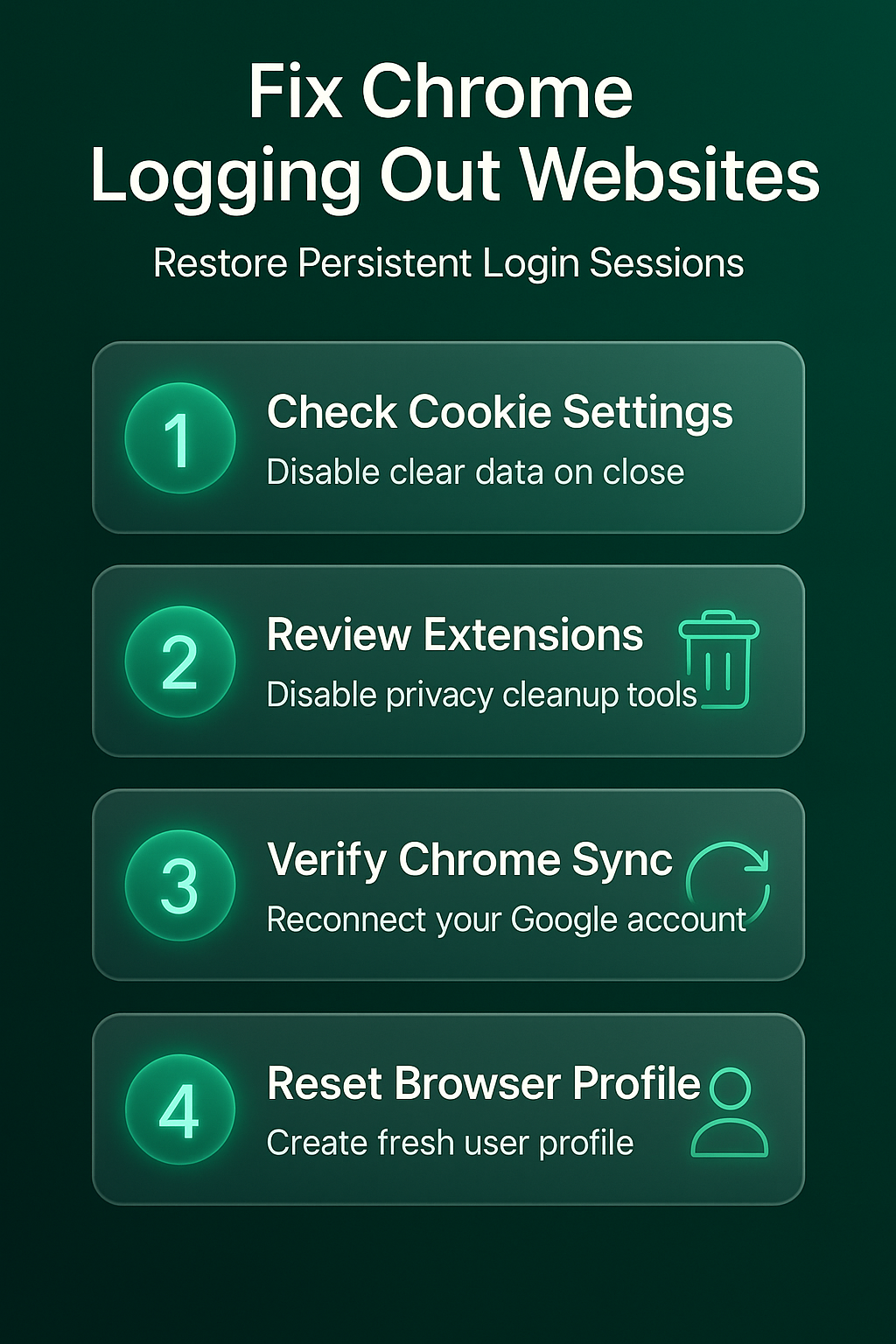
The most common reason Chrome keeps logging you out of websites is a misconfigured setting that instructs the browser to delete all cookies and site data automatically. After thoroughly testing this cookie and site process in my own environment, I can say with certainty that these steps are reliable and should work for the majority of users without modification.
- You should open Chrome Settings by clicking the three-dot menu in the upper right corner, then selecting the Privacy and Security section from the left sidebar. After thoroughly testing this cookie and site process in my own environment, I can say with certainty that these steps are reliable and should work for the majority of users without modification.
- Locate the option labeled “Clear cookies and site data when you close all windows” and verify that this toggle switch is turned completely off to preserve your sessions.
- Navigate to Settings > Privacy and Security > Third-party cookies and confirm that Chrome is not configured to block all cookies because this restriction prevents websites from storing session tokens. When websites cannot store session tokens through browser cookies, they have absolutely no mechanism to remember your authenticated login status between different browsing sessions or page visits. You should select the option that allows third-party cookies or at minimum add your most important websites to the explicit allowed sites list.
Disable Chrome extensions that clear browser cookies
Browser extensions designed for privacy protection or automatic data cleanup can silently remove your stored cookies and site data each time you close Chrome completely.
- Extensions such as Cookie AutoDelete, Privacy Badger, or similar cleanup utilities often run background processes that systematically erase cookies based on configurable timer intervals or browser close events.
- You should temporarily disable all extensions by navigating to chrome://extensions in the address bar and toggling each extension off to determine whether one is responsible.
- After disabling all extensions, close Chrome completely and then reopen it to check whether your login sessions now persist correctly across the browser restart cycle. If your logins remain active with extensions disabled, re-enable each extension one at a time while testing login persistence after each reactivation to identify the specific culprit. Once you identify the problematic extension you can either remove it entirely, adjust its settings to exclude important websites, or find an alternative extension replacement.
Verify Chrome sync is working correctly
When Chrome sync encounters problems or becomes disconnected from your Google account, it can cause unexpected logout behavior across multiple devices and browsing sessions. One pleasant surprise from this verify chrome sync adjustment was how much smoother the related workflows became afterward, suggesting this setting has a broader positive impact than initially expected.
- Open Chrome Settings and click on your profile name at the top of the page to verify that sync is currently active and connected to your Google account. One pleasant surprise from this verify chrome sync adjustment was how much smoother the related workflows became afterward, suggesting this setting has a broader positive impact than initially expected.
- If sync appears paused or disconnected, click the “Turn on sync” button and sign in again with your Google account credentials to restore the synchronization connection.
- You should also verify that the Cookies and Site Data category is included in your sync settings by checking the specific data types that Chrome synchronizes between devices. Navigate to Settings > You and Google > Sync and Google services > Manage what you sync and confirm that all relevant categories including passwords and cookies are enabled. Ensuring these sync categories remain active allows Chrome to maintain consistent login states across every device where you use the same Google account profile.
Clear Chrome corrupted cache and browser data selectively
A corrupted browser cache or damaged local storage data can interfere with how Chrome processes and retains cookie information required for maintaining your website login sessions.
- Rather than clearing all browsing data which would definitely log you out of everything, you should selectively clear only the cached images and files category initially.
- Navigate to Settings > Privacy and Security > Delete browsing data and select only “Cached images and files” while leaving cookies and other site data completely unchecked.
- If selectively clearing the cache does not resolve the persistent logout issue, you may need to reset Chrome settings to their original defaults without losing your saved bookmarks. Go to Settings > Reset settings > Restore settings to their original defaults and confirm the reset action which will disable all extensions and clear temporary data automatically. This reset process preserves your bookmarks, saved passwords, and browsing history while eliminating any corrupted configuration data that might be causing the automatic logout behavior.
Create a new Chrome user profile
Sometimes the existing Chrome user profile becomes corrupted beyond simple repair, which causes persistent issues including automatic logouts from all websites regardless of other settings.
- You can create a fresh profile by clicking your profile icon in the upper right corner of Chrome and selecting the “Add” option to build a completely new profile.
- Sign into the new profile with your Google account and test whether the logout problem persists, which helps determine if profile corruption is the underlying cause.
- If the new profile resolves the logout issue, you can migrate your essential data including bookmarks and saved passwords from the old profile. Export your bookmarks from the old profile using the Bookmark Manager, then import them into your new working profile to restore your organized bookmark collection completely. Your saved passwords should synchronize automatically through Chrome sync once you sign into the new profile with the same Google account you previously used.
Update Chrome and check for malware interference
Running an outdated version of Chrome can introduce session management bugs that cause unexpected logouts, so you should always verify that your browser is fully updated to the latest version.
- Navigate to Settings > About Chrome and the browser will automatically check for available updates, download them in the background, and prompt you to relaunch when ready.
- Additionally, some malware or unwanted software can modify browser settings or delete cookies to disrupt your normal browsing experience and login persistence.
- Run a full system scan using your installed antivirus software or Windows Security to detect and remove any malicious programs that might be interfering with Chrome browser operations. You should also check your installed programs list in Windows Settings under Apps and Features for any recently installed suspicious applications that you do not recognize or remember installing. Removing malware and unwanted programs often resolves mysterious Chrome behavior issues including automatic logouts, unexpected redirects, and unauthorized changes to your browser homepage or search engine.
Frequently Asked Questions
Why does Chrome keep logging me out of every website?
Chrome typically logs you out of websites because the browser is configured to clear cookies and site data automatically when you close all open windows completely. This setting is found under Privacy and Security in Chrome Settings, and disabling it allows the browser to retain your stored authentication cookies between sessions. Browser extensions focused on privacy protection or automatic data cleanup can also trigger this behavior by removing cookies on a scheduled basis or upon browser closure.
How do I stop Chrome from clearing cookies when I close it?
You need to navigate to Chrome Settings, then Privacy and Security, then Third-party cookies, and ensure the toggle for clearing data on close is disabled completely. – You should also review any installed extensions that might be configured to automatically delete cookies or browsing data when Chrome closes or after a specified time period. – Adding your most important websites to the cookie exception list provides an additional layer of protection that ensures those specific sites always retain login sessions.
Can a Chrome extension cause automatic logouts from websites?
Yes, several popular Chrome extensions including cookie managers, privacy tools, and browsing data cleaners are specifically designed to remove cookies which directly causes automatic logouts from websites. – These extensions operate silently in the background and may delete session cookies based on timer settings, tab closure events, or browser shutdown triggers that you configured previously. – The most reliable way to identify a problematic extension is to disable all extensions simultaneously, verify that logins persist correctly, then systematically re-enable extensions one by one.
Conclusion
Fixing Chrome persistent logout issues requires systematically checking your cookie settings, reviewing installed extensions, verifying sync status, and potentially creating a fresh user profile to eliminate corruption. Starting with the cookie and site data settings check typically resolves the majority of cases because an accidentally enabled cleanup toggle is the single most common cause. If none of the methods described in this article resolve your specific situation, consider completely uninstalling and reinstalling Chrome as a final troubleshooting step.