Power Query imports date values as plain text more often than expected, especially from CSV files, web sources, and databases with inconsistent schemas. Text-formatted dates break time intelligence calculations, prevent chronological sorting, and block date-based filters in both Power BI and Excel. Converting these text columns to proper date values requires the right combination of type changes, locale settings, and format handling within Power Query Editor.
Prerequisites for Power Query Date Conversion
Before starting, confirm you have the following ready:
- Power BI Desktop or Excel 2016+ with Power Query Editor accessible from the ribbon
- A dataset loaded into Power Query that contains at least one column with date values stored as text
- A sample of the date formats present in your data — open the source file and note patterns like MM/DD/YYYY, DD-Mon-YY, or YYYYMMDD before attempting any conversion
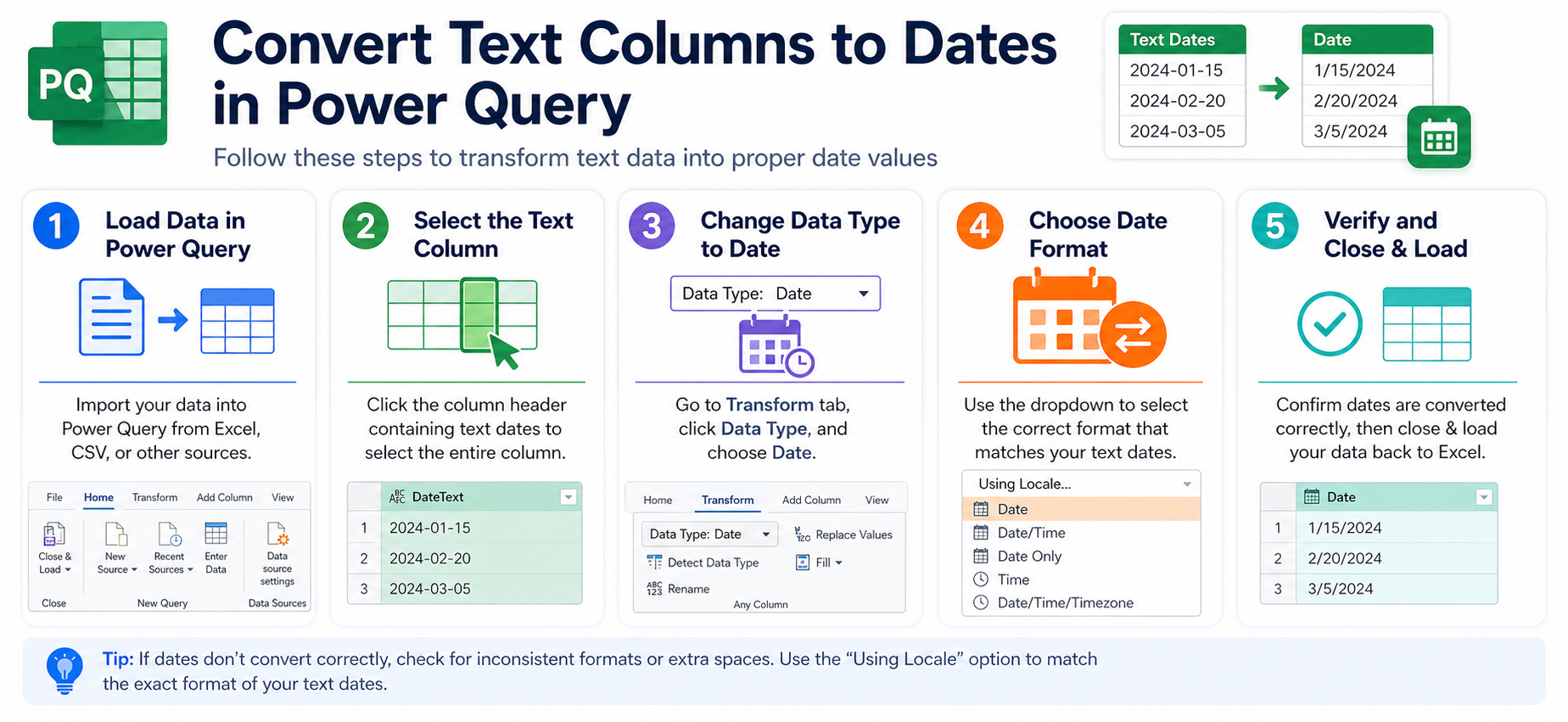
Convert Text to Dates in Power Query
Spot Text-Formatted Date Columns
Open your dataset in Power Query Editor by selecting Transform Data from the Power BI ribbon or Data > Get & Transform in Excel. Each column header displays a small icon indicating its current data type. Text columns show an “ABC” icon, while date columns show a calendar icon. If your date column displays the ABC indicator, Power Query treats every value in that column as a plain text string rather than a recognizable date.
Right-click the column header and choose Change Type to confirm the current assignment. Columns stuck as Text after import typically come from CSV files where Power Query could not auto-detect the date pattern during the initial load. This also happens with database exports that cast all fields to varchar during extraction.
Apply Power Query Type Change
Select the text column containing your date values. Navigate to Transform > Data Type on the ribbon and choose Date from the dropdown list. Power Query parses each row using your system locale to interpret the format.
A Change Column Type dialog appears with two options:
- Replace current — overwrites the existing type step and keeps your query clean
- Add new step — preserves the original text column as a separate step for rollback
Choose Replace current for most workflows. If the conversion succeeds, the column icon changes from ABC to a calendar and values display in your locale’s default date format. Rows that fail to parse show “Error” in the cell. These errors typically come from unexpected separators, swapped month-day positions, or embedded whitespace that needs handling before the type change works correctly.
Validate Converted Power Query Dates
After changing the type, scroll through the converted column and check for error rows. Click any Error cell to see the failure reason in the preview pane at the bottom of the editor. Common causes include:
- Null or empty values mixed into the date column
- Leading or trailing whitespace around date strings
- Mixed delimiters within the same column (slashes in some rows, dashes in others)
- Abbreviated month names the current locale does not recognize
Select the column and apply Transform > Trim to strip whitespace, then retry the type change. Filter out remaining error rows temporarily by clicking the column dropdown and unchecking Error to inspect the valid conversions first.
Confirm the conversion worked by clicking the column header sort arrows. Proper date columns sort chronologically rather than alphabetically — March appears before April regardless of letter order. This is the fastest way to verify the conversion succeeded across the entire column. If you need to convert text cells to dates in Excel without Power Query, the VALUE and DATEVALUE functions handle simpler single-format cases directly in the worksheet.
Advanced Power Query Date Parsing
Handle Custom Date Format Codes
Standard type changes fail when source data uses non-standard patterns like YYYYMMDD without separators, DD-Mon-YYYY with abbreviated month names, or Unix epoch timestamps. For these cases, select the text column and go to Transform >> Data Type >> Using Locale to specify both the target type and a culture code that matches the source format.
For concatenated date strings like “20260115”, add a custom column with this M-language formula:
Date.FromText([YourColumn], [Format="yyyyMMdd"])
This function gives explicit control over the parse pattern without relying on automatic locale detection. You can also split concatenated datetime strings first using Transform >> Extract >> Range of Characters to isolate the date portion, then convert each part separately. This approach works well for log files and API responses that embed dates inside longer strings with mixed content types.
Configure Locale for Regional Dates
Date formats vary by region. American sources use MM/DD/YYYY while European sources use DD/MM/YYYY, and Power Query defaults to your system locale for parsing. This causes silent misreads when the source locale differs from your machine settings. A value like “03/04/2026” becomes March 4th on a US-locale system but April 3rd on a UK-locale system, with no error or warning raised during conversion.
To fix this, select the column and choose Transform >> Data Type >> Using Locale. Pick the source data’s locale from the dropdown — for example, select English (United Kingdom) for DD/MM/YYYY sources or German (Germany) for DD.MM.YYYY patterns. This locale setting applies per column, so you can handle datasets with mixed regional formats by configuring each column independently.
After conversion, you may want to change the date display format in Power BI to match your reporting preferences without altering the underlying date values stored in the model.
FAQ
Why is my text-to-date conversion not working in Power Query?
The most common cause is a mismatch between the date format in your source data and Power Query’s expected locale. Dates in DD/MM/YYYY format fail on systems expecting MM/DD/YYYY. Use Data Type > Using Locale to specify the correct source region. Also check for hidden whitespace, mixed separators, or null values that block the entire column conversion.
How do I fix date conversion errors for mixed formats?
Split the problem column into groups based on format pattern. Add a conditional column that identifies each row’s date layout, then apply separate conversion logic per pattern. Use the M function `try Date.FromText([Column]) otherwise null` to convert valid dates while isolating problem rows for manual cleanup. This prevents a few malformed rows from blocking the entire column.
Can Power Query convert dates with timestamps?
Yes. Choose Date/Time instead of Date as the target type when changing the column. If you only need the date portion, first convert to Date/Time, then add a custom column with `DateTime.Date([YourColumn])` to extract just the date. You can also apply Transform >> Date >> Date Only after the initial conversion to drop the time component cleanly.
Power Query date conversion comes down to matching the parse locale to your source data’s actual format. Set the locale explicitly for any data that did not originate from your region, validate error rows before closing the editor, and your date columns will sort, filter, and calculate correctly from that point forward.