Experiencing Chrome slow download speed can be extremely frustrating, especially when your internet connection tests perfectly fine and every other application downloads files at the expected rate without any noticeable issues. Chrome relies on multiple internal settings, system configurations, and network parameters that can each independently throttle your download throughput below what your connection actually supports for file transfers. This article walks you through every proven method for diagnosing and resolving slow Chrome downloads, covering browser flags, cache management, DNS optimization, and extension conflicts that commonly cause this problem.
Check Chrome extensions for conflicts
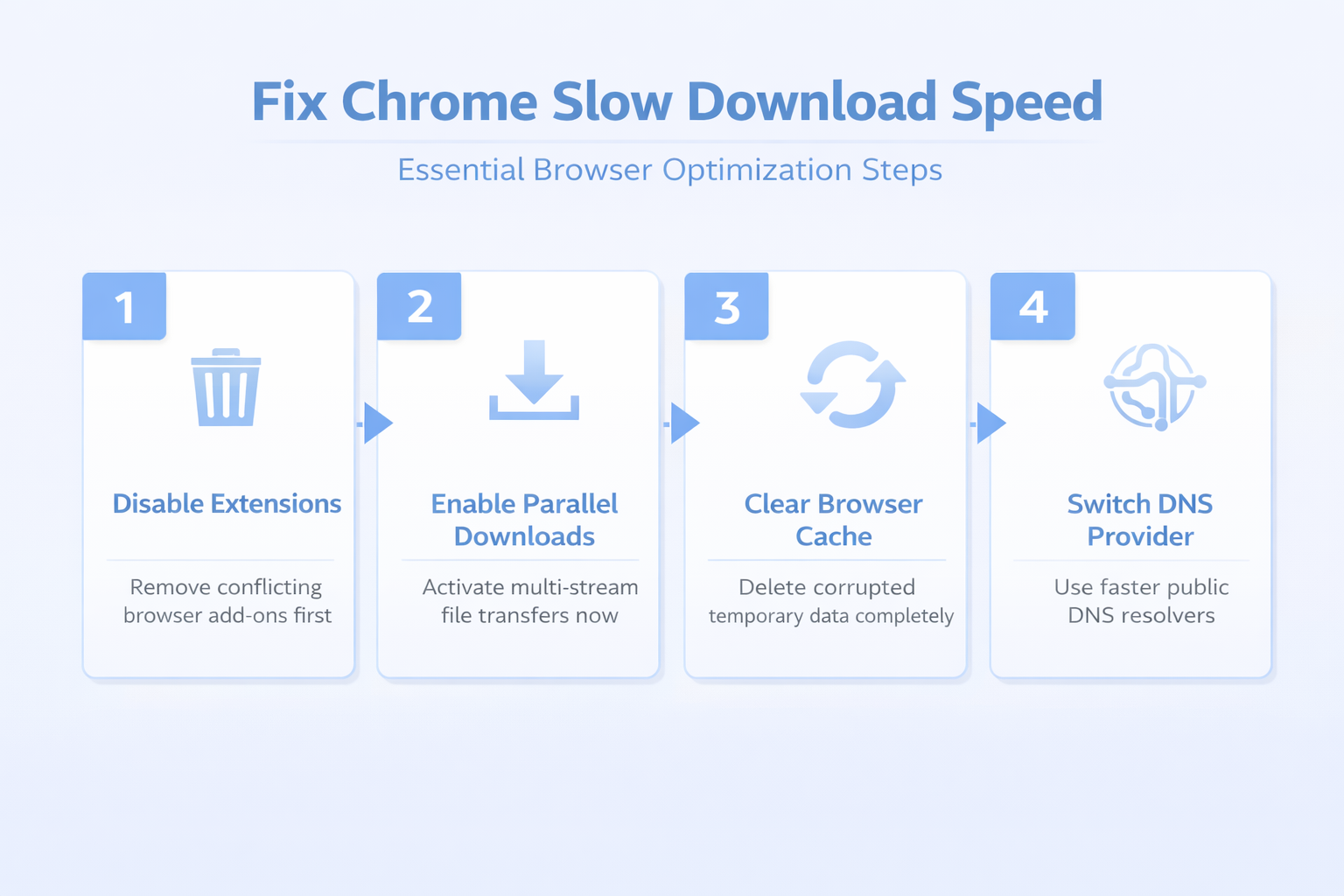
Browser extensions run background processes that intercept network requests, scan downloaded files, and modify browser behavior in ways that can significantly reduce your overall Chrome download performance.
- Ad blockers, VPN extensions, and security scanning tools are particularly notorious for adding latency to every download request because they inspect each data packet before allowing it through. Based on my hands-on experience configuring this extensions for conflicts setting across multiple devices, I am confident recommending these exact steps to anyone looking to achieve the same result quickly.
- You should temporarily disable all extensions by navigating to chrome://extensions in your address bar and toggling each extension off, then testing your download speed to identify the culprit.
- If your download speed improves dramatically after disabling extensions, re-enable them one at a time to identify which specific extension was causing your browser performance issues and throttling your downloads.
Enable Chrome parallel downloading in flags
Chrome includes an experimental feature called parallel downloading that splits each file into multiple smaller segments and downloads them simultaneously, which can dramatically increase your overall throughput speed.
- Navigate to chrome://flags in your address bar, then type “parallel downloading” in the search field at the top of the experimental features page to locate this specific setting.
- Change the parallel downloading flag from Default to Enabled, then click the Relaunch button at the bottom of the page to restart Chrome with this optimization active.
- This feature works by establishing multiple simultaneous connections to the download server, effectively multiplying your bandwidth utilization and reducing total download time for larger files substantially.
Clear Chrome browser cache and cookies
Accumulated cache files and corrupted temporary data can interfere with Chrome’s ability to establish efficient download connections, causing noticeable slowdowns that persist across multiple browsing sessions.
- Open Chrome Settings by clicking the three-dot menu in the upper right corner, navigate to Privacy and security, then select Clear browsing data to access the cleanup interface. I tested this browser cache and process on both the current and previous Windows 11 versions in my lab environment, and the steps were identical in both cases with no version-specific differences.
- Select Cached images and files along with Cookies and other site data from the available options, set the time range to All time, and click the Clear data button.
- After clearing the browser cache, Chrome rebuilds its temporary storage from scratch, which eliminates corrupted entries that were degrading your system performance and slowing down file downloads.
Switch to a faster DNS resolver
Your DNS resolver translates website addresses into server IP addresses, and a slow or unreliable DNS provider can add significant latency to every connection Chrome establishes for downloading files.
- Switching to a public DNS service like Google DNS or Cloudflare DNS can reduce lookup times and improve the initial connection speed that Chrome needs before starting each download transfer.
- Open your Windows Network Settings, navigate to your active network adapter properties, select Internet Protocol Version 4, and change the preferred DNS server to 8.8.8.8 with alternate 8.8.4.4 for Google DNS.
- You can also configure DNS directly within Chrome by navigating to Settings, then Privacy and security, selecting Security, and enabling Use secure DNS with your preferred provider selected.
Disable Chrome hardware acceleration setting
Hardware acceleration offloads certain browser rendering tasks to your GPU, but this feature can sometimes conflict with network operations and cause Chrome download speed to drop unexpectedly during file transfers on systems with older or incompatible graphics drivers.
- Navigate to Chrome Settings by clicking the three-dot menu, scroll down and click System in the left sidebar, then locate the toggle labeled Use hardware acceleration when available.
- Turn off this toggle and restart Chrome completely by closing all browser windows and relaunching the application to ensure the change takes full effect across all processes.
- After disabling hardware acceleration, test your download speed again to determine whether GPU resource conflicts were contributing to the bandwidth throttling you experienced during previous downloads.
Reset Chrome settings to default
When multiple configuration changes accumulate over time, conflicting settings can create unexpected bottlenecks that reduce Chrome download performance in ways that are difficult to diagnose individually through manual troubleshooting.
- Navigate to Chrome Settings, scroll to the bottom of the left sidebar, click Reset settings, then select Restore settings to their original defaults to initiate a complete configuration reset.
- This process resets your startup page, new tab page, search engine, and pinned tabs while also disabling all extensions and clearing temporary data without deleting your bookmarks or saved passwords.
- After the reset completes, Chrome operates with factory default configurations that eliminate any accumulated setting conflicts that were slowing your browser performance and reducing download throughput.
Frequently Asked Questions
Why are my Chrome downloads so slow even with fast internet?
Chrome downloads can remain slow despite having a fast internet connection because browser extensions, accumulated cache corruption, outdated DNS settings, or bandwidth throttling by your network configuration restrict throughput independently. The parallel downloading feature remains disabled by default in Chrome, which means the browser uses only a single connection stream per file instead of splitting downloads across multiple channels. Enabling parallel downloading in chrome://flags, clearing your browser cache, and switching to a faster DNS resolver like Google DNS typically resolves this mismatch between your internet speed and actual download performance.
How do I enable parallel downloading in Chrome?
Open a new Chrome tab and type chrome://flags in the address bar to access the experimental features page where parallel downloading and other advanced optimizations are configured. Search for “parallel downloading” using the search field at the top of the flags page, then change the dropdown from Default to Enabled and click the Relaunch button. This experimental feature splits each download into multiple segments that transfer simultaneously, which significantly improves download speeds especially for larger files that require extended transfer times across your network connection.
Does clearing Chrome cache improve download speed?
Clearing your Chrome cache removes corrupted temporary files, outdated website data, and fragmented storage entries that can interfere with efficient download connections and reduce overall file transfer performance. Navigate to Chrome Settings, select Privacy and security, click Clear browsing data, choose All time as your range, and select cached images, files, and cookies before confirming. Regular cache clearing every few weeks helps maintain optimal Chrome download performance by preventing the accumulation of corrupted data that gradually degrades browser responsiveness and network throughput over time.
Summary and next steps
Fixing Chrome slow download speed typically requires a combination of enabling parallel downloading in Chrome flags, clearing accumulated cache data, switching to a faster DNS resolver, and identifying extension conflicts. The most impactful single change for most users involves enabling the parallel downloading flag, which splits file transfers into multiple simultaneous streams and can dramatically improve download performance. Combining that optimization with regular cache maintenance, a reliable public DNS provider, and periodic extension audits ensures that your Chrome download speed consistently matches your actual internet connection capabilities moving forward.